This update patches a filtering issue caused by a recent eBay change, and should restore full functionality to the extension.
Showing posts with label filter. Show all posts
Showing posts with label filter. Show all posts
Wednesday, May 6, 2020
MedBetterBUY 5.1 Chrome extension maintenance update
Version 5.1 of the MedBetterBUY Chrome extension has been released to the Chrome Web Store.

Monday, January 6, 2020
MedBetterBUY extension adds country and seller search listing filters
By user request, version 5 of the MedBetterBUY Chrome extension for use on the eBay site adds two new search listing filters, allowing users to filter out multiple countries and sellers in searches. The upload is now pending release in the Chrome Web Store and should (hopefully) be available soon.
Both filters are accessible from the Configure MedBetterBUY page (not the context menu). If you wish to list multiple countries or sellers, simply separate each by a comma. For example:

Currently the extension only works with the USA eBay site. If you need MedBetterBUY for a different country, let me know and I'll check what would need to be done to add that support.
Both filters are accessible from the Configure MedBetterBUY page (not the context menu). If you wish to list multiple countries or sellers, simply separate each by a comma. For example:

Currently the extension only works with the USA eBay site. If you need MedBetterBUY for a different country, let me know and I'll check what would need to be done to add that support.
Wednesday, July 31, 2019
MedBetterBUY Chrome extension for eBay updated with three new filters
By user request, the MedBetterBUY Chrome extension version 4.0 update, for use on the eBay site, adds three new listing filters: Pre-Owned, Open box, and Refurbished.
Each of the three new filters can be selected from the context menu, as well as set on the Configure MedBetterBUY page. They operate in the same fashion as the previous hide Top Seller entries option.
Each of the three new filters can be selected from the context menu, as well as set on the Configure MedBetterBUY page. They operate in the same fashion as the previous hide Top Seller entries option.
Wednesday, July 10, 2019
MedBetterDNA version 5.0 supports AncestryDNA new site with over 200 filters
MedBetterDNA has been updated to work with the July 1st, 2019 major site revision on the AncestryDNA site and is available at the Chrome Web Store. This is an almost complete rewrite from earlier versions of the extension.
The biggest change is that MedBetterDNA now supports 100 filters each to only show or hide AncestryDNA DNA Matches page entries based on the notes in an entry. If you place a hashtag (a word prefaced by a '#') in the notes, MedBetterDNA will detect and can filter out those entries with those notes from view, or only show those entries with the notes containing that hashtag or others. Filters can be up to 100 characters long.
Note that MedBetterDNA will match any hashtag that contains the word it's looking for, even if there are extra letters or symbols at the end of the match, e.g. the filter "cow" matches #cow, #cows, and #cowabunga. Spaces are not allowed in filters and will be removed if added.
You can turn off and on filters through the context menu settings "show only with Notes hashtags" and "hide all with Notes hashtags" and clicking on the desired filter. To input the hashtags themselves, navigate to the Configure MedBetterDNA page via the context menu "Configure options" or the Browser toolbar MedBetterDNA icon dropdown menu or the main browser Extensions page settings.
Keeping one filter from the previous versions, MedBetterDNA allows users to filter out any entries on the DNA matches page of AncestryDNA without a profile picture by unchecking show No Profile Photo Entries in the context menu entry for MedBetterDNA.
A few quick questions:

The biggest change is that MedBetterDNA now supports 100 filters each to only show or hide AncestryDNA DNA Matches page entries based on the notes in an entry. If you place a hashtag (a word prefaced by a '#') in the notes, MedBetterDNA will detect and can filter out those entries with those notes from view, or only show those entries with the notes containing that hashtag or others. Filters can be up to 100 characters long.
Note that MedBetterDNA will match any hashtag that contains the word it's looking for, even if there are extra letters or symbols at the end of the match, e.g. the filter "cow" matches #cow, #cows, and #cowabunga. Spaces are not allowed in filters and will be removed if added.
You can turn off and on filters through the context menu settings "show only with Notes hashtags" and "hide all with Notes hashtags" and clicking on the desired filter. To input the hashtags themselves, navigate to the Configure MedBetterDNA page via the context menu "Configure options" or the Browser toolbar MedBetterDNA icon dropdown menu or the main browser Extensions page settings.
Keeping one filter from the previous versions, MedBetterDNA allows users to filter out any entries on the DNA matches page of AncestryDNA without a profile picture by unchecking show No Profile Photo Entries in the context menu entry for MedBetterDNA.
A few quick questions:
- Can I really put in 100 filters each? Yes, but for performance and memory reasons, you may not want to go full ham on them. I only tested operations with a handful, but each filter will incrementally add to runtime performance overhead. 100 may not be reasonably achievable. I was too lazy to put in 100 unique filters and test them all myself to see how bad things got.
- Are there any known bugs? Nope, but given the complexity of the extension and the first release of an effectively ground-up rewrite, there are probably a couple lurking. Let me know if you see one and I'll try to fix it.
- I briefly see some entries before they are filtered out. You will see this at times, it's a race between the browser pulling more entries and displaying them, and the extension catching the entries and filtering them out. Sometimes the browser wins by a fraction of a second.
- If I filter out most entries, I can't scroll. Actually you can keep scrolling on a blank page and you should see an entry with the note or notes which the filters allow, assuming there are any. Because entries are dynamically loaded by the AncestryDNA website, you may have to keep scrolling for a while, even if you don't see anything (that is, all the entries are still there, but simply hidden from view.)
- I had to refresh the DNA matches page after I Saved settings on the configuration page for the extension to come back. Yup. That's how it works. Chrome has a bad habit of retaining older context menu settings on anything less than a full reload, so the configuration page Save button will reload the entire extension to flush them out.
- Can I set the filters so that no entries will ever be displayed, e.g. simultaneously have a Show only and a Hide All filter active? Absolutely, there's no AI at work. The extension will filter what you tell it, even if it seems a completely useless task.

Monday, April 15, 2019
MedBetterDNA now supports filtering out AncestryDNA results by Unlinked Tree
MedBetterDNA version 4.3, updated to add the feature of filtering by Unlinked Tree results. Unlinked Tree entries are normally shown on the AncestryDNA results page, but can be hidden from view via the standard context menu checkmark, or the extension options page.
That is all.
That is all.
Sunday, April 7, 2019
MedBetterDNA 4.1 reintroduces No Trees filtering of AncestryDNA results
MedBetterDNA version 4.1, updated to reintroduce the previous feature of filtering by No Trees results, while we wait for the AncestryDNA beta to become a public release. No Trees entries are normally shown on the AncestryDNA results page, but can be hidden from view via the standard context menu checkmark, or the extension options page.
Also, minor wording changes to the context menu and elsewhere, based on user feedback.
Also, minor wording changes to the context menu and elsewhere, based on user feedback.
Monday, December 10, 2018
MedBetterDNA updated, including filter on Profile Photos
MedBetterDNA version 4.0 has been released for the Chrome browser and adds the filter option: "show No Profile Photo". The option is on by default to show AncestryDNA Results listings regardless of whether they have a profile photo (i.e. the standard behavior without MedBetterDNA active). If the option is unchecked, only listings with a profile photo are shown, and the rest are filtered from view.
I added the picture filter option to easily look at photos of people for a pattern of family resemblance (typically not so much). Plus the dog and cat pictures can be cute. Note that a few photos will remain generic genderless profile images, as those are internally processed as a photo by the site. Also, a photo may pop into view after a brief delay, as Ancestry loads photos separately.
The No Tree and Locked Tree filter options were removed. Hopefully, this is a temporary change. The AncestryDNA site recently changed how the tree information is displayed on the listings. For my results, the change has been unstable, Usually I see a loading/wait icon on the results page without ever showing the Tree-based information. Occasionally the information does display, but not reliably enough to make and test an update to the extension to support filtering on it. I anticipate that eventually this situation will resolve itself and Tree-based filtering will return after a new update.
Miscellaneous and minor behind-the-scenes program changes were made to maintain full compatibility with the most recent versions of the Chrome browser with tighter security restrictions.
Another option was introduced that might be of interest to a few people: "Donate to development". A user asked me about donating to reward or encourage further development of the extension. I created and added a link to a Ko-fi account for those who might be interested.
Useful feedback and requests continue to be encouraged.
I added the picture filter option to easily look at photos of people for a pattern of family resemblance (typically not so much). Plus the dog and cat pictures can be cute. Note that a few photos will remain generic genderless profile images, as those are internally processed as a photo by the site. Also, a photo may pop into view after a brief delay, as Ancestry loads photos separately.
The No Tree and Locked Tree filter options were removed. Hopefully, this is a temporary change. The AncestryDNA site recently changed how the tree information is displayed on the listings. For my results, the change has been unstable, Usually I see a loading/wait icon on the results page without ever showing the Tree-based information. Occasionally the information does display, but not reliably enough to make and test an update to the extension to support filtering on it. I anticipate that eventually this situation will resolve itself and Tree-based filtering will return after a new update.
Miscellaneous and minor behind-the-scenes program changes were made to maintain full compatibility with the most recent versions of the Chrome browser with tighter security restrictions.
Another option was introduced that might be of interest to a few people: "Donate to development". A user asked me about donating to reward or encourage further development of the extension. I created and added a link to a Ko-fi account for those who might be interested.
Useful feedback and requests continue to be encouraged.
Wednesday, October 3, 2018
MedBetterBuy version 1.2 update
MedBetterBuy version 1.2 update is available, a Chrome browser extension for use with eBay.
This version fixes an incompatibility with a recent eBay site change which caused the rating count and percentage filtering for sellers to fail.
This version fixes an incompatibility with a recent eBay site change which caused the rating count and percentage filtering for sellers to fail.
Sunday, September 16, 2018
Chrome extension Nancy for Metafilter updated
The Chrome extension Nancy used for filtering of Metafilter site's posts and comments has been updated to version 1.4. The version supports both http and https Metafilter links for browser permissions, which fixes a potential problem using the extension with https addresses.
If you have problems with the update or using the extension, please post to support with the issue details.
If you have problems with the update or using the extension, please post to support with the issue details.
Saturday, September 15, 2018
MedBetterDNA extension update double filters to 8 each
MedBetterDNA has been updated to version 3.0.
By user request, the Chrome extension MedBetterDNA, used for actively filtering AncestryDNA results (and showing notes on the main results page) has been updated to version 3.0, supporting eight hashtag filters for "show only" and "remove all" filters. This is double the previous maximum of four hashtag filters. Note that using more filters may increase time to fully process a Results page.
In anticipation of future similar requests, please also note that further increasing the number of filters isn't simply a matter of pumping up a number in the extension code. The extension is pushing the limits with the current code structure, and adding more filters in the future, if ever, will likely require significant rewrites to large portions of the extension's program code. I'm not saying it won't ever happen, I'm saying it won't happen soon or easy.
Post to support if you experience problems with the update or extension operation.
By user request, the Chrome extension MedBetterDNA, used for actively filtering AncestryDNA results (and showing notes on the main results page) has been updated to version 3.0, supporting eight hashtag filters for "show only" and "remove all" filters. This is double the previous maximum of four hashtag filters. Note that using more filters may increase time to fully process a Results page.
In anticipation of future similar requests, please also note that further increasing the number of filters isn't simply a matter of pumping up a number in the extension code. The extension is pushing the limits with the current code structure, and adding more filters in the future, if ever, will likely require significant rewrites to large portions of the extension's program code. I'm not saying it won't ever happen, I'm saying it won't happen soon or easy.
Post to support if you experience problems with the update or extension operation.
Tuesday, May 15, 2018
MedBetterBuy, new Chrome extension for eBay to filter listings by Seller rating and info
The new Chrome browser extension MedBetterBuy version 1.0 has been uploaded and is available for download from the Chrome Web Store.
MedBetterBuy is designed for eBay users who want greater control over their search results. The extension filters eBay searches to hide item entries from sellers who have a feedback score or rating percentage below or above values you specify, as well as the ability to filter out Top-rated sellers.
IMPORTANT: To use this script, check the Seller Information box in Show details of View Customize, which will display seller information in listings. Choose List View and not Gallery View. Otherwise, the information to filter will not be available, and MedBetterBuy will not work.
MedBetterBuy works via the context menu, generally accessed through right click or control-click of the mouse. There are five possible filters to apply to search listing from the menu: if a listing is from a top seller, a minimum and maximum rating percentage for the seller in a listing, and a minimum and maximum rating count for the seller in a listing.
The values for minimum and maximum can be set at the Configure options pages, which is the last selection on MedBetterBuy's context menu. Each filter can be checked on and off from the context menu. The current total of filtered out (not visible) listing is shown on the first line of the context menu.
Always refresh or reload the results page listing after changing a value, or checking and unchecking a filter. Although the page can dynamically change, the filter count and previously hidden entries may not properly update without a page refresh.
This extension has been tested with registered and unregistered use of USA's ebay.com. Other country sites currently use different internal website patterns. Support for more countries may be added later, based on user requests and feedback, as well as the effort to include more patterns.
For the contrary-minded, there is no prohibition or check against choosing values which will hide all unsponsored items in a listing, e.g. a Rating Score of greater than 100 will filter out all entries, as will a minimum count higher than the maximum. Zero values are ignored and treated as not active/checked.
Note that eBay can update–and have previously updated–their sites' structure in ways which cause the extension to fail, as it depends on a predictable internal pattern. Please report if MedBetterBuy fails after a site update, so it can be revised to work with eBay's modified website structure, if feasible.
MedBetterBuy is based on the abef (A Better eBay Filter) Greasemonkey script that I developed and first released several years ago.
(because all the good names were already taken)
Screenshots:


MedBetterBuy is designed for eBay users who want greater control over their search results. The extension filters eBay searches to hide item entries from sellers who have a feedback score or rating percentage below or above values you specify, as well as the ability to filter out Top-rated sellers.
IMPORTANT: To use this script, check the Seller Information box in Show details of View Customize, which will display seller information in listings. Choose List View and not Gallery View. Otherwise, the information to filter will not be available, and MedBetterBuy will not work.
MedBetterBuy works via the context menu, generally accessed through right click or control-click of the mouse. There are five possible filters to apply to search listing from the menu: if a listing is from a top seller, a minimum and maximum rating percentage for the seller in a listing, and a minimum and maximum rating count for the seller in a listing.
The values for minimum and maximum can be set at the Configure options pages, which is the last selection on MedBetterBuy's context menu. Each filter can be checked on and off from the context menu. The current total of filtered out (not visible) listing is shown on the first line of the context menu.
Always refresh or reload the results page listing after changing a value, or checking and unchecking a filter. Although the page can dynamically change, the filter count and previously hidden entries may not properly update without a page refresh.
This extension has been tested with registered and unregistered use of USA's ebay.com. Other country sites currently use different internal website patterns. Support for more countries may be added later, based on user requests and feedback, as well as the effort to include more patterns.
For the contrary-minded, there is no prohibition or check against choosing values which will hide all unsponsored items in a listing, e.g. a Rating Score of greater than 100 will filter out all entries, as will a minimum count higher than the maximum. Zero values are ignored and treated as not active/checked.
Note that eBay can update–and have previously updated–their sites' structure in ways which cause the extension to fail, as it depends on a predictable internal pattern. Please report if MedBetterBuy fails after a site update, so it can be revised to work with eBay's modified website structure, if feasible.
MedBetterBuy is based on the abef (A Better eBay Filter) Greasemonkey script that I developed and first released several years ago.
(because all the good names were already taken)
Screenshots:


Monday, April 2, 2018
Abef Greasemonkey Script update
The Greasemonkey script Abef (A Better eBay Filter) has been updated with code revisions by Greasy Fork user kolalok for latest Greasemonkey compatibility and is available at the Grease Fork script repository.
Below is a write-up of the original Abef Greasemonkey script. Note that I am, preliminarily, working on a Chrome extension which provide similar features to the script, although no release date is available and it may not work out as planned.
A Better eBay Filter is a script designed for users of eBay. It filters eBay searches to hide item entries from sellers who have a feedback score or positive percentage below values you specify, or above for feedback score, or filter out Top-rated sellers. The input values can be dynamically changed to filter items into or out of view. Last values are saved between browsing sessions. Use A Better eBay Filter to winnow the display of auctions to sellers that match your preferences. The script has been tested on USA's ebay.com, Canada's ebay.ca, and UK's ebay.co.uk sites. It may work with other country sites, depending on whether they match the internals of the tested eBay sites.
NOTE: For this script to work properly, choose List View (not Gallery View), and turn on the Seller details option in Customize View, so that the seller information is displayed in the listings.
A Better eBay Filter requires seller feedback information to be displayed on each item entry so it can filter the results. After installing A Better eBay Filter, go to a listing or search screen. Click the View link at the top of the listings and choose Customize. This will navigate you to the Customize your search page. On that page, you should see a selection titled Seller Information. Check the box so that seller information is displayed in listing views. Note the exact wording may change depending on the site's native language.
After installation and setup, A Better eBay filter will display two status lines immediately below the basic Search line. The first status line shows the minimum feedback score and positive feedback percentage necessary to display an item entry. The initial values of 50 and 98.5 are forgiving, but easy to change. In addition, you may specify a maximum feedback score, or leave it blank if you do not wish a maximum: zero is not the same as blank. The default is blank (no maximum). In addition, there is a checkbox to filter out Top-rated Sellers. The second line displays an Update Filter button and the current number of items hidden from view by the filter.
You can change the score and percentage values to whatever you want. For example, if you do not want to hide new user auctions, you can change the feedback score to 1 (or 0) and see those auctions. Should you change a value, the filtered items message changes to a Values changed. message. This is an indication to press the Update Filter button to update the display with the new filter constraints. Each time you press Update Filter, the current values are stored for a future browser session or search/listing page display. You are not prohibited from choosing values which will hide all items, e.g. a Minimum positive feedback input of greater than 100 will filter out all entries, as will a minimum score higher than the maximum.
Below is a write-up of the original Abef Greasemonkey script. Note that I am, preliminarily, working on a Chrome extension which provide similar features to the script, although no release date is available and it may not work out as planned.
A Better eBay Filter is a script designed for users of eBay. It filters eBay searches to hide item entries from sellers who have a feedback score or positive percentage below values you specify, or above for feedback score, or filter out Top-rated sellers. The input values can be dynamically changed to filter items into or out of view. Last values are saved between browsing sessions. Use A Better eBay Filter to winnow the display of auctions to sellers that match your preferences. The script has been tested on USA's ebay.com, Canada's ebay.ca, and UK's ebay.co.uk sites. It may work with other country sites, depending on whether they match the internals of the tested eBay sites.
NOTE: For this script to work properly, choose List View (not Gallery View), and turn on the Seller details option in Customize View, so that the seller information is displayed in the listings.
A Better eBay Filter requires seller feedback information to be displayed on each item entry so it can filter the results. After installing A Better eBay Filter, go to a listing or search screen. Click the View link at the top of the listings and choose Customize. This will navigate you to the Customize your search page. On that page, you should see a selection titled Seller Information. Check the box so that seller information is displayed in listing views. Note the exact wording may change depending on the site's native language.
After installation and setup, A Better eBay filter will display two status lines immediately below the basic Search line. The first status line shows the minimum feedback score and positive feedback percentage necessary to display an item entry. The initial values of 50 and 98.5 are forgiving, but easy to change. In addition, you may specify a maximum feedback score, or leave it blank if you do not wish a maximum: zero is not the same as blank. The default is blank (no maximum). In addition, there is a checkbox to filter out Top-rated Sellers. The second line displays an Update Filter button and the current number of items hidden from view by the filter.
You can change the score and percentage values to whatever you want. For example, if you do not want to hide new user auctions, you can change the feedback score to 1 (or 0) and see those auctions. Should you change a value, the filtered items message changes to a Values changed. message. This is an indication to press the Update Filter button to update the display with the new filter constraints. Each time you press Update Filter, the current values are stored for a future browser session or search/listing page display. You are not prohibited from choosing values which will hide all items, e.g. a Minimum positive feedback input of greater than 100 will filter out all entries, as will a minimum score higher than the maximum.
Sunday, January 21, 2018
MedBetterDNA 2.2 update
MedBetterDNA has been updated to version 2.2.
Version 2.2 is a fairly minor revision. It allows using filters on Shared Matches pages for a specific member with matching DNA.
This was accomplished by making the pattern for several address links less restrictive. Fortunately, the extension continues to work on the new pages, though it was not originally designed for them.
Leave a note if you have any questions or feedback. Thank you.
Version 2.2 is a fairly minor revision. It allows using filters on Shared Matches pages for a specific member with matching DNA.
This was accomplished by making the pattern for several address links less restrictive. Fortunately, the extension continues to work on the new pages, though it was not originally designed for them.
Leave a note if you have any questions or feedback. Thank you.
Saturday, January 13, 2018
MedBetterDNA bugfix and minor enhancement update
The MedBetterDNA Chrome extension for use with the AncestryDNA site has been updated to version 2.1 from the Chrome Web Store.
Version 2.1 has two bug-fixes for uppercase tags and remove-all entries without notes, and increases by one the show-only and remove-all hashtag filtering matches.
Specifically, in the previous version, uppercase hashtag filters did not match any notes, although notes tags were properly considered case-insensitive for matches. Also, if a Remove-all hashtag filter was active, previously any entries without notes were also filtered from view. Both issues have been corrected.
In addition, support for a fourth hashtag filter was added to both Show-only and Remove-all options. There will be a definite upper limit on the count for performance and display reasons, but judging by recent user feedback, we haven't hit the sweet spot yet.
Note: Chrome can get its context menu checkmarks for hashtag filters out of sync when set from the configuration menu page even after refresh. This appears to be a bug in Chrome. i.e. the context menu checkmark is explicitly set to off (false), verified as off in the program, and acts as if it is off, but still shows up. Clicking it on the context menu will get it back in sync. Yes, it is annoying.
As far as a requested clear all filters feature, I tried implementing it, but due to the above problem leaving not-active checkmarks littering the context menu, I left it out to avoid confused people sending many technical support requests. Besides the configure menu, a quick way to turn off or update multiple filters without getting refreshes on each one is to temporarily turn off the notes display, thereby inhibiting any filtering action, while you click on or off the desired filters, before reactivating the notes display.
And finally, a couple of general expository remarks that you can skip and done if you're not interested.
First, MedBetterDNA enhancements are driven by user feedback. It already does what I want it to do. If you want something new or better, please ask for it. And please understand that it may happen soon, not for a while, or never, for any of a variety of reasons.
Second, if you like the program and are feeling benevolent, please consider rating it 4 or 5 stars. A single one-star drive-by screw-you rating can pull anything less than three other 5-star ratings down below a 4-star average. I don't have any vanity about the extension's rating, and it certainly doesn't affect income at effectively zero dollars received, but many newcomers are leery of trying out lower-rated extensions.
So why might you care about an overall rating if it works for you? Because the more users who are giving active feedback, the more likely I will invest my limited free time in enhancing or fixing the code, or figuring out how to implement any cool ideas that users come up with. Given that I have put in excess of 100 hours of work to the extension already, a bombed-out rating is not a strong motivator for further effort. But if you don't feel like giving a rating, or feel a 1-3 star rating is warranted, that's fine too.
Version 2.1 has two bug-fixes for uppercase tags and remove-all entries without notes, and increases by one the show-only and remove-all hashtag filtering matches.
Specifically, in the previous version, uppercase hashtag filters did not match any notes, although notes tags were properly considered case-insensitive for matches. Also, if a Remove-all hashtag filter was active, previously any entries without notes were also filtered from view. Both issues have been corrected.
In addition, support for a fourth hashtag filter was added to both Show-only and Remove-all options. There will be a definite upper limit on the count for performance and display reasons, but judging by recent user feedback, we haven't hit the sweet spot yet.
Note: Chrome can get its context menu checkmarks for hashtag filters out of sync when set from the configuration menu page even after refresh. This appears to be a bug in Chrome. i.e. the context menu checkmark is explicitly set to off (false), verified as off in the program, and acts as if it is off, but still shows up. Clicking it on the context menu will get it back in sync. Yes, it is annoying.
As far as a requested clear all filters feature, I tried implementing it, but due to the above problem leaving not-active checkmarks littering the context menu, I left it out to avoid confused people sending many technical support requests. Besides the configure menu, a quick way to turn off or update multiple filters without getting refreshes on each one is to temporarily turn off the notes display, thereby inhibiting any filtering action, while you click on or off the desired filters, before reactivating the notes display.
And finally, a couple of general expository remarks that you can skip and done if you're not interested.
First, MedBetterDNA enhancements are driven by user feedback. It already does what I want it to do. If you want something new or better, please ask for it. And please understand that it may happen soon, not for a while, or never, for any of a variety of reasons.
Second, if you like the program and are feeling benevolent, please consider rating it 4 or 5 stars. A single one-star drive-by screw-you rating can pull anything less than three other 5-star ratings down below a 4-star average. I don't have any vanity about the extension's rating, and it certainly doesn't affect income at effectively zero dollars received, but many newcomers are leery of trying out lower-rated extensions.
So why might you care about an overall rating if it works for you? Because the more users who are giving active feedback, the more likely I will invest my limited free time in enhancing or fixing the code, or figuring out how to implement any cool ideas that users come up with. Given that I have put in excess of 100 hours of work to the extension already, a bombed-out rating is not a strong motivator for further effort. But if you don't feel like giving a rating, or feel a 1-3 star rating is warranted, that's fine too.
Tuesday, January 9, 2018
MedBetterDNA custom note filters, version 2.0 update
MedBetterDNA has been updated to version 2.0 and should be soon available from the Chrome Web Store. It can take a couple of hours for the store to fully publish the update for download.
By user request, the MedBetterDNA version 2.0 update adds support for advanced filtering based on notes hashtags. These are the new show only Notes with hashtag and remove all Notes with hashtag selections. The Always show Notes option must be checked for the advanced filtering to work (i.e. Notes must be showing on the results page). Up to three hashtags can be specified to show only notes containing one or more those hashtags, and up to three hashtags can be specified to remove any records with notes which contain one or more of the hashtags.
Hashtags are not case sensitive and can be part of a larger text string, with leading or trailing characters not in the hashtag, as long as they are preceded with a '#' character. Hashtags must be set or changed at the main Configure page, but afterward can be enabled and disabled through the context menu checkmarks. Always refresh the results page after changing a hashtag, otherwise the page will not display the revised filters and context menu.
As with the other settings, you can set things such that no display of any records is possible. Putting the same active hashtag in both show only Notes with hashtag and remove all Notes with hashtag selections will achieve this result.
Customize hashtag Notes filters on the context menu opens the same page as the Configure Options selection. It is included as a courtesy link to more easily remember how to customize hashtag filtering, as that does require using the Configure page.
The options page has been revised to show the new filter features:

To help explain use of the filters, here is an example of each type.

For this entry of the mysterious Z, the note shows as #hashtag99 123#yabbadabba. In the context menu for show only Notes with hashtag, if either hashtag #hashtag99 or hashtag #yabba or both were checked, only this record (and any other record with a matching hashtag) would be displayed.
In a similar fashion, if remove all Notes with hashtag was set to #hashtag99 or #yabba, then Z would be removed from the list of displayed records.
Given the significant changes made to the extension with version 2.0, there may be one or two operational errors. Drop a note if you find a clear error in behavior.
As always, new or custom features may be made available upon request or negotiation.
By user request, the MedBetterDNA version 2.0 update adds support for advanced filtering based on notes hashtags. These are the new show only Notes with hashtag and remove all Notes with hashtag selections. The Always show Notes option must be checked for the advanced filtering to work (i.e. Notes must be showing on the results page). Up to three hashtags can be specified to show only notes containing one or more those hashtags, and up to three hashtags can be specified to remove any records with notes which contain one or more of the hashtags.
Hashtags are not case sensitive and can be part of a larger text string, with leading or trailing characters not in the hashtag, as long as they are preceded with a '#' character. Hashtags must be set or changed at the main Configure page, but afterward can be enabled and disabled through the context menu checkmarks. Always refresh the results page after changing a hashtag, otherwise the page will not display the revised filters and context menu.
As with the other settings, you can set things such that no display of any records is possible. Putting the same active hashtag in both show only Notes with hashtag and remove all Notes with hashtag selections will achieve this result.
Customize hashtag Notes filters on the context menu opens the same page as the Configure Options selection. It is included as a courtesy link to more easily remember how to customize hashtag filtering, as that does require using the Configure page.
The options page has been revised to show the new filter features:

To help explain use of the filters, here is an example of each type.

For this entry of the mysterious Z, the note shows as #hashtag99 123#yabbadabba. In the context menu for show only Notes with hashtag, if either hashtag #hashtag99 or hashtag #yabba or both were checked, only this record (and any other record with a matching hashtag) would be displayed.
In a similar fashion, if remove all Notes with hashtag was set to #hashtag99 or #yabba, then Z would be removed from the list of displayed records.
Given the significant changes made to the extension with version 2.0, there may be one or two operational errors. Drop a note if you find a clear error in behavior.
As always, new or custom features may be made available upon request or negotiation.
Wednesday, July 5, 2017
MedBetterDNA Chrome extension updated to version 1.3
The MedBetterDNA Chrome extension has been updated to version 1.3 to fix a couple of serious problems with the current Ancestry DNA site. MedBetterDNA provides advanced filtering capability for relationships based on confidence and family tree status, as well permanently showing user notes on Ancestry DNA results pages. MedBetterDNA was tested as working on July 5, 2017.
Version 1.3 fixes a recent incompatibility with the DNA site that was blocking the context menu display, and changes the way filters are processed to support differences in the site's web page processing, particularly on initial entry. Please remember, this extension is heavily dependent on website structures that are subject to change outside of the extension's control. When the website is significantly modified, as companies typically do on occasion, the extension will fail until it is updated with the new structure. Reporting a problem to support is the best and quickest remedy.
Version 1.3 fixes a recent incompatibility with the DNA site that was blocking the context menu display, and changes the way filters are processed to support differences in the site's web page processing, particularly on initial entry. Please remember, this extension is heavily dependent on website structures that are subject to change outside of the extension's control. When the website is significantly modified, as companies typically do on occasion, the extension will fail until it is updated with the new structure. Reporting a problem to support is the best and quickest remedy.
Thursday, April 7, 2016
New Chrome Extension enhances DNA match experience for Ancestry site
New free Chrome extension MedBetterDNA available in Chrome Web Store:
MedBetterDNA can help people who have taken the AncestryDNA Test. The MedBetterDNA extension enhances the AncestryDNA Results website experience by adding more filtering options for the (possibly many thousands) of other people who are listed as potential DNA matches.
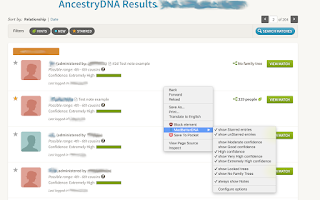
After installation, MedBetterDNA adds an entry for itself to the context menu (right mouse click). When your browser is at an http://dna.ancestry.com/matches address, the context menu selection shows the following checkbox choices:
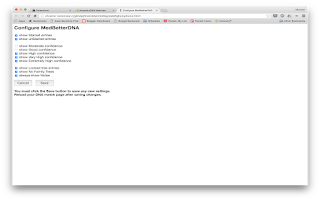
In addition, MedBetterDNA has a stand-alone configure page to set the checkmark options if you cannot or do not wish to use the context menu. This is accessed from the Options links of MedBetterDNA on the Extension page of the Chrome browser.
By default, all options are checked except "always show Notes". When a checkmark is unchecked, all entries that match that condition are hidden from view. Note that it is perfectly possible to uncheck combinations which will hide all entries, e.g. uncheck both "show Starred entries" and "show unStarred entries".
If the "always show Notes" option is checked, all existing notes for DNA match entries will show on the main listing page simultaneously, without having to click on each note to see them one at a time.
Because of the dynamic nature of the results, which can be updated multiple times while a listing is being displayed, occasionally a result may sneak past MedBetterDNA's filters. Currently this has only rarely been seen with entries that have locked family trees with the "show Locked trees" option unchecked. If this occurs, simply refresh or reload the page, and the filtering should pick up the errant listing(s).
Note that the filtering process depends on a particular web configuration and if that changes in the future, MedBetterDNA's will probably not work correctly. Please notify support if the extension fails after having worked previously so we know to make any necessary changes. This is a first version release and may behave accordingly. All trademarks and registered trademarks are the property of their respective owners.
Please post any questions or suggestions for the extension here.
MedBetterDNA can help people who have taken the AncestryDNA Test. The MedBetterDNA extension enhances the AncestryDNA Results website experience by adding more filtering options for the (possibly many thousands) of other people who are listed as potential DNA matches.
After installation, MedBetterDNA adds an entry for itself to the context menu (right mouse click). When your browser is at an http://dna.ancestry.com/matches address, the context menu selection shows the following checkbox choices:
- show Starred entries
- show unStarred entries
- show Moderate confidence
- show Good confidence
- show High confidence
- show Very High confidence
- show Extremely High confidence
- show Locked trees
- show No Family Trees
- always show Notes
- Configure options
In addition, MedBetterDNA has a stand-alone configure page to set the checkmark options if you cannot or do not wish to use the context menu. This is accessed from the Options links of MedBetterDNA on the Extension page of the Chrome browser.
By default, all options are checked except "always show Notes". When a checkmark is unchecked, all entries that match that condition are hidden from view. Note that it is perfectly possible to uncheck combinations which will hide all entries, e.g. uncheck both "show Starred entries" and "show unStarred entries".
If the "always show Notes" option is checked, all existing notes for DNA match entries will show on the main listing page simultaneously, without having to click on each note to see them one at a time.
Because of the dynamic nature of the results, which can be updated multiple times while a listing is being displayed, occasionally a result may sneak past MedBetterDNA's filters. Currently this has only rarely been seen with entries that have locked family trees with the "show Locked trees" option unchecked. If this occurs, simply refresh or reload the page, and the filtering should pick up the errant listing(s).
Note that the filtering process depends on a particular web configuration and if that changes in the future, MedBetterDNA's will probably not work correctly. Please notify support if the extension fails after having worked previously so we know to make any necessary changes. This is a first version release and may behave accordingly. All trademarks and registered trademarks are the property of their respective owners.


Please post any questions or suggestions for the extension here.
Thursday, August 13, 2015
Version 8.1 update for A Better eBay Filter script
The A Better eBay Filter script has been updated to version 8.1 to properly support searches when the Include description box has been checked. The revised script has been uploaded to the Greasyfork site, replacing version 8.0. Further details on using A Better eBay Filter are in this post from the end of July.
Wednesday, July 29, 2015
Update for A Better eBay Filter script
The A Better eBay Filter Greasemonkey/Tampermonkey script has been updated to version 8.0, and uploaded to the Greasyfork site. This version fixes a problem that could cause the script filter lines to not display on certain page, such as when searching within search results.
A Better eBay Filter is a script designed for users of eBay. It filters eBay searches to hide item entries from sellers who have a feedback score or positive percentage below values you specify, or above for feedback score. You can also filter out Top-rated sellers. The input values can be dynamically changed to filter items into or out of view. Settings are saved between browsing sessions.
Starting with this version, the script has been successfully tested with Tampermonkey for Chrome, in addition to the original Greasemonkey for Firefox support.

Post if you have questions about using the script.
A Better eBay Filter is a script designed for users of eBay. It filters eBay searches to hide item entries from sellers who have a feedback score or positive percentage below values you specify, or above for feedback score. You can also filter out Top-rated sellers. The input values can be dynamically changed to filter items into or out of view. Settings are saved between browsing sessions.
Starting with this version, the script has been successfully tested with Tampermonkey for Chrome, in addition to the original Greasemonkey for Firefox support.

Post if you have questions about using the script.
Friday, October 24, 2014
A Better eBay Filter Greasemonkey script update
By user request, the A Better eBay Filter Greasemonkey script has been updated and uploaded to the Greasyfork site.
A Better eBay Filter is a script designed for users of eBay. It filters eBay searches to hide item entries from sellers who have a feedback score or positive percentage below values you specify, or above for feedback score, or filter out Top-rated sellers. The input values can be dynamically changed to filter items into or out of view. Last values are saved between browsing sessions. Use A Better eBay Filter to winnow the display of auctions to sellers that match your preferences. The script has been tested on USA's ebay.com, Canada's ebay.ca, and UK's ebay.co.uk sites. It may work with other country sites, depending on whether they match the internals of the tested eBay sites.
NOTE: For this script to work properly, choose List View (not Gallery View), and turn on the Seller details option in Customize View, so that the seller information is displayed in the listings. This is a version 7.0 update from previous userscripts.org versions, to address eBay changes which broke previous versions of the script.
A Better eBay Filter requires seller feedback information to be displayed on each item entry so it can filter the results. After installing A Better eBay Filter, go to a listing or search screen. Click the View link at the top of the listings and choose Customize. This will navigate you to the Customize your search page. On that page, you should see a selection titled Seller Information. Check the box so that seller information is displayed in listing views. Note the exact wording may change depending on the site's native language.
After installation and setup, A Better eBay Filter will display two status lines immediately below the basic Search line. The first status line shows the minimum feedback score and positive feedback percentage necessary to display an item entry. The initial values of 50 and 98.5 are forgiving, but easy to change. In addition, you may specify a maximum feedback score, or leave it blank if you do not wish a maximum: zero is not the same as blank. The default is blank (no maximum). In addition, there is a checkbox to filter out Top-rated Sellers. The second line displays an Update Filter button and the current number of items hidden from view by the filter.
You can change the score and percentage values to whatever you want. For example, if you do not want to hide new user auctions, you can change the feedback score to 1 (or 0) and see those auctions. Should you change a value, the filtered items message changes to a Values changed. message. This is an indication to press the Update Filter button to update the display with the new filter constraints. Each time you press Update Filter, the current values are stored for a future browser session or search/listing page display. You are not prohibited from choosing values which will hide all items, e.g. a Minimum positive feedback input of greater than 100 will filter out all entries, as will a minimum score higher than the maximum.
Pleae post if you have any questions about using the script.
A Better eBay Filter is a script designed for users of eBay. It filters eBay searches to hide item entries from sellers who have a feedback score or positive percentage below values you specify, or above for feedback score, or filter out Top-rated sellers. The input values can be dynamically changed to filter items into or out of view. Last values are saved between browsing sessions. Use A Better eBay Filter to winnow the display of auctions to sellers that match your preferences. The script has been tested on USA's ebay.com, Canada's ebay.ca, and UK's ebay.co.uk sites. It may work with other country sites, depending on whether they match the internals of the tested eBay sites.
A Better eBay Filter requires seller feedback information to be displayed on each item entry so it can filter the results. After installing A Better eBay Filter, go to a listing or search screen. Click the View link at the top of the listings and choose Customize. This will navigate you to the Customize your search page. On that page, you should see a selection titled Seller Information. Check the box so that seller information is displayed in listing views. Note the exact wording may change depending on the site's native language.
After installation and setup, A Better eBay Filter will display two status lines immediately below the basic Search line. The first status line shows the minimum feedback score and positive feedback percentage necessary to display an item entry. The initial values of 50 and 98.5 are forgiving, but easy to change. In addition, you may specify a maximum feedback score, or leave it blank if you do not wish a maximum: zero is not the same as blank. The default is blank (no maximum). In addition, there is a checkbox to filter out Top-rated Sellers. The second line displays an Update Filter button and the current number of items hidden from view by the filter.
You can change the score and percentage values to whatever you want. For example, if you do not want to hide new user auctions, you can change the feedback score to 1 (or 0) and see those auctions. Should you change a value, the filtered items message changes to a Values changed. message. This is an indication to press the Update Filter button to update the display with the new filter constraints. Each time you press Update Filter, the current values are stored for a future browser session or search/listing page display. You are not prohibited from choosing values which will hide all items, e.g. a Minimum positive feedback input of greater than 100 will filter out all entries, as will a minimum score higher than the maximum.
Pleae post if you have any questions about using the script.
Subscribe to:
Posts (Atom)
