Showing posts with label Tips. Show all posts

December 19, 2007

Tweak and Customize your Windows Xp

We had shown earlier how to hack, tweak your Windows Xp. Here is another one to customize your windows Xp and its called Group policy Editor, and if you didn't know about this earlier then you would wonder why didn't give this in Control panel !

How to launch it ?
Go to Start Menu > Run > Type gpedit.msc
Or Hit Windows + R and then type gpedit.msc


In this there are various options to customize and tweak not just your Windows but also components such as Task Scheduler Programs such as Internet Explorer, Windows Media Player !

This is perfect way to enable/disable features in Windows and other windows component.

Here are some of the things you can do with Group Policy Editor.

Start Menu and Taskbar options

  1. Allows you to remove the Run command from the Start menu, Internet Explorer, and Task Manager.
  2. Prevents users from adding the Favorites menu to the Start menu or classic Start menu.
  3. Prevents users from shutting down or restarting Windows.
  4. Removes the Taskbar and Start Menu item from Settings on the Start menu. This setting also prevents the user from opening the Taskbar Properties dialog box.
  5. Prevents the operating system from recently opened documents.
  6. Prevents the taskbar from grouping items that share the same program name.
  7. Hide pop-up text on the Start menu and in the notification area.
  8. The "All Programs" item can be removed from the simple Start menu.
  9. Prevent the clock in the system notification area from being displayed.
Alt+Ctrl+Del Options
  1. Prevents users from starting Task Manager (Taskmgr.exe).
  2. Prevents users from locking the system.
Windows Media Player
  1. Enable the Windows Media Player to be shown only in skin mode, using a specified skin.
  2. Specify the MMS proxy settings for the Windows Media Player.
  3. Specify that the selected protocols are used when receiving streaming media from an mms:// URL.
This is how companies and internet cafe modify Internet explorer.

Internet explorer
  1. Prevents users from viewing the HTML source of Web pages by clicking the Source command on the View menu.
  2. Remove the Security tab, Content tab, Programs tab, Advanced tab from the interface in the Internet Options dialog box.
  3. Disable Save as from the Menu and prevents user from saving Web pages from the browser File menu to their hard disk or to a network share.
  4. Prevent users from opening a new browser window from the File menu.
  5. Prevent users from closing Microsoft Internet Explorer and Windows Explorer.
  6. Prevent users from adding, removing, or editing the list of Favorite links.
  7. Prevent users from opening the Internet Options dialog box from the Tools menu in Microsoft Internet Explorer.
  8. Prevent the shortcut menu from appearing when users click the right mouse button while using the browser.
  9. Prevent users from saving a program or file that Microsoft Internet Explorer has downloaded to the hard disk.

We will be discussing many of the above tweaks in details and give a link them to the above list.

December 12, 2007

One night stand - Use and throw mail id

We all have been through countless sign ups from simple username, email id and password to really complex ones which requires more that magic wand ! One thing that is common to all is the risk of exposing to your email id to plague of spam.

Now we could read the privacy policy each time, before sharing our mail id but whats the fun in that ?

A simple solution is have a temporary email id or a disposable mailbox that is active for sometime just to confirm that stupid mail !

Here are the places you can do just do that create a temp mail id!

Dontreg - This is as simple as it can get just add @dontreg.com the mail id you wish to give the potential spammer e.g temp.mail.id@dontreg.com then go to dontreg.com enter the id presto you get the mail !

Now because the id is not secure(ie doesn't require login) anyone can get your mails only by entering your id so choose the enter the temporary email user id wisely !


myTrashmail - If you want something a little more secure to access the temporary mail then myTrashmail is the place ! you can get the usual quick temporary mail id or the secure one ! Do remember the secure one require sign up and you need to enter a mail id !

Once signed up you can create a temp mailbox and access the mail by logging in !

More options include mailexpire, temporaryinbox and tempomail.fr

The problem with temp mail id's is that they may be blacklisted and the registration may not accept them hence you need to be on a look out for a new domain name!mailinator.com tries to address that problem by giving many domain names !

# mailinator2.com
# sogetthis.com
# mailin8r.com
# mailinator.net
# spamherelots.com
# thisisnotmyrealemail.com

Now spam.la offers you kind of voyeuristical chance to see real time mails of the temp mail id as they come in !


Before you do something real moronish just remember the word IP !


November 27, 2007

FREE Online Web Button generator / Creator

I love freebies, and web utility freebie is a great way to make professional looking website even you don't know squat about web designing.

Today we are going to look at Button generator, there a zillions of Button generating Trial softwares which may be good if you generate a button a minute but all you wanted was a sweet little button that says subscribe or Home for your blog there here are some really sweet online tools and best still they are FREE !

Rollover Button
We all love glassy looking buttons and awe at the marvel they are and here is how you can make one for yourself in just 3 minutes flat !

Go to netdenizen.com
and choose the color enter the text and presto you are done !


You alge get a mouseover / rollover image great for that extra wow effect !

So here is a Technojuice button created with Netdenizen's Glassy Button:-


The only drawback is that there is not embed code with the image zip file which would have made this super easy to install, TechnoJuice to the rescue !

Just use this line of code to install and get the mouseover / rollover effect
<a href="http://www.blogger.com/link%20goes%20here">
<img name="button" onmouseover="this.src='image source button_1.png'"
onmouseout="this.src='image source/button_0.png'" src="http://something.com/button_0.png"
border="0" /><p></p></a>


Cool Text and button
Next on the list is CoolText.com is really useful tool to make some wicked text with EFFECTS. There are Now Gif effects like Burning is sooo 1997 and so are the effects but hey its FREE ! The this that really impresses me is the range of font (100s of them) ! So here is TechnoJuice on fire


You can also generate static button something like this


Backlink Logo button
You can get this Support Link Button or Backlink button at Dynamic Drive

November 2, 2007

How to Stop Windows / Firefox from Installing Updates Automatically


Now updates are important to plug any security hole but sometimes an update can slowdown an application then there is always a risk software crash for an update that isn't properly tested. I have always found Automatic Update of any application discomforting and feels like giving away too much control. Look at the case of iPhone update that rendered the unlocked ones like a door stop !


So I don't update until there is a security issue that needs to be resolved and see if that update causes any problems before I decided to update. So I have disabled Automatic updates for pretty much all my applications.

Here is how to Stop automatic update for Windows and Firefox

Windows
-----------

Right click on my computer > Properties to access System properties, you can also access it from the Control Panel.

Go to Automatic Update and choose Turn Off automatic Updates.


Firefox
-----------


In Firefox go to tools > Options > Advanced > Update

Under the section when Update are found click on "Ask me what I want to do"


To know more about the Update in firefox Visit Release Note Page for the details about that update and the bugs which it will fix

November 1, 2007

How to Speed up Windows explorer or Burn CD DVD faster

Here is a simple hack to speed up any application and make it run faster whether it is Adobe photoshop, Firefox, Safari, Windows explorer, Or Burn CD / DVD with Nero faster !

You can speed up an Application by setting the priority of the process in the Windows Task Manager.

Step 1
-------

To access the task Manager you can either press Alt + Ctrl + Del or right click on the task bar and choose Task Managar.

Go to the Processes tab and Choose the Process under the Image name column. This could be tricky sometimes since the process name may a little different that usual for example Microsoft Word will be listed as Winword.exe

Here are some of the common Application and their process name:-

Nero - NeroStartSmart.exe
Windows Explorer- Explorer.exe
FireFox - FireFox.exe
Microsoft Frontpage - Frontpg.exe

Step 2
-------


Right click on the process you want to speed up and choose Set Priorityand choose High.

You get a Warning, just agree to it

Now you computer will give the process from that application priority. By doing this you can reduce the CD writing time or speed up an application.

Here is the Video Tutorial


October 2, 2007

Open multiple links with Snap links Firefox Add-on

How many times have been frustrated by "right-click and ope link in a new Tab" especially when you have many links to open for example in a search.

Here is a really nifty Firefox add-on that lets you open block of links just with one click ! It lets you select multiple link by allowing you to draw a box around them.

Firefox Add-on multiple links Snap links


This add-on should definitely be added as a regular feature in Firefox 3 make you think why hasn't someone else thought of this before ?

Get this Add-on


You can draw the select box by right click once selected the links opens in a new tab.. Sweet !

September 8, 2007

Download YouTube Video Widget : Working Nov 25

Update 25 Nov 2007: Some videos couldn't be downloaded so now with some PHP power all videos can be downloaded...yeah !!!

Introducing the Download Youtube Video widget which you can add to your blog/website !

400 pixel Large Version


This size is perfect to embed inside post or website.


To install this 400 Pixel "Download Youtube Video" Widget on your blog/website
just copy and paste the below code:-


200 pixel Mini Version


This size is perfect to embed on the sidebar.


To install this 200 Pixel "Download Youtube Video" Widget on your blog/website just copy and paste the below code:-


To add to the sidebar on your blogger just click the below button:-


After the Download ?
Update: Once downloaded rename the file with extension .flv (eg somename.flv)

To view the FLV files You need a FLV player, there are tons of free flv player available such as

http://applian.com/flvplayer/index_martijn.php
http://www.download.com/FLV-Player/3000-2139_4-10505954.html?tag=lst-0-1

You can even use VLC player !

How does it work ?

Note: This method works for most videos but for all the videos use the widget above !

The magic url is http://cache.googlevideo.com/get_video?origin=74.125.15.24&video_id=

(I suggest you add this red link to bookmark)

How to Download ?

Now to download You tube videos just add the video id to the above url
For eg if the video url is http://www.youtube.com/watch?v=Y7dpJ0oseIA

The part in red is the video id.

The download link becomes:- http://cache.googlevideo.com/get_video?origin=74.125.15.24&video_id=Y7dpJ0oseIA

Now paste this link in your browser or even better in your Download manager like DAP and Download !!

Now sometimes it may not work cuz Google don't like people downloading copyrighted stuff (if they had liked you wud have seen a download button on youtube long ago) so Google may turn their back to the magic url and you get a fancy error page like this:-


Stay tuned to this page we might just update the magic URL !

September 2, 2007

How to Share CD / DVD writer - Burn/ Write disk via LAN

Ever wished you could share that CD /DVD writer on the LAN / home network, saving you the time to run back and forth between your computer and the one with disk writer or the Money to install one in each computer?

I am sure many of you might have tried sharing the Disk recorder only to realise that by sharing it only shares the data in the disk and not the device. Some even said sharing the CD / DVD writer is not possible Until I came across NeroNet.


NeroNet doesn't actually share the CD / DVD but it allows you to burn CD/DVD via LAN which is exactly you want, multiple users using a common Disk Writer. NeroNet acts like a server and the bridge between the Writer and the client on Network.

Note: You need Nero 6 or higher to get the maximum benefit.

This is how you do it.

1) Download NeroNet and Install in that Computer which has the common CD/DVD writer.
You get something like this:
NeroNet Share DVD writer

Just click Ok and go to step 2.

2) Right Click on the NeroNet systray icon and go to Web configuration.

Nero settingsOn clicking this a web browser will open with the address http://127.0.0.1/www/index.html that's the localhost address.

In this click on "User Management" and create a new user id. This is the user Id and password the different users will enter in their Nero.

Also don't forget to change the password of the administrator account.

Server Installation is done !

3) Now go to each computer from which you need to burn disk remotely and Open "Nero Burning Rom" from the Program list.

File > Preference > Expert Feature Tab

Check on the Enable NeroNet Support the click on NeroNet Button


This will open the NeroNet Accounts Window. Now to enable a new account click on Create.

Nero Share CD writer
Now Give the account name, The user name and password should be the same as any one created in Step 2.


The Ip address given is the server address and you need to enter this in the address bar of your browser to access the control panel of the server.

You can even launch the Control Panel Site by clicking On "browser " in the
NeroNet Accounts Window
Click Ok and you are Done !

If you get Login Failed that means you might have entered the wrong User name and password and check step 2 again.

Now we get to the good part How to Burn Disk Remotely !

Choose the Files you want to Write as you would do with Nero until you reach the "Final Burn Setting" Window. In this Choose the "Current Recorder" as the Profile you created in Step 3.


Then Click on Burn. This will queue your request to the Nero Server which will in turn burn the Disk on the Common CD /DVD burner.

You Can check the status at Control Panel Site.

Now One last tip: By default the Disk is ejected after burn which means the disk is no longer available to be written and someone needs to carry their lazy geek ass to reset it every single time writes it. Now a simple setting solution is to disable Disk ejection after Burn.

You can do that by going to Nero Burning ROM > Files > Preferences > Expert Features > Check: Do not eject the Disc after the Burn is complete.

August 28, 2007

How to use multiple Google / yahoo account at same time

I am sure many of us might have faced this problem when you have two separate accounts and want to use it at the same time for example when you have 2 yahoo mail accounts one professional and one personal or when you use seperate login for Flickr and yahoo mail similarly when you have different account for google, youtube and Orkut. Which means each time you have to logout and login to check another and this annoyance continues.

The solution is simple since the way login is maintained over a period of time is by cookies so simply use different Browsers! By using different browsers you can login to same service with different account without affecting cookies of each other.

There are quite a few to choose from FireFox (www.firefox.com), Opera(www.opera.com), Flock(www.Flock.com), Safari(http://www.apple.com/safari/).

I first faced this problem with orkut and blogger. Since google consolidated login to different service using same google account with cookies it is very annoying for people who don't same google account to use all services. For example the account I use for Orkut is different from the Google account I use to login to blogger.Due to these I had so many times mis-posted using wrong id without even realizing it.

Did you ever had such incidents ?

August 25, 2007

What is RSS Feed and Why should I subscribe ?

It is amazing the number of people who don't use RSS feed just because they don't know what it or How to use it, most people don't know how powerful and simple RSS is !

I am not gonna bore you with the history of RSS its expansion lets get to the point why you should be using RSS is simply to save time and be update to the information you want !

What is so special about RSS ?
Without RSS if you liked a website/blog you would Bookmark it or just remember it and hope to visit them on periodic or random manner. Works great if you have 3-4 websites but we all know over a period of time the "Must Visit" List grows and grows and before you know it the list just overwhelms you, you tend to forget many and finally you find yourself just out of time to visit them all. And many time you are visiting a site just to find nothing has changed. Every single time you visit a site to see if anything is new or not you wasted some time!

Wouldn't it be great if all the sites you like would alert or invite you whenever there is something new ? That is exactly what a RSS feed does !

Now with RSS you can visit as soon as something new is added ! Which means you save time by visiting only those places which have something new!

So RSS feed is kinda like Alert mail for what's new on the site !

How do I get the feed? do I need sign up ?
To get the feed you need a Feed reader. You can signup for a web based Free Reader at Google, Netvibes , My yahoo etc !

Feed reader is like inbox or a notice board for all your feeds. once you have signed up for any of Feed reader, all you need to do now is link your fav site's feed to you feed reader.

This process of linking your Feed reader to the site you want to read is called subscribing and it is as fast as saying subscription.

I am sure you might have seen the Icons for subscribing to a RSS Feed on websites, on your browser. These are the icons you need to look for if you want to subscribe to a Feed !
What is RSS feed, Feed icons

All you need to do is click them which will take you to your feed reader to subscribe. Here is a screen cast of subscribing to a feed using Google reader.


The feed reader checks for any new feeds from all the subscriptions you have and groups them according to the site ! Here is the screenshot of the Homepage of google reader.

Google reader

In google reader the subscription is on the left and the feeds on the right. Just click on the subscription to read the new feeds. It also tells you how many unread or new feed is available.

You cam also Check out this youtube video from Commoncraft !

Some sites even have option to to subscribe via email. That means the new feeds will be sent to you via email !

Bottom line is let the feed work for you Subscribe to feed and forget about missing out on great stuff ! And use the time saved to make yourself a Coffee !

Now many of you who are reading this on your Feed Reader, Good Job !

August 17, 2007

Firefox Add-ons to spice up your Tabs

Tabbed browsing is the hallmark of Firefox. Its an awesome feature but having a insatiable number of tabs can be quite a challenge. Add-ons to the rescue. Here are some nifty add-ons that makes tabbed browsing easy and fun. Also find out how to switch between tabs like the Alt + Tab in windows !

Here is quick tip: Did you know that you can scroll through the tabs by keeping the mouse over the tabs and scrolling the mouse wheel.


1) Switch between tabs by Ctrl + Tab

All of us who are spoilt by windows task switcher Alt + Tab always looking for a similar tab switcher in firefox. Luckily there is a Firefox extension.

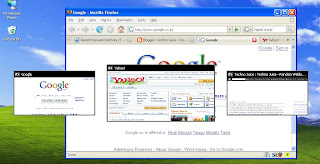
Ctrl Tab Preview
is a neat firefox add-on which allows you to switch between tabs also gives you a preview of the different tabs.

Get the Add-on >

Firefox add on switch between tabs by ctrl alt

2) Colorful tabs based on URL

Now colorful tabs are a tad too tacky for my taste but sometimes from the haystack of Tabs color tabs specific to the website loaded is helpful, so all the tabs with google.com will have same color. ChromaTabs is the add-on.

Get the Add-on >


3) Open Tab next to current Tab
Whenever you open a link in a new tab it opens at the last of the tab list which is annoying if you have a lot of tabs.

Tab Control add-on lets you control the tab:-

  • Position new tabs to the right of the current tab
  • Switch to the left tab when closing the current tab
  • Protect window from closing with close-tab hotkey
  • Set some or all javascript window.open'ed windows to redirect into tabs
  • Specify the min and max width for tabs
Get the Add-on >

4) Zoom the mouse over tab
This add-on is called Fish eye an alternative to scrolling when there are many open tabs, and they become too small to see. User can zoom tab labels by moving the mouse cursor over them. Fisheye zoom is activated only when tabs occupy the whole width of the window.

Click the below button to see the video of Fish eye Tab plugin in action.


Get the Add-on >

5) Scroll bar for Tab overflow
This Tab Plugin adds a horizontal scrollbar below the tab bar when Firefox 2 is in tab overflow mode for easier tab navigation.

Scroll bar for Tab overflow

Get the Add-on >

August 14, 2007

Reduce/Remove the Icons in Systray near the Clock

The Notification area, the Systray or just the area next the clock whatever people call it.
It is usually the place where Windows gives notification is the famous windows popup balloon but unfortunately it is also the place where most program which run at startup also is shown. And because we install many programs over a period of time what you get is a Overcrowded Notification area.
Systray Notification area Windows xp

Check out how to Reduce by removing the unwanted Systray Applications.

Apart from being a eyesore, many application running at the same time slows the system down. Check out how many processes run as soon as you startup ! Click Alt + Ctrl + Del and choose the Processes Tab.

Windows have an feature in Xp where you can hide most of them :-

Right Click on Task Bar > Properties > In the Notification area > Customize


But it only hides the Icons the Processes still are running many of them checking for updates and other RAM / processing consuming activities.

We in our earlier post showed how to remove the processes and get better performance.

1) Go to Start And choose Run
Make xp faster screenshot of Start Run

2) In the Run window, type msconfig and click Ok


3) This will open the System Configuration utility window, in this click the Startup tab


Then unselect the apps you dont want to start, but make sure you can recognize the apps since stopping key windows apps can cause you PC to explode (just kiddin)


4) Almost done


You will get this Dialog box, you can either restart or choose Exit without restart.

When you do restart you will get a message


Choose Don't show this message !

and its done !

August 13, 2007

How to see dead pages? Resurrect Them from Cache/Mirror

Now dead pages are so annoying and sometimes make you feel desperate especially when you are searching for that coding solution and the excerpt on google result looked so tempting only to find a dead page.

Well now with this Firefox-add on you can resurrect them (from the cache atleast).

Dead pages or broken link can due to many things bandwidth exceed, changing the URL. So here is a cleaver bit of an add-on, search engines crawlers add the page to the cache, so most pages have a mirror URL. When you do come across the error Unable to connect you get an opting to see this page from the various Cache such as Google, MSN, Yahoo, Internet archive.

Get the Add-on


August 11, 2007

Make your Windows Xp Run Faster : More Ways

I had earlier posted about the few ways you can make your Windows Xp run faster Check out some more way to get more juice from RAM deficient system.

In this post find out how to Make your Windows Xp faster by Virtual memory, disabling system restore and few more.


1) By Increasing the Virtual Memory on your system or Shifting the Windows xp Page file - The Paging File is a Area on the hard disk that is designated for Programs to use it like a virtual RAM. So if you are short on RAM as most of us are increasing the Virtual Memory adds to the performance.

To do that Right -Click on My Computer > Properties
or Press [Windows] + [Pause Break]

Go to the Advanced > Performance > Settings > Advanced > Virtual Memory > ChangeShift Windows xp Page file virtual memory


This will open the Virtual Memory Window. Now The idea is to shift the Windows xp Page file from C: to some other drive which have more space.

To do that:

- Remove the page file from c: as shown and shift to some other partition in the disc.
- Click on some other Drive then choose Custom and enter the Space you are want to give the Page file. Double the amount recommended should be more than enough

2) Remove all alert sounds and welcome music - Believe it or not the Alert Sound that you get takes a hell a lot of the memory. Signs that your Memory is unable to process that effectively that are seen when it take some while for the sound to come.

To silent all the alert sounds just go to Control Panel > Sounds and Audio Devices and choose the silent mode.

3) Disable network folder/printer automatic search - If your computer is have network places / folders /printer then OS takes a lot of processing energy to search such folders and tries to connect to them, If you dont access network too often this is good idea.

Go to My Computer > Tool > Folder Option
Disable network folder/printer automatic search make windows xp faster


Apart from the above do check out our previous post on few ways you can make your Windows Xp run faster

August 7, 2007

Access file faster and Clean Your Messy Desktop !

If your desktop looks something like this then you NEED TO READ THIS ARTICLE !


Well the awesome screen shot of the desktop was mine until I realised the reason we have a messy desktop is it so easy to access and we go on adding stuff untill we get the annoying windows clean my desktop wizard like an unwanted House keeping knock on a cheesy motel !

Not any more....also check out a way to launch your fav programs faster than searching in start menu !

Well here is how we do it, we are going to create an alternative to desktop !

1) Create a folder which will be your alternative to desktop.

I strongly recommend that you create this Folder other than C: as a matter of fact you should not be using C: to store any personal file since if you need to format your C: all the personal file will be lost !

I am going to call this folder Quickdesk

Make it hidden
(By right click properties)

2) Add quickdesk to task bar

This is best way to access the quickdesk since it will contain folders (such as Music, Movies, Photos etc)

To add Rightclick on Taskbar > Toolbars > New Toolbars
Then browse to the location where you have quickdesk. This adds a toolbar by which you can directly go to the place where you want to go.

As you start using this you will realise how productive this way is !


(Just in case you are wondering what are those folders, there are not default. These are the folders created earlier)

3) Create a shortcut of Quickdesk
You can do this by the usual method by Right - click on the folder Create short cut and then rename the Shortcut to Quickdesk.

Now to add some style choose a icon for the Shortcut By Right click > Properties > Shortcut tab > Change Icon. You can even choose a fancy one by clicking browse.

4) Copy the shortcut to Desktop

We are adding a shortcut to desktop for one main reason is access the quickdesk while Uploading or dowloading you don't have to browse for Quickdesk instead just go to desktop and click on Quickdesk icon which will take you to the Quickdesk folder.

5) Add this short cut to your Quick launch

You can add to Quick lauch by dragging the Shortcut from desktop to the quick launch.


This will be the fastest way to access the Quickdesk !
If you don't have the Quick launch toolbar than you can add that by Right clicking the taskbar > Toolbars > Quick launch

6) Copy to windows folder

Copy Quickdesk short cut to windows folder ( By default c:\windows) so that we can launch by the run (windows + R ) or start > Run

Just by typing quickdesk and clicking run will launch the folder.
You can use this method for launching folders inside the quickdesk folder.


How to Start using ?

The idea is to use shortcuts to organise the most accessed data we have. We keep our data disorganised to different reasons such as space availability, convenience etc. So while your Music might be in some folder in d: your photos in several different place !

Create folders for each type of category. Photo, Movies, Videos, Music, downloads to name a few !

Here comes the Oh yeah moment !

So assume you have songs in a folder in d:\somefolder\morefolder\thefolder\songs (even somplace on your network !)

To make it accessible fast create a shortcut on Music folder by Rightclick > New >Create shortcut


I even changed the icon of the shortcut to a much more appropriate !

Now check out how easy this is to access in the screen shot below !


Now in winamp to play it just got to desktop > Quickdesk > Music > songs shortcut !

Talking about Winamp you can even launch application like this !

We all know what pain in the neck it is to Go to start and wait till the Ram deficient CPU displays the list of programs and then search the one you want ! Keeping the shorcuts on the desktop also adds to clutter to startwith !

To add Application to Quickdesk, copy the shortcut from the desktop or program files and paste it in the :Quickdesk\programs

Now check out how east and FAST it is to launch this way !


This has completely changed the way I access the data..... Did it yours ?

August 4, 2007

Create quote/pullquote in your blog !

Now here is quick way to create blockquote or Pullquote in blog. A blockquote is used when you are quoting someone else or when you want to display a code or when you are showing an example !

Create  quote/pullquote in your blog. Image of the blockquote button in blogger


The basic plan is to create a Quote symbol as a image and set that as a background to the Blockquote tag. To do this we will be adding the CSS attributes in the HTML of the template. You can even modify this code and use it on platforms other than blogger.

1) Go to the Edit Html section in your Blogger Template (not classic) Template > Edit HTML

2) Now in the Html code go to the blockquote attribute section (Just seach for blockquote by Find tool Ctrl + F)

3) This is the section which would determine how your blockquote tag appears. The settings i have choose are

  • Font to be italic
  • The text has 30px padding on the left and 15px padding on the top
  • The block has a quote image on the background
The code I replace is:-
.post blockquote {
margin:1em 0px;
font-style: italic;
padding-left: 30px;
padding-top: 15px;
background-repeat: no-repeat;
background-position: left top;
background-image:url('http://i197.photobucket.com/albums/aa309/technojuiceblog/quote.gif');
}

How to customize ?
You can customize the above code to best suite you blog. You can input your quote image by replace the image path in the background-image:url('yourimagepath.jpg')

You can even add border to your blockquote by the code
border: 1px solid #111111;

For more customization such as color of the text, font you can add style attribute. Check out W3school for more info on CSS.


How to use it ?

To use it simple select the text you want to format as a quote and then click on the Blockquote button on the toolbar on the Blogger editor.

By changing the style sheet all the blockquote you have entered till now on your previous posts also gets revamped automatically. No sweat !

Here is the demo:
Here is how the quote block
looks after the changes have been made
The font is italic
The text is padded to give prominence to the quote
The quote looks subtle in light gray


How to retrieve a closed tab in Firefox !

Now we have earlier posted about the various Keyboard Shortcuts in Firefox ! But here is a Short cut that is not even mentioned in the Firefox Site. Here is a lifesaver for you !

How many times it happens that you close a Tab in firefox by mistake and regret it !

Here is how you can get it back press:-

Ctrl + Shift + T

For Mac - Cmd + Shift + T

You can retrieve almost any number of Tabs in the order you closed them !

August 3, 2007

Firefox Keyboard Shortcuts & tips !

Now some of us who have been on firefox for eons might be familiar with these short cuts but it amazes me how many people juggle between keyboard and mouse while browsing.

While web logging I find it cumbersome to use mouse to open a new tab or launch web search etc !

So I just wanna share some really cool keyboard shortcuts and some know ones too !


1) Open New Tab - Ctrl + T

Apart from the usual victims C & V on a keyboard which are flattened beyond recognition, now avid firefox user's keyboard have a new victim key T.

BTW it opens a new tab for browsing !

2) Close a Tab - Ctrl + W

You didn't know this one did you ? Great when you need to close a zillion of Tabs !

3) Complete a .com Address - Ctrl + Enter

Type the domain name you want eg blogger then by pressing Ctrl + Enter will automatically complete the .com and http://

Great way to avoid www.blogger.vom

similarly you can press

Shift + enter to complete .net address
Shift + Ctrl + Enter to complete .org address

4) Change the font size on the webpage

A quick way to change the font size is

Decrease the Font size - Ctrl + -
Increase the Font size - Ctrl + +


5) Delete the Form entry - Shift + Del

Apart from sensitive info such as email / Credit card Num gets stored when you fill up a form you can delete those by selecting them and pressing Shift + Delete.

You can even delete the auto complete URL from visited site the same way.

6) Clear Private Data - Ctrl + Shift + Del

Yeah ! to clean your ******* activities !

7) Go to the next Tab - Ctrl + Page down
Don't worry you'll soon get the hang of it !

8) Go to the Previous Tab - Ctrl + Page Up
It was obvious !

9) Go to the [1 to 9] Tab - Ctrl + [1 to 9]
You didn't know this one I bet ! (you knew ? drat !)

10) Find the page source - Ctrl + U
Guys always want to see what is inside ! Give Right click a break !

11) Caret Browsing - F7

Caret what ?

Well this is pretty useful stuff, especially when you do a lot of Selection and Ctrl C. What it does is place a cursor where you click and then you can select text just like you would do in a Word document by Shift + Arrow key.

Just in case you are hooked to this keyboard Short cut stuff, knock yourselves out and check out the whole list.

August 2, 2007

Set Custom Display resolution for user in Winxp

Now this one nagging feature of Win xp that when one user sets the display screen resolution it is set for all users ! For example your father may like higher resolution for reading stuff but your younger bro plays games and wants 800 x 600 , and it becomes irritating for not being able to a custom display.

Here is a simple solution :-

1) First download this - MultiRes

Don't worry its safe (tested on my crash test laptop)


This is quick resolution changer, that can change the resolution setting in one click. For most of us this should do !

But we are taking this a step further to automate the changing process as soon as the user logs in by batch files (yeah it is safe too !)
2) Download This - Changeres batch files

In this zip file you get 3 resolution settings at color depth 32 (you can edit them in notepad for the setting you want eg refresh rate / color depth etc)


Here comes the auto settings part !

3) Copy/extract the settings file wanted to the startup folder of the user

Go to
C:\Documents and Settings\USERNAME\Start Menu\Programs\Startup

Replace the username with the windows user name you want and paste the correct settings file.

4) Done ! Next time you login to that username the batch file will be lauched and will change the setting automatically.

To remove this just delete the file from the above mentioned folder !

July 23, 2007

LocalHost installation

Many of you who are webdeveloper are planning to learn server side scripting such as PHP need a LocalHost (The server on your computer) to run your scripts and test them freely.

Localhost can be access by entering the ip address http://127.0.0.1/ or http://localhost/ on your browser.

To do so you need to intall a barrage a installations such as apache server, PHP, Mysql etc on your computer which are complex and time consuming.

One really good options for Windows users are Wamp and Xampp

The advantage is by installing these you can install Apache, PHP and Mysql at one go and makes you scripting life easier.

After installation changing the setting, enabling or disabling any service (PHP, Mysql) is also a simple affair by a simple menu shown below.