



 本文介绍了如何使用Android Studio构建第一个Kotlin应用,包括界面布局编辑器的使用,添加和约束布局,修改组件属性,以及实现按钮交互功能。通过修改Textview文本,添加多个按钮,设置组件位置和外观,以及实现toast消息和计数功能,展示了Android应用的基本开发流程。
Android Studio构建第一个Kotlin应用


参考:
Android Studio报:Connection timed out: connect. If you are behind an HTTP proxy错误

探索界面布局编辑器
- 每个界面由一个Fragment组成,初始界面显示的FirstFragment,双击fragment_first.xml可以查看具体的布局设计界面。
res——>layout——f>ragment_first.xml

- Palette:包含您可以拖到布局中的各种视图和视图组。
- Component Tree:显示布局中的组件层次结构。
- 工具栏:点击这些按钮可在编辑器中配置布局外观及更改布局属性。
- 设计编辑器:在 Design 视图和/或 Blueprint视图中修改布局。
- Attributes:用于对所选视图的属性进行控制的控件。
- 视图模式:采用 Code 模式图标、Design 模式图标 或 Split 模式图标 模式查看布局。Split 模式会同时显示 Code 和 Design 窗口。
- 缩放和平移控件:控制编辑器内的预览大小和位置。
当您打开 XML 布局文件时,系统会默认打开设计编辑器,如图 1 所示。如需在文本编辑器中修改布局 XML,请点击窗口右上角的 Code 模式图标 按钮。请注意,在 Code 视图中修改布局时,Palette、Component Tree 和 Attributes 窗口不可用。
提示:您只需按 Alt + Shift + Right/Left arrow(在 Mac 上按 Control + Shift + Right/Left arrow),即可在设计编辑器和文本编辑器之间切换。
详细看使用布局编辑器构建界面
查看code,修改Textview的Text属性
android:text="@string/hello_first_fragment"
右键该代码,选择Go To > Declaration or Usages,跳转到values/strings.xml,看到高亮文本
<string name="hello_first_fragment">Hello first fragment</string>

注意,不要全选一行,全选会跳转至attrs.xml文件
修改字符串属性值为“Hello Kotlin!”。更进一步,修改字体显示属性,在Design视图中选择
textview_first文本组件,在Common Attributes属性下的textAppearance域,设置相关的文字显示属性。


重新运行应用程序,查看显示效果。
向页面添加更多的布局
本步骤将向第一个Fragment添加更多的视图组件
查看视图的布局约束
在fragment_first.xml,查看TextView组件的约束属性:

详细查看使用 ConstraintLayout 构建自适应界面
添加按钮和约束
从Palette面板中拖动Button到

调整Button的约束,设置Button的Top>BottonOf textView
app:layout_constraintTop_toBottomOf="@+id/textview_first" />
约束条件可以是
		app:layout_constraintBottom_toBottomOf="parent"
        app:layout_constraintEnd_toEndOf="parent"
        app:layout_constraintStart_toStartOf="parent"
也可以是
tools:ignore="MissingConstraints"
调整Next按钮
Next按钮是工程创建时默认的按钮,查看Next按钮的布局设计视图,它与TextView之间的连接不是锯齿状的而是波浪状的,表明两者之间存在链(chain),是一种两个组件之间的双向联系而不是单向联系。删除两者之间的链,可以在设计视图右键相应约束,选择Delete(注意两个组件要双向删除)


或者在属性面板的Constraint Widget中移动光标到相应约束点击删除。

同时,删除Next按钮的左侧约束。
添加新的约束
添加Next的右边和底部约束至父类屏幕(如果不存在的话),Next的Top约束至TextView的底部。最后,TextView的底部约束至屏幕的底部。效果看起来如下图所示:

更改组件的文本
fragment_first.xml布局文件代码中,找到toast_button按钮的text属性部分
android:id=“@+id/toast_button”
android:layout_width=“wrap_content”
android:layout_height=“wrap_content”
android:layout_marginTop=“450dp”
android:insetBottom=“0dp”
android:text=“Button”
这里text的赋值是一种硬编码,点击文本,左侧出现灯泡状的提示,选择 Extract string resource。

弹出对话框,令资源名为toast_button_text,资源值为Toast,并点击OK。

于是,在资源文件string.xml定义了字符串,以上操作可以手动在string.xml文件中定义并引用。
<resources>
   ...
   <string name="toast_button_text">Toast</string>
</resources>
更新Next按钮
在属性面板中更改Next按钮的id,从button_first改为random_button。

在string.xml文件,右键next字符串资源,选择 Refactor > Rename,修改资源名称为random_button_text,点击Refactor 。随后,修改Next值为Random。

添加第三个按钮
向fragment_first.xml文件中添加第三个按钮,位于Toast和Random按钮之间,TextView的下方。新Button的左右约束分别约束至Toast和Random,Top约束至TextView的底部,Buttom约束至屏幕的底部,看起来的效果:

检查xml代码,确保不出现类似app:layout_constraintVertical_bias这样的属性,即不手动设置偏移量。
完善UI组件的属性设置
更改新增按钮id为count_button,显示字符串为Count,对应字符串资源值为count_button_text。于是三个按钮的text和id属性如下表:
| Button | Text | Id |
|---|---|---|
| LeftButton | Toast | @+id/toast_button |
| – | – | – |
| MiddleButton | Count | @+id/count_button |
| – | – | – |
| RightButton | Random | @+id/random_button |
| 同时,更改TextView的文本为0。修改后的fragment_first.xml的代码 |
<?xml version="1.0" encoding="utf-8"?>
<androidx.constraintlayout.widget.ConstraintLayout xmlns:android="http://schemas.android.com/apk/res/android"
    xmlns:app="http://schemas.android.com/apk/res-auto"
    xmlns:tools="http://schemas.android.com/tools"
    android:layout_width="match_parent"
    android:layout_height="match_parent"
    tools:context=".FirstFragment">

    <TextView
        android:id="@+id/textview_first"
        android:layout_width="wrap_content"
        android:layout_height="wrap_content"
        android:fontFamily="sans-serif-condensed"
        android:text="@string/hello_first_fragment"
        android:textColor="@android:color/darker_gray"
        android:textSize="30sp"
        android:textStyle="bold"
        app:layout_constraintBottom_toBottomOf="parent"
        app:layout_constraintEnd_toEndOf="parent"
        app:layout_constraintStart_toStartOf="parent"
        app:layout_constraintTop_toTopOf="parent" />

    <Button
        android:id="@+id/random_button"
        android:layout_width="wrap_content"
        android:layout_height="wrap_content"
        android:text="@string/random_button_text"
        app:layout_constraintBottom_toBottomOf="parent"
        app:layout_constraintEnd_toEndOf="parent"
        app:layout_constraintTop_toBottomOf="@+id/textview_first" />

    <Button
        android:id="@+id/toast_button"
        android:layout_width="wrap_content"
        android:layout_height="wrap_content"
        android:text="@string/toast_button_text"
        app:layout_constraintBottom_toBottomOf="parent"
        app:layout_constraintStart_toStartOf="parent"
        app:layout_constraintTop_toBottomOf="@+id/textview_first" />

    <Button
        android:id="@+id/count_button"
        android:layout_width="wrap_content"
        android:layout_height="wrap_content"
        android:text="@string/count_button_text"
        app:layout_constraintBottom_toBottomOf="parent"
        app:layout_constraintEnd_toStartOf="@+id/random_button"
        app:layout_constraintStart_toEndOf="@+id/toast_button"
        app:layout_constraintTop_toBottomOf="@+id/textview_first" />
</androidx.constraintlayout.widget.ConstraintLayout>
尝试运行应用程序查看效果。
更新按钮和文本框的外观
添加新的颜色资源
values>colors.xml定义了一些应用程序可以使用的颜色,添加新颜色screenBackground 值为 #2196F3,这是蓝色阴影色;添加新颜色buttonBackground 值为 #BBDEFB
<color name="screenBackground">#2196F3</color>
<color name="buttonBackground">#BBDEFB</color>
设置组件的外观
- fragment_first.xml的属性面板中设置屏幕背景色为
android:background="@color/screenBackground"
- 设置每个按钮的背景色为buttonBackground
android:background="@color/buttonBackground"
注意:在实验的API level中(31),这种设置并不生效,需修改res/values/themes.xml的style值,添加.Bridge。
<style name="Theme.MyFirstApp" parent="Theme.MaterialComponents.DayNight.DarkActionBar.Bridge">
- 移除TextView的背景颜色,设置TextView的文本颜色为color/white,并增大字体大小至72sp。
设置组件的位置
- Toast与屏幕的左边距设置为24dp,Random与屏幕的右边距设置为24dp,利用属性面板的Constraint Widget完成设置。
- 设置TextView的垂直偏移为0.3。
app:layout_constraintVertical_bias="0.3"
拖动左侧的移动条。
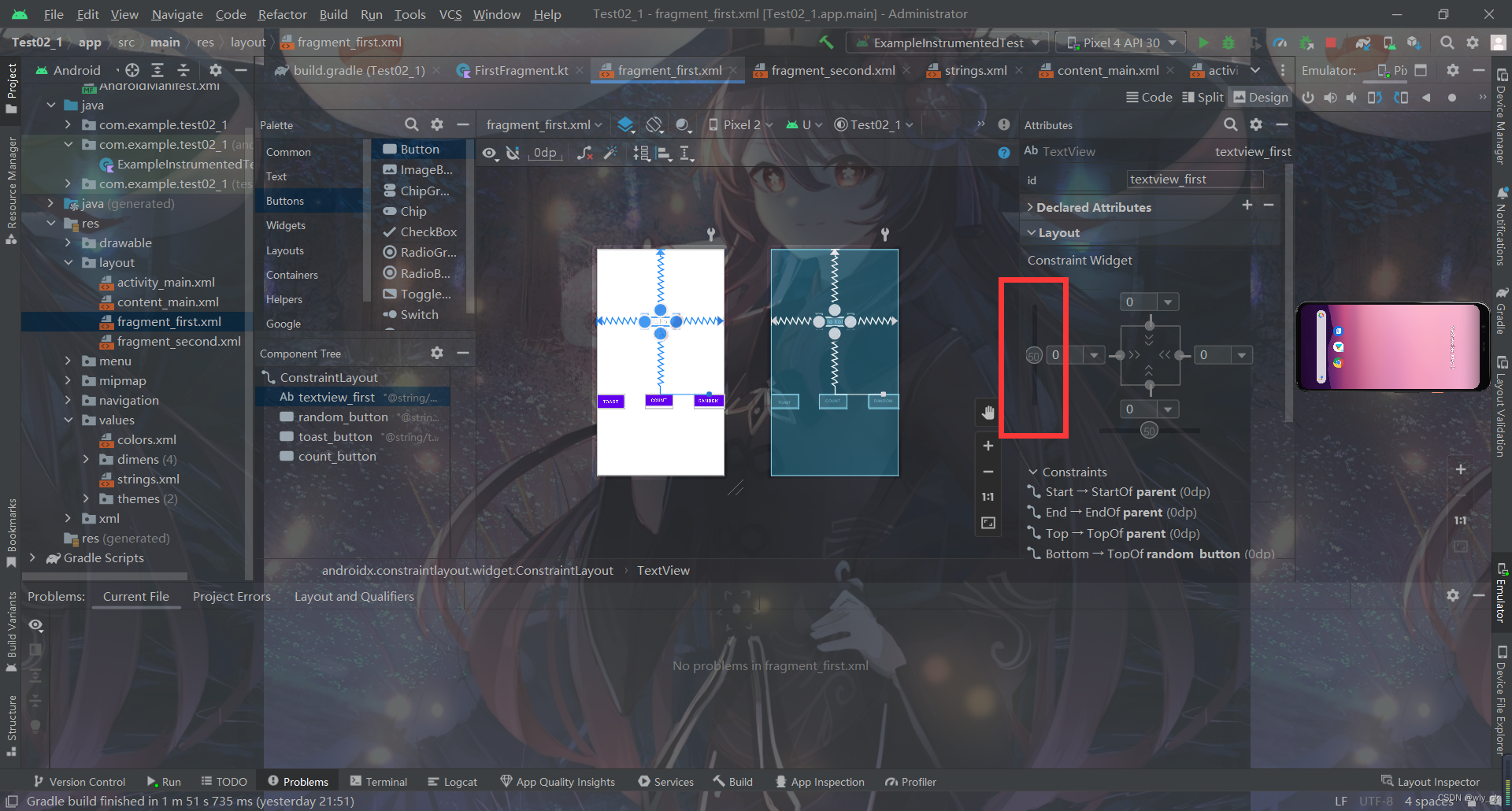
最终代码
<?xml version="1.0" encoding="utf-8"?>
<androidx.constraintlayout.widget.ConstraintLayout xmlns:android="http://schemas.android.com/apk/res/android"
    xmlns:app="http://schemas.android.com/apk/res-auto"
    xmlns:tools="http://schemas.android.com/tools"
    android:layout_width="match_parent"
    android:layout_height="match_parent"
    android:background="@color/screenBackground"
    tools:context=".FirstFragment">

    <TextView
        android:id="@+id/textview_first"
        android:layout_width="wrap_content"
        android:layout_height="wrap_content"
        android:fontFamily="sans-serif-condensed"
        android:text="@string/hello_first_fragment"
        android:textColor="@android:color/darker_gray"
        android:textSize="30sp"
        android:textStyle="bold"
        app:layout_constraintBottom_toBottomOf="parent"
        app:layout_constraintEnd_toEndOf="parent"
        app:layout_constraintStart_toStartOf="parent"
        app:layout_constraintTop_toTopOf="parent" />

    <Button
        android:id="@+id/random_button"
        android:layout_width="wrap_content"
        android:layout_height="wrap_content"
        android:text="@string/random_button_text"
        app:layout_constraintBottom_toBottomOf="parent"
        app:layout_constraintEnd_toEndOf="parent"
        android:background="@color/buttonBackground"
        app:layout_constraintTop_toBottomOf="@+id/textview_first" />

    <Button
        android:id="@+id/toast_button"
        android:layout_width="wrap_content"
        android:layout_height="wrap_content"
        android:text="@string/toast_button_text"
        android:background="@color/buttonBackground"
        app:layout_constraintBottom_toBottomOf="parent"
        app:layout_constraintStart_toStartOf="parent"
        app:layout_constraintTop_toBottomOf="@+id/textview_first" />

    <Button
        android:id="@+id/count_button"
        android:layout_width="wrap_content"
        android:layout_height="wrap_content"
        android:text="@string/count_button_text"
        android:background="@color/buttonBackground"
        app:layout_constraintBottom_toBottomOf="parent"
        app:layout_constraintEnd_toStartOf="@+id/random_button"
        app:layout_constraintStart_toEndOf="@+id/toast_button"
        app:layout_constraintTop_toBottomOf="@+id/textview_first" />
</androidx.constraintlayout.widget.ConstraintLayout>
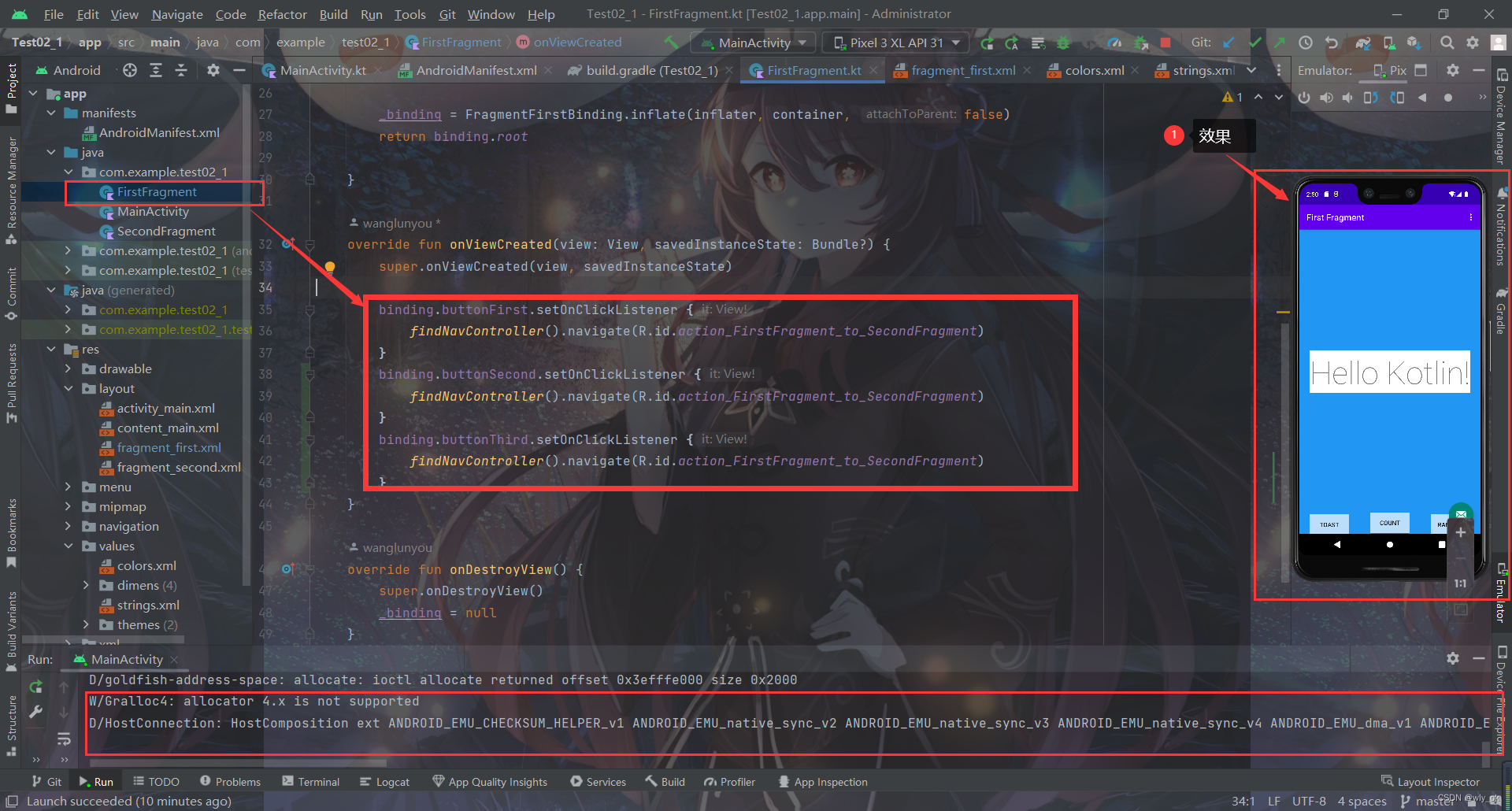
效果(注意记得修改FirstFragment.kt文件)
添加代码完成应用程序交互
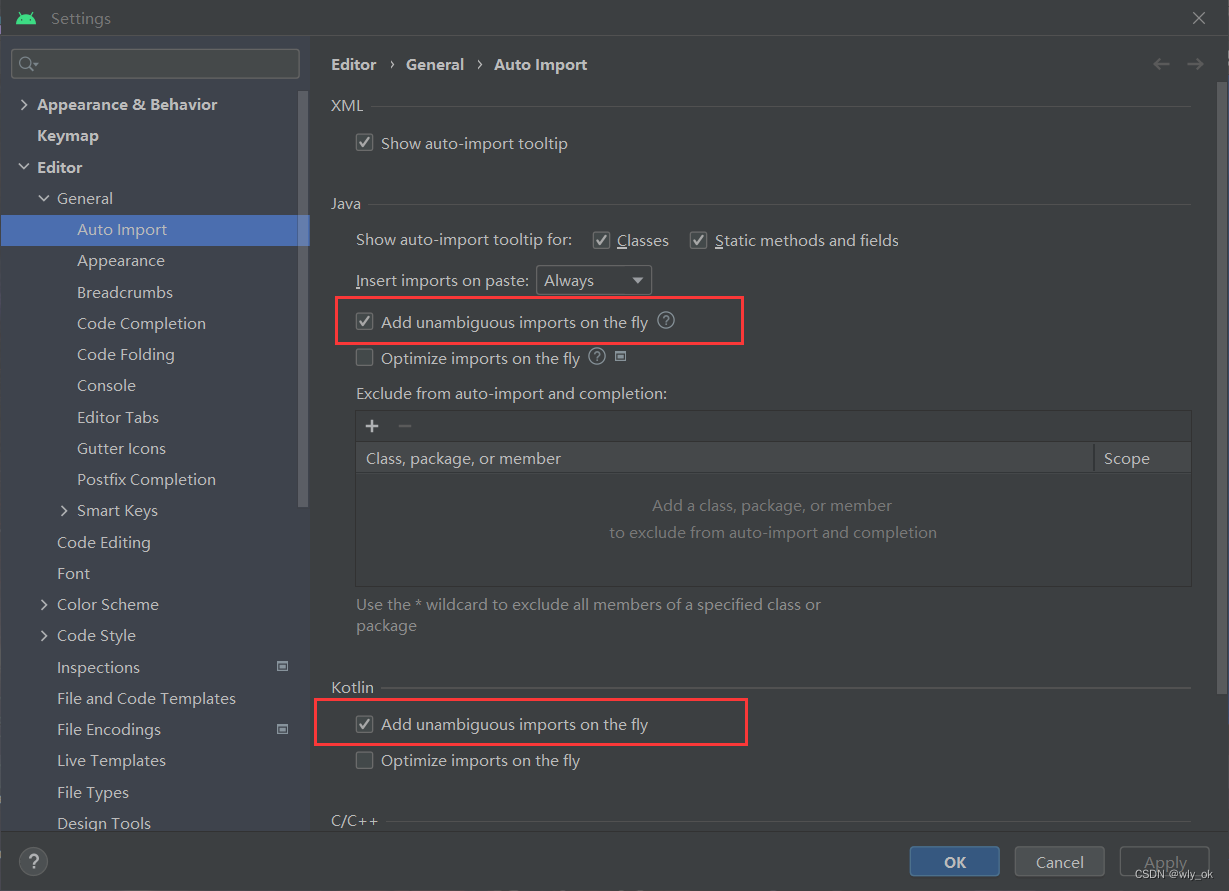
设置代码自动补全
Android Studio中,依次点击File>New Projects Settings>Settings for New Projects…,查找Auto Import选项,在Java和Kotlin部分,勾选Add Unambiguous Imports on the fly。
TOAST按钮添加一个toast消息
打开FirstFragment.kt文件,有三个方法:onCreateView,onViewCreated和onDestroyView,在onViewCreated方法中使用绑定机制设置按钮的响应事件(创建应用程序时自带的按钮)。
binding.randomButton.setOnClickListener {
    findNavController().navigate(R.id.action_FirstFragment_to_SecondFragment)
}
接下来,为TOAST按钮添加事件,使用findViewById()查找按钮id,代码如下:
// find the toast_button by its ID and set a click listener
view.findViewById<Button>(R.id.toast_button).setOnClickListener {
   // create a Toast with some text, to appear for a short time
   val myToast = Toast.makeText(context, "Hello Toast!", Toast.LENGTH_LONG)
   // show the Toast
   myToast.show()
}
代码使用了Lambda表达式的机制。
使Count按钮更新屏幕的数字
此步骤向Count按钮添加事件响应,更新Textview的文本显示。
在FirstFragment.kt文件,为count_buttion按钮添加事件:
view.findViewById<Button>(R.id.count_button).setOnClickListener {
   countMe(view)
}
countMe()为自定义方法,以View为参数,每次点击增加数字1,具体代码为:
private fun countMe(view: View) {
   // Get the text view
   val showCountTextView = view.findViewById<TextView>(R.id.textview_first)

   // Get the value of the text view.
   val countString = showCountTextView.text.toString()

   // Convert value to a number and increment it
   var count = countString.toInt()
   count++

   // Display the new value in the text view.
   showCountTextView.text = count.toString()
}
完成第二界面的代码
此步骤将完成按照First Fragment显示数字作为上限,随机在Second Fragment上显示一个数字,即Random按钮的事件响应。
向界面添加TextView显示随机数
- 打开fragment_second.xml的设计视图中,当前界面有两个组件,一个Button和一个TextView(textview_second)。
- 去掉TextView和Button之间的约束
- 拖动新的TextView至屏幕的中间位置,用来显示随机数
- 设置新的TextView的id为**@+id/textview_random**
- 设置新的TextView的左右约束至屏幕的左右侧,Top约束至textview_second的Bottom,Bottom约束至Button的Top
- 设置TextView的字体颜色textColor属性为**@android:color/white**,textSize为72sp,textStyle为bold
- 设置TextView的显示文字为“R”
- 设置垂直偏移量layout_constraintVertical_bias为0.45





 扫一扫
扫一扫


 2667
2667

 被折叠的 条评论
为什么被折叠?
被折叠的 条评论
为什么被折叠?
 到【灌水乐园】发言





