


 这篇博客详细介绍了在Android Studio中进行布局设计的过程,包括相对布局(RelativeLayout)、线性布局(LinearLayout)、表格布局(TableLayout)、帧布局(FramLayout)和网格布局(GridLayout)的使用,并展示了各自的运行结果。
实验名称 Android studio 布局设计
二、实验环境:
Android studio
夜神模拟器
三、实验内容:
相对布局(RelativeLayout)
<?xml version="1.0" encoding="utf-8"?>
<RelativeLayout xmlns:android="http://schemas.android.com/apk/res/android"
    xmlns:tools="http://schemas.android.com/tools"
    android:layout_width="match_parent"
    android:layout_height="match_parent"
    tools:context=".MainActivity">
    <Button
        android:layout_width="wrap_content"
        android:layout_height="wrap_content"
        android:layout_alignParentLeft="true"
        android:layout_alignParentTop="true"
        android:text="按钮1"/>
    <Button
        android:id="@+id/btn2"
        android:layout_width="wrap_content"
        android:layout_height="wrap_content"
        android:layout_alignParentTop="true"
        android:layout_centerHorizontal="true"
        android:text="按钮2"/>
    <Button
        android:id="@+id/btn3"
        android:layout_width="wrap_content"
        android:layout_height="wrap_content"
        android:layout_alignParentRight="true"
        android:layout_alignParentTop="true"
        android:text="按钮3"/>
    <Button
        android:layout_width="wrap_content"
        android:layout_height="wrap_content"
        android:layout_alignParentLeft="true"
        android:layout_centerVertical="true"
        android:text="按钮4"/>
    <Button
        android:id="@+id/btn5"
        android:layout_width="wrap_content"
        android:layout_height="wrap_content"
        android:layout_centerInParent="true"
        android:text="按钮5"/>
    <Button
        android:layout_width="wrap_content"
        android:layout_height="wrap_content"
        android:layout_alignParentRight="true"
        android:layout_centerVertical="true"
        android:text="按钮6"/>
    <Button
        android:id="@+id/btn7"
        android:layout_width="wrap_content"
        android:layout_height="wrap_content"
        android:layout_toLeftOf="@id/btn3"
        android:layout_above="@id/btn5"
        android:layout_alignLeft="@id/btn2"
        android:layout_below="@id/btn2"
        android:text="按钮7"/>
    <Button
        android:layout_width="wrap_content"
        android:layout_height="wrap_content"
        android:layout_toLeftOf="@id/btn7"
        android:layout_alignBaseline="@id/btn7"
        android:text="按钮8"/>
</RelativeLayout>
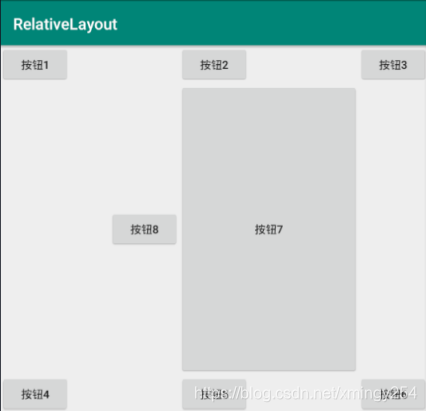
运行结果:
线性布局(LinearLayout)
<?xml version="1.0" encoding="utf-8"?>
<manifest xmlns:android="http://schemas.android.com/apk/res/android"
    package="com.example.tablelayout">

    <application
        android:allowBackup="true"
        android:icon="@mipmap/ic_launcher"
        android:label="@string/app_name"
        android:roundIcon="@mipmap/ic_launcher_round"
        android:supportsRtl="true"
        android:theme="@style/AppTheme">
        <activity android:name=".MainActivity">
            <intent-filter>
                <action android:name="android.intent.action.MAIN" />

                <category android:name="android.intent.category.LAUNCHER" />
            </intent-filter>
        </activity>
    </application>

</manifest>
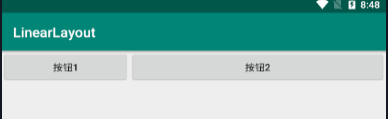
运行结果:
表格布局(TableLayout)
<?xml version="1.0" encoding="utf-8"?>
<LinearLayout xmlns:android="http://schemas.android.com/apk/res/android"
    xmlns:tools="http://schemas.android.com/tools"
    android:layout_width="match_parent"
    android:layout_height="match_parent"
    tools:context=".MainActivity"
    android:orientation="vertical">
    <!-- 第1个TableLayout,用于描述表中的列属性。第0列可伸展,第1列可收缩 ,第2列被隐藏-->
    <TextView
        android:text="第一个表格:全局设置:列属性设置"
        android:layout_height="wrap_content"
        android:layout_width="wrap_content"
        android:textSize="15sp"
        android:background="#7f00ffff"/>
    <TableLayout
        android:id="@+id/table1"
        android:layout_width="match_parent"
        android:layout_height="wrap_content"
        android:stretchColumns="0"
        android:shrinkColumns="1"
        android:collapseColumns="2"
        android:padding="3dip">
        <TableRow>
            <Button android:text="该列可以伸展"/>
            <Button android:text="该列可以收缩"/>
            <Button android:text="被隐藏了"/>
        </TableRow>
        <TableRow>
            <TextView android:text="向行方向伸展,可以伸展很长    "/>
            <TextView android:text="向列方向收缩,*****************************************************************************************可以伸缩很长"/>
        </TableRow>
    </TableLayout>

    <!-- 第2个TableLayout,用于描述表中单元格的属性,包括:android:layout_column 及android:layout_span-->
    <TextView
        android:text="第二个:单元格设置:指定单元格属性设置"
        android:layout_height="wrap_content"
        android:layout_width="wrap_content"
        android:textSize="15sp"
        android:background="#7f00ffff"/>
    <TableLayout
        android:id="@+id/table2"
        android:layout_width="fill_parent"
        android:layout_height="wrap_content"
        android:padding="3dip">
        <TableRow>
            <Button android:text="第1列"/>
            <Button android:text="第2列"/>
            <Button android:text="第3列"/>
        </TableRow>
        <TableRow>
            <TextView android:text="指定在第2列" android:layout_column="1"/>
        </TableRow>
        <TableRow>
            <TextView
                android:text="第二列和第三列!!!!!!!!!!!!"
                android:layout_column="1"
                android:layout_span="2"
                />
        </TableRow>
    </TableLayout>
    <!-- 第3个TableLayout,使用可伸展特性布局-->
    <TextView
        android:text="第三个表格:非均匀布局,控件长度根据内容伸缩"
        android:layout_height="wrap_content"
        android:layout_width="wrap_content"
        android:textSize="15sp"
        android:background="#7f00ffff"/>
    <TableLayout
        android:id="@+id/table3"
        android:layout_width="match_parent"
        android:layout_height="wrap_content"
        android:stretchColumns="*"
        android:padding="3dip"
        >
        <TableRow>
            <Button android:text="三更灯火五更鸡" ></Button>
            <Button android:text="劝学"></Button>
            <Button android:text="正式少年读书时" ></Button>
        </TableRow>
    </TableLayout>
    <!-- 第4个TableLayout,使用可伸展特性,并指定每个控件宽度一致,如1dip-->
    <TextView
        android:text="表四个表格:均匀布局,控件宽度一致"
        android:layout_height="wrap_content"
        android:layout_width="wrap_content"
        android:textSize="15sp"
        android:background="#7f00ffff"/>
    <TableLayout
        android:id="@+id/table4"
        android:layout_width="match_parent"
        android:layout_height="wrap_content"
        android:stretchColumns="*"
        android:padding="3dip">
        <TableRow>
            <Button android:text="天天" android:layout_width="1dip"></Button>
            <Button android:text="向上" android:layout_width="1dip"></Button>
            <Button android:text="天天向上" android:layout_width="1dip"></Button>
        </TableRow>
    </TableLayout>
</LinearLayout>
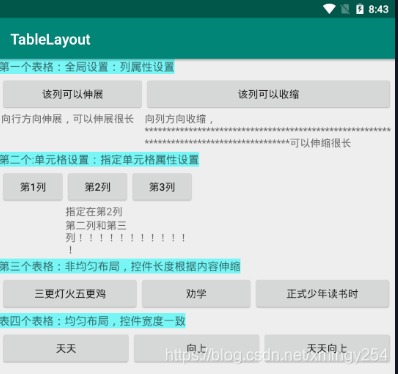
运行结果:
帧布局(FramLayout)
<?xml version="1.0" encoding="utf-8"?>
<FrameLayout xmlns:android="http://schemas.android.com/apk/res/android"
    xmlns:tools="http://schemas.android.com/tools"
    android:layout_width="match_parent"
    android:layout_height="match_parent"
    tools:context=".MainActivity"
    android:background="@drawable/ic_launcher_background"
    android:foreground="@mipmap/ic_launcher"
    android:foregroundGravity="top|left">
    <TextView
        android:layout_width="200dp"
        android:layout_height="200dp"
        android:background="#FF6143"/>
    <TextView
        android:layout_width="150dp"
        android:layout_height="150dp"
        android:background="#7BFE00"/>
    <TextView
        android:layout_width="100dp"
        android:layout_height="100dp"
        android:background="#FFFF00"/>
</FrameLayout>
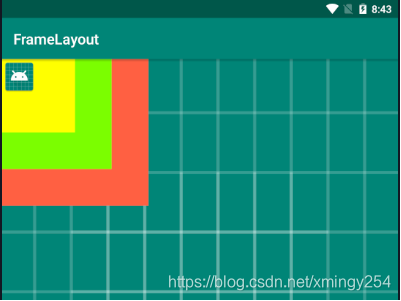
运行结果:
网格布局(GridLayout)
<?xml version="1.0" encoding="utf-8"?>
<GridLayout xmlns:android="http://schemas.android.com/apk/res/android"
    xmlns:tools="http://schemas.android.com/tools"
    android:layout_width="match_parent"
    android:layout_height="wrap_content"
    tools:context=".MainActivity"
    android:columnCount="4"
    android:padding="20dp">
    <Space android:layout_columnSpan="3"/>
    <Button android:text="C"/>
    <Button android:text="7"/>
    <Button android:text="8"/>
    <Button android:text="9"/>
    <Button android:text="+"/>
    <Button android:text="4"/>
    <Button android:text="5"/>
    <Button android:text="6"/>
    <Button android:text="-"/>
    <Button android:text="2"/>
    <Button android:text="3"/>
    <Button android:text="1"/>
    <Space />
    <Button android:text="0"
        android:layout_columnSpan="2"
        android:layout_gravity="fill_horizontal"/>
    <Button android:text="*"/>
    <Button android:text="="
        android:layout_rowSpan="2"
        android:layout_gravity="fill_vertical"/>
    <Button android:text="/"
        android:layout_columnSpan="3"
        android:layout_gravity="fill_horizontal"/>
</GridLayout>
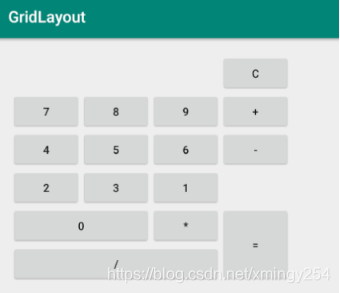
运行结果:





 扫一扫
扫一扫


 1700
1700

 被折叠的 条评论
为什么被折叠?
被折叠的 条评论
为什么被折叠?
 到【灌水乐园】发言





