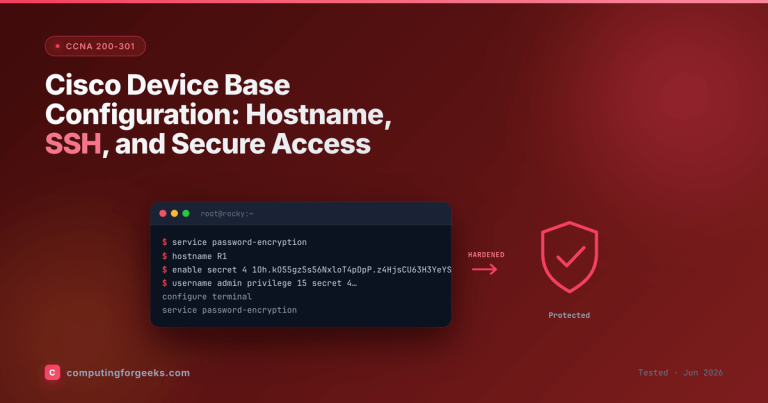
A new Cisco router or switch trusts whoever can reach it. Anyone on the console lands in the IOS CLI, and from there the enable command opens full configuration with no password in the way. Device access control is the fix: a password on every way in, a strong hash on the privileged-mode secret, and named local accounts instead of a shared line password.
This guide configures and verifies local password access control on a Cisco router, the console and VTY lines, the enable secret, and local user accounts, then covers the password policy elements the CCNA expects you to describe. It assumes the device already has a hostname and a working base configuration, and it pairs with the SSH configuration guide, which secures the remote side these VTY lines depend on.
Tested June 2026 on Cisco IOS 15.2, securing a router from factory defaults.
The ways into a Cisco device
Before locking anything down, it helps to see what you are locking. The routers and switches in your network each expose a small number of management entry points, and each one is secured separately.
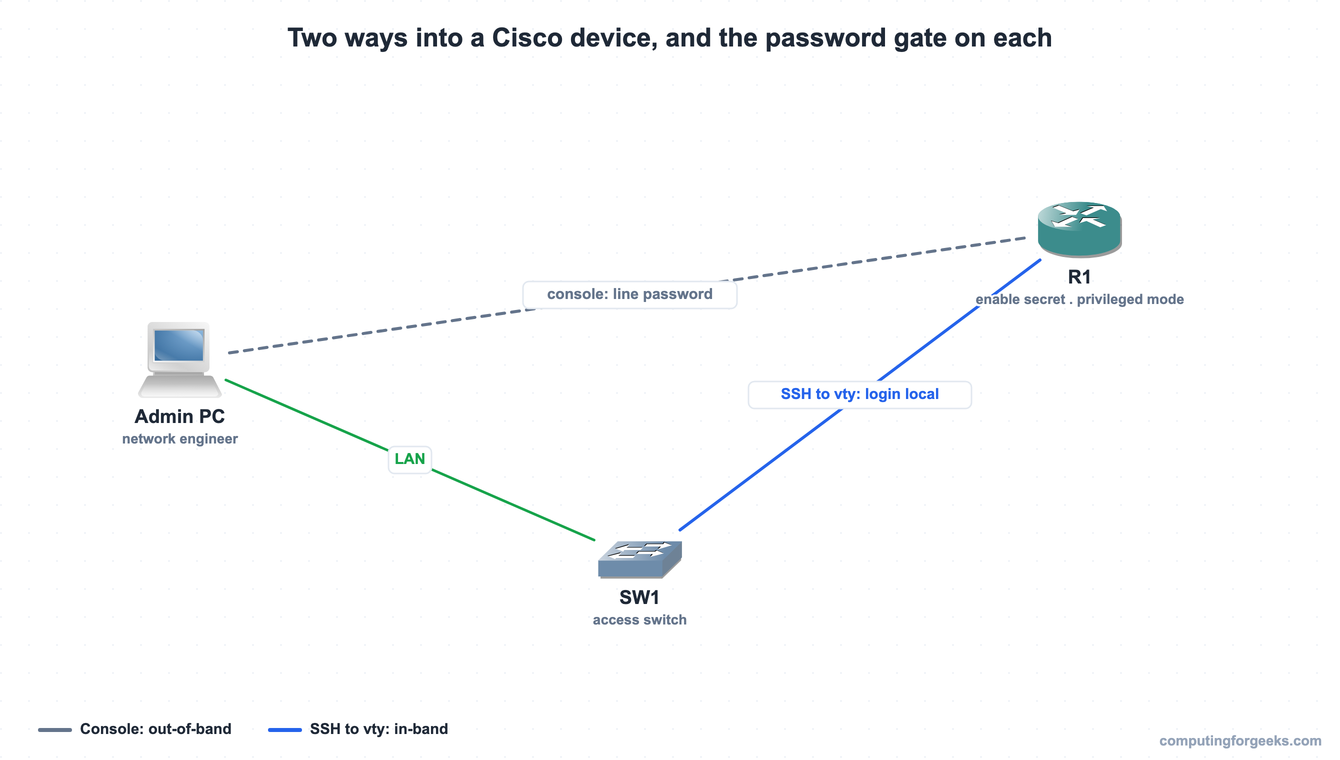
The console is out-of-band: a physical cable straight into the device, used for the first setup and for recovery when the network is down. The VTY lines are in-band: virtual terminals reached over the network with SSH (or, on insecure setups, Telnet). Both drop you into user EXEC mode, and the enable secret is the gate between user EXEC and the privileged mode where configuration happens. Secure all three, because a strong VTY password means nothing if the console is wide open.
Set the enable secret for privileged mode
The first command on any device is the enable secret. It protects the jump to privileged EXEC, and unlike the older enable password, it is stored as a one-way hash. Set it along with a named local account that has full privilege:
configure terminal
enable secret Str0ngEnable2026
username netadmin privilege 15 secret Adm1nPass2026
Never use enable password instead of enable secret. The plain enable password is stored either in clear text or as a trivially reversible Type 7 string, while enable secret is a proper hash. If both exist, the secret wins, so there is no reason to keep the weaker one.
Check what the device actually stored:

Both the enable secret and the username secret are stored as a Type 4 hash on this IOS 15.2 image, shown by the 4 before the hash string. The number is the hashing scheme, and it matters more than it looks.
Password types, from worst to best
Cisco labels every stored password with a type number. Knowing them tells you at a glance whether a password is genuinely protected or just obscured.
| Type | Algorithm | Reversible | Where you see it |
|---|---|---|---|
| 0 | None, stored in clear text | Not encrypted at all | A password before encryption is applied |
| 7 | Cisco proprietary (Vigenere) | Yes, trivially | service password-encryption, enable password, line passwords |
| 4 | SHA-256 without a salt | No | Older enable secret / username secret (deprecated) |
| 5 | Salted MD5 | No | The classic IOS enable secret default |
| 8 | PBKDF2 with SHA-256 | No | enable algorithm-type sha256 secret |
| 9 | scrypt | No | enable algorithm-type scrypt secret |
Type 7 is the trap. It is not a hash, it is reversible encryption, and free tools decode it in seconds, so treat anything stored as Type 7 as readable by anyone who sees the config. The secret types (4, 5, 8, 9) are one-way hashes. Type 4 appeared in some IOS releases but was deprecated because it used SHA-256 without a salt, which made it weaker than intended; that is the type this older lab image produces. Classic IOS 15.x defaults the secret to Type 5, while current IOS-XE (16.12 and later) defaults to the much stronger Type 9 (scrypt); both support Type 8 and Type 9 with the algorithm-type keyword. The rule is simple: store secrets with the strongest type your platform offers, and never rely on Type 7 as real protection.
Create local accounts and use login local
A shared line password tells you someone logged in, but not who. Named local accounts fix that, and they are what SSH needs. The username netadmin ... secret line above created one; login local on a line tells it to authenticate against those accounts instead of a single shared password. That is the modern approach for the VTY lines, shown in the next section.
Secure the console line
The console still uses the classic line password plus login, which is enough for an out-of-band port that requires physical access. Add an idle timeout so an unattended session does not stay logged in, and logging synchronous so console log messages stop scrolling over what you are typing:
line con 0
 password C0nsolePass
 login
 exec-timeout 5 0
 logging synchronous
 exit
The exec-timeout 5 0 logs the line out after five minutes of inactivity. Setting it to 0 0 disables the timeout entirely, which is convenient in a lab and dangerous in production.
Secure the VTY lines for SSH
The VTY lines are the network-facing way in, so they get the named-account treatment and are locked to SSH only. The transport input ssh line is the one that matters most: it refuses clear-text Telnet outright:
line vty 0 4
 login local
 transport input ssh
 exec-timeout 5 0
 exit
SSH itself needs a hostname, a domain name, and an RSA key pair before it works, which the SSH configuration guide walks through end to end. Verify both lines after configuring them:
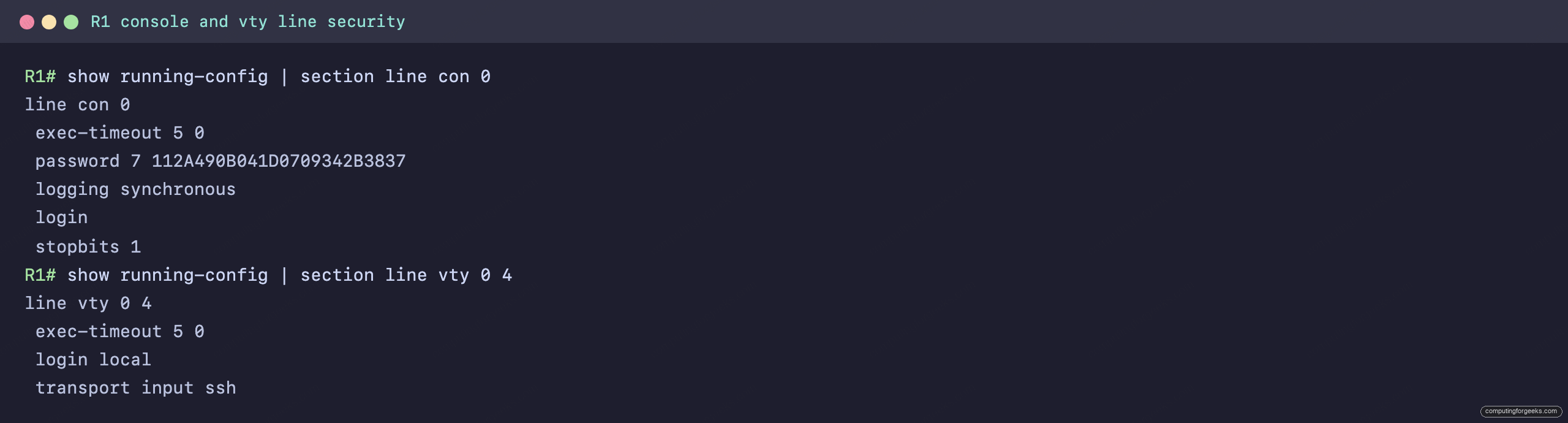
The console shows password 7 because service password-encryption is on, and the VTY lines show login local with transport input ssh. The contrast is the lesson: the console keeps a single shared password, the VTY lines authenticate named users over an encrypted channel.
What service password-encryption does and does not do
One global command encrypts the plain-text passwords sitting in the running config:
service password-encryptionAfter this, the console line password is stored as Type 7 instead of clear text, which is why the verification above showed password 7. It is worth running, because it stops a clear-text password from being read over someone’s shoulder or out of a backup file. But it is obfuscation, not security. Type 7 is reversible in seconds, so service password-encryption never protects the enable secret or your real accounts; those are protected because they use a secret hash in the first place. Use both: secret hashes for the accounts and the enable secret, plus this command to cover the line passwords that have no hashed option.
Password policy elements
The CCNA also expects you to describe the policy around passwords, not just the commands. Three ideas come up.
Management is the lifecycle: rotate passwords on a schedule, store them in a proper secrets manager rather than a spreadsheet, change every default credential before a device goes live, and remove accounts when people leave. Complexity is what makes a single password hard to guess: a minimum length, a mix of character classes, and no dictionary words or device names. On IOS you can enforce some of this with the aaa common-criteria policy framework, but the policy itself is the point.
Password alternatives reduce how much a single password is worth. Multifactor authentication adds a second factor, something you have (a token or phone) or something you are (a fingerprint), so a stolen password alone is not enough. Certificates replace the password with a key pair signed by a trusted authority, the model behind SSH keys and 802.1X with EAP-TLS. Biometrics use a physical trait as the factor. Each one shrinks the value of guessing or stealing a password, which is why modern access control leans on them rather than passwords alone.
Verify device access control
Two commands confirm the state of access control. Filter the running config for the secured pieces, and list who is currently connected:
show running-config | include enable secret|username|service password
show users
The show running-config filters confirm the secret types and that encryption is on, while show users lists the active console and VTY sessions so you can spot a connection you did not expect. The real test, though, is to open a fresh SSH session and confirm it prompts for a named user and then for the enable secret before it lets you configure anything.
Practice device access control
Run the questions to lock in the password types, the difference between the console and VTY lines, and where login local fits, then use the flashcards for quick recall.
Flip through the deck until the commands and password types are automatic, or grab the Anki pack to review them anywhere:
Save your work without locking yourself out
Access control is the one configuration that can lock you out of your own device, so the order matters. Set the enable secret and at least one username ... secret account before you touch the VTY lines, and keep your current console session open the whole time. Once SSH is configured, open a second session and confirm you can log in with the new account and reach privileged mode before you close the first one. Only then save the configuration:
write memoryIf a password is wrong and you have already saved, console-based password recovery is the way back, which is exactly why a locked wiring closet is part of access control. With the device secured, the next step is centralizing those accounts on a RADIUS or TACACS+ server so you are not managing local users on every device by hand. The CCNA 200-301 study roadmap shows where that fits in the Security Fundamentals path.