Router-on-a-stick gets inter-VLAN routing working, but it routes in software and squeezes every packet between VLANs through one trunk cable. A Layer 3 switch does the same job in hardware, on the same box the VLANs already live on, with nothing to hairpin. The gateways move off an external router and onto the switch itself as switched virtual interfaces, and the bottleneck disappears.
This guide configures inter-VLAN routing on a Layer 3 switch with SVIs, end to end on Cisco IOS: enabling IP routing, building one SVI gateway per VLAN, and verifying that traffic routes between VLANs through the switch. Every command and all output come from a real lab. It is the production answer to the design in the router-on-a-stick guide, so if you have not seen that yet, the comparison at the end will make more sense after you have.
Verified June 2026 on a Cisco IOS 15.2 Layer 3 switch with hosts in two VLANs.
Why a Layer 3 switch beats router-on-a-stick
In router-on-a-stick, a separate router holds the VLAN gateways on subinterfaces, and all inter-VLAN traffic travels up the trunk to that router and back down. One link carries it all, and a software router does the work. A Layer 3 switch already has every VLAN terminated on its ports, so it can route between them internally, in the switching hardware, at line rate. No external router, no trunk to hairpin over, far more throughput. The trade-off is cost: a Layer 3 switch is pricier than a plain router plus a Layer 2 switch, which is why both designs still have a place.
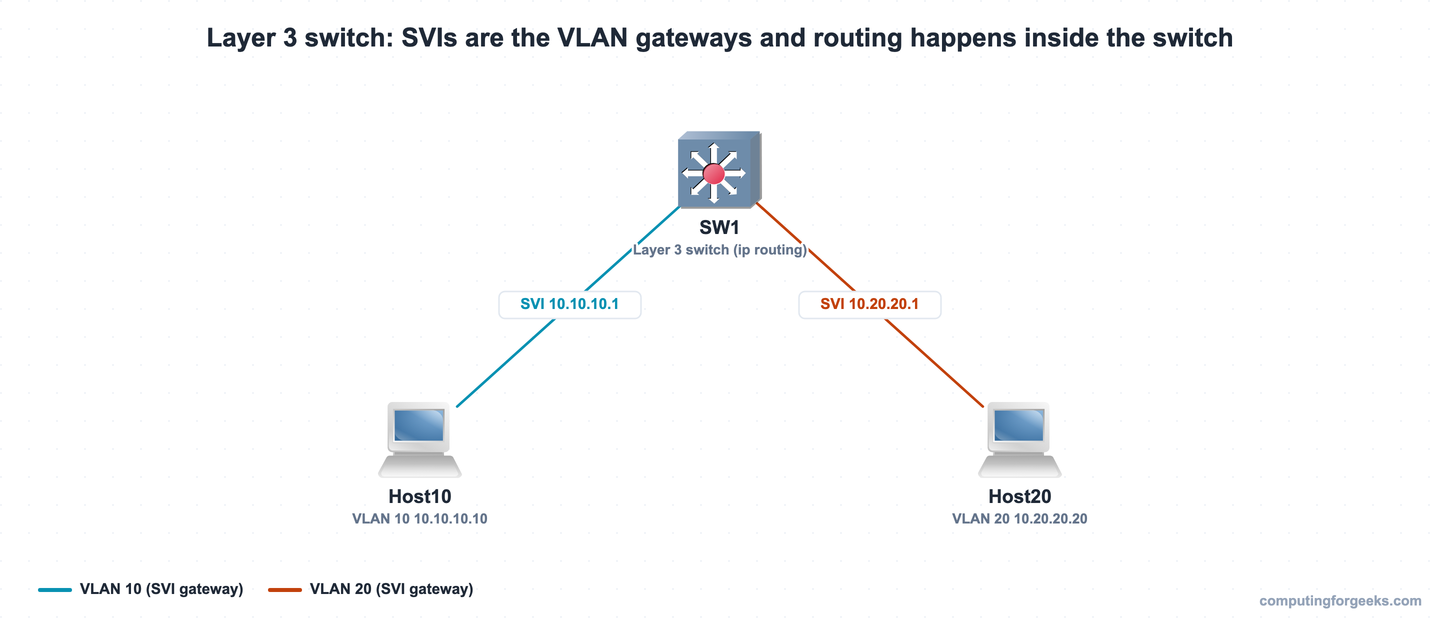
The lab is deliberately small: one Layer 3 switch and two hosts, one per VLAN. Notice there is no router in the picture at all.
| Device | Interface | Address | Role |
|---|---|---|---|
| SW1 | Vlan10 (SVI) | 10.10.10.1/24 | VLAN 10 gateway |
| SW1 | Vlan20 (SVI) | 10.20.20.1/24 | VLAN 20 gateway |
| SW1 | Gi0/1 | access VLAN 10 | Port to Host10 |
| SW1 | Gi0/2 | access VLAN 20 | Port to Host20 |
| Host10 | Gi0/0 | 10.10.10.10/24 | VLAN 10, gateway 10.10.10.1 |
| Host20 | Gi0/0 | 10.20.20.20/24 | VLAN 20, gateway 10.20.20.1 |
The two hosts are routers acting as end devices, each with an address and a default route to its SVI. Here is the lab running in GNS3:
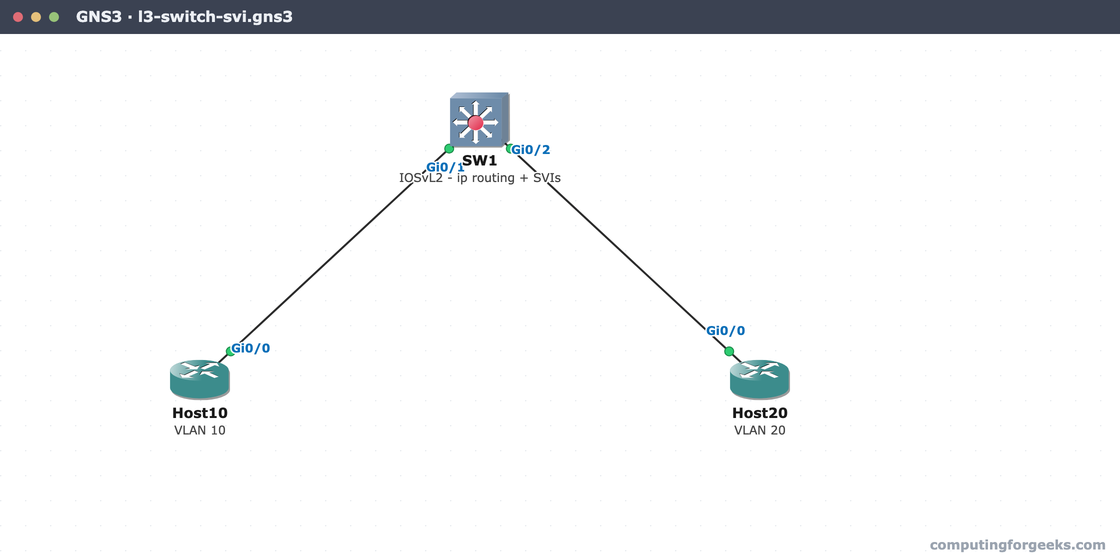
The full switch and host configs are in the companion lab repo if you want to load them directly.
Step 1: Enable IP routing
This is the step everyone forgets. A multilayer switch ships with routing turned off, so it behaves as a pure Layer 2 device until you tell it otherwise. One global command flips it on:
configure terminal
ip routing
Without ip routing, you can build SVIs all day and the switch still will not forward a single packet between them. If inter-VLAN routing is not working and the config looks right, this is the first thing to check.
Step 2: Create the VLANs and access ports
The Layer 2 design is unchanged from any switched network. Create the VLANs, then put each host port in its VLAN as an access port:
vlan 10
 name SALES
vlan 20
 name ENGINEERING
interface GigabitEthernet0/1
 switchport mode access
 switchport access vlan 10
interface GigabitEthernet0/2
 switchport mode access
 switchport access vlan 20
In a real network the access switches connect to this Layer 3 switch over 802.1Q trunks carrying every VLAN. The switch terminates those VLANs on its SVIs, which is the next step.
Step 3: Create the SVIs
An SVI is a virtual Layer 3 interface tied to a VLAN, and its IP address becomes the default gateway for every host in that VLAN. Create one per routed VLAN:
interface Vlan10
 ip address 10.10.10.1 255.255.255.0
 no shutdown
interface Vlan20
 ip address 10.20.20.1 255.255.255.0
 no shutdown
One behaviour catches people out. An SVI’s line protocol comes up only when its VLAN has at least one member port that is up and in the spanning-tree forwarding state (this is autostate). A freshly built SVI with no connected host ports in its VLAN, or one whose only port is STP-blocked, will sit in the down state even though the configuration is correct. Connect a host, or bring up a forwarding port in that VLAN, and the SVI comes up. With Host10 and Host20 plugged into Gi0/1 and Gi0/2, both SVIs are up.
Step 4: Verify the routing
The proof that this is now a router is the routing table. Each VLAN subnet should appear as a connected route out its SVI:
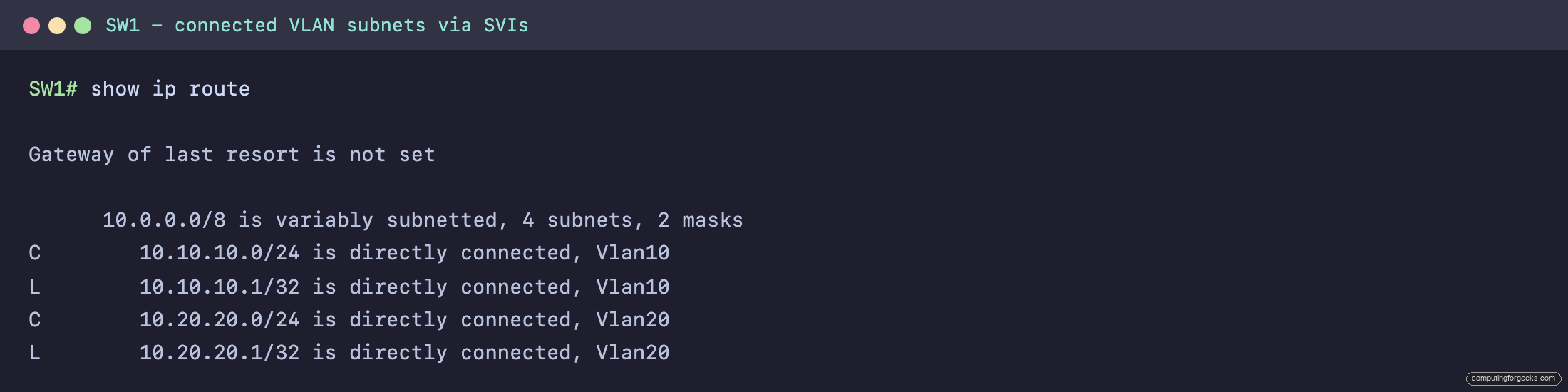
Both subnets show as C (connected) out Vlan10 and Vlan20. Because each is directly attached, the switch routes between them with no protocol or static route needed. For a fuller breakdown of these codes, see the guide on reading the routing table. To confirm the SVI itself, look at the interface:
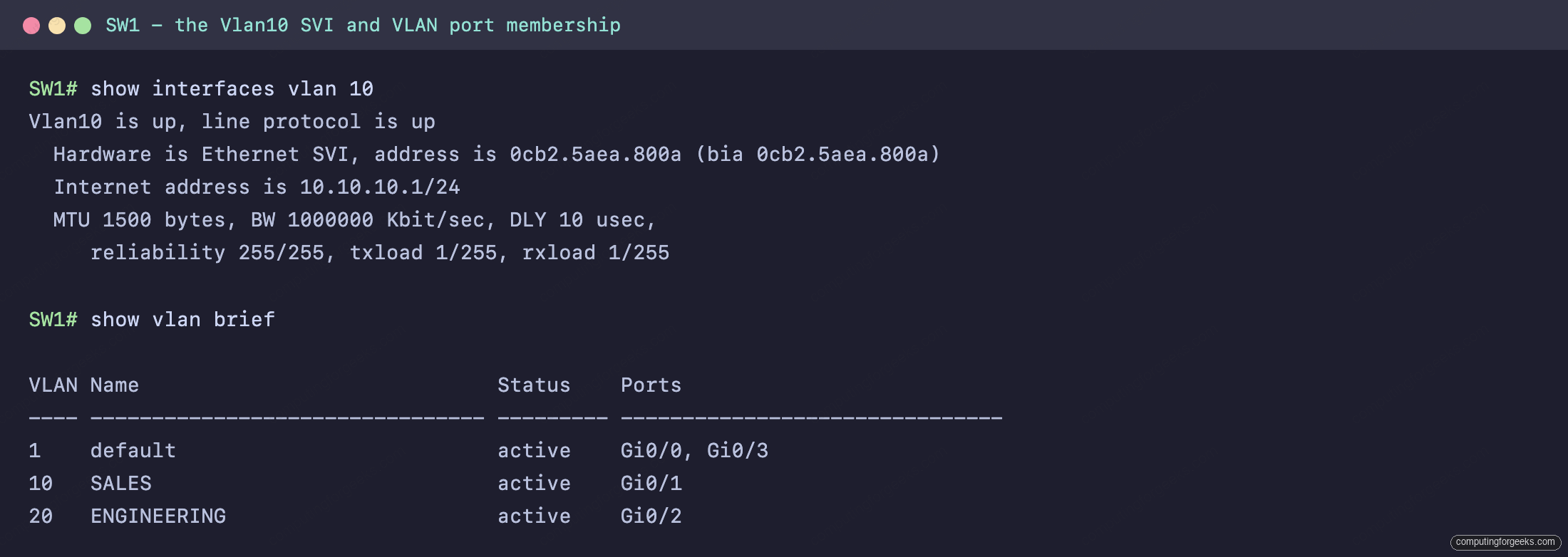
Vlan10 is up with line protocol up, the hardware type is Ethernet SVI, and the address is the gateway you configured. The VLAN brief confirms Host10 sits in SALES (VLAN 10) and Host20 in ENGINEERING (VLAN 20).
Step 5: Verify traffic crosses VLANs
A clean routing table is necessary but not sufficient. The real test is a host in one VLAN reaching a host in another, with a traceroute to show the path:
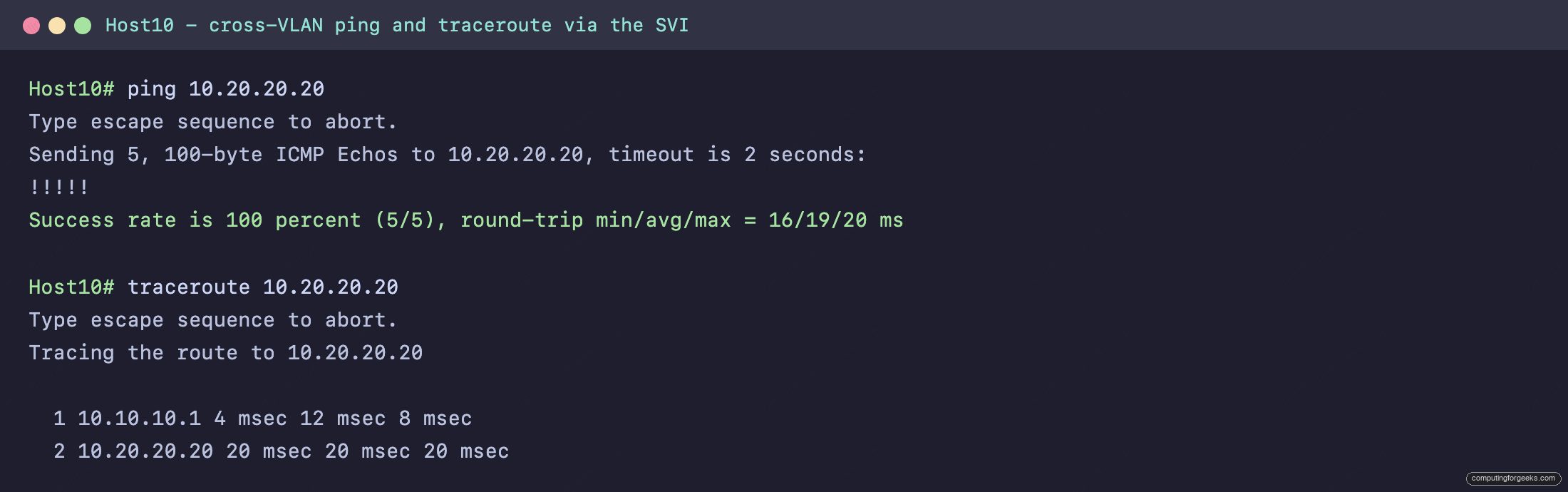
The ping from Host10 in VLAN 10 to Host20 in VLAN 20 succeeds at 100 percent, and the traceroute shows a single hop before the destination: 10.10.10.1, the Vlan10 SVI. That first hop is the switch itself doing the routing. Compare that with router-on-a-stick, where the same first hop would be a separate router reached over a trunk. Here, the gateway and the router are the same device.
Router-on-a-stick versus a Layer 3 switch
Both designs solve the same problem, so the choice comes down to scale, throughput, and what hardware you already own:
| Factor | Router-on-a-stick | Layer 3 switch (SVIs) |
|---|---|---|
| Routing done by | External router, in software | The switch, in hardware (ASICs) |
| Gateway lives on | Router subinterfaces | SVIs on the switch |
| Inter-VLAN path | Up and back over one trunk | Internal to the switch |
| Throughput | Limited by the single trunk | Line rate, no shared bottleneck |
| Best for | Few VLANs, labs, small sites | Many VLANs, production, heavy east-west traffic |
| Cost | Cheap (router + L2 switch) | Higher (multilayer switch) |
The rule of thumb: reach for router-on-a-stick when you have a handful of VLANs and a spare router, and move the gateways onto a Layer 3 switch the moment VLAN count or inter-VLAN traffic grows. The commands you just ran are the ones production networks actually use.
Test yourself on Layer 3 switch routing
Eight questions on SVIs, enabling routing, and the difference from router-on-a-stick. Each answer is doc-checked or verified on the lab above.
Drill the commands and concepts with the flashcard deck, and grab the same cards as an Anki deck for review on your phone:
With both inter-VLAN routing methods under your belt, the switching and routing halves of the CCNA finally connect: VLANs segment the hosts, and either a router or a Layer 3 switch ties them back together. The next building block is keeping that gateway available when a device fails, which is where first-hop redundancy comes in. For the full sequence, follow the CCNA 200-301 study roadmap.