A trunk can come up, report itself as trunking, and still quietly drop half your VLANs. The link is fine, the cable is fine, and yet a host in VLAN 20 on one switch cannot reach VLAN 20 on the other. That gap is almost always a trunk that was configured without checking the native VLAN or the allowed list. This guide shows how to configure an 802.1Q trunk between two Cisco switches, then verify and harden it so it carries exactly the VLANs you think it does.
The VLANs guide created VLAN 10 and VLAN 20 and placed one on each switch. A trunk is the link that lets those VLANs reach across both. One physical port, many VLANs, every frame tagged with its VLAN ID. We cover the 802.1Q tag and the native VLAN, the two commands that build a trunk, how to read show interfaces trunk, pruning the allowed VLAN list, and shutting down DTP negotiation.
Tested June 2026 on two Cisco IOS 15.2 switches in GNS3.
What an 802.1Q trunk does
An access port belongs to one VLAN and hands untagged frames to a single host. A trunk port is the opposite: it carries many VLANs over one link and tags each frame with a VLAN ID, so the switch on the far end knows which VLAN the frame came from. Between two switches, the trunk is what lets VLAN 10 and VLAN 20 live on both sides without a separate cable per VLAN. If the difference between a switch and a router is still fuzzy, the network devices overview covers the roles.
The tagging standard is IEEE 802.1Q, usually written dot1q. It inserts a small tag into the Ethernet header that carries the VLAN ID. The older Cisco-proprietary method, ISL, is gone from current switches, so every trunk you build today is 802.1Q. The tag is four bytes:
| 802.1Q tag field | Size | What it carries |
|---|---|---|
| TPID | 2 bytes | Fixed value 0x8100, marks the frame as tagged |
| Priority (PCP) | 3 bits | Class of service for QoS, 0 to 7 |
| DEI (CFI) | 1 bit | Drop-eligible indicator |
| VLAN ID | 12 bits | The VLAN number, 0 to 4095 (so VLANs stop at 4094) |
One VLAN on a dot1q trunk is special. The native VLAN crosses the trunk untagged, and it defaults to VLAN 1. Every other allowed VLAN is tagged. The native VLAN is where most trunk problems begin, so we set it deliberately in a later step.
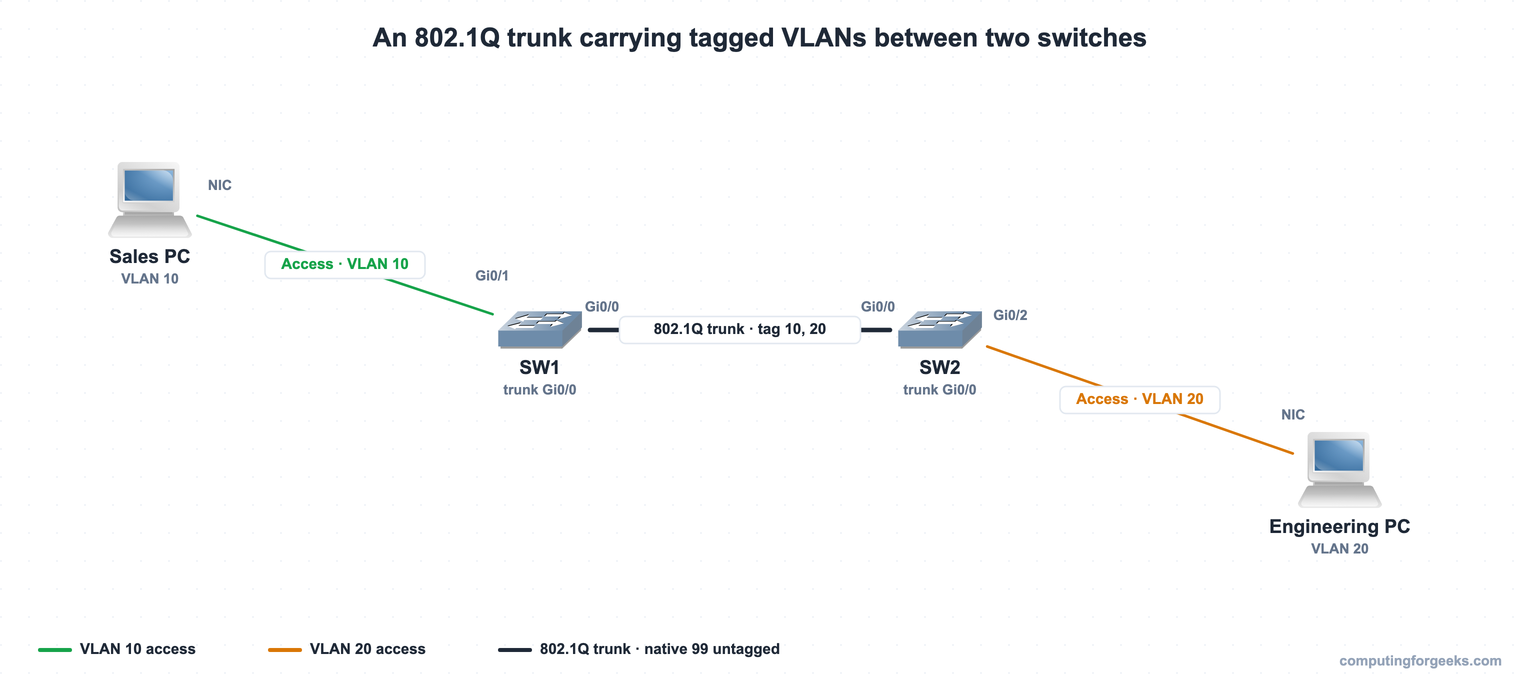
In the lab above, SW1 and SW2 each have one access port and share a single trunk on Gi0/0. The trunk carries VLAN 10 and VLAN 20 tagged, while the native VLAN rides untagged.
Step 1: Configure a basic 802.1Q trunk
A trunk needs two things on the interface: the encapsulation and the mode. On a switch that also supports ISL, you pick 802.1Q first, then turn the port into a trunk. These commands assume the switch already has its base configuration in place.
configure terminal
interface GigabitEthernet0/0
 switchport trunk encapsulation dot1q
 switchport mode trunk
end
Many current switches are dot1q-only and reject the encapsulation command, because there is nothing to choose. On those, switchport mode trunk alone is enough. Run the same commands on both switches. A trunk is only a trunk when both ends agree.
With the link configured, check what it is carrying:
show interfaces trunkOn a brand-new trunk the defaults are wide open: native VLAN 1, and every VLAN allowed.
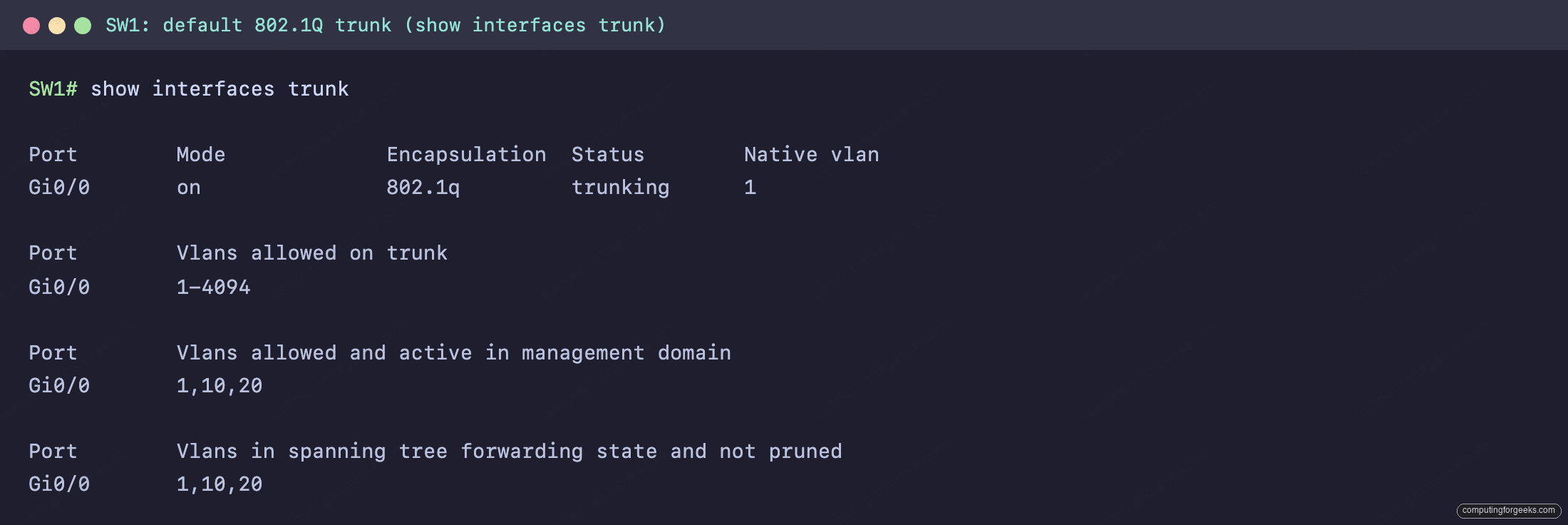
Mode on means the port was hardcoded as a trunk. Native vlan reads 1, the default. Vlans allowed on trunk shows 1-4094, so the trunk will carry any VLAN that exists and is active on both switches. That is convenient for a lab and wrong for production, which is what the next steps fix.
Step 2: Verify the trunk in detail
show interfaces trunk is the quick view. For the full state of one port, show interfaces switchport spells out the administrative and operational settings:
show interfaces gigabitethernet0/0 switchportThis is the screen to read when a trunk is not behaving:
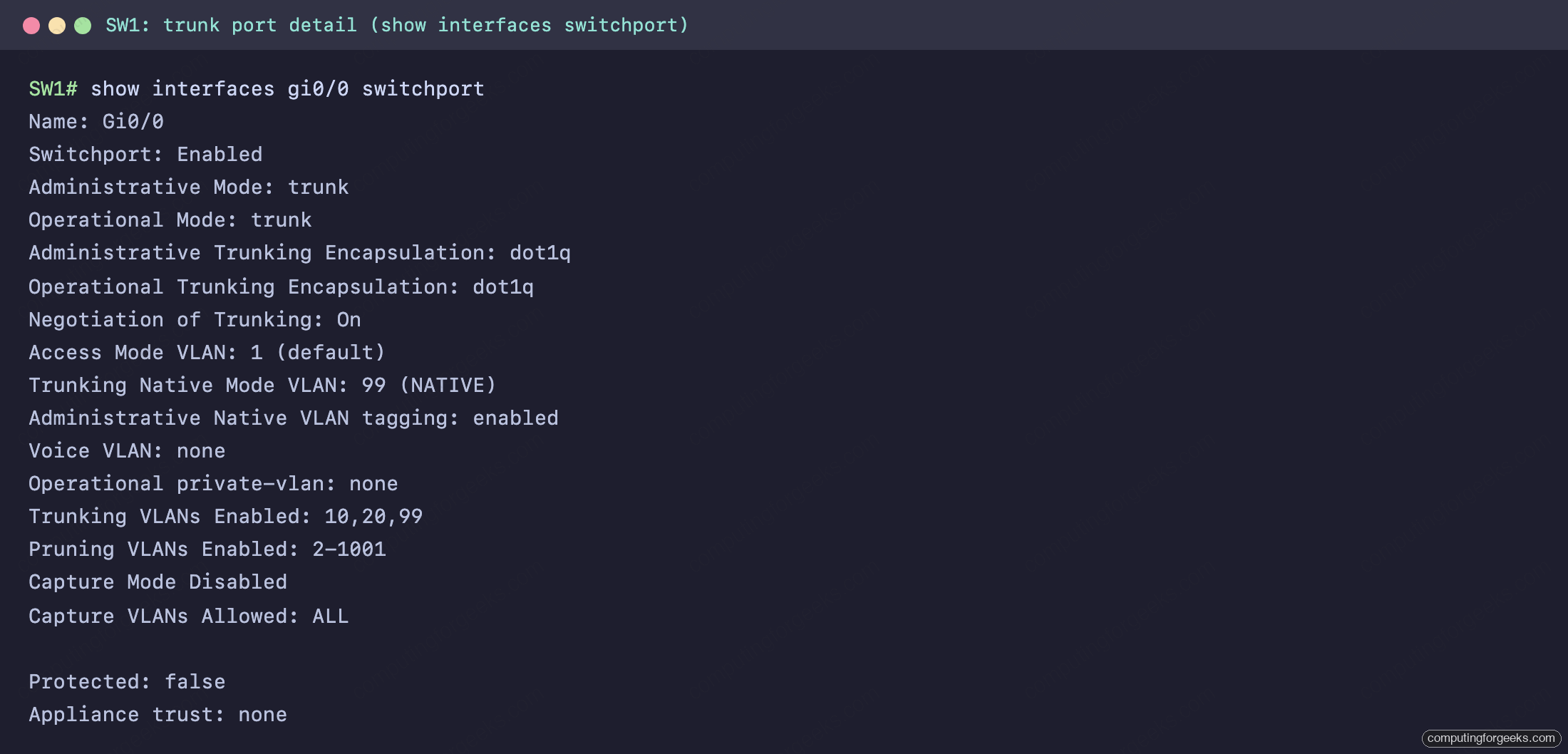
Administrative Mode is what you configured; Operational Mode is what the port actually became. Both reading trunk is what you want. If Administrative Mode says trunk but Operational Mode says down or static access, the other end is not trunking. The other lines confirm the encapsulation (dot1q), whether the port still speaks DTP (Negotiation of Trunking), the native VLAN, and the list of VLANs the trunk will carry.
| show interfaces trunk field | What it tells you |
|---|---|
| Mode | on (hardcoded), auto/desirable (DTP), or off |
| Encapsulation | 802.1q on a modern trunk |
| Status | trunking when the port is an active trunk |
| Native vlan | the VLAN sent untagged across the link |
| Vlans allowed on trunk | the configured allowed list |
| Vlans allowed and active | allowed VLANs that actually exist on the switch |
| Vlans in spanning tree forwarding state | allowed, active, and not blocked by STP |
This trunk was built and captured on two IOSvL2 switches in GNS3, a single link between Gi0/0 on each:
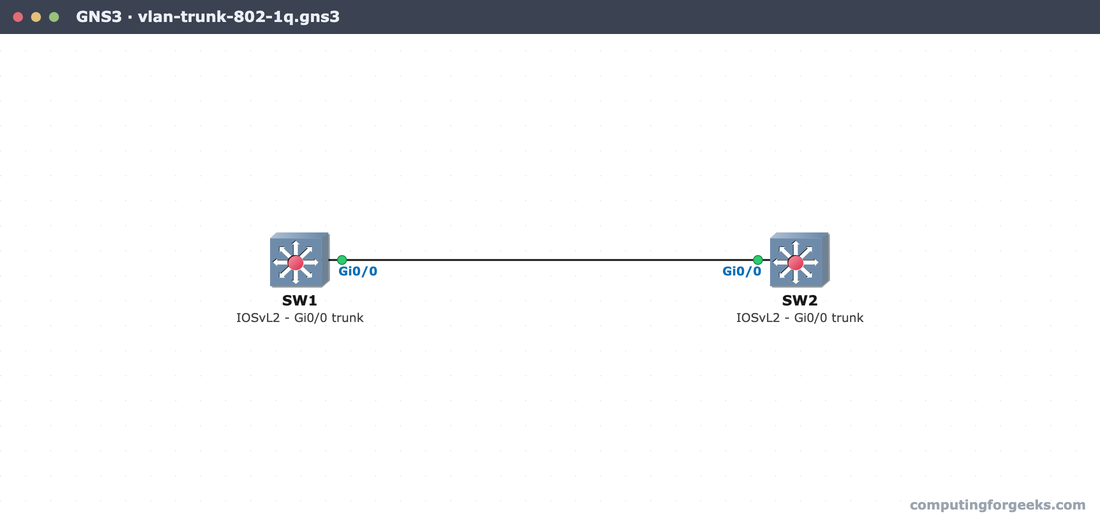
Each switch still learns MAC addresses on the trunk port the same way it does on any link, so a single host shows up on the direct switch and on the uplink of its neighbor. The MAC address table guide walks through that uplink behavior.
Step 3: Set a dedicated native VLAN
The native VLAN is the first thing to lock down. Leaving it at VLAN 1 is the default, and if the two ends ever disagree on it, the switches log a native VLAN mismatch and untagged traffic leaks between the two native VLANs. That is both a connectivity bug and a security hole, so do not skip it.
The fix is to use the same dedicated, unused VLAN as the native on both ends. Create the VLAN first, then point the trunk at it:
configure terminal
vlan 99
 name NATIVE
interface GigabitEthernet0/0
 switchport trunk native vlan 99
end
Do this on both switches with the same VLAN ID. If you change it on one side and not the other, CDP warns you within a minute with a %CDP-4-NATIVE_VLAN_MISMATCH message that names both interfaces and their differing native VLANs. The link keeps passing tagged VLANs, but the mismatch is real, so fix it rather than ignore the log.
After setting native VLAN 99 on both switches, show interfaces trunk confirms the change in the Native vlan column. The verification screenshot for this is in the next step, because we apply the allowed list at the same time.
Step 4: Prune the allowed VLAN list
By default a trunk allows every VLAN. Leaving it that way means the link carries broadcasts for VLANs that have no reason to cross it, and it widens what a rogue device can reach. Limit the trunk to the VLANs that actually need to span both switches:
configure terminal
interface GigabitEthernet0/0
 switchport trunk allowed vlan 10,20,99
end
That command replaces the whole list. To adjust an existing list instead of overwriting it, use a modifier:
| Command | Effect |
|---|---|
| switchport trunk allowed vlan 10,20,99 | Replace the list with exactly these VLANs |
| switchport trunk allowed vlan add 30 | Add VLAN 30 to the current list |
| switchport trunk allowed vlan remove 20 | Remove VLAN 20 from the list |
| switchport trunk allowed vlan except 10,20 | Allow all VLANs except the ones listed |
| switchport trunk allowed vlan all / none | Allow everything, or nothing |
Run it on both switches. Now show interfaces trunk shows the native VLAN and the pruned list together:
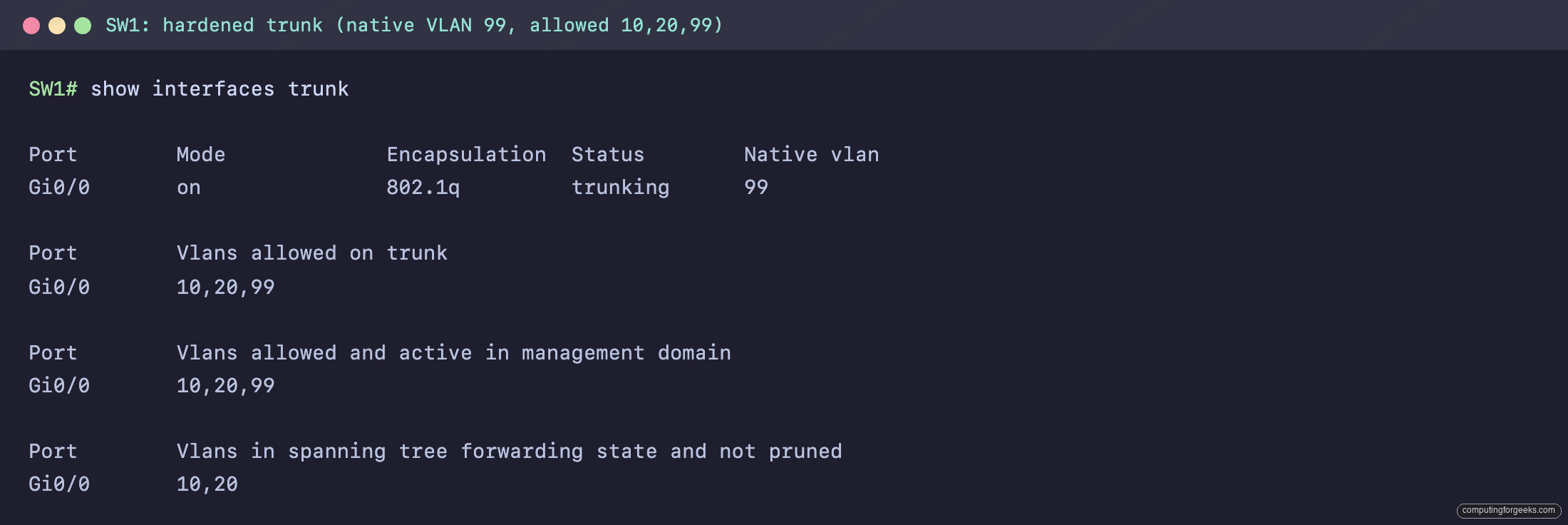
Native vlan is 99 and Vlans allowed on trunk is 10,20,99. The trunk will carry nothing else. This is the footgun to remember: prune too hard and a VLAN you create next month will silently fail to cross until you add it here with allowed vlan add.
Both ends must match. Here is SW2 with the identical trunk:
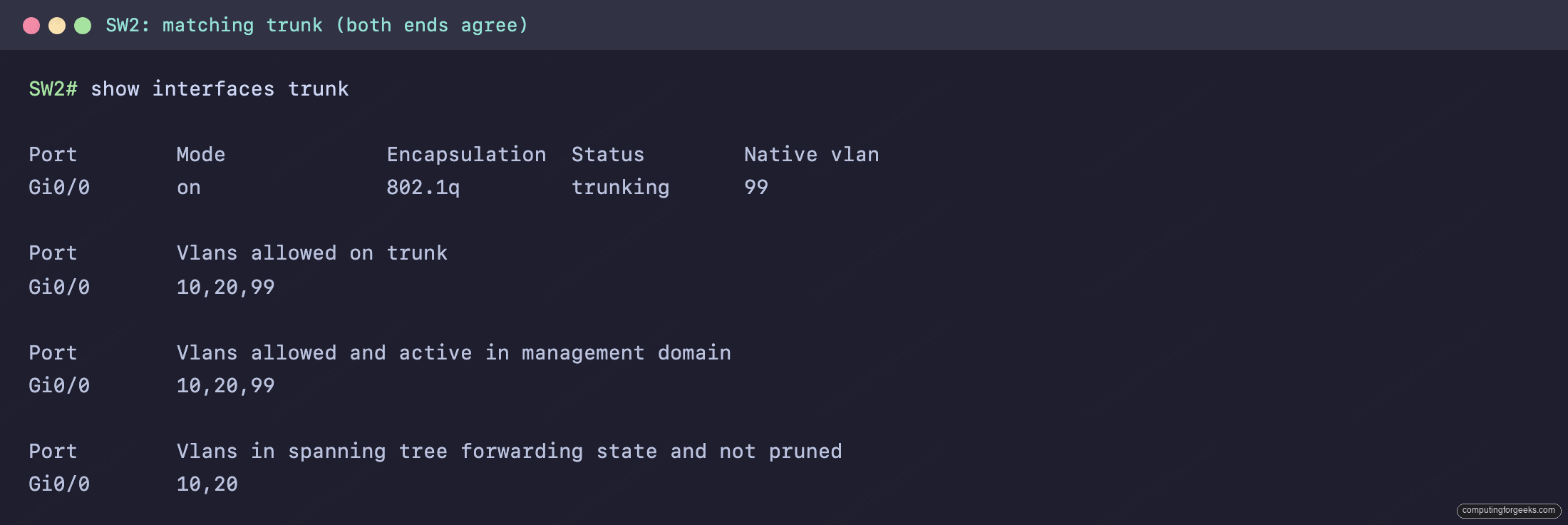
Same native VLAN, same allowed list. A trunk only works when both ends agree on encapsulation, native VLAN, and which VLANs are allowed. Treat the two configs as one.
Step 5: Control trunk negotiation with DTP
Cisco switches can form trunks on their own through the Dynamic Trunking Protocol (DTP). It is convenient and it is a liability. A port left on the dynamic default can be talked into becoming a trunk by whatever is plugged into it, including an attacker’s laptop. Know what each mode does:
| Mode | Behavior |
|---|---|
| access | Never trunks. Forces the port to access mode. |
| dynamic auto | Trunks only if the neighbor is desirable or on. Will not start negotiation itself. |
| dynamic desirable | Actively tries to form a trunk with the neighbor. |
| trunk | Always a trunk. Still sends DTP unless you add nonegotiate. |
The safe pattern leaves nothing to negotiation. Hardcode infrastructure links as trunks and stop them speaking DTP:
interface GigabitEthernet0/0
 switchport mode trunk
 switchport nonegotiate
And hardcode host-facing ports as access ports so they can never negotiate a trunk at all:
interface GigabitEthernet0/1
 switchport mode access
With mode trunk plus nonegotiate on the uplinks and mode access on the edges, every port is what you set it to and nothing else. If you want to apply the same lines to a block of ports at once, the IOS CLI editing shortcuts cover interface range.
Practice 802.1Q trunking
Trunking sits in the Network Access section of the CCNA 200-301 study roadmap. The full two-switch trunk, paste-ready for GNS3, Cisco Packet Tracer, or real gear, is in the companion repo: c4geeks/ccna-labs. Build SW1 and SW2, connect Gi0/0 to Gi0/0, and paste the configs.
Run through the quiz to check that the native VLAN, allowed list, and DTP behavior have stuck:
Then drill the commands and facts with the flashcards, or grab the deck for Anki:
When a trunk silently drops VLANs
When a VLAN refuses to cross a working trunk, the cause is almost always one of four things. Check them on both switches, in this order:
- The ends do not agree on mode or encapsulation. Run
show interfaces trunkon both. One side configured as access, or a different encapsulation, means there is no trunk and nothing tagged passes. - Native VLAN mismatch. The
%CDP-4-NATIVE_VLAN_MISMATCHlog names both interfaces. Set the same native VLAN on both ends. - The VLAN is not in the allowed list. Check Vlans allowed and active in
show interfaces trunk. If your VLAN is missing, add it withswitchport trunk allowed vlan add <id>on both switches. - The VLAN does not exist or is inactive. A VLAN only appears under allowed and active once it has been created on the switch. Run
show vlan briefand create it if it is missing.
Work down that list and almost every trunk problem resolves at one of the four. Verify on both switches every time, because a trunk is only ever as good as the end you forgot to check.