EGroupware Customizing
1. Customize New Template set (framework called KDOTS)
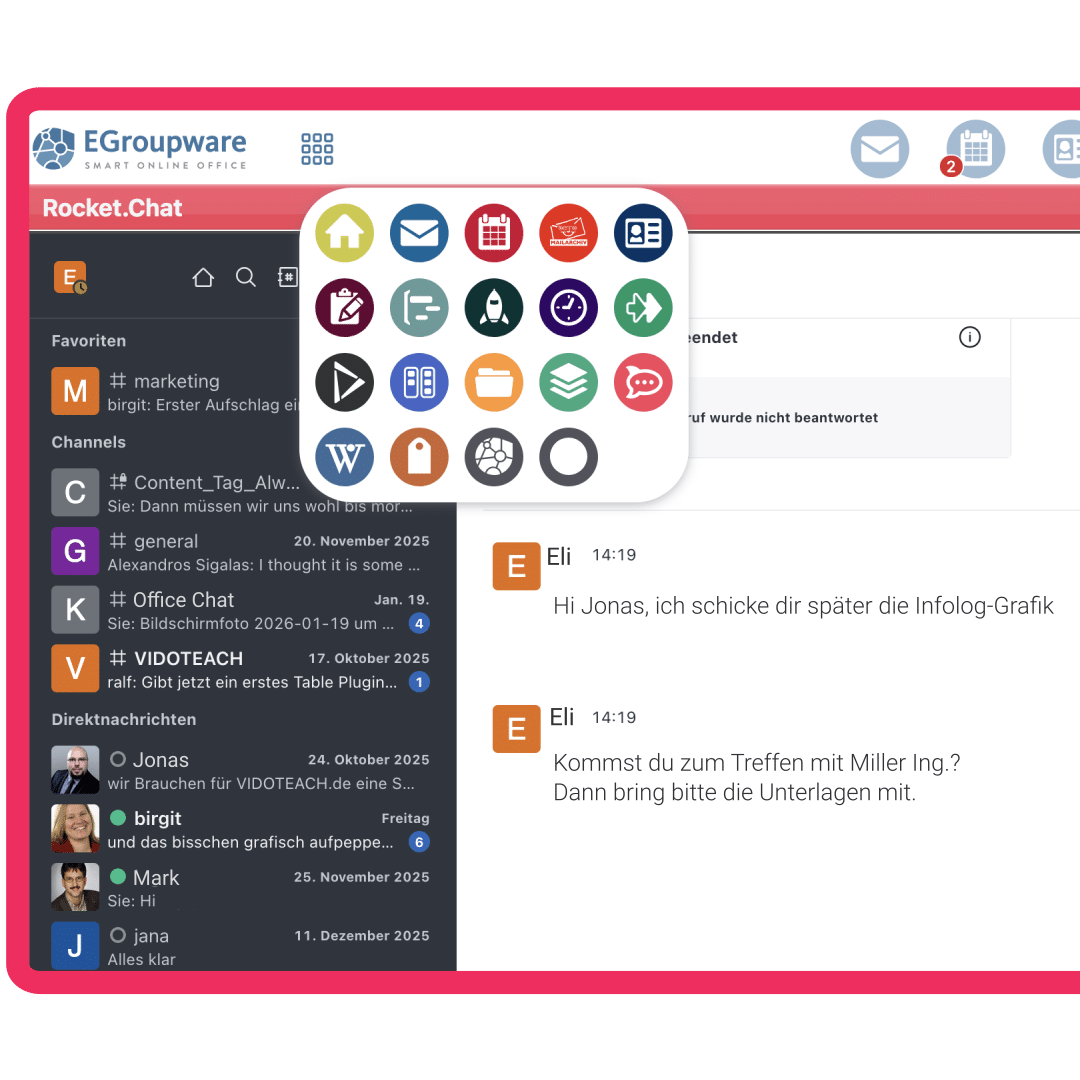
- Go to Preferences -> Common preferences -> Tab Preferences for the kdots template set
- The admin can change default or force Application-Chooser from the default of compact app-chooser with just icons to a list of applications showing icons and application names
- The default order and color of individual apps can be changed in Admin -> Changelog and versions in Tab Apps & license
- The admin or user can change, if pop-ups should open modal in the main window (good for accessibility) or remain as popup (default)
- The admin can set a custom color for all app-headers and the login box or just the login box to match the cooperate identity
- The admin can change if the App Icons of the open tabs should use the app color or show more neutral in a lighter version of the custom color
- The user can change between light and dark mode by icon or in the preference to use the system default of the desktop. Mobile view always use the system default of the mobile device.
- The user can change the app order by drag & drop within the app-chooser, this also effects reordering the open tabs. If user close a app tab and re-open it from app-chooser it always appears in the same position.
2. Customize App-toolbar of App-header
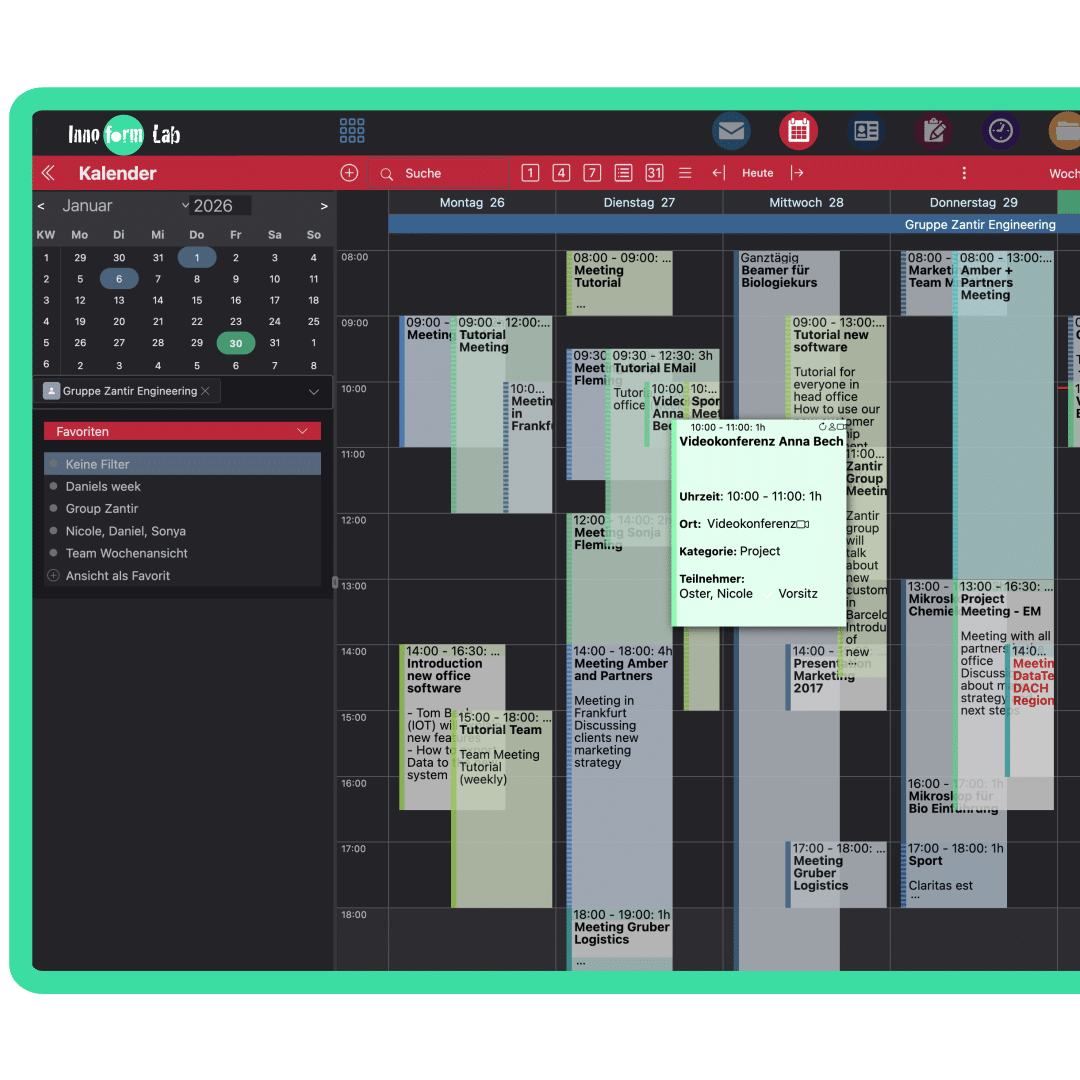
- The new list have a reduced complexity by moving the filters and search into a toolbar in the app-header and moving the selectboxes from the header of the lists into a so called filter drawer, which can be reached via the filter-icon.
- The amount of entrys (matches) is displayed in the filter drawer and when filters are changed directly as a tooltip.
- The filter drawer contains the column selection icon for the lists, a button to remove all filters, all filters (including the ones from the app toolbar and the list headers). It contains the search including options to switch between "fulltext search", "RAG search", "Hybrid search" or "Legacy search" and at the end the favorites.
- What is displayed in the app-toolbar can be modified or specified in the index.xet file (etemplates) of the according app. So if there is any filter your users need very often (which is NOT jet in the toolbar), this can be customized.
- Admin can change the default for searching in the applications in Preferences -> RAG app -> "What type of search to use for search in the apps", the default is the much quicker "fulltext search", but it can also be switched back to "Legacy search" in case your user can't adapt to how fulltext or RAG search is working.
3. Configure RAG and AI Tools
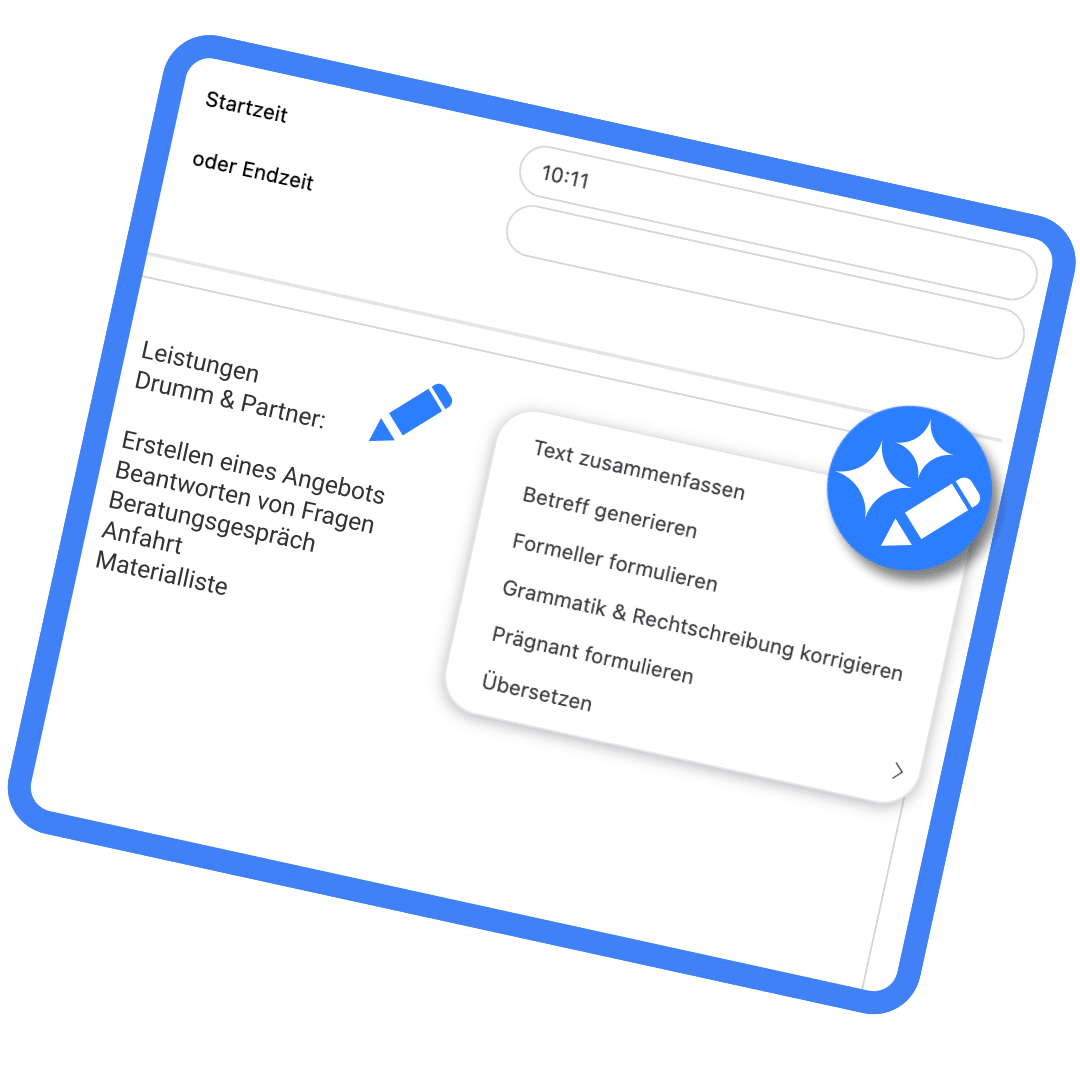
- AI tools assist in translating, rephrasing and stylistically adapting texts, as well as in creating responses.
- Alternatively to translations with AI, the DeepL service can also be used for translations.
- AI tools and RAG needs to be configured by specifying e.g. AI model, AI Provider or URL, API keys ...
- IF RAG is configured (Admin -> Applications -> RAG -> App-config) the global search over all application (available on the avatar menu) now use the RAG application.
- Additional to the AI configuration itself admin can configure which apps should be included for fulltext search and additional for the RAG. The default is all supported apps, but Admin can configure to use e.g. RAG only for specific apps!
- Within the RAG application you can also search specifically only in a single app or app A and B with a specified search methode. The results in the RAG app are always displayed including "RAG distance" and "fulltext relevance" and user can change the sort order in the result list.
- AI tools can be used in all html areas or multiline textfields e.g. show a translation in mail pre-view, compose an email or reply with the new AI tools or add a summary to a long task (infolog), a ticket or calendar entry.
1. Upload Logos, favicon, background image and fonts for EGroupware
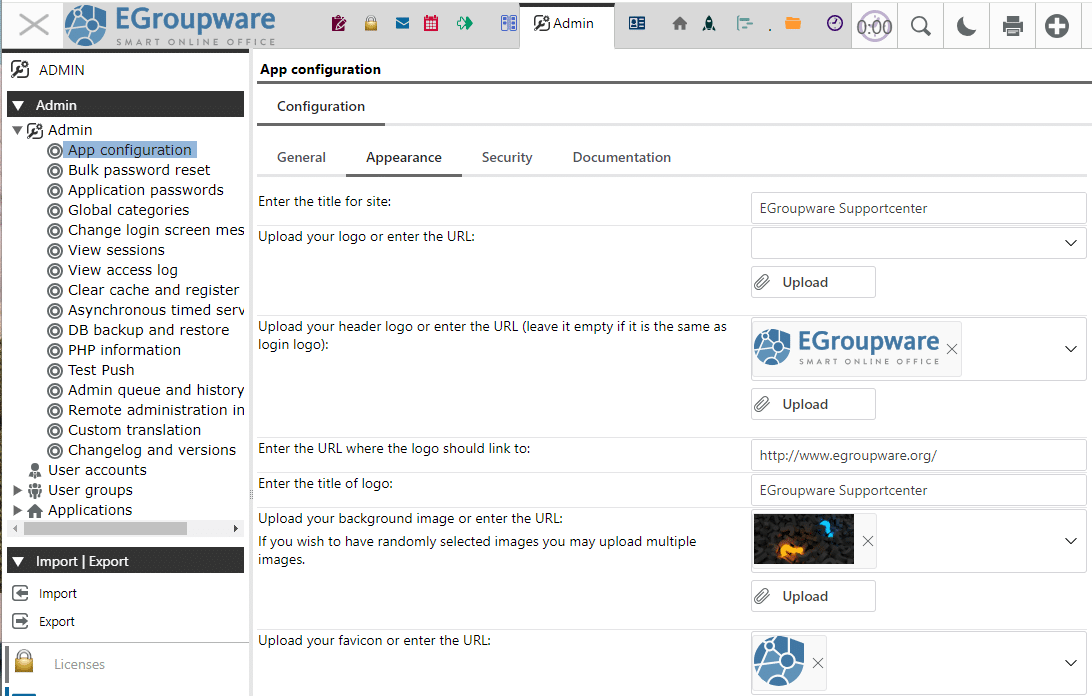
- Go to Admin -> App configuration -> Tab appearance
- The admin can upload a logo, which is used for the login page and in EGroupware header or two different ones e.g. the different background color or format. In general it's possible to use SVG, JPG or PNG - our recommendation is SVG!
- The admin can upload one or several background images for the login page, they are used by chance on any reload of the page.
- The admin can also add some titles and links e.g. to your website
-
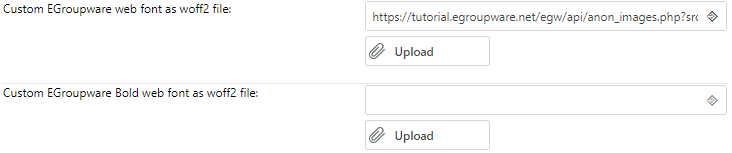
NEW: The admin can upload 2 different fonts, called "EGroupware" and "EGroupware Bold". EGroupware is used instead of the default font in whole EGroupware. EGroupware and EGroupware Bold are also available in the text editor (at the bottom of all fonts).
Please be aware that a custom font used in an email is not embedded in the sent mail and therefore the displayed font can be different for the recipient!
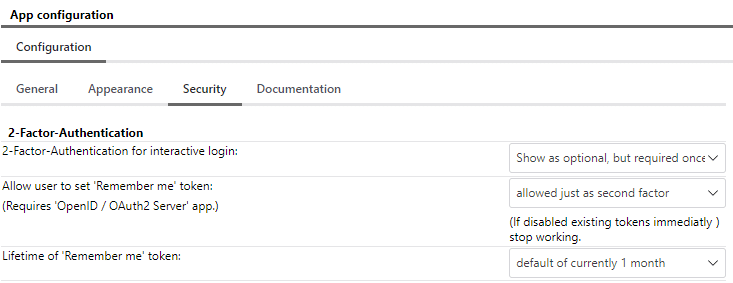
2. Adapt the login box e.g. remove "remember me" or add/remove language selector
- Go to Admin -> App configuration -> Tab security: 2-factor authentication and remember me token
- Go to Admin -> App configuration -> Tab general: Show language select box on login page?

3. Configure the registration of users or lost password links using the registration app
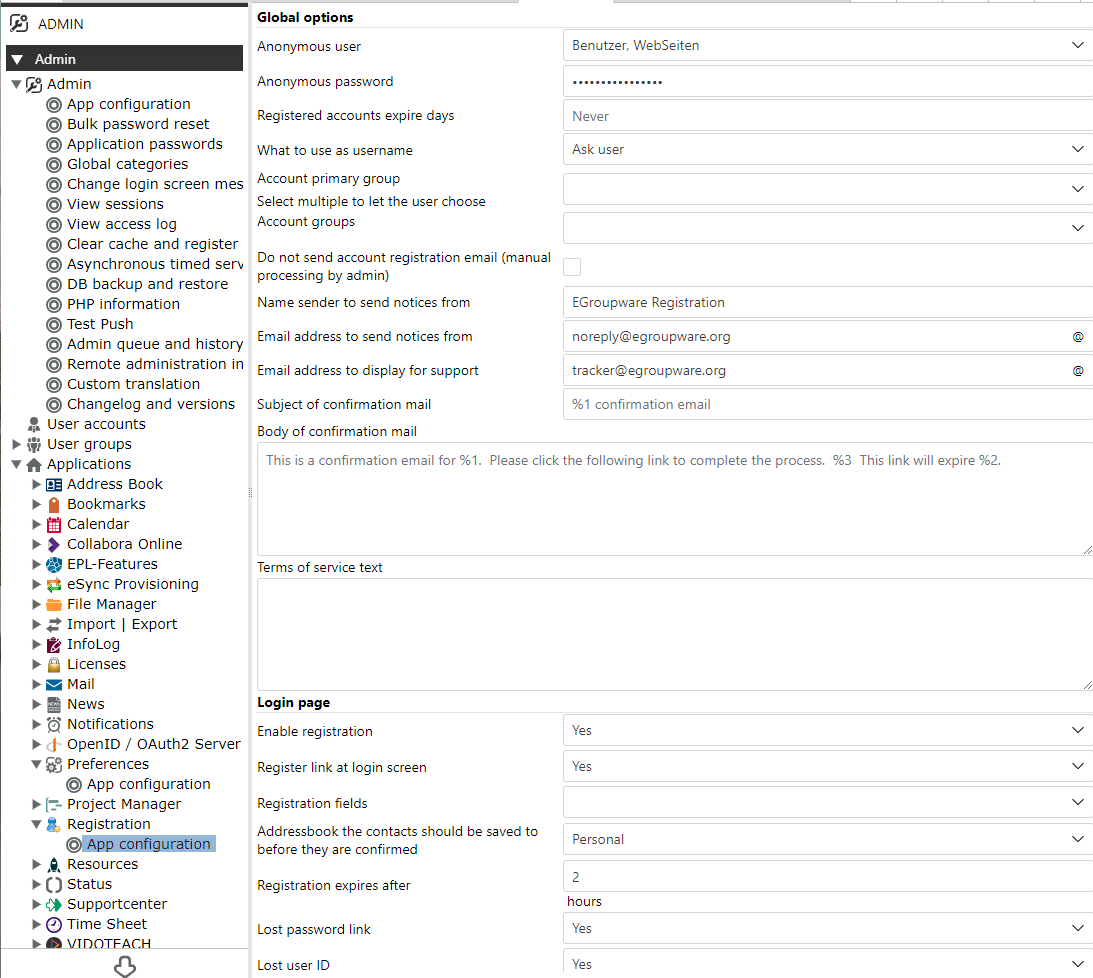
- Go to Admin -> Applications -> Registration -> App configuration
- The admin can configure which fields should be displayed for the registration of new users, messages and several other options (see screenshot above).
- The admin can configure what should be displayed in the login box, e.g. only a lost password link or also the registration.
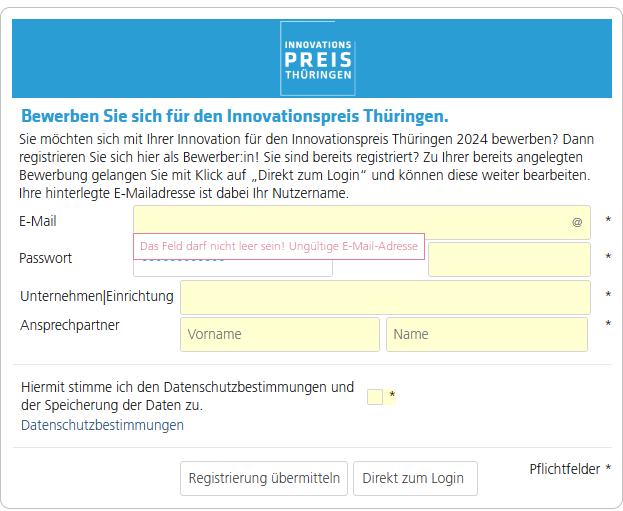
- If the admin want to customize the registration form with more details, this can be done with a custom eTemplate "registration_form.xet"
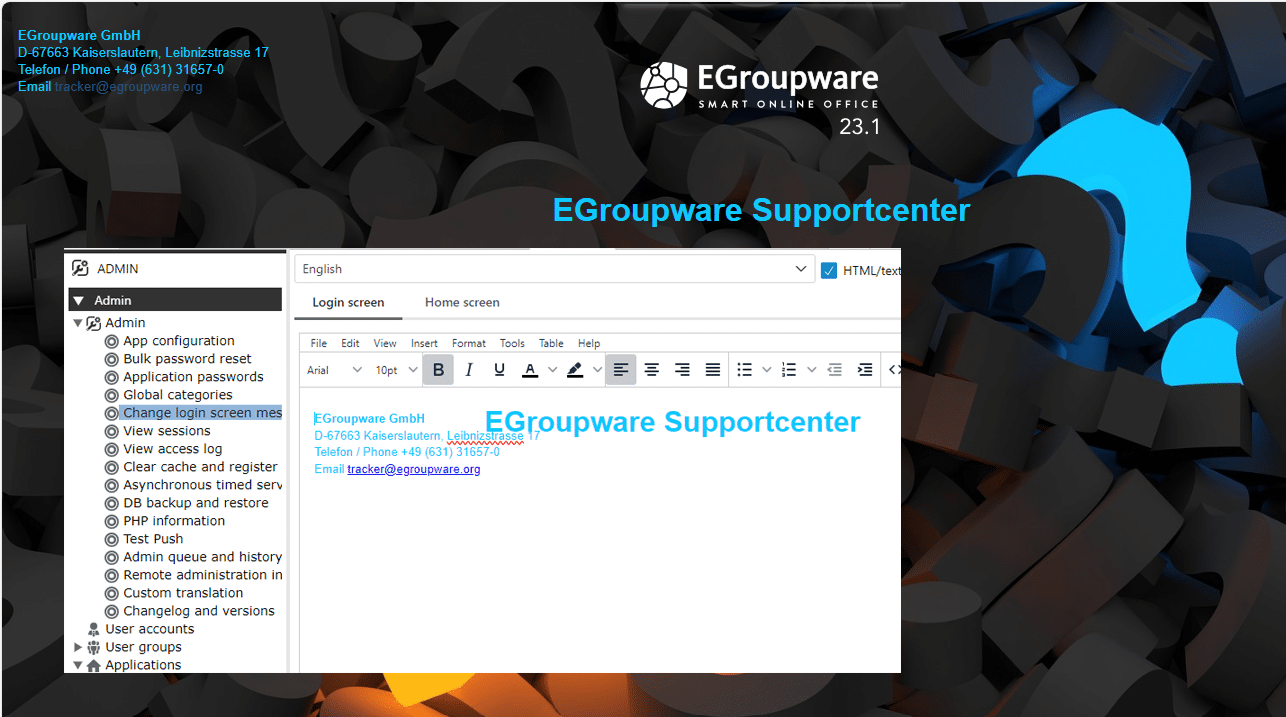
4. Change login screen message e.g. to add infos or imprint to the login page
- Go to Admin-> Change login screen message
- There are 2 options for "login screen" and "home screen" and the admin can choose or set it for each language (english is the default and will be used, if there is no specific language set)
- The text editor allows to add text, set color in html or change the font (including EGroupware fonts). Additionally the admin can specify CSS to e.g. position imprint or address top left/right. Or hide the EGroupware icons in the login box or on the bottom of the page.
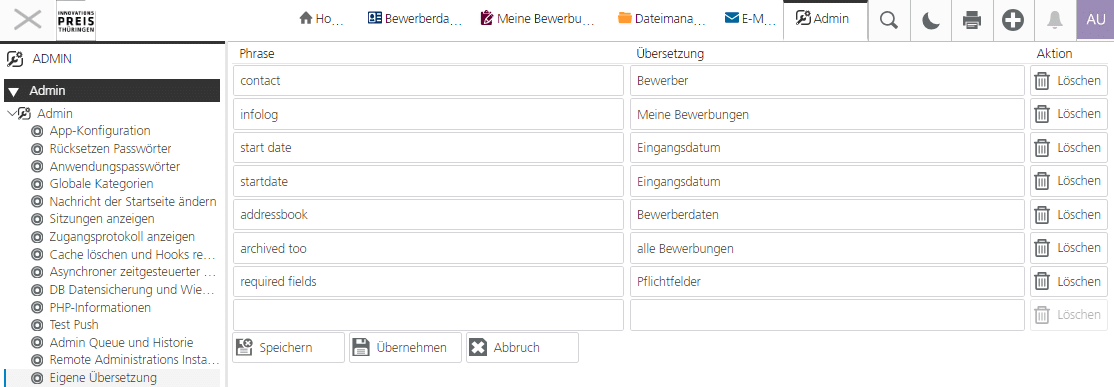
- Admin -> custom translation
- The admin needs to add the english phrase and a translation for it. The custom translation is used in all languages and has the highest priority.
- It can be used to translate an app e.g. Infolog into "Task management" (or "meine Bewerbungen") or a specific phrase e.g. "private" to "confidential" or "startdate" to "Eingangsdatum".
1. General Information
- Custom fields are available in mostly all EGroupware apps (except email) and can be found in Admin -> Applications -> app name -> custom fields or in Admin side menu bar. All EGroupware updates are taking custom fields into account to not break customizing.
- EGroupware has lots of different custom field types like "text", "select box", "link to Adress Book, Infolog, Projectmanager" ...
- If an app supports types (e.g. Infolog, Tracker, Adress Book), the admin can select for which types the custom field should show up, by selecting the types or empty for all.
- If "Required" is set, an entry of that type can't be saved, as long as the field is not set!
- If the admin specifies the attribute "Private", the custom field is only displayed to this users or groups! After changing the permissions you need to clear the cache (Admin -> clear cache" as permissions are cached!
- The order can be changed by inserting a number between 2 custom fields
- the custom field name can't be changed as the name is used in the database! But the admin can change the label which is displayed to the users. We recommend to avoid space and umlaute in the custom fields name. They can still be used easily in the custom fields label.
-
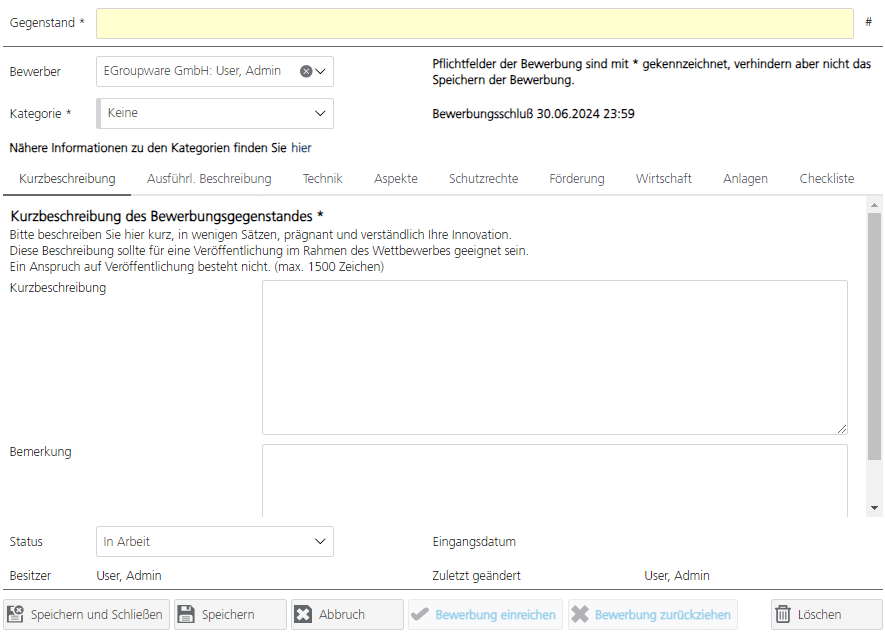
NEW: The admin can specify a tab name for each custom field. The tabs are generated automatically in the order of the first appearance. By default all custom field tabs are showing up before the history tab, but this can be changed in the eTemplate by attribute cfPrepend. Please also look at the examples below, from Address Book, using custom fields in different tabs.
Example two: Infolog with lots of custom fields in several tabs and a custom eTemplate with some custom buttons and logic
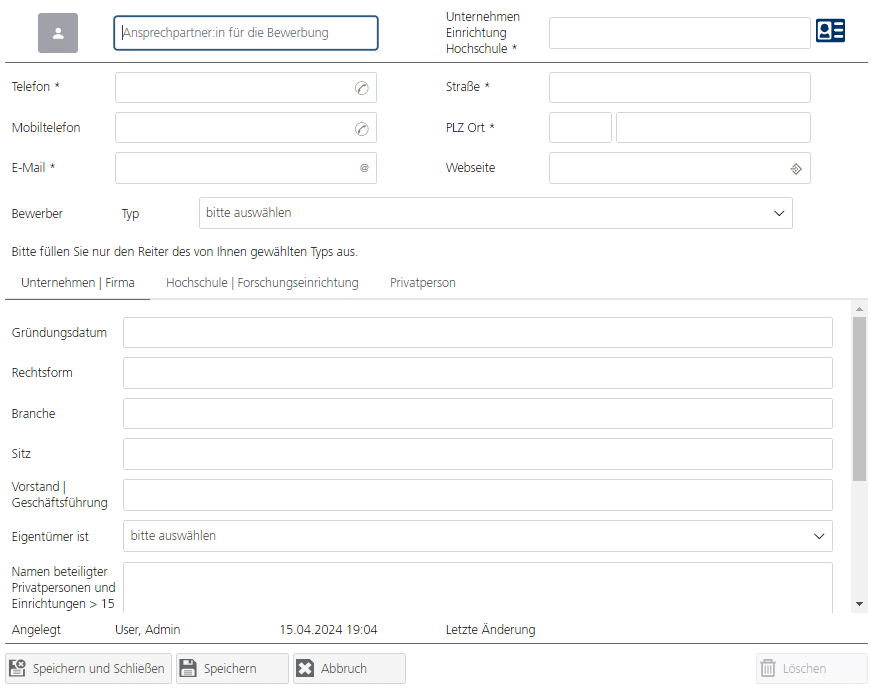 Example two: Infolog with lots of custom fields in several tabs and a custom eTemplate with some custom buttons and logic
2. Details of custom fields and options
- Custom fields of the type "label" or "header" are spanning all columns, while "regular custom fields" are displayed in 2 columns with label and value. If custom fields have to display long labels and you want to change the width of the label column, this can be done by CSS in the eTemplate using "styles" e.g.
<styles>
   table.et2_customfield_list tr td:first-child {
      width: 30%;
      overflow-x:hidden;
      text-overflow:ellipsis;
   }
</styles>
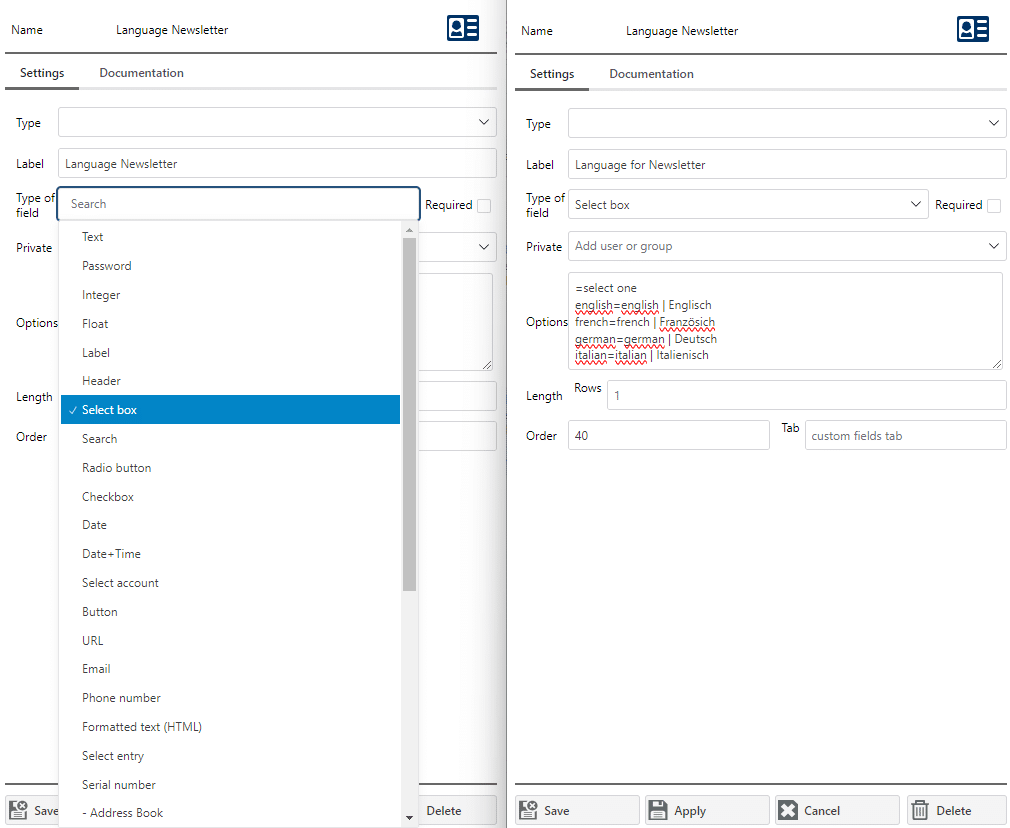
- Custom fields of type "selectbox" (or radio button) can for example specify the values in options (splitted by a new line).
=select one
english=english | Englisch
french=french | Französisch
german=german | Deutsch
The part before "=" specifies the value stored in the database, while the label behind "=" is what is displayed to the user. We recommend to avoid space and umlaute for the value and don't change it. The label can be adapted at any time as well as its possible to add new values to the select box options.
- The admin can specify multiple rows (for text fields or select boxes),to get a textbox with X rows or a multi-selection. With option "maxlength=2000" the allowed text length can be specified, so the user can't add more characters.
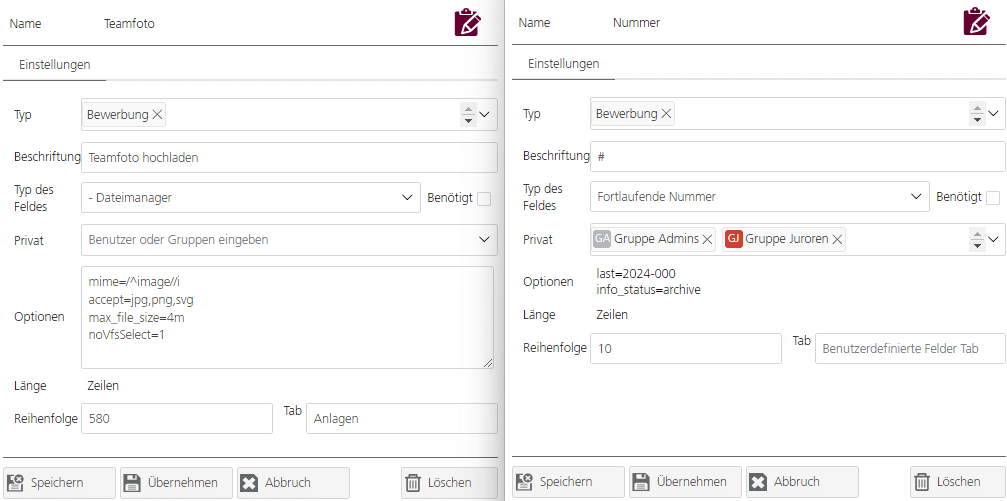
- "Select entry - Filemanager" allows to select files from local or filemanager. If you specify a directory in the name e.g. "invoice/" the user can upload multiple files, while if just a name is given e.g. "Teamfoto" the single image gest uploaded and renamed accordingly. You have the possibilty to specify several options like mime-type, accepted formats, max_file_size or options to hide Filemanager selection - see example below left side.
- "Serial number" can be used to automatically generate a number, starting from option "last" and optional using a filter criteria like "info_status=archived" or "invoiced", which sets the number only, if that status is set. See example below right side.
- This is NOT meant as a full introduction or manual for eTemplate usage, it's just a rough overview, especially about the modification with custom fields.
- Reference for widgets (a full documentation is planned, but not yet done!): https://etemplate.egroupware.org/ Additionally there is a dtd-file specified in the xet-files it self, which contains lots of specifications and attributes. The dtd can be read from typical developer tools like PhpStorm.
-
IN EGroupware EPL version the admin can mount an eTemplates-Directory into filemanager in Admin -> Applications -> Filemanager -> VFS mounts and versioning by simply clicking on the button:
This eTemplate-directory is build in as an "overlay" allowing file uploads for customizing. "eTemplate customzing" in EGroupware community version is only possible by using a GIT-clone installation as regular docker-installation will overwrite eTemplate changes with the next update.
- In filemanager there is now directly the directory "/etemplates" with subdirectories of the applications e.g. "Address Book" or "Infolog". In the app-directory another subdirectory can be found called "templates" with two other subs "default" and "mobile".
- If you check for example /etemplates/addressbook/templates/default you'll find files like "edit.xet", "display.xet" and "index.xet". "display.xet" is used in CRM-view, so if you want to show there additional information of an organization e.g. a customer-number this can be added there. "index.xet" is used for the Address Book contact list and can be adapted, if you want to display custom fields in separat columns for example. If you modify "edit-xet", this will be used for the editing (or read only) of contacts.
- If you have different contact or Infolog types, it's also possible to change "edit.xet" only for a specific type by using the same name as for the type. Simple example: You have an additional contact type "Organisation" and like to use there an other eTemplate there. You name it "edit.Organisation.xet" and upload it to Filemanager. As soon as you reload EGroupware, the new eTemplate is used instead of the original "edit.xet" for the contact of type "Organisation". If you change "edit.xet", upload it and reload the browser its used instead for all contact types. As soon as you delete the added file and reload an second time, you get the original files again, that we provide. So you can easily start customizing ...
- In the eTemplate you can also specify custom CSS by adding "styles" at the end. See example bellow:
 This eTemplate-directory is build in as an "overlay" allowing file uploads for customizing.
"eTemplate customzing" in EGroupware community version is only possible by using a GIT-clone installation as regular docker-installation will overwrite eTemplate changes with the next update.
This eTemplate-directory is build in as an "overlay" allowing file uploads for customizing.
"eTemplate customzing" in EGroupware community version is only possible by using a GIT-clone installation as regular docker-installation will overwrite eTemplate changes with the next update.<styles>
.my_heading { font-weight: bold; font-size: 115%; `
</styles>
- Or you can include some Javascript which gets explicitly executed, while external Javascript would be blocked from CSP (contend security policy) by adding it between a tag "script" e.g. a simple example to set the title of an Infolog including a customfield
<script>
app.infolog.set_title_custom = function(event, widget)
{
let title = app.infolog.et2.getDOMWidgetById("info_subject");
let cf_1 = app.infolog.et2.getDOMWidgetById("#customfield1");
if (title && !title.get_value())
{
title.set_value("Some general text " + (cf_1 ? cf_1.get_value() : ""));
}
return true;
};
</script>
-
NEW: Customfields do not longer need a specific customfield tab in the template and the et2-tabbox, they get generated automatically taking some general attributes/properties into account:
cfPrepend="history"(the default is before history-tab or at the end, if there is no history, but you can also specify other tabs or leave it empty, so the tabs get generated from the beginning!);cfExclude="customfield-name"(comma separated for multiple fields),cfDisabled="true"(true: disable adding custom-fields e.g. for templates not showing an entry, false (default): add custom-fields) automaticcfTypeFilter="@info_type"(infolog), cfTypeFilter="$cont[tr_tracker]" (tracker) orcfTypeFilter="$cont[tid]"(addressbook) andcfPrivateTab="!$cont[no_private_cfs]"(Address Book only, as app-config allows to get private custom fields in a separate tab) -
If you want to position a customfield e.g. "customer-number" in another tab, you specify in et2-tabbox
cfExclude="customer-number"and in the tab where it should be displayed simply<customfields id="#customer-number" span="2"/>.
| Language: |  |
- General information
- Distribution specific instructions
- Update recommendations and troubleshooting
- Tuning EGroupware for higher number of users
- Docker-compose installation: Linux, Windows, Mac, Synology, QNAP
- Configure IMAP push
- Customizing EGroupware 26
- Customize login page, logo, fonts, login box
- Custom translations
- Custom fields
- Custom etemplate
- IMAP Push Notifications for Dovecot 2.2+
- Using EGroupware Mail server with ActiveDirectory
CTI / Computer Telephone Integration
Using SmallPART with a LMS (Moodle, OpenOLAT, ...)
Synchronisation between Untis / Webuntis and EGroupware
Development
