
How to View and Load 3D Gaussian Splatting Data (PLY) – Part 1: SuperSplat

The real potential of 3D Gaussian Splatting is just starting to unfold!
New tools for generating and editing splat data are being actively developed and released.
In this article, we’ll give you a quick overview of the apps you can actually use to view and work with these files.
PlayCanvas - SuperSplat
The WebGL-based game engine PlayCanvas has released its groundbreaking Gaussian Splatting tool, SuperSplat 2.0, under the MIT license — meaning it’s available for commercial use.
You can edit and publish 3D Gaussian Splatting data directly in your web browser, and as of now, it’s free to use.
How to Load Gaussian Splatting PLY Files
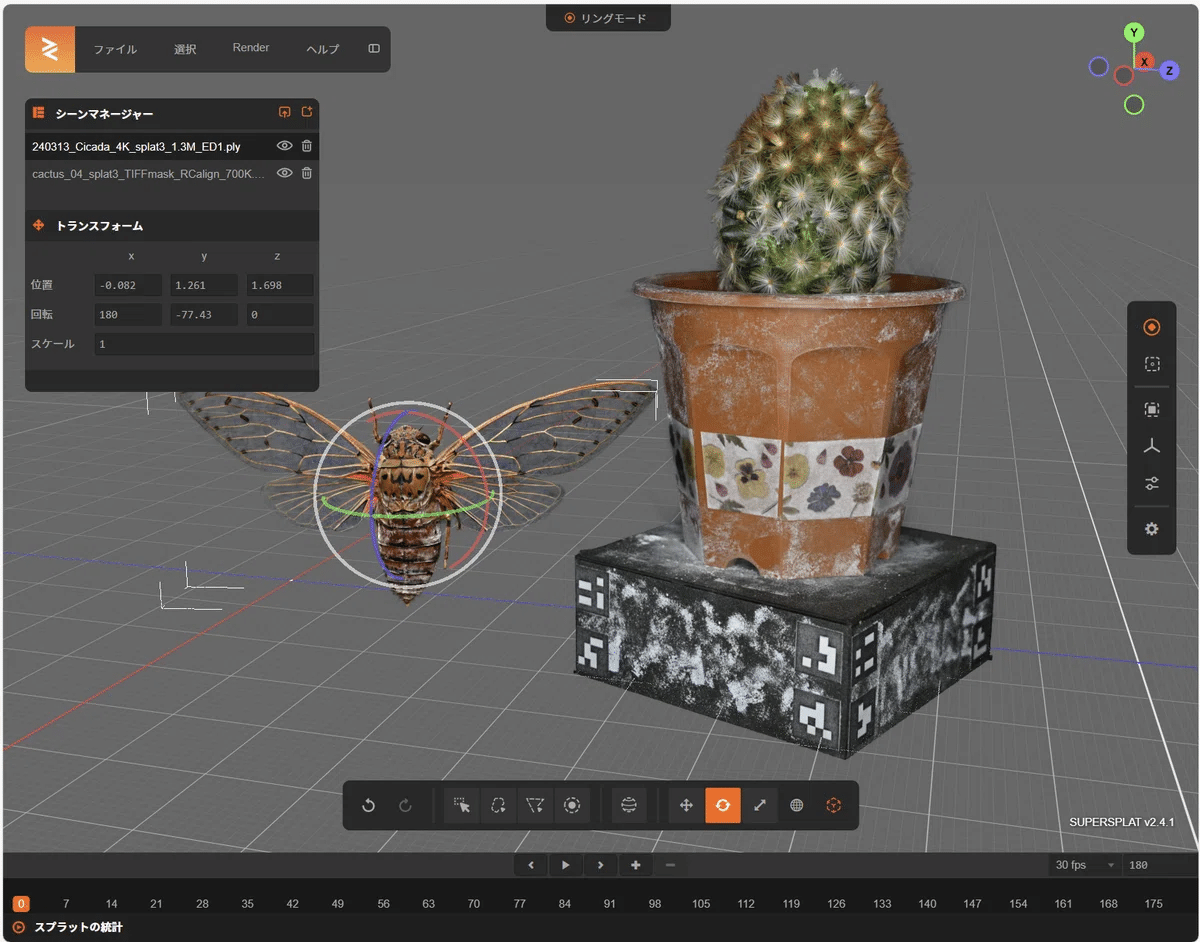
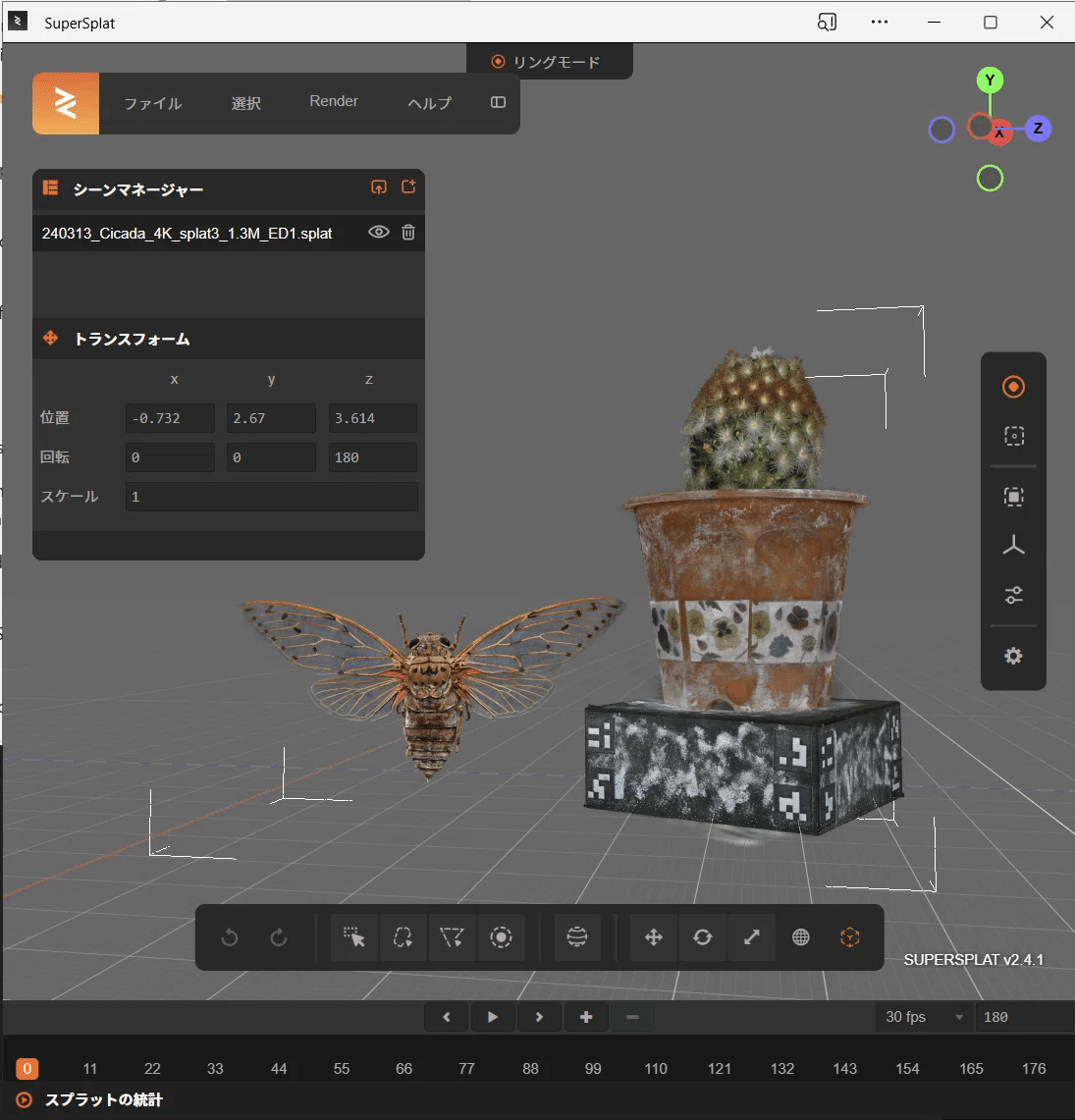
For checking and doing light edits of 3D Gaussian Splatting PLY files (we’ll refer to them as 3DGS PLY), SuperSplat is a super handy tool.
You can move, scale, rotate, crop, and even lay out multiple 3DGS PLY files — all right in your web browser and totally free.
Using it is simple: just drag and drop your 3DGS PLY file into the window, and you’re good to go!
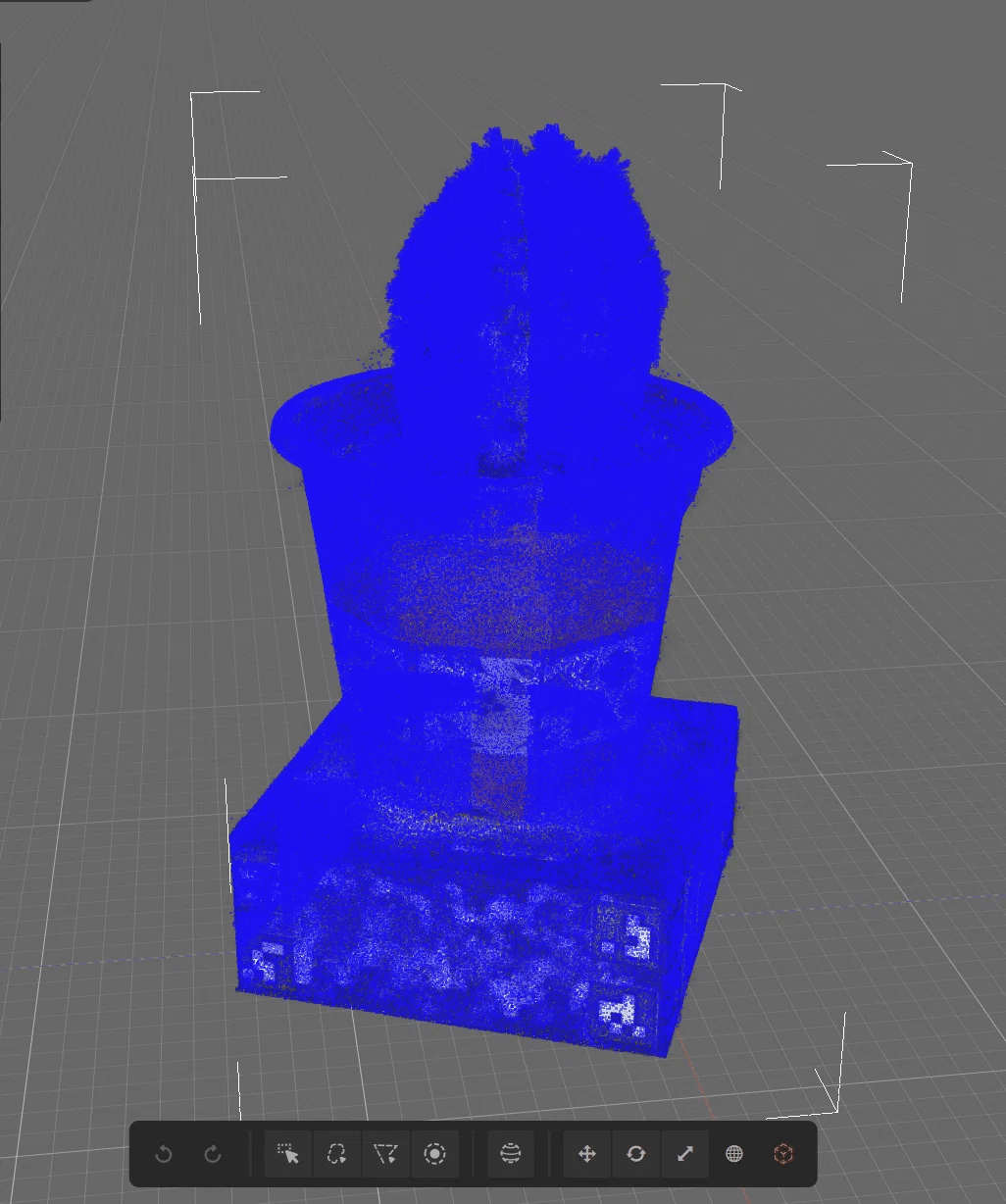
When you first load the file, it may show up as a fuzzy blue point cloud — grainy, low-res, and not very readable.
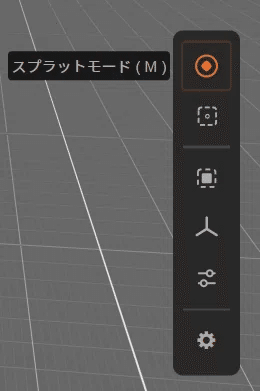
To fix this, head to the toolbar on the right and activate this icon (make it orange).
Once enabled, your model will render cleanly and correctly.
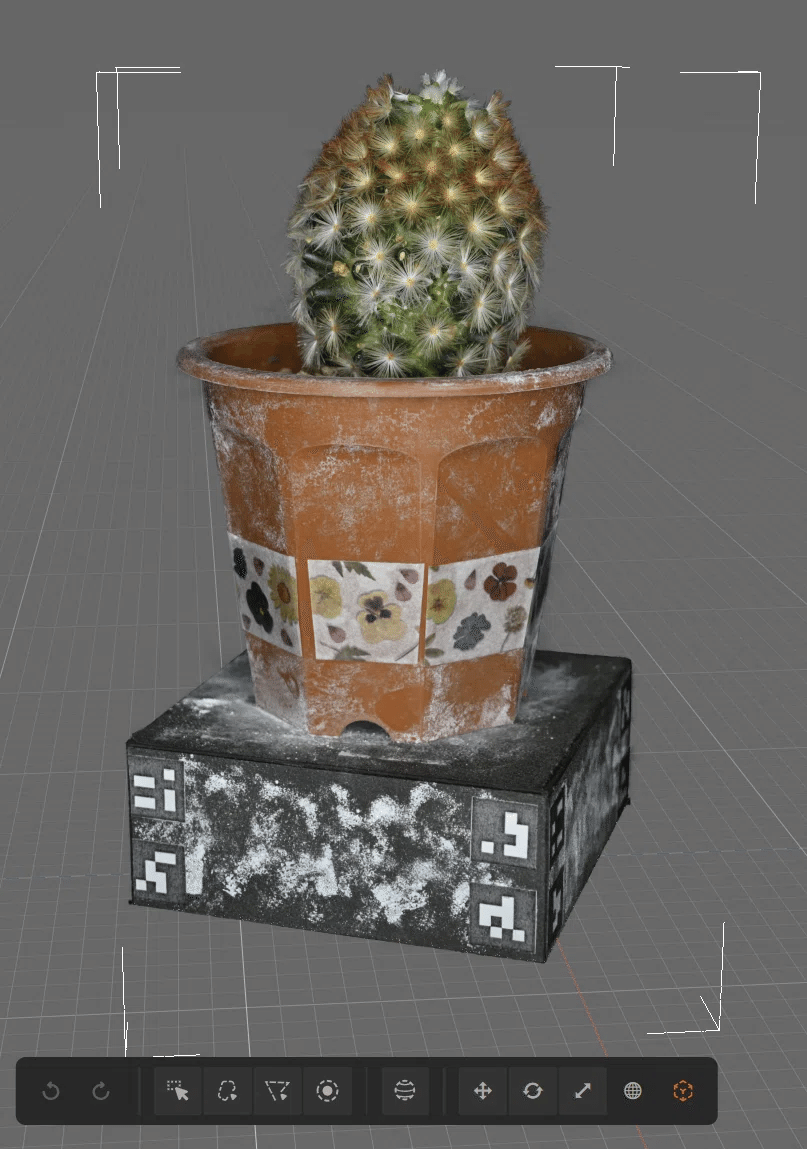
After laying out your scene, export it as a PLY (.ply) file.
While you can choose Compressed PLY, which reduces file size to about one-fourth, please note that it uses a custom format and may not open correctly in other apps (for example, it doesn’t work with postshot).
If you're authoring with PolyCanvas, though, you can use the compressed version directly as a lightweight asset without any issues.
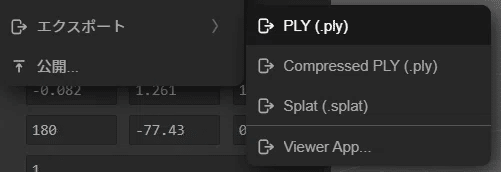
The .splat format is like a scene file for SuperSplat.
It’s useful for saving your editing progress and layout directly within the tool.
Data Formats Exportable from SuperSplat
Standard PLY (.ply) – Compatible with other apps, but comes with a large file size.
Compressed PLY – A lightweight format (about 1/4 the size), but it’s unique to PolyCanvas and may not work with other tools.
Splat (.splat) – SuperSplat’s own project file format, ideal for saving your scene and editing progress.
Publishing to the Web
By selecting “Publish” from the menu, you can upload your scene to the SuperSplat public page.
Make sure to create a free PlayCanvas account beforehand if you haven’t already.
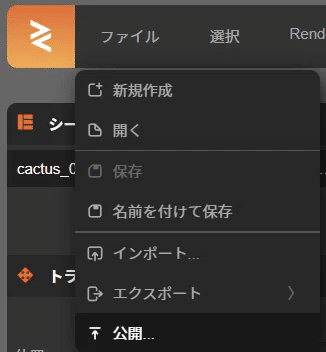
When uploading your 3DGS PLY, you can choose between public and unlisted visibility settings.
To make your scene fully public, turn “Listed” ON — turning it OFF will make it unlisted.
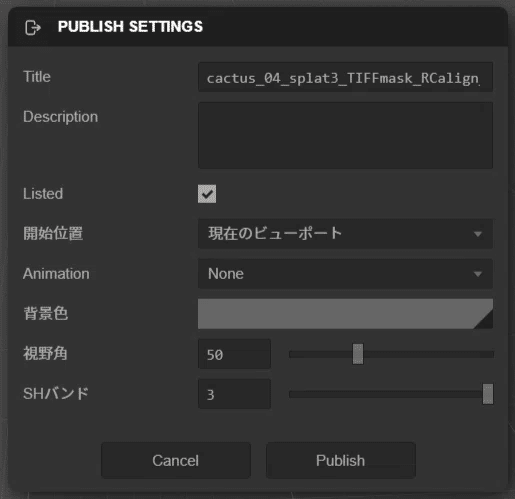
⚠️ Note: Currently, once a 3DGS PLY file is published, you can’t re-edit or replace it. This means you won’t be able to update the content at the same URL, so please plan accordingly.
However, you can still change the title, description, and visibility (public/unlisted) even after publishing.
If you publish using the “Current Viewport” option, a turntable-style rotation animation will be automatically applied to your scene.
You can also set up simple custom camera animations yourself, right within the editor.
Progressive Web App (PWA) Support
SuperSplat supports Progressive Web App (PWA) functionality.
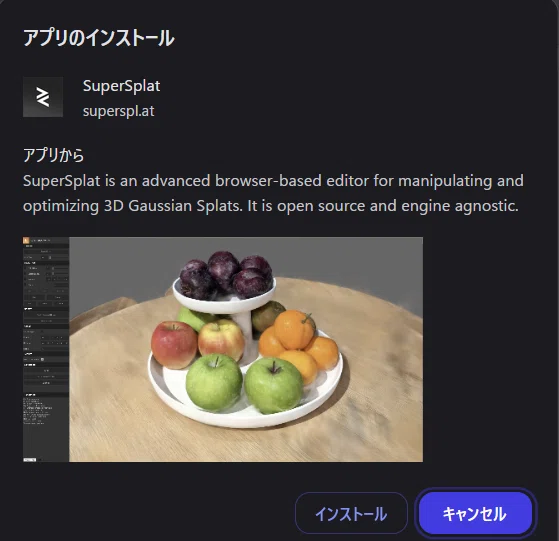
If you see the “Install” icon next to the URL in your web browser, you can add it to your system — and it’ll run just like a local app.
Once installed, you can even double-click .ply files to open them directly, making your workflow much smoother.
For the latest updates, be sure to check out the PlayCanvas Blog!
#ガウシアンスプラッティング
#GaussianSplatting
#出張3dスキャン
#3dスキャン
#3dスキャン サービス #3dscanstudio_iris#iris#3dscan#3dscanstudio#3dscanstudio_jp#toho_studio
#fullbody3dscanning #レスパスビジョン #lespacevision #tokyo #japan
#irisGaussianSplatting
