


Want to install the most recent Linux Kernel 7.1 or 7.0? Here’s the step by step guide shows how to do the job in current Ubuntu 26.04, Ubuntu 24.04, and/or Ubuntu 22.04 LTS.
As you may know, Ubuntu has an official mainline Kernel PPA that keeps building the latest Linux Kernel packages for testing purpose.
As the most recent mainline Kernel PPA packages only install on Ubuntu 24.04 and higher, you may also choose another repository maintained by former core Ubuntu developer that supports Ubuntu 22.04.
NOTE 1: The kernel packages below are for testing purpose. They do NOT include Ubuntu specific drivers and patches. Some software (e.g., Waydroid and NVIDIA proprietary driver) are not guaranteed to work with them.
NOTE 2: And, they are NOT signed, you probably need to disable Secure Boot for being able to boot them.
Option 1: Install Kernel 7.1 from mainline Kernel PPA
For Ubuntu 24.04 and Ubuntu 26.04, you may simply download & install the latest Kernel via deb packages from mainline Kernel PPA.
It usually supports Ubuntu on amd64, arm64, armhf, ppc64el, and s390x platforms, however, lacks the way to automatically install updates. Meaning, you need to do the manual download & install process again and again to keep the kernel up-to-date.
NOTE: In my case, the mainline Kernel 7.1 refuse to boot in Ubuntu 26.04 with Kernel panic, but it’s working good in same laptop with Ubuntu 24.04.
1. For the latest Kernel 7.1.0, go to the link below:
Then select download the packages below according to your CPU architecture type:
- linux-headers-7.1.0-070100-generic_7.1.0-070100.202606141628_xxxx.deb
- linux-headers-7.1.0-070100_7.1.0-070100.202606141628_all.deb
- linux-image-unsigned-7.1.0-070100-generic_7.1.0-070100.202606141628_xxxx.deb
- linux-modules-7.1.0-070100-generic_7.1.0-070100.202606141628_xxxx.deb
If you even don’t know your CPU type, press Ctrl+Alt+T to open terminal and run dpkg --print-architecture command to tell.

2. After downloaded all the .deb packages, either right-click on blank area in Downloads folder and select “Open in Terminal”, or press Ctrl+Alt+T to open terminal and run cd ~/Downloads to navigate to that folder.
Finally, run the commands below to install all the .deb packages:
sudo apt install ./linux*.deb
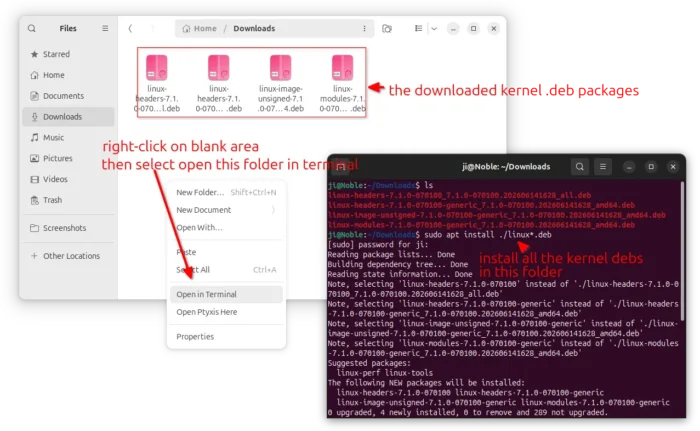
For Ubuntu Server user without a desktop environment, then run the commands below one by one to download the Kernel 7.1 .deb packages and install them:
wget -c https://kernel.ubuntu.com/mainline/v7.1/amd64/linux-headers-7.1.0-070100-generic_7.1.0-070100.202606141628_amd64.deb
wget -c https://kernel.ubuntu.com/mainline/v7.1/amd64/linux-headers-7.1.0-070100_7.1.0-070100.202606141628_all.deb
wget -c https://kernel.ubuntu.com/mainline/v7.1/amd64/linux-image-unsigned-7.1.0-070100-generic_7.1.0-070100.202606141628_amd64.deb
wget -c https://kernel.ubuntu.com/mainline/v7.1/amd64/linux-modules-7.1.0-070100-generic_7.1.0-070100.202606141628_amd64.deb
sudo apt install ./linux-*7.1.0*.deb
The last 5 commands are for modern Intel/AMD platform, replace the URLs accordingly for other CPU architecture types.
After installed the new Kernel packages, run the command below to update bootloader:
sudo update-grub
Finally, restart computer and run the command below to verify:
uname -a
Uninstall
To uninstall the mainline 7.1 kernel, first reboot and choose an old Kernel from “Advanced options for Ubuntu …” in the boot menu. Finally, run the command below to uninstall:
sudo apt remove linux-headers-7.1.0-070100* linux-image-unsigned-7.1.0-070100-generic linux-modules-7.1.0-070100-generic
Option 2: Install Kernel (7.0 so far) from Zabbly Repository
As mentioned, the former Ubuntu core developer, Stéphane Graber, also maintains an apt repository that contains Linux Kernel packages for Ubuntu 22.04, Ubuntu 24.04, Ubuntu 26.04, as well as Debian 12 and 13.
He made this repository because Ubuntu’s generic kernel that he thought has sadly decreased in quality over time.
The Ubuntu kernel includes a lot of backported fixes and occasionally, those backports go bad, resulting in missing commits, introducing bugs and regressions. Unfortunately the way the Ubuntu kernel is built, tested and published comes with a lot of delays, making fixing such regressions often take weeks if not months
The Zabbly repository is great if you want to install the latest kernel and keep it up-to-date by using “Software Updater” (or apt upgrade command), but it usually has a few weeks delay for the new major version, probably because it only builds the kernels marked as “stable” in Kernel.org.
1. Install the GPG Key
First, press Ctrl+Alt+T on keyboard to open terminal, then run command to create ‘/etc/apt/keyrings’ directory, in case it does not exist:
sudo mkdir -p /etc/apt/keyrings
Next, run command to download the key and install to that directory you just created:
sudo wget -O - https://pkgs.zabbly.com/key.asc |sudo tee /etc/apt/keyrings/zabbly.asc
Re-run the command to update the key if expired.

2. Set up the source repository
Then, run command below to create & edit the source file:
sudo gnome-text-editor /etc/apt/sources.list.d/zabbly-kernel-stable.sources
Depends on your desktop environment, replace gnome-text-editor with gedit for Ubuntu 22.04 and earlier, mousepad for XFCE, or use nano that works in most desktops.
When terminal opens, add following lines and save it:
Enabled: yes
Types: deb deb-src
URIs: https://pkgs.zabbly.com/kernel/stable
Suites: noble
Components: main
Architectures: amd64
Signed-By: /etc/apt/keyrings/zabbly.asc
NOTE: You have to replace noble (for 24.04, Linux Mint 22) in the code with
- jammy for Ubuntu 22.04, Linux Mint 21.
- trixie for Debian 13
- or bookworm for Debian 12.
Also, replace amd64 with arm64 for ARM devices, such as Raspberry Pi. For nano text editor, press Ctrl+S to save, then Ctrl+X to exit.

3. Update package cache & Install Newest Kernel
When done setting up the new source repository and GPG key, run the command below to re-index system package cache:
sudo apt update
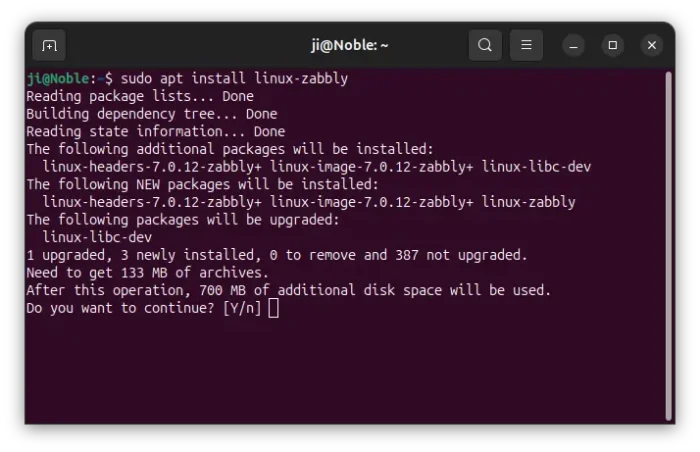
Finally, install the latest kernel, 7.0.x so far, by running command:
sudo apt install linux-zabbly
Tips: If the last command does not work, then try the command below to specify Kernel version, which also works for Kernel 6.19, 6.18, etc releases.
sudo apt install linux-headers-7.0.12-zabbly+ linux-image-7.0.12-zabbly+
The minor version number varies as time goes on. Type the first half of the last command (sudo apt install linux-headers-7.0) and hit Tab to list all available choices.
4. Verify
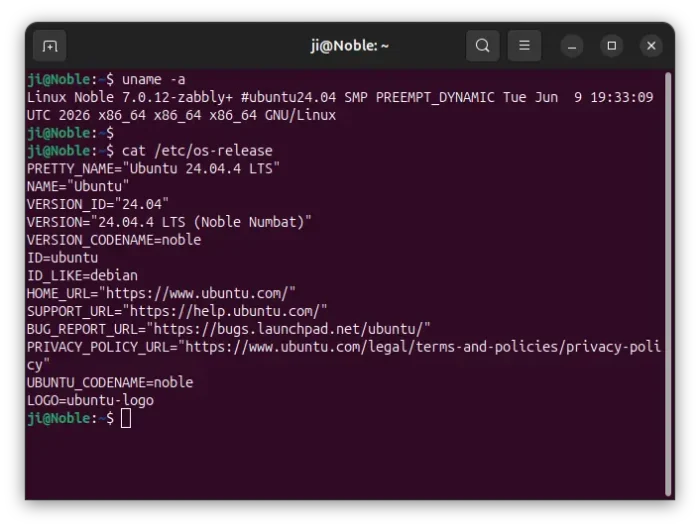
Finally, restart your machine and run the command below to verify your Kernel version in terminal:
uname -a
Uninstall:
If you have any issue with the new Kernel, just restart and select boot an old Kernel from Grub menu under ‘Advanced Options for Ubuntu …’.
Then, run the command below to remove the Kernel from Zabbly repository:
sudo apt remove --autoremove linux*zabbly*
Depends on when you tried this tutorial, the package version varies. So, I use asterisk wildcard in command to auto-select any package start with ‘linux‘ and have ‘zabbly‘ in between of package name. Just in case, it’s better to keep an eye on terminal output before hitting ‘y’ to confirm.
Also, remove the source repository by running commands below to delete the key and source file:
sudo rm /etc/apt/sources.list.d/zabbly-kernel-stable.sources
sudo rm /etc/apt/keyrings/zabbly.asc
Finally, run sudo apt update to refresh system package index.
















works fine in ubuntu 22.04.
The second step could be replaced by the following command
sh -c ‘cat < /etc/apt/sources.list.d/zabbly-kernel-stable.sources
Enabled: yes
Types: deb
URIs: https://pkgs.zabbly.com/kernel/stable
Suites: $(. /etc/os-release && echo ${VERSION_CODENAME})
Components: main
Architectures: $(dpkg –print-architecture)
Signed-By: /etc/apt/keyrings/zabbly.asc
EOF’
That could be found in https://github.com/zabbly/linux#stable-repository
“Install Latest Kernel in Ubuntu via new Kernel”
This does not make sense.
I cannot run cpupower as I cannot install linux-tools-6.8.7-zabbly+,
sudo cpupower
WARNING: cpupower not found for kernel 6.8.7
You may need to install the following packages for this specific kernel:
linux-tools-6.8.7-zabbly+
linux-cloud-tools-6.8.7-zabbly+
You may also want to install one of the following packages to keep up to date:
linux-tools-zabbly+
linux-cloud-tools-zabbly+
Temporary failure resolving ‘pkgs.zabbly.com’
E: Failed to fetch https://pkgs.zabbly.com/kernel/stable/pool/main/l/linux-zabbly-6.6.11-arm64-202401102259-ubuntu22.04/linux-image-6.6.11-‘
E: Unable to fetch some archives, maybe run apt-get update or try with –fix-missing?
Seems no older verison deb. pls help.
Thanks
It seems to be a network connection issue. If you know how to manually install local .deb packages, go download the packages from the web page:
https://pkgs.zabbly.com/kernel/stable/pool/main/l/linux-zabbly-6.6.11-arm64-202401102259-ubuntu22.04/
Hi, Thanks a lot for the tutorial.
mine installs fine, but it freezes when I try to log in to the desktop!
could you kindly tell me what the problem could be?
Thanks a lot advance
That could be something to do with drivers. The upstream Kernel packages do NOT include any Ubuntu specific drivers. Try reboot with old kernel and uninstall.