
Passwords are still a fact of digital life, even as passkeys slowly start to change how we sign in to our accounts. Apple, Google, and other platforms have also made their built-in password managers much more capable, giving people more options than ever for keeping track of their credentials. A dedicated password manager still has an important advantage, though: it can bring passwords, passkeys, two-factor authentication, secure notes, and shared credentials together across the different devices and platforms you use.
The best password managers also make good security habits easier to maintain. They can generate unique passwords instead of leaving you to come up with another variation of the same one, flag compromised credentials, and make it easier to share access without passing passwords around in messages. For families and people who regularly move between operating systems, they can be particularly useful, while privacy-focused services offer another reason to look beyond the tools built into your phone or browser.
We’ve rounded up the best password managers to consider in 2026, from established services with polished apps and extensive features to free options that give you plenty without requiring a subscription. We’ve also looked at where a dedicated password manager still makes sense when Apple Passwords or Google Password Manager may already cover everything you need.
Keeper
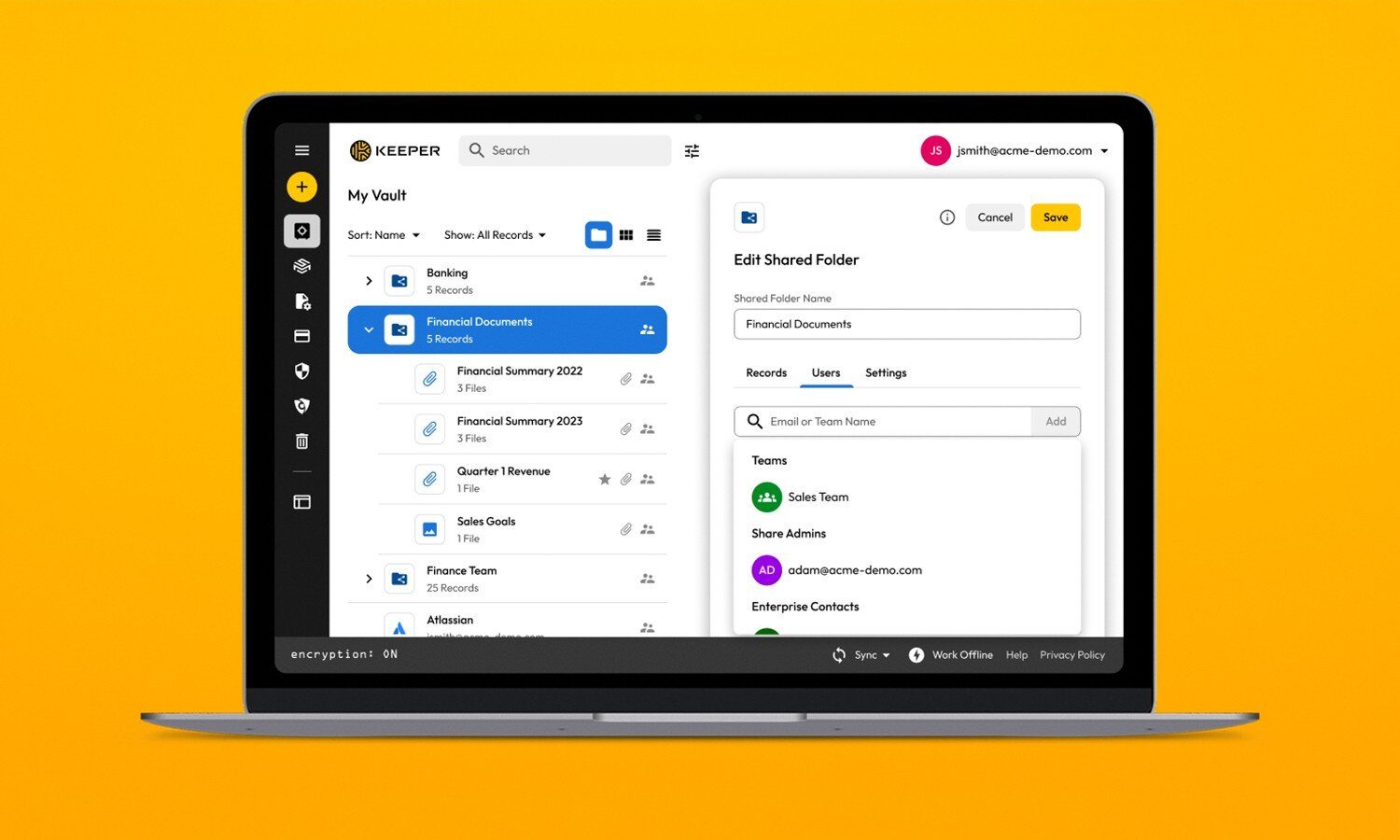
Keeper makes a strong case for itself if you’re managing passwords across a household rather than just for yourself. Its family plans give each person a private vault while making it easy to share selected passwords, files, and other sensitive information, which is useful for everything from streaming accounts to shared subscriptions and household logins. It also supports unlimited passwords and passkeys across devices, along with two-factor authentication, emergency access, and secure file storage.
Passkeys have become a more significant part of Keeper’s offering as well. You can create, store, use, and share passkeys across supported devices, while biometric passkey login can now be used to access Keeper’s web vault and desktop app on supported systems. The result is a password manager that is increasingly about managing your digital credentials as a whole, rather than simply keeping a list of passwords.
Keeper also offers features such as security auditing and dark-web monitoring, although some of its more advanced security features are available as paid add-ons. For families that want separate accounts with controlled sharing, however, its combination of private vaults and shared access makes it particularly compelling.
1Password
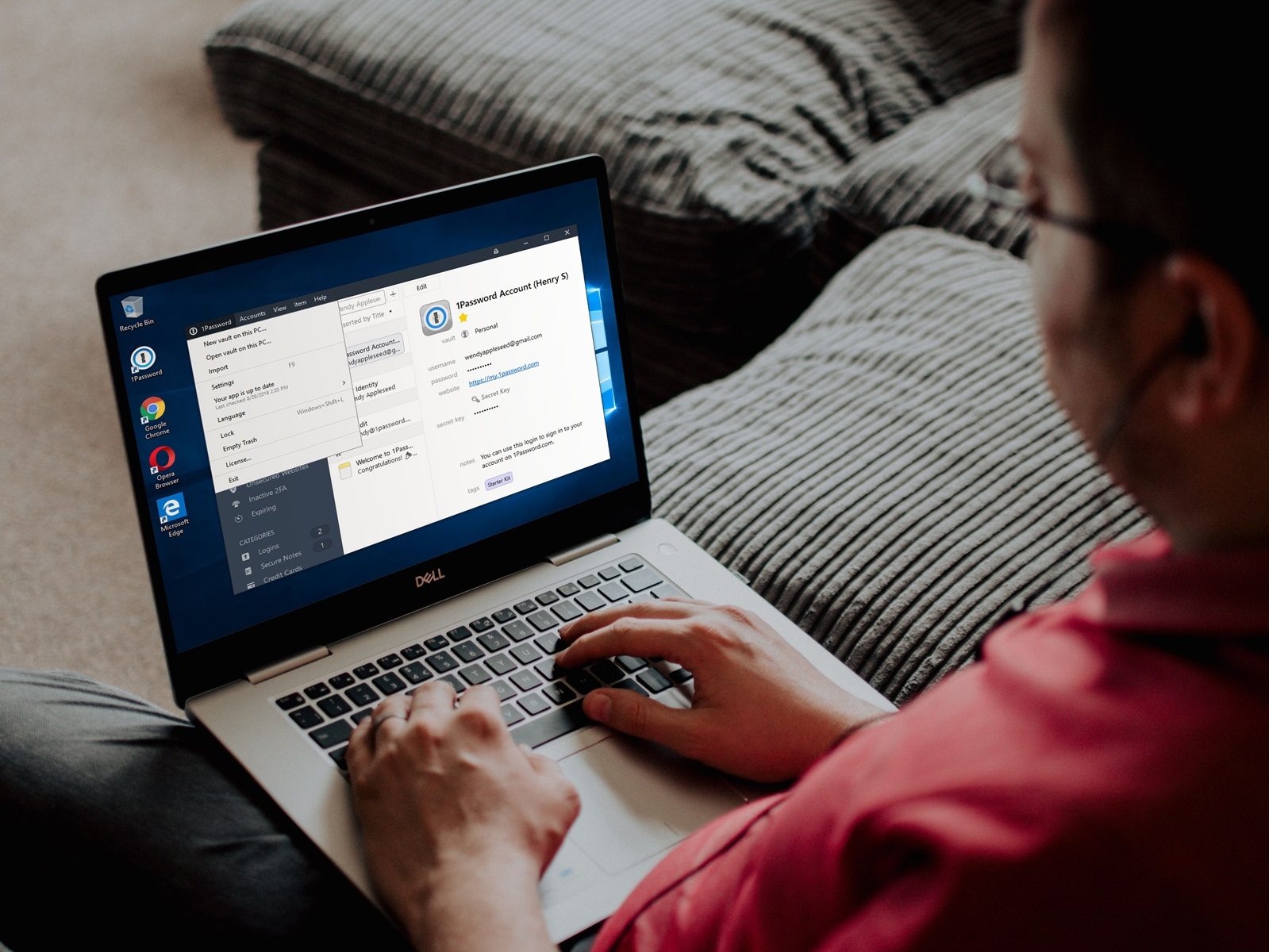
1Password has long been good at making password management feel less like another security chore, and that remains its biggest strength. Passwords, passkeys, two-factor authentication codes, payment information, secure notes, and other sensitive data can all live in its vaults, with apps and browser extensions available across the major desktop and mobile platforms.
Its support for passkeys has also matured considerably. 1Password can create, save, and use passkeys through its browser extension, while saved passkeys can be accessed across its apps and shared where supported. The company is also bringing passwords, passkeys, and other sign-in methods together through its newer Universal Sign-In feature, reflecting the broader shift away from passwords as the only way to authenticate.
1Password isn’t the cheapest option, since it doesn’t offer a full free tier, but its polished interface, cross-platform support, and mature approach to organizing sensitive information make it an appealing choice for people who want a password manager that can handle more than passwords.
Dashlane
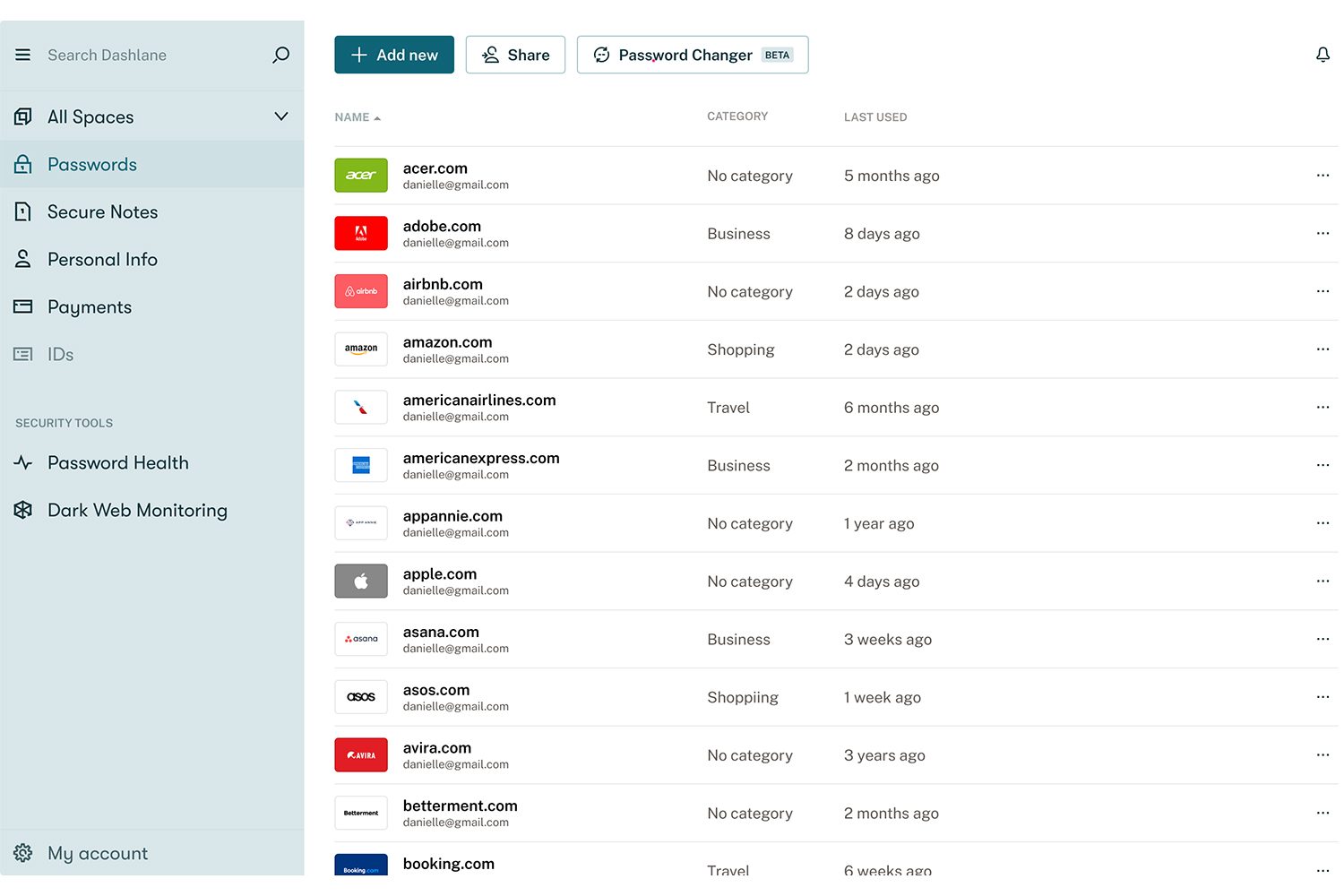
Dashlane is particularly suited to people who want their password manager to keep watch after the passwords have been saved. Its Dark Web Monitoring scans for personal information associated with up to five email addresses and alerts you when that information appears in known breach data. Breach notifications can also flag when a website or app connected to a saved login has been compromised, while Dashlane can warn when a password matching your Master Password appears in breach data. Its security tools also help guard against brute-force attacks by identifying weak or compromised credentials, giving users more ways to address a potential problem before a leaked password becomes a larger one.
The experience is built around reducing the amount of security housekeeping you have to do yourself. Password Health identifies weak, reused, or compromised credentials, while the service handles autofill, password generation, passkeys, and secure sharing when you need them. Dashlane also offers phishing and scam protection, including AI-powered scam protection on supported plans. Rather than requiring users to regularly audit every account themselves, Dashlane surfaces the issues that need attention and points them toward the accounts that may need to be secured.
Dashlane offers Personal and Friends & Family plans, with higher-tier options adding features such as VPN protection and additional security tools. The value proposition therefore rests less on simply storing passwords and more on the combination of password management, breach monitoring, and alerts that continue working in the background. For users who would rather be alerted when something needs attention than regularly audit their accounts themselves, that distinction is central to Dashlane’s appeal.
Bitwarden
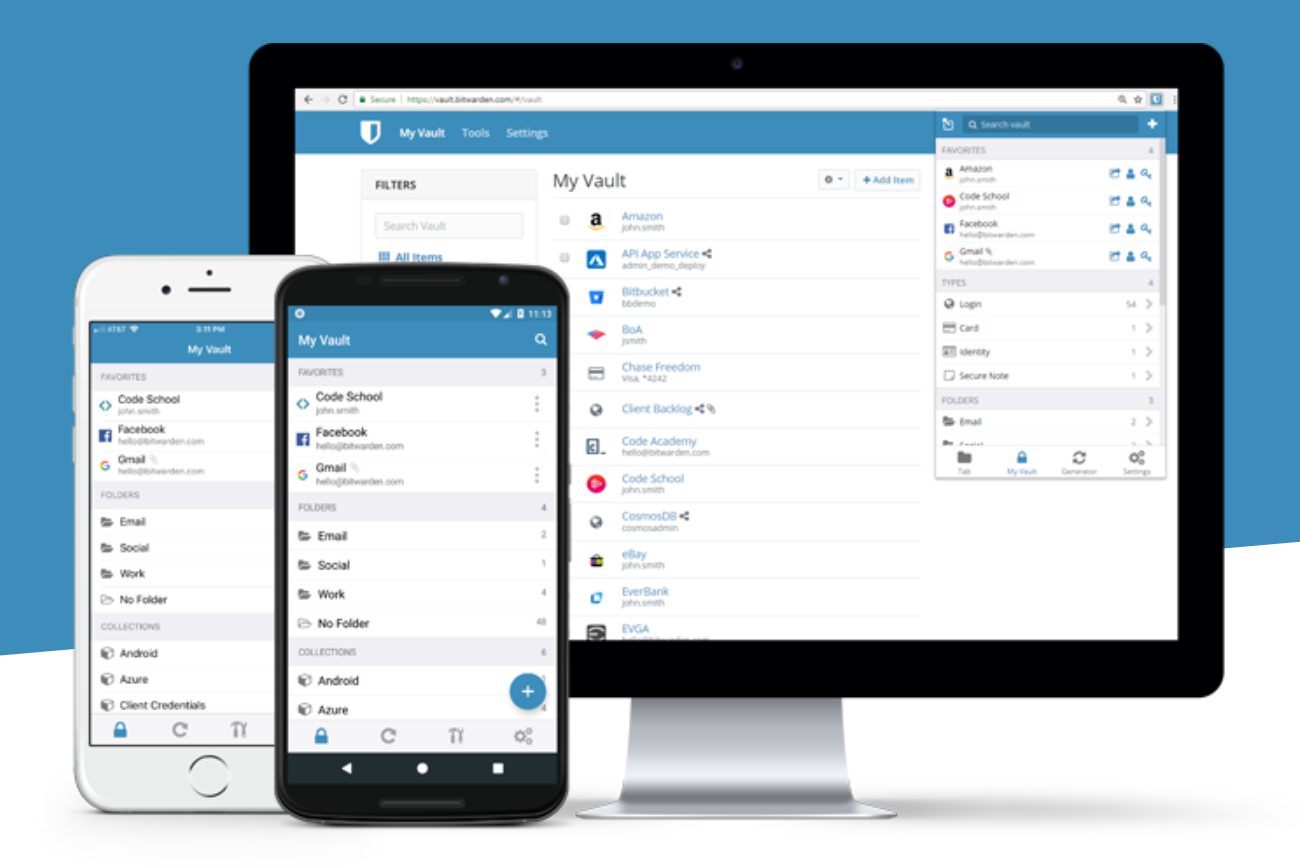
Bitwarden remains one of the easiest password managers to recommend to people who don’t want to pay for one. Its free plan supports unlimited passwords and devices, along with passkey management, password generation, encrypted exports, browser and mobile apps, and basic sharing with another user. Its open-source approach also makes its security architecture more transparent than that of many competing services.
Passkeys have become a bigger part of Bitwarden’s experience, with the service able to store and autofill passkeys across its browser extension and mobile apps. It also supports using a passkey to log in to and unlock a Bitwarden account on supported setups, bringing the password manager itself into the move toward passwordless authentication.
The free version is unusually capable, but paying for Premium adds features such as an integrated authenticator, emergency access, encrypted file attachments, security reports, and expanded sharing. Bitwarden also remains one of the few mainstream options that lets technically inclined users self-host the service.
Proton Pass
Proton Pass takes the privacy-first approach that has become the defining characteristic of Proton’s broader lineup and applies it to password management. Alongside passwords and passkeys, it can store identities, notes and credit cards, while its browser, desktop and mobile apps keep everything synchronized across devices. Even the free version supports unlimited logins and devices, passkeys on all devices, password imports and alerts for weak or reused passwords.
The more interesting part of Proton Pass is how much privacy functionality sits alongside the password manager. Its paid plans add unlimited Hide-my-email aliases, an integrated 2FA authenticator, secure vault and link sharing, dark-web monitoring, file attachments and emergency access. Those features make Pass more than a simple credential vault, particularly for people already using other Proton services.
The free plan is also one of Proton Pass’s biggest strengths. You don’t have to give up unlimited passwords or cross-device access simply because you aren’t paying, although some of the more useful privacy and security extras are reserved for Pass Plus and the company’s broader Proton Unlimited subscription.
Frequently asked questions
Do you even need a password manager in 2026?
It depends on how you use your devices. If you live entirely in Apple’s ecosystem, Apple Passwords may already do everything you need, including storing passwords and passkeys and syncing them across your Apple devices. If most of your life happens in Chrome and Android, Google Password Manager is similarly capable and may be enough without adding another service.
A third-party password manager becomes more useful when your devices aren’t all from the same ecosystem. It can give you one vault across Windows, Mac, iPhone and Android, rather than tying your credentials to Apple or Google. It also makes more sense if you’re sharing passwords with family, need secure storage for things beyond logins, or want features such as breach monitoring, emergency access and more sophisticated credential management.
Passkeys don’t necessarily change that equation. Services such as 1Password, Bitwarden and Keeper can store passkeys alongside traditional passwords, so you don’t have to choose between the two while more websites make the transition.
Are password managers safe?
A good password manager is generally safer than reusing passwords or keeping them in an unsecured notes app, but no password manager is immune to attacks or vulnerabilities. LastPass is a useful reminder of why reputation alone isn’t enough. It was one of the biggest and most widely used password managers when attackers gained access to its systems in 2022, eventually obtaining copies of customer vault data. The company said the stolen vaults remained encrypted, but the incident showed that even a major, established password manager can suffer a serious security breach.
The important question is therefore how a password manager protects your data, how it handles encryption and account recovery, whether its security has been independently audited, and how it responds when vulnerabilities are found. A strong security model reduces the damage when something goes wrong; it doesn’t make the service invulnerable.
Is a password manager better than a passkey?
They’re not really alternatives. A passkey is a way to sign in to an account without a traditional password, while a password manager is a tool for managing credentials. A password manager can store passkeys alongside passwords, making it possible to use both while websites gradually move toward passwordless authentication.
If a website supports passkeys, using one is generally preferable to creating another password. But you will still encounter plenty of accounts that rely on passwords, so a password manager remains useful even if you use passkeys whenever they’re available.
Are password managers still useful if I use passkeys?
Yes. Passkeys are designed to replace passwords for individual accounts, but they haven’t eliminated passwords yet, and many websites still support both. A password manager that supports passkeys can keep your existing passwords and newer passkeys together, which makes the transition less disruptive.
Google Password Manager, Apple Passwords and third-party services can all store passkeys, so the choice comes down largely to how you use your devices. If you are fully invested in one ecosystem, its built-in manager may be all you need. If you use multiple platforms or want additional sharing, privacy or security features, a third-party password manager can still be worthwhile.
Is Google Password Manager better than a third-party password manager for passkeys?
For someone who primarily uses Chrome and Android, Google Password Manager is a perfectly practical way to store and use passkeys. It is built into the Google ecosystem, so there is little setup involved and your credentials remain accessible across supported devices.
A third-party manager is more useful if you switch between Android, iPhone, Windows and Mac, or want your passkeys managed alongside additional features such as family sharing, secure notes and broader security monitoring. In other words, Google Password Manager isn’t necessarily worse at handling passkeys; a dedicated service simply gives you more flexibility outside Google’s ecosystem.