
In this article, we are going to build a grocery application in android using android studio. Many times we forget to purchase things that we want to buy, after all, we can’t remember all the items, so with the help of this app, you can note down your grocery items that you are going to purchase, by doing this you can’t forget any items that you want to purchase. A sample image is given below to get an idea about what we are going to do in this article.
Note that we are going to implement this project using Kotlin language.

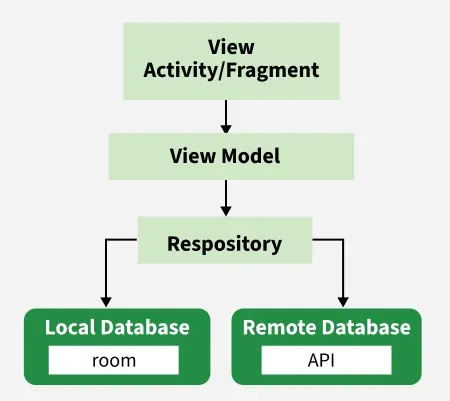
In this project, we are using MVVM (Model View ViewModel) for architectural patterns, Room for database, Coroutines and RecyclerView to display the list of items. Before jumping to the project let’s understand these terms.
- MVVM (Model View ViewModel) - MVVM architecture in android is used to give structure to the project’s code and understand code easily. MVVM is an architectural design pattern in android. MVVM treat Activity classes and XML files as View. This design pattern completely separate UI from its logic. Here is an image to quickly understand MVVM.
- ROOM - Room persistence library is a database management library and it is used to store the data of apps like grocery item name, grocery item quantity, and grocery item price. Room is a cover layer on SQLite which helps to perform the operation on the database easily.
- RecyclerView - RecyclerView is a container and it is used to display the collection of data in a large amount of data set that can be scrolled very effectively by maintaining a limited number of views.
- Coroutines - Coroutines are a lightweight thread, we use a coroutine to perform an operation on other threads, by this our main thread doesn’t block and our app doesn’t crash.
Step by Step Implementation
Step 1: Create a New Project
To create a new project in Android Studio please refer to How to Create/Start a New Project in Android Studio.
Note: Select Kotlin as the programming language.
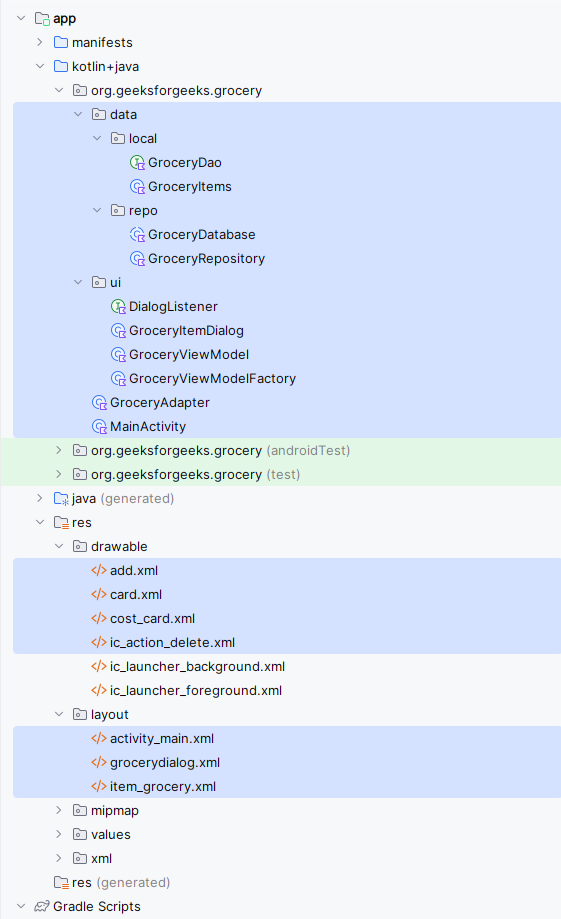
Below is how the project structure will look at the completion of the project.
Step 2: Adding dependencies
Add these dependencies in your gradle file and also apply the plugin as 'kotlin-kapt'. To add these dependencies, navigate to Gradle Scripts > build.gradle.kts (Module :app).
Apply kotlin-kapt plugin in the plugins{} scope.
plugins {
    ...
    id("kotlin-kapt")
}
Now, add the following dependencies under the dependencies{} scope.
dependencies {
    ...

    // Room and Architectural Components
    implementation("androidx.room:room-runtime:2.6.1")
    implementation("androidx.legacy:legacy-support-v4:1.0.0")
    implementation("androidx.lifecycle:lifecycle-extensions:2.2.0")
    implementation("androidx.lifecycle:lifecycle-viewmodel-ktx:2.8.4")
    implementation("androidx.room:room-ktx:2.6.1")
    kapt("androidx.room:room-compiler:2.6.1")

    // Coroutines
    implementation("org.jetbrains.kotlinx:kotlinx-coroutines-core:1.7.3")
    implementation("org.jetbrains.kotlinx:kotlinx-coroutines-android:1.7.3")

    // ViewModel
    implementation("androidx.lifecycle:lifecycle-extensions:2.2.0")
    implementation("androidx.lifecycle:lifecycle-viewmodel-ktx:2.2.0")
    kapt("androidx.lifecycle:lifecycle-compiler:2.2.0")

    // image loading
    implementation ("com.github.bumptech.glide:glide:4.16.0")
}
Step 3: Implement room database
o Entity Class (GroceryItems.kt)
The entity class defines the database table structure. Annotate it with @Entity(tableName = "table_name") and use @ColumnInfo for column details. Define a primary key with auto-increment.
o DAO Interface (GroceryDao.kt)
The DAO interface contains database operations and is annotated with @Dao. Use suspend functions with:
@Insertto add items@Deleteto remove items@Query("SELECT * FROM table_name")to retrieve all items
o Database Class (GroceryDatabase.kt)
Define the database class with
@Database(entities = [GroceryItems::class], version = 1)Extend RoomDatabase and create an abstract function to get the DAO instance.
package org.geeksforgeeks.grocery.data.local

import androidx.room.ColumnInfo
import androidx.room.Entity
import androidx.room.PrimaryKey

// This is a data class which store data.
// Entities class create a table in database,
// in our database we will create three column

@Entity(tableName = "grocery_items")
data class GroceryItems(

    // create itemName variable to
    // store grocery items.
    @ColumnInfo(name = "itemName")
    var itemName: String,

    // create itemQuantity variable
    // to store grocery quantity.
    @ColumnInfo(name = "itemQuantity")
    var itemQuantity: Int,

    // create itemPrice variable to
    // store grocery price.
    @ColumnInfo(name = "itemPrice")
    var itemPrice: Int
) {
    // Primary key is a unique key
    // for different database.
    @PrimaryKey(autoGenerate = true)
    var id: Int? = null
}
package org.geeksforgeeks.grocery.data.local

import androidx.lifecycle.LiveData
import androidx.room.*

// This class is used to create
// function for database.
@Dao
interface GroceryDao {

    // Insert function is used to
    // insert data in database.
    @Insert(onConflict = OnConflictStrategy.REPLACE)
    suspend fun insert(item: GroceryItems)

    // Delete function is used to
    // delete data in database.
    @Delete
    suspend fun delete(item: GroceryItems)

    // getAllGroceryItems function is used to get
    // all the data of database.
    @Query("SELECT * FROM grocery_items")
    fun getAllGroceryItems(): LiveData<List<GroceryItems>>
}
package org.geeksforgeeks.grocery.data.repo

import android.content.Context
import androidx.room.Database
import androidx.room.Room
import androidx.room.RoomDatabase
import org.geeksforgeeks.grocery.data.local.GroceryDao
import org.geeksforgeeks.grocery.data.local.GroceryItems

@Database(entities = [GroceryItems::class], version = 1)
abstract class GroceryDatabase : RoomDatabase() {

    abstract fun getGroceryDao(): GroceryDao

    companion object {
        @Volatile
        private var instance: GroceryDatabase? = null
        private val LOCK = Any()

        operator fun invoke(context: Context) = instance ?: synchronized(LOCK) {
            instance ?: createDatabase(context).also {
                instance = it
            }
        }

        private fun createDatabase(context: Context) =
            Room.databaseBuilder(context.applicationContext, GroceryDatabase::class.java, "GroceryDatabase.db").build()
    }
}
Step 4: Now we will implement the architectural structure in the app
o Repository Class (GroceryRepository.kt)
The repository acts as a data provider for the ViewModel. It fetches data locally from Room or remotely if needed. We create an instance of the database (db) inside this class.
o ViewModel Class (GroceryViewModel.kt)
The ViewModel serves as a bridge between the UI and the data. It extends ViewModel and takes a repository instance as a constructor parameter.
o ViewModel Factory Class (GroceryViewModelFactory.kt)
Since GroceryViewModel requires a repository instance in its constructor, we create a ViewModelFactory. This class extends ViewModelProvider.NewInstanceFactory and provides GroceryViewModel.
package org.geeksforgeeks.grocery.data.repo

import org.geeksforgeeks.grocery.data.local.GroceryItems

class GroceryRepository(private val db: GroceryDatabase) {

    suspend fun insert(item: GroceryItems) = db.getGroceryDao().insert(item)
    suspend fun delete(item: GroceryItems) = db.getGroceryDao().delete(item)

    fun allGroceryItems() = db.getGroceryDao().getAllGroceryItems()
}
package org.geeksforgeeks.grocery.ui

import androidx.lifecycle.ViewModel
import org.geeksforgeeks.grocery.data.local.GroceryItems
import org.geeksforgeeks.grocery.data.repo.GroceryRepository
import kotlinx.coroutines.GlobalScope
import kotlinx.coroutines.launch

class GroceryViewModel(private val repository: GroceryRepository) : ViewModel() {

    // In coroutines thread insert item in insert function.
    fun insert(item: GroceryItems) = GlobalScope.launch {
        repository.insert(item)
    }

    // In coroutines thread delete item in delete function.
    fun delete(item: GroceryItems) = GlobalScope.launch {
        repository.delete(item)
    }

    //Here we initialized allGroceryItems function with repository
    fun allGroceryItems() = repository.allGroceryItems()

}
package org.geeksforgeeks.grocery.ui

import androidx.lifecycle.ViewModel
import androidx.lifecycle.ViewModelProvider
import org.geeksforgeeks.grocery.data.repo.GroceryRepository

class GroceryViewModelFactory(private val repository: GroceryRepository):ViewModelProvider.NewInstanceFactory() {

    override fun <T : ViewModel> create(modelClass: Class<T>): T {
        return GroceryViewModel(repository) as T
    }
}
Step 5: Add drawables for design
Add the following drawable to help in design. Navigate to app > res > drawable and add the following xml files by right clicking on the drawable folder and selecting New > Drawable Resource File.
<vector xmlns:android="http://schemas.android.com/apk/res/android"
    android:width="24dp"
    android:height="24dp"
    android:viewportWidth="960"
    android:viewportHeight="960">
  <path
      android:pathData="M440,520L200,520v-80h240v-240h80v240h240v80L520,520v240h-80v-240Z"
      android:fillColor="#e8eaed"/>
</vector>
<vector xmlns:android="http://schemas.android.com/apk/res/android"
    android:width="24dp"
    android:height="24dp"
    android:viewportWidth="960"
    android:viewportHeight="960">
  <path
      android:pathData="M280,840q-33,0 -56.5,-23.5T200,760v-520h-40v-80h200v-40h240v40h200v80h-40v520q0,33 -23.5,56.5T680,840L280,840ZM680,240L280,240v520h400v-520ZM360,680h80v-360h-80v360ZM520,680h80v-360h-80v360ZM280,240v520,-520Z"
      android:fillColor="#e8eaed"/>
</vector>
<?xml version="1.0" encoding="utf-8"?>
<shape xmlns:android="http://schemas.android.com/apk/res/android"
    android:shape="rectangle">

    <solid android:color="@color/black"/>
    <corners android:radius="32dp"/>
</shape>
<?xml version="1.0" encoding="utf-8"?>
<shape xmlns:android="http://schemas.android.com/apk/res/android"
    android:shape="rectangle">

    <solid android:color="@color/white"/>
    <corners android:topLeftRadius="48dp"/>
    <padding android:right="24dp" android:left="24dp" android:top="12dp" />
</shape>
Step 6: Working with design layouts
o Main Layout (activity_main.xml)
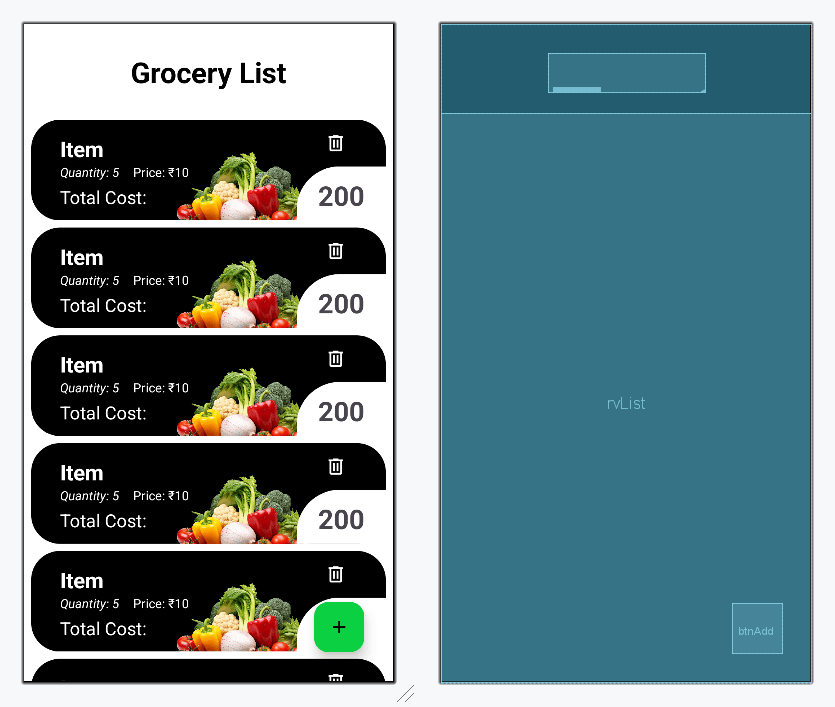
The main layout contains two ImageView, a RecyclerView to display grocery items, and a Button to open a dialog box for item input.
o RecyclerView item layout (item_grocery.xml)
This file defines the layout for each grocery item in the list, including fields for name, quantity, and price. Navigate to app > res > layout and a file named item_grocery.xml
o RecyclerView Adapter (GroceryAdapter.kt)
The adapter class manages the grocery list using RecyclerView.Adapter. It stores the entity list, uses a ViewModel instance, and overrides onCreateViewHolder, onBindViewHolder, and getItemCount. It also includes an inner ViewHolder class. Navigate to app > kotlin+java > {package_name} > Adapter and create a class named GroceryAdapter.kt
<?xml version="1.0" encoding="utf-8"?>
<androidx.constraintlayout.widget.ConstraintLayout
    xmlns:android="http://schemas.android.com/apk/res/android"
    xmlns:app="http://schemas.android.com/apk/res-auto"
    xmlns:tools="http://schemas.android.com/tools"
    android:id="@+id/main"
    android:layout_width="match_parent"
    android:layout_height="match_parent"
    android:background="@color/white"
    tools:context=".MainActivity">

    <!-- In this image view we will add a title image -->
    <TextView
        android:id="@+id/imageView"
        android:layout_width="wrap_content"
        android:layout_height="wrap_content"
        android:layout_marginTop="32dp"
        android:text="Grocery List"
        android:textSize="32sp"
        android:textStyle="bold"
        android:textColor="@color/black"
        app:layout_constraintEnd_toEndOf="parent"
        app:layout_constraintStart_toStartOf="parent"
        app:layout_constraintTop_toTopOf="parent" />

    <!-- Recycler View to display list -->
    <androidx.recyclerview.widget.RecyclerView
        android:id="@+id/rvList"
        android:layout_width="match_parent"
        android:layout_height="0dp"
        android:layout_marginTop="24dp"
        android:background="@color/white"
        tools:listitem="@layout/item_grocery"
        app:layout_constraintBottom_toBottomOf="parent"
        app:layout_constraintEnd_toEndOf="parent"
        app:layout_constraintStart_toStartOf="parent"
        app:layout_constraintTop_toBottomOf="@+id/imageView">

    </androidx.recyclerview.widget.RecyclerView>

    <!-- This button is used to open dialog box in
         which user can enter grocery items -->
    <com.google.android.material.floatingactionbutton.FloatingActionButton
        android:id="@+id/btnAdd"
        android:layout_width="wrap_content"
        android:layout_height="wrap_content"
        android:layout_marginEnd="32dp"
        android:layout_marginBottom="32dp"
        android:contentDescription="Add"
        app:elevation="8dp"
        android:src="@drawable/add"
        app:tint="@color/black"
        android:backgroundTint="@color/colorPrimary"
        app:layout_constraintBottom_toBottomOf="parent"
        app:layout_constraintEnd_toEndOf="parent" />

</androidx.constraintlayout.widget.ConstraintLayout>
<?xml version="1.0" encoding="utf-8"?>
<androidx.constraintlayout.widget.ConstraintLayout
    xmlns:android="http://schemas.android.com/apk/res/android"
    xmlns:app="http://schemas.android.com/apk/res-auto"
    xmlns:tools="http://schemas.android.com/tools"
    android:layout_width="match_parent"
    android:layout_height="wrap_content"
    android:layout_marginStart="8dp"
    android:layout_marginTop="8dp"
    android:layout_marginEnd="8dp"
    android:background="@drawable/card">

    <!-- To display item quantity -->
    <ImageView
        android:id="@+id/imgItemImage"
        android:layout_width="160dp"
        android:layout_height="90dp"
        android:src="@drawable/vegetables"
        app:layout_constraintBottom_toBottomOf="parent"
        app:layout_constraintEnd_toStartOf="@+id/ibDelete" />

    <TextView
        android:id="@+id/txtItemName"
        android:layout_width="0dp"
        android:layout_height="wrap_content"
        android:layout_marginStart="32dp"
        android:layout_marginTop="16dp"
        android:layout_marginBottom="24dp"
        android:text="Item"
        android:textColor="@color/white"
        android:textSize="24sp"
        android:textStyle="bold"
        app:layout_constraintBottom_toTopOf="@+id/txtTotalCostTitle"
        app:layout_constraintStart_toStartOf="parent"
        app:layout_constraintTop_toTopOf="parent" />

    <TextView
        android:id="@+id/txtItemQuantity"
        android:layout_width="wrap_content"
        android:layout_height="wrap_content"
        android:text="Quantity: 5"
        android:textColor="@color/white"
        android:textStyle="italic"
        app:layout_constraintStart_toStartOf="@+id/txtItemName"
        app:layout_constraintTop_toBottomOf="@+id/txtItemName" />

    <!-- To display item price -->
    <TextView
        android:id="@+id/txtItemPrice"
        android:layout_width="wrap_content"
        android:layout_height="wrap_content"
        android:layout_marginStart="16dp"
        android:text="Price: ₹10"
        android:textColor="@color/white"
        app:layout_constraintBottom_toBottomOf="@+id/txtItemQuantity"
        app:layout_constraintStart_toEndOf="@+id/txtItemQuantity"
        app:layout_constraintTop_toTopOf="@+id/txtItemQuantity" />

    <ImageButton
        android:id="@+id/ibDelete"
        android:layout_width="wrap_content"
        android:layout_height="wrap_content"
        android:layout_marginEnd="32dp"
        android:backgroundTint="@android:color/transparent"
        android:src="@drawable/ic_action_delete"
        app:layout_constraintBottom_toTopOf="@+id/txtItemTotalCost"
        app:layout_constraintEnd_toEndOf="parent"
        app:layout_constraintTop_toTopOf="parent"
        app:tint="@color/white" />

    <!-- To display total cost of grocery items -->
    <TextView
        android:id="@+id/txtItemTotalCost"
        android:layout_width="wrap_content"
        android:layout_height="60dp"
        android:background="@drawable/cost_card"
        android:text="200"
        android:textAlignment="center"
        android:textSize="30sp"
        android:textStyle="bold"
        app:layout_constraintBottom_toBottomOf="parent"
        app:layout_constraintEnd_toEndOf="parent" />

    <!-- This text view is used to add statement for total cost -->
    <TextView
        android:id="@+id/txtTotalCostTitle"
        android:layout_width="wrap_content"
        android:layout_height="wrap_content"
        android:layout_marginBottom="8dp"
        android:text="Total Cost:"
        android:textColor="@color/white"
        android:textSize="20sp"
        app:layout_constraintBottom_toBottomOf="parent"
        app:layout_constraintStart_toStartOf="@+id/txtItemName"
        app:layout_constraintTop_toBottomOf="@+id/txtItemQuantity" />

</androidx.constraintlayout.widget.ConstraintLayout>
package org.geeksforgeeks.grocery

import android.view.LayoutInflater
import android.view.View
import android.view.ViewGroup
import android.widget.ImageButton
import android.widget.ImageView
import android.widget.TextView
import androidx.recyclerview.widget.RecyclerView
import com.bumptech.glide.Glide
import org.geeksforgeeks.grocery.data.local.GroceryItems
import org.geeksforgeeks.grocery.ui.GroceryViewModel

class GroceryAdapter(var list: List<GroceryItems>, private val viewModel: GroceryViewModel) :
    RecyclerView.Adapter<GroceryAdapter.GroceryViewHolder>() {

    override fun onCreateViewHolder(parent: ViewGroup, viewType: Int): GroceryViewHolder {
        val view = LayoutInflater.from(parent.context).inflate(R.layout.item_grocery, parent, false)
        return GroceryViewHolder(view)
    }

    override fun getItemCount(): Int = list.size

    override fun onBindViewHolder(holder: GroceryViewHolder, position: Int) {
        val currentPosition = list[position]
        holder.txtItemName.text = currentPosition.itemName.lowercase()
            .replaceFirstChar { if (it.isLowerCase()) it.titlecase() else it.toString() }

        holder.txtItemPrice.text = "Price: ₹${currentPosition.itemPrice}"
        holder.txtItemQuantity.text = "Quantity: ${currentPosition.itemQuantity}"
        Glide.with(holder.itemView.context).load(
            when(currentPosition.itemName.trim().lowercase()) {
                "banana" -> R.drawable.banana
                "kiwi" -> R.drawable.kiwi
                "apple" -> R.drawable.apple
                "orange" -> R.drawable.orange
                "potato" -> R.drawable.potato
                else -> R.drawable.vegetables
            }
        ).into(holder.imgItemImage)

        holder.ibDelete.setOnClickListener {
            viewModel.delete(currentPosition)
        }

        // Show total cost and title only for the last item
        if (position == list.size - 1) {
            val totalCost = list.sumOf { it.itemPrice }
            holder.txtItemTotalCost.visibility = View.VISIBLE
            holder.txtTotalCostTitle.visibility = View.VISIBLE
            holder.txtItemTotalCost.text = "₹$totalCost"
        } else {
            // Hide the total cost and title for non-last items
            holder.txtItemTotalCost.visibility = View.GONE
            holder.txtTotalCostTitle.visibility = View.GONE
        }
    }

    // Inner class for ViewHolder with findViewById
    inner class GroceryViewHolder(itemView: View) : RecyclerView.ViewHolder(itemView) {
        val txtItemName: TextView = itemView.findViewById(R.id.txtItemName)
        val txtItemPrice: TextView = itemView.findViewById(R.id.txtItemPrice)
        val txtItemQuantity: TextView = itemView.findViewById(R.id.txtItemQuantity)
        val txtItemTotalCost: TextView = itemView.findViewById(R.id.txtItemTotalCost)
        val txtTotalCostTitle: TextView = itemView.findViewById(R.id.txtTotalCostTitle)
        val imgItemImage: ImageView = itemView.findViewById(R.id.imgItemImage)
        val ibDelete: ImageButton = itemView.findViewById(R.id.ibDelete)
    }
}
Design UI:
Step 7: Implementing Add Operation
o Dialog Box UI (grocerydialog.xml)
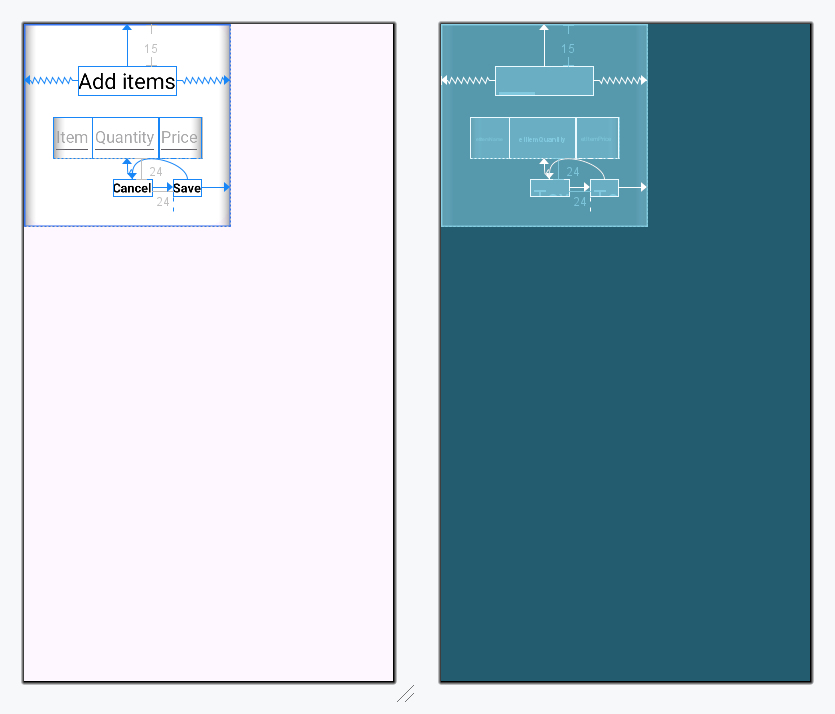
Create a layout file for the dialog box with three EditText fields for item name, quantity, and price, along with two TextView elements for "Save" and "Cancel". Clicking "Save" stores the data in the database, while clicking "Cancel" closes the dialog. Navigate to app > res > layout and create a layout file named grocerydialog.xml.
o Interface for Click Listener (DialogListener.kt)
Define an interface with a function to handle the "Save" action in the dialog. Navigate to app > kotlin+java > {package_name} and create a file named DialogListener.kt.
o Grocery Dialog Class (GroceryItemDialog.kt)
Create a class named GroceryItemDialog.kt to handle user input from the dialog, store values in variables, and insert data into the database.
<?xml version="1.0" encoding="utf-8"?>
<LinearLayout
    xmlns:android="http://schemas.android.com/apk/res/android"
    xmlns:app="http://schemas.android.com/apk/res-auto"
    xmlns:tools="http://schemas.android.com/tools"
    android:layout_width="wrap_content"
    android:layout_height="wrap_content">

    <androidx.cardview.widget.CardView
        android:layout_width="wrap_content"
        android:layout_height="wrap_content"
        app:cardCornerRadius="24dp"
        app:cardElevation="0dp">

        <androidx.constraintlayout.widget.ConstraintLayout
            android:layout_width="wrap_content"
            android:layout_height="wrap_content"
            android:padding="32dp">

            <!-- To display title-->
            <TextView
                android:id="@+id/tvTitle"
                android:layout_width="wrap_content"
                android:layout_height="wrap_content"
                android:layout_marginTop="15dp"
                android:layout_marginBottom="26dp"
                android:text="Add items"
                android:textColor="@color/black"
                android:textSize="24sp"
                app:layout_constraintEnd_toEndOf="parent"
                app:layout_constraintStart_toStartOf="parent"
                app:layout_constraintTop_toTopOf="parent" />

            <!-- Linear Layout is used to give equal
                 weight sum to edit text-->
            <LinearLayout
                android:id="@+id/linearLayout"
                android:layout_width="wrap_content"
                android:layout_height="wrap_content"
                android:layout_marginTop="24dp"
                app:layout_constraintEnd_toEndOf="parent"
                app:layout_constraintStart_toStartOf="parent"
                app:layout_constraintTop_toBottomOf="@+id/tvTitle">

                <!-- Edit Text is used to Enter Grocery
                     Item Name by user-->
                <EditText
                    android:id="@+id/etItemName"
                    android:layout_width="wrap_content"
                    android:layout_height="wrap_content"
                    android:hint="Item"
                    android:singleLine="true"
                    app:layout_constraintBottom_toTopOf="@+id/tvCancel"
                    app:layout_constraintEnd_toEndOf="parent"
                    app:layout_constraintStart_toStartOf="parent"
                    app:layout_constraintTop_toTopOf="parent" />

                <!-- Edit Text is used to Enter Grocery
                     Item Quantity by user-->
                <EditText
                    android:id="@+id/etItemQuantity"
                    android:layout_width="wrap_content"
                    android:layout_height="wrap_content"
                    android:hint="Quantity"
                    android:inputType="number"
                    app:layout_constraintBottom_toBottomOf="parent"
                    app:layout_constraintEnd_toStartOf="@+id/etItemPrice"
                    app:layout_constraintStart_toEndOf="@+id/etItemName"
                    app:layout_constraintTop_toBottomOf="@+id/tvTitle" />

                <!-- Edit Text is used to Enter Grocery
                     Item Price by user-->
                <EditText
                    android:id="@+id/etItemPrice"
                    android:layout_width="wrap_content"
                    android:layout_height="wrap_content"
                    android:hint="Price"
                    android:inputType="number"
                    app:layout_constraintBottom_toBottomOf="parent"
                    app:layout_constraintEnd_toEndOf="parent"
                    app:layout_constraintStart_toEndOf="@+id/etItemName"
                    app:layout_constraintTop_toTopOf="parent" />

            </LinearLayout>

            <!-- Text view is used as save button to save
                 all details in database by user-->
            <TextView
                android:id="@+id/tvSave"
                android:layout_width="0dp"
                android:layout_height="wrap_content"
                android:text="Save"
                android:textColor="@color/black"
                android:textStyle="bold"
                app:layout_constraintEnd_toEndOf="parent"
                app:layout_constraintTop_toTopOf="@+id/tvCancel" />

            <!-- Text View is used to close dialog box-->
            <TextView
                android:id="@+id/tvCancel"
                android:layout_width="wrap_content"
                android:layout_height="wrap_content"
                android:layout_marginTop="24dp"
                android:layout_marginEnd="24dp"
                android:text="Cancel"
                android:textColor="@color/black"
                android:textStyle="bold"
                app:layout_constraintEnd_toStartOf="@+id/tvSave"
                app:layout_constraintTop_toBottomOf="@+id/linearLayout" />

        </androidx.constraintlayout.widget.ConstraintLayout>

    </androidx.cardview.widget.CardView>

</LinearLayout>
package org.geeksforgeeks.grocery.ui
import org.geeksforgeeks.grocery.data.local.GroceryItems

interface DialogListener {

    // Create a function to add items
    // in GroceryItems on clicking
    fun onAddButtonClicked(item: GroceryItems)
}
package org.geeksforgeeks.grocery.ui

import android.content.Context
import android.graphics.Color
import android.graphics.drawable.ColorDrawable
import android.os.Bundle
import android.view.Window
import android.widget.EditText
import android.widget.TextView
import android.widget.Toast
import androidx.appcompat.app.AppCompatDialog
import org.geeksforgeeks.grocery.data.local.GroceryItems
import org.geeksforgeeks.grocery.R

class GroceryItemDialog(context: Context, private var dialogListener: DialogListener) : AppCompatDialog(context) {
    private lateinit var etItemName : EditText
    private lateinit var etItemQuantity : EditText
    private lateinit var etItemPrice : EditText
    private lateinit var tvSave : TextView
    private lateinit var tvCancel : TextView

    override fun onCreate(savedInstanceState: Bundle?) {
        super.onCreate(savedInstanceState)
        supportRequestWindowFeature(Window.FEATURE_NO_TITLE)
        setContentView(R.layout.grocerydialog)

        window?.setBackgroundDrawable(ColorDrawable(Color.TRANSPARENT))

        etItemName = findViewById(R.id.etItemName)!!
        etItemQuantity = findViewById(R.id.etItemQuantity)!!
        etItemPrice = findViewById(R.id.etItemPrice)!!
        tvSave = findViewById(R.id.tvSave)!!
        tvCancel = findViewById(R.id.tvCancel)!!

        // Click listener on Save button
        // to save all data.
        tvSave.setOnClickListener {

            // Take all three inputs in different variables from user
            // and add it in Grocery Items database
            val name = etItemName.text.toString()
            val quantity = etItemQuantity.text.toString().toInt()
            val price = etItemPrice.text.toString().toInt()

            // Toast to display enter items in edit text
            if (name.isEmpty()) {
                Toast.makeText(context, "Please Enter Item Name", Toast.LENGTH_SHORT).show()
            }

            val item = GroceryItems(name, quantity, price)
            dialogListener.onAddButtonClicked(item)
            dismiss()
        }

        // On click listener on cancel text to close dialog box
        tvCancel.setOnClickListener {
            cancel()
        }
    }
}
Design UI:
Step 8: Working with MainActivity.kt
In this step finally we will code in our MainActivity. In our main activity, we have to set up the recycler view and add click listener on add button to open the dialog box. Go to the MainActivity.kt file and refer to the following code. Below is the code for the MainActivity.kt file. Comments are added inside the code to understand the code in more detail.
package org.geeksforgeeks.grocery

import android.os.Bundle
import android.widget.ImageButton
import androidx.activity.enableEdgeToEdge
import androidx.appcompat.app.AppCompatActivity
import androidx.core.view.ViewCompat
import androidx.core.view.WindowInsetsCompat
import androidx.lifecycle.ViewModelProvider
import androidx.recyclerview.widget.LinearLayoutManager
import androidx.recyclerview.widget.RecyclerView
import org.geeksforgeeks.grocery.data.repo.GroceryRepository
import org.geeksforgeeks.grocery.data.repo.GroceryDatabase
import org.geeksforgeeks.grocery.data.local.GroceryItems
import org.geeksforgeeks.grocery.ui.DialogListener
import org.geeksforgeeks.grocery.ui.GroceryItemDialog
import org.geeksforgeeks.grocery.ui.GroceryViewModel
import org.geeksforgeeks.grocery.ui.GroceryViewModelFactory

class MainActivity : AppCompatActivity() {

    lateinit var viewModel: GroceryViewModel
    private lateinit var rvList : RecyclerView
    private lateinit var btnAdd : ImageButton

    override fun onCreate(savedInstanceState: Bundle?) {
        super.onCreate(savedInstanceState)
        enableEdgeToEdge()
        setContentView(R.layout.activity_main)
        ViewCompat.setOnApplyWindowInsetsListener(findViewById(R.id.main)) { v, insets ->
            val systemBars = insets.getInsets(WindowInsetsCompat.Type.systemBars())
            v.setPadding(systemBars.left, systemBars.top, systemBars.right, systemBars.bottom)
            insets
        }

        btnAdd = findViewById(R.id.btnAdd)
        rvList = findViewById(R.id.rvList)
        val groceryRepository = GroceryRepository(GroceryDatabase(this))
        val factory = GroceryViewModelFactory(groceryRepository)

        // Initialised View Model
        viewModel = ViewModelProvider(this, factory)[GroceryViewModel::class.java]
        val groceryAdapter = GroceryAdapter(listOf(), viewModel)
        rvList.layoutManager = LinearLayoutManager(this)
        rvList.adapter = groceryAdapter

        // To display all items in recycler view
        viewModel.allGroceryItems().observe(this) {
            groceryAdapter.list = it
            groceryAdapter.notifyItemInserted(groceryAdapter.list.size)
            groceryAdapter.notifyDataSetChanged()
        }

        // on ClickListener on button to open dialog box
        btnAdd.setOnClickListener {
            GroceryItemDialog(this, object : DialogListener {
                override fun onAddButtonClicked(item: GroceryItems) {
                    viewModel.insert(item)
                }
            }).show()
        }
    }
}
Refer to the following Github repo to get the entire code: https://github.com/geeksforgeeksorg/Grocery-Android-App
