
Intro Slider in many apps is mostly used to educate the users about the app, the features of the app, and the services that our app will provide to us. In this article, we will take a look at the implementation of Custom Intro Slider in our app.
What we are going to build in this Article?
We will be building a simple application in which we will be displaying an intro slider in which we will show slider in our app. This slider contains a simple image and two TextView. Note that we are going to implement this project using the Java and Kotlin language.
File Structure for the Application
Below is the File Structure of the Application:
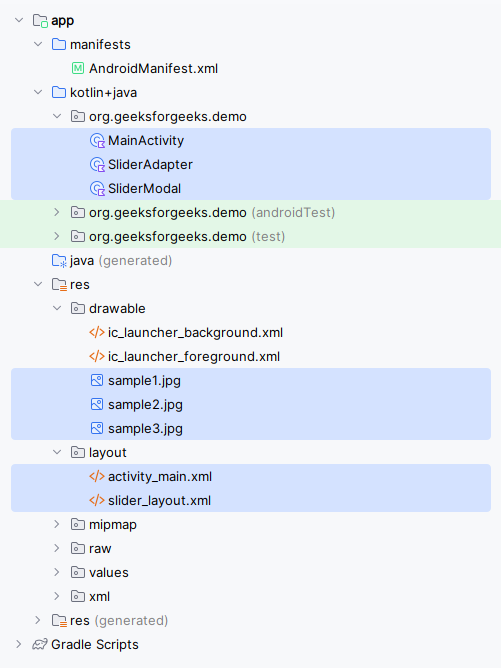
Step by Step Implementation
Step 1: Create a New Project
To create a new project in Android Studio please refer to How to Create/Start a New Project in Android Studio.
Step 2: Adding the dependency for Picasso in your build.gradle file
As we will be loading all our images from online sources so we will be using Glide for loading images from URLs inside our application. So for using the images from the URL we have to add the below dependency in our build.gradle.kts (Module :app) file.
dependencies {
    ...
    implementation("com.github.bumptech.glide:glide:4.16.0")
}
Step 3: Working with the activity_main.xml file
Navigate to the app > res > layout > activity_main.xml and add the below code to that file.
Note: activity_main.xml is the XML file for the main activity window.
activity_main.xml:
<?xml version="1.0" encoding="utf-8"?>
<androidx.constraintlayout.widget.ConstraintLayout
    xmlns:android="http://schemas.android.com/apk/res/android"
    xmlns:app="http://schemas.android.com/apk/res-auto"
    xmlns:tools="http://schemas.android.com/tools"
    android:layout_width="match_parent"
    android:layout_height="match_parent"
    tools:context=".MainActivity">

    <!--view pager for displaying our slides-->
    <androidx.viewpager.widget.ViewPager
        android:id="@+id/idViewPager"
        android:layout_width="match_parent"
        android:layout_height="match_parent"
        app:layout_constraintBottom_toBottomOf="parent"
        app:layout_constraintEnd_toEndOf="parent"
        app:layout_constraintStart_toStartOf="parent"
        app:layout_constraintTop_toTopOf="parent" />

    <LinearLayout
        android:layout_width="match_parent"
        android:layout_height="wrap_content"
        android:gravity="center"
        android:orientation="vertical"
        app:layout_constraintBottom_toBottomOf="parent"
        app:layout_constraintEnd_toEndOf="parent"
        app:layout_constraintStart_toStartOf="parent">

        <!--adding linear layout for creating dots view-->
        <LinearLayout
            android:id="@+id/dotsLayout"
            android:layout_width="wrap_content"
            android:layout_height="wrap_content"
            android:layout_gravity="center"
            android:gravity="center"
            android:orientation="horizontal" />

        <!--button for skipping our intro slider-->
        <Button
            android:id="@+id/getStartedButton"
            android:layout_width="match_parent"
            android:layout_height="wrap_content"
            android:layout_margin="32dp"
            android:text="Get Started"
            android:background="@color/colorPrimary"
            android:textColor="@color/white" />

    </LinearLayout>

</androidx.constraintlayout.widget.ConstraintLayout>
Step 4: Creating a layout file for our Slider item
Now we will create an item that we will be displaying in our slider. So for creating a new layout navigate to the app > res > layout > Right-click on it > Click on New > layout resource file and name it as slider_layout and add below code to it.
Note: slider_layout.xml is the fragment used for the sliders.
slider_layout.xml:
<?xml version="1.0" encoding="utf-8"?>
<LinearLayout
    xmlns:android="http://schemas.android.com/apk/res/android"
    android:layout_width="match_parent"
    android:layout_height="match_parent"
    android:orientation="vertical"
    android:gravity="center">

    <!--text view for displaying our title-->
    <TextView
        android:id="@+id/titleTextView"
        android:layout_width="wrap_content"
        android:layout_height="wrap_content"
        android:padding="10dp"
        android:text="Slide 1"
        android:textColor="@color/black"
        android:textSize="24sp"
        android:textStyle="bold" />

    <!--Image view for displaying our slider image-->
    <ImageView
        android:id="@+id/imageView"
        android:layout_width="match_parent"
        android:layout_height="wrap_content"
        android:layout_margin="50dp"
        android:src="@mipmap/ic_launcher" />

    <!--text view for displaying our slider description-->
    <TextView
        android:id="@+id/descriptionTextView"
        android:layout_width="wrap_content"
        android:layout_height="wrap_content"
        android:text="Slide Description"
        android:textStyle="italic"
        android:textColor="@color/black" />

</LinearLayout>
Step 5: Creating a Modal class for storing all the data for Slider items
For creating a new Modal class navigate to the app > java > your app's package name > Right-click on it and click on New > Java/Kotlin class and name it as SliderModal.
package org.geeksforgeeks.demo;

public class SliderModal {

    private String title;
    private String heading;
    private int imgUrl;

    public SliderModal(String title, String heading, int imgUrl) {
        this.title = title;
        this.heading = heading;
        this.imgUrl = imgUrl;
    }

    public String getTitle() {
        return title;
    }

    public String getHeading() {
        return heading;
    }

    public int getImgUrl() {
        return imgUrl;
    }
}
package org.geeksforgeeks.demo

data class SliderModal(
    val title: String,
    val heading: String,
    val imgUrl: Int
)
Step 6: Create an Adapter class for setting data to each view
For creating a new Adapter class navigate to the app > java > your app's package name > Right-click on it > New Java/Kotlin class and name it as SliderAdapter and add the below code to it.
package org.geeksforgeeks.demo;

import android.content.Context;
import android.view.LayoutInflater;
import android.view.View;
import android.view.ViewGroup;
import android.widget.ImageView;
import android.widget.TextView;

import androidx.viewpager.widget.PagerAdapter;

import com.bumptech.glide.Glide;

import java.util.ArrayList;

public class SliderAdapter extends PagerAdapter {

    private Context context;
    private ArrayList<SliderModal> sliderModalArrayList;
    // LayoutInflater to inflate custom layout
    private LayoutInflater layoutInflater;

    public SliderAdapter(Context context, ArrayList<SliderModal> sliderModalArrayList) {
        this.context = context;
        this.sliderModalArrayList = sliderModalArrayList;
    }

    // Returns the total number of items
    @Override
    public int getCount() {
        return sliderModalArrayList.size();
    }

    // Checks whether a page View is associated with a specific key object
    @Override
    public boolean isViewFromObject(View view, Object object) {
        return view == object;
    }

    // Instantiates and returns a page View object
    @Override
    public Object instantiateItem(ViewGroup container, int position) {
        layoutInflater = (LayoutInflater) context.getSystemService(Context.LAYOUT_INFLATER_SERVICE);
        View view = layoutInflater.inflate(R.layout.slider_layout, container, false);

        // Initialize views
        ImageView imageView = view.findViewById(R.id.imageView);
        TextView titleTV = view.findViewById(R.id.titleTextView);
        TextView headingTV = view.findViewById(R.id.descriptionTextView);

        // Set data to views
        SliderModal modal = sliderModalArrayList.get(position);
        titleTV.setText(modal.getTitle());
        headingTV.setText(modal.getHeading());
        Glide.with(context).load(modal.getImgUrl()).into(imageView);

        // Add the view to container
        container.addView(view);
        return view;
    }

    // Removes a page View from the container
    @Override
    public void destroyItem(ViewGroup container, int position, Object object) {
        container.removeView((View) object);
    }
}
package org.geeksforgeeks.demo

import android.content.Context
import android.view.LayoutInflater
import android.view.View
import android.view.ViewGroup
import android.widget.ImageView
import android.widget.TextView
import androidx.viewpager.widget.PagerAdapter
import com.bumptech.glide.Glide

class SliderAdapter(
    private var context: Context,
    private var sliderModalArrayList: ArrayList<SliderModal>
) : PagerAdapter() {

    // LayoutInflater to inflate custom layout
    private lateinit var layoutInflater: LayoutInflater

    // Returns the total number of items
    override fun getCount(): Int {
        return sliderModalArrayList.size
    }

    // Checks whether a page View is associated with a specific key object
    override fun isViewFromObject(view: View, `object`: Any): Boolean {
        return view === `object`
    }

    // Instantiates and returns a page View object
    override fun instantiateItem(container: ViewGroup, position: Int): Any {
        layoutInflater = context.getSystemService(Context.LAYOUT_INFLATER_SERVICE) as LayoutInflater
        val view: View = layoutInflater.inflate(R.layout.slider_layout, container, false)

        // Initialize views
        val imageView = view.findViewById<ImageView>(R.id.imageView)
        val titleTV = view.findViewById<TextView>(R.id.titleTextView)
        val headingTV = view.findViewById<TextView>(R.id.descriptionTextView)

        // Set data to views
        val modal: SliderModal = sliderModalArrayList[position]
        titleTV.text = modal.title
        headingTV.text = modal.heading
        Glide.with(context).load(modal.imgUrl).into(imageView)

        // Add the view to container
        container.addView(view)
        return view
    }

    // Removes a page View from the container
    override fun destroyItem(container: ViewGroup, position: Int, `object`: Any) {
        container.removeView(`object` as View)
    }
}
Step 7: Working with theMainActivity file
Go to the MainActivity file and refer to the following code. Below is the code for the MainActivity file. Comments are added inside the code to understand the code in more detail.
package org.geeksforgeeks.demo;

import android.os.Bundle;
import android.text.Html;
import android.widget.LinearLayout;
import android.widget.TextView;

import androidx.activity.ComponentActivity;
import androidx.activity.enableEdgeToEdge;
import androidx.appcompat.app.AppCompatActivity;
import androidx.core.content.ContextCompat;
import androidx.viewpager.widget.ViewPager;
import androidx.viewpager.widget.ViewPager.OnPageChangeListener;

import java.util.ArrayList;

public class MainActivity extends AppCompatActivity {

    private ViewPager viewPager;
    private LinearLayout dotsLL;
    private SliderAdapter adapter;
    private ArrayList<SliderModal> sliderModalArrayList;
    private TextView[] dots;
    private int size = 0;

    @Override
    protected void onCreate(Bundle savedInstanceState) {
        super.onCreate(savedInstanceState);
        enableEdgeToEdge();
        setContentView(R.layout.activity_main);

        // Initialize views
        viewPager = findViewById(R.id.idViewPager);
        dotsLL = findViewById(R.id.dotsLayout);

        // Create and populate slider items
        sliderModalArrayList = new ArrayList<>();
        sliderModalArrayList.add(new SliderModal("Slide 1", "Slide 1 heading", R.drawable.sample1));
        sliderModalArrayList.add(new SliderModal("Slide 2", "Slide 2 heading", R.drawable.sample2));
        sliderModalArrayList.add(new SliderModal("Slide 3", "Slide 3 heading", R.drawable.sample3));

        // Set up adapter with slider items
        adapter = new SliderAdapter(this, sliderModalArrayList);
        viewPager.setAdapter(adapter);

        // Get the total number of slides
        size = sliderModalArrayList.size();

        // Add initial dot indicators
        addDots(size, 0);

        // Set page change listener
        viewPager.addOnPageChangeListener(viewListener);
    }

    // Method to add and update dot indicators
    private void addDots(int size, int pos) {
        dots = new TextView[size];
        dotsLL.removeAllViews();

        for (int i = 0; i < size; i++) {
            dots[i] = new TextView(this);
            dots[i].setText(Html.fromHtml("•"));
            dots[i].setTextSize(35f);
            dots[i].setTextColor(ContextCompat.getColor(this, R.color.black));
            dotsLL.addView(dots[i]);
        }

        // Highlight selected dot
        if (dots.length > 0) {
            dots[pos].setTextColor(ContextCompat.getColor(this, R.color.colorPrimary));
            dots[pos].setTextSize(45f);
        }
    }

    // Page change listener to update dots on slide change
    private final OnPageChangeListener viewListener = new OnPageChangeListener() {
        @Override
        public void onPageScrolled(int position, float positionOffset, int positionOffsetPixels) {}

        @Override
        public void onPageSelected(int position) {
            addDots(size, position);
        }

        @Override
        public void onPageScrollStateChanged(int state) {}
    };
}
package org.geeksforgeeks.demo

import android.os.Bundle
import android.text.Html
import android.widget.LinearLayout
import android.widget.TextView
import androidx.activity.enableEdgeToEdge
import androidx.appcompat.app.AppCompatActivity
import androidx.core.content.ContextCompat
import androidx.viewpager.widget.ViewPager
import androidx.viewpager.widget.ViewPager.OnPageChangeListener

class MainActivity : AppCompatActivity() {

    private lateinit var viewPager: ViewPager
    private lateinit var dotsLL: LinearLayout
    private lateinit var adapter: SliderAdapter
    private lateinit var sliderModalArrayList: ArrayList<SliderModal>
    private lateinit var dots: Array<TextView?>
    private var size: Int = 0

    override fun onCreate(savedInstanceState: Bundle?) {
        super.onCreate(savedInstanceState)
        enableEdgeToEdge()
        setContentView(R.layout.activity_main)

        // Initialize views
        viewPager = findViewById(R.id.idViewPager)
        dotsLL = findViewById(R.id.dotsLayout)

        // Create and populate slider items
        sliderModalArrayList = ArrayList()
        sliderModalArrayList.add(SliderModal("Slide 1", "Slide 1 heading", R.drawable.sample1))
        sliderModalArrayList.add(SliderModal("Slide 2", "Slide 2 heading", R.drawable.sample2))
        sliderModalArrayList.add(SliderModal("Slide 3", "Slide 3 heading", R.drawable.sample3))

        // Set up adapter with slider items
        adapter = SliderAdapter(this@MainActivity, sliderModalArrayList)
        viewPager.adapter = adapter

        // Get the total number of slides
        size = sliderModalArrayList.size

        // Add initial dot indicators
        addDots(size, 0)

        // Set page change listener
        viewPager.addOnPageChangeListener(viewListener)
    }

    // Method to add and update dot indicators
    private fun addDots(size: Int, pos: Int) {
        dots = arrayOfNulls(size)
        dotsLL.removeAllViews()

        for (i in 0 until size) {
            dots[i] = TextView(this).apply {
                text = Html.fromHtml("•")
                textSize = 35f
                setTextColor(ContextCompat.getColor(this@MainActivity, R.color.black))
            }
            dotsLL.addView(dots[i])
        }

        // Highlight selected dot
        if (dots.isNotEmpty()) {
            dots[pos]?.apply {
                setTextColor(ContextCompat.getColor(this@MainActivity, R.color.colorPrimary))
                textSize = 45f
            }
        }
    }

    // Page change listener to update dots on slide change
    private var viewListener: OnPageChangeListener = object : OnPageChangeListener {
        override fun onPageScrolled(position: Int, positionOffset: Float, positionOffsetPixels: Int) {}

        override fun onPageSelected(position: Int) {
            addDots(size, position)
        }

        override fun onPageScrollStateChanged(state: Int) {}
    }
}
Note : To access the full Slider in an Android App check this repository: Click Here to Access the Whole Project
