
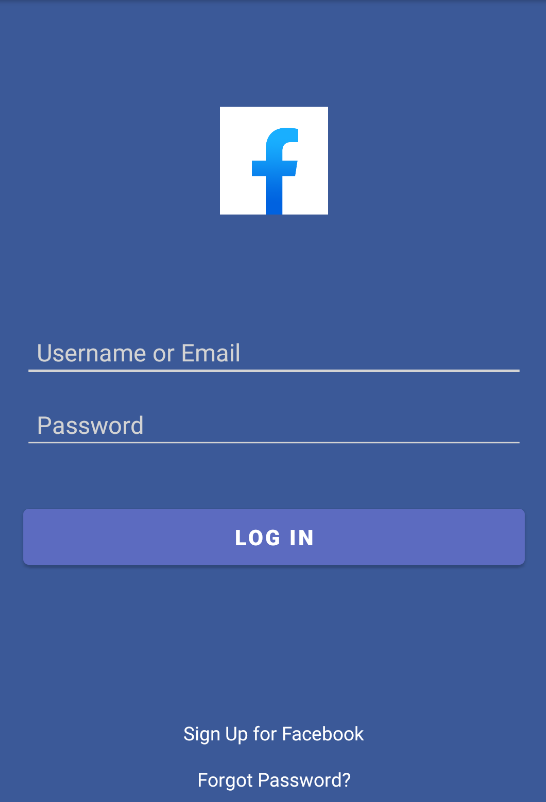
Nowadays, android apps are very popular especially social media apps. This UI has generally seen in the "Facebook Lite" App. In this article, we will create a Facebook login UI in Android. Below are the various steps on how to do it.
Step by Step Implementation
Step 1: Create a New Project
To create a new project in Android Studio please refer to How to Create/Start a New Project in Android Studio. Firstly select empty activity then click the next button. Give the name of your app like "Facebook Login UI". Then select Kotlin/Java as the programming language. Then select minimum SDK for example in this we are using "API16: Android 4.1(Jelly Bean)". then click on the finish button.
Step 2: Working with the activity_main.xml file
Navigate to the app > res > layout > activity_main.xml and add the below code to that file. Below is the code for the activity_main.xml file.
<?xml version="1.0" encoding="utf-8"?>
<LinearLayout
    xmlns:android="http://schemas.android.com/apk/res/android"
    android:layout_width="match_parent"
    android:layout_height="match_parent"
    android:background="#3b5998"
    android:orientation="vertical">

    <!--Imageview for Facebook logo image-->
    <ImageView
        android:layout_width="80dp"
        android:layout_height="80dp"
        android:layout_gravity="center"
        android:layout_marginTop="80dp"
        android:src="@drawable/fb_logo" />

    <!--EditText for user name or email address-->
    <EditText
        android:layout_width="match_parent"
        android:layout_height="wrap_content"
        android:layout_marginLeft="20dp"
        android:layout_marginTop="80dp"
        android:layout_marginRight="20dp"
        android:backgroundTint="#d3d3d3"
        android:hint="Username or Email"
        android:inputType="textEmailAddress"
        android:maxLines="1"
        android:padding="10dp"
        android:textColor="#ffffff"
        android:textColorHint="#d3d3d3" />

    <!--EditText for user password-->
    <EditText
        android:layout_width="match_parent"
        android:layout_height="wrap_content"
        android:layout_marginLeft="20dp"
        android:layout_marginTop="10dp"
        android:layout_marginRight="20dp"
        android:backgroundTint="#d3d3d3"
        android:hint="Password"
        android:inputType="textPassword"
        android:maxLines="1"
        android:padding="10dp"
        android:textColor="#ffffff"
        android:textColorHint="#d3d3d3" />

    <!-- Login Button for Facebook Log In-->
    <Button
        android:id="@+id/btnLogin"
        android:layout_width="match_parent"
        android:layout_height="wrap_content"
        android:layout_marginLeft="20dp"
        android:layout_marginTop="35dp"
        android:layout_marginRight="20dp"
        android:backgroundTint="#5c6bc0"
        android:padding="10dp"
        android:text="Log In"
        android:textColor="#ffffff"
        android:textSize="16sp"
        android:textStyle="bold" />

    <RelativeLayout
        android:layout_width="match_parent"
        android:layout_height="match_parent">

        <LinearLayout
            android:layout_width="match_parent"
            android:layout_height="wrap_content"
            android:layout_alignParentBottom="true"
            android:orientation="vertical">

            <TextView
                android:id="@+id/txtSignUp"
                android:layout_width="wrap_content"
                android:layout_height="wrap_content"
                android:layout_gravity="center_horizontal"
                android:text="Sign Up for Facebook"
                android:textColor="#ffffff" />

            <TextView
                android:id="@+id/txtForgotPassword"
                android:layout_width="wrap_content"
                android:layout_height="wrap_content"
                android:layout_gravity="center_horizontal"
                android:layout_marginTop="15dp"
                android:layout_marginBottom="15dp"
                android:text="Forgot Password?"
                android:textColor="#ffffff" />
        </LinearLayout>

    </RelativeLayout>

</LinearLayout>
Step 3: Working with the colors.xml file
Add this code in app > res > values > colors.xml file.
<?xml version="1.0" encoding="utf-8"?>
<resources>

    <!-- colors code we are using in this project -->
    <color name="purple_200">#3b5998</color>
    <color name="purple_500">#FF6200EE</color>
    <color name="purple_700">#FF3700B3</color>
    <color name="teal_200">#FF03DAC5</color>
    <color name="teal_700">#FF018786</color>
    <color name="black">#FF000000</color>
    <color name="white">#FFFFFFFF</color>

</resources>
The image used in this project is added to the drawable folder. For navigating the image, Navigate to the app > res > drawable and you will find the image in that folder. Now run the app and see the output of the code below.
Output UI:
Note: To create a Facebook login using an Android App please refer to How to create a Facebook login using an Android App?
