
In this article, we will learn about how to add Modal Bottom Sheet in our app. We have seen this UI component in daily applications like Google Drive, Maps, or Music Player App. The modal Bottom sheet always appears from the bottom of the screen and if the user clicks on the outside content then it is dismissed. It can be dragged vertically and can be dismissed by sliding it down.
Step by Step Implementation
Step 1: Create a new project
If you don’t know how to create a new project in Android Studio then you can refer to How to Create/Start a New Project in Android Studio?
Step 2: Adding required dependency
Navigate to app > Gradle Scripts > build.gradle.kts(module) and add the following dependency in it.
implementation("com.google.android.material:material:1.12.0")Step 3: Create a Bottom Sheet Fragment
Now create a bottom_sheet_layout.xml file and add the following code. Here we design the layout of our Modal Bottom sheet. It has a textview and two buttons.
bottom_sheet_layout.xml:
<?xml version="1.0" encoding="utf-8"?>
<LinearLayout
    xmlns:android="http://schemas.android.com/apk/res/android"
    android:layout_width="match_parent"
    android:layout_height="match_parent"
    android:gravity="center_horizontal"
    android:orientation="vertical"
    android:padding="16dp">

    <TextView
        android:layout_width="wrap_content"
        android:layout_height="wrap_content"
        android:text="This is a Modal BottomSheet"
        android:textSize="25sp" />

    <Button
        android:layout_margin="10dp"
        android:id="@+id/button_1"
        android:layout_width="wrap_content"
        android:layout_height="wrap_content"
        android:text="Button 1" />

    <Button
        android:layout_margin="10dp"
        android:id="@+id/button_2"
        android:layout_width="wrap_content"
        android:layout_height="wrap_content"
        android:text="Button 2" />

</LinearLayout>
Layout Design:
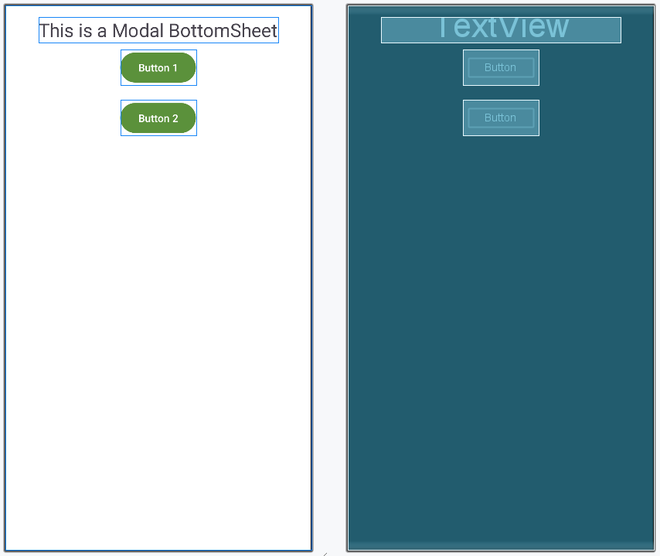
Step 4: Create a new Java/Kotlin file for Bottom Sheet Dialog
Now create BottomSheetDialog file and add the following code.This file extends the BottomSheetFragment and that's why it act as a fragment. When the user clicks on any bottom of modal sheet the onClickListener() gets invoked.
package org.geeksforgeeks.demo;

import android.os.Bundle;
import android.view.LayoutInflater;
import android.view.View;
import android.view.ViewGroup;
import android.widget.Button;
import android.widget.Toast;
import androidx.annotation.NonNull;
import androidx.annotation.Nullable;
import com.google.android.material.bottomsheet.BottomSheetDialogFragment;

public class BottomSheetDialog extends BottomSheetDialogFragment {

    @Nullable
    @Override
    public View onCreateView(@NonNull LayoutInflater inflater, @Nullable ViewGroup container, @Nullable Bundle savedInstanceState) {
        // Inflate the bottom sheet layout
        View view = inflater.inflate(R.layout.bottom_sheet_layout, container, false);

        // Find buttons from the layout
        Button algoButton = view.findViewById(R.id.button_1);
        Button courseButton = view.findViewById(R.id.button_2);

        // Set click listener for Algorithm button
        algoButton.setOnClickListener(v -> {
            Toast.makeText(getActivity(), "First Button Clicked", Toast.LENGTH_SHORT).show();
            dismiss(); // Close the bottom sheet
        });

        // Set click listener for Course button
        courseButton.setOnClickListener(v -> {
            Toast.makeText(getActivity(), "Second Button Clicked", Toast.LENGTH_SHORT).show();
            dismiss(); // Close the bottom sheet
        });

        return view;
    }
}
package org.geeksforgeeks.demo

import android.os.Bundle
import android.view.LayoutInflater
import android.view.View
import android.view.ViewGroup
import android.widget.Button
import android.widget.Toast
import com.google.android.material.bottomsheet.BottomSheetDialogFragment

class BottomSheetDialog : BottomSheetDialogFragment() {
    override fun onCreateView(
        inflater: LayoutInflater,
        container: ViewGroup?,
        savedInstanceState: Bundle?
    ): View? {
        val v: View = inflater.inflate(
            R.layout.bottom_sheet_layout,
            container, false
        )

        val algo_button = v.findViewById<Button>(R.id.button_1)
        val course_button = v.findViewById<Button>(R.id.button_2)

        algo_button.setOnClickListener {
            Toast.makeText(
                activity,
                "First Button Clicked", Toast.LENGTH_SHORT
            ).show()
            dismiss()
        }

        course_button.setOnClickListener {
            Toast.makeText(
                activity,
                "Second Button Clicked", Toast.LENGTH_SHORT
            ).show()
            dismiss()
        }
        return v
    }
}
Step 5: Working with MainActivity and its layout file
Navigate to app > java > package-name > MainActivity and also to res > layout > activity_main.xml and add the below code to those files. The code for the MainActivity file is provided in both Java and Kotlin.
package org.geeksforgeeks.demo;

import android.os.Bundle;
import android.widget.Button;
import androidx.appcompat.app.AppCompatActivity;

public class MainActivity extends AppCompatActivity {

    @Override
    protected void onCreate(Bundle savedInstanceState) {
        super.onCreate(savedInstanceState);
        setContentView(R.layout.activity_main);

        // Find the button in the layout
        Button openBottomSheet = findViewById(R.id.open_bottom_sheet);

        // Set click listener on the button
        openBottomSheet.setOnClickListener(v -> {
            // Create an instance of BottomSheetDialog
            BottomSheetDialog bottomSheet = new BottomSheetDialog();

            // Show the bottom sheet
            bottomSheet.show(getSupportFragmentManager(), "ModalBottomSheet");
        });
    }
}
package org.geeksforgeeks.demo

import android.os.Bundle
import android.widget.Button
import androidx.appcompat.app.AppCompatActivity

class MainActivity : AppCompatActivity() {
    override fun onCreate(savedInstanceState: Bundle?) {
        super.onCreate(savedInstanceState)
        setContentView(R.layout.activity_main)

        val openBottomSheet =
            findViewById<Button>(R.id.open_bottom_sheet)

        openBottomSheet.setOnClickListener {
            val bottomSheet =
                BottomSheetDialog()
            bottomSheet.show(
                supportFragmentManager,
                "ModalBottomSheet"
            )
        }
    }
}
<?xml version="1.0" encoding="utf-8"?>
<LinearLayout
    xmlns:android="http://schemas.android.com/apk/res/android"
    xmlns:tools="http://schemas.android.com/tools"
    android:layout_width="match_parent"
    android:layout_height="match_parent"
    android:gravity="center_horizontal"
    android:orientation="vertical"
    tools:context=".MainActivity">

    <Button
        android:layout_marginTop="30dp"
        android:id="@+id/open_bottom_sheet"
        android:layout_width="wrap_content"
        android:layout_height="wrap_content"
        android:text="Open Modal Bottom Sheet" />
</LinearLayout>
