PowerView is a reconnaissance tool that enables security professionals to extract detailed information from an Active Directory environment without requiring elevated privileges in many cases. Using PowerView, you can enumerate:
- Domain controllers, users and groups
- Trust relationships between domains/forests
- Group memberships (including privileged ones)
- ACLs / permissions that may reveal misconfigurations or attack paths
Lab Setup: Transferring PowerView to Windows 10 Machine
In this lab, we will run PowerView directly on a Windows 10 machine (PC1).
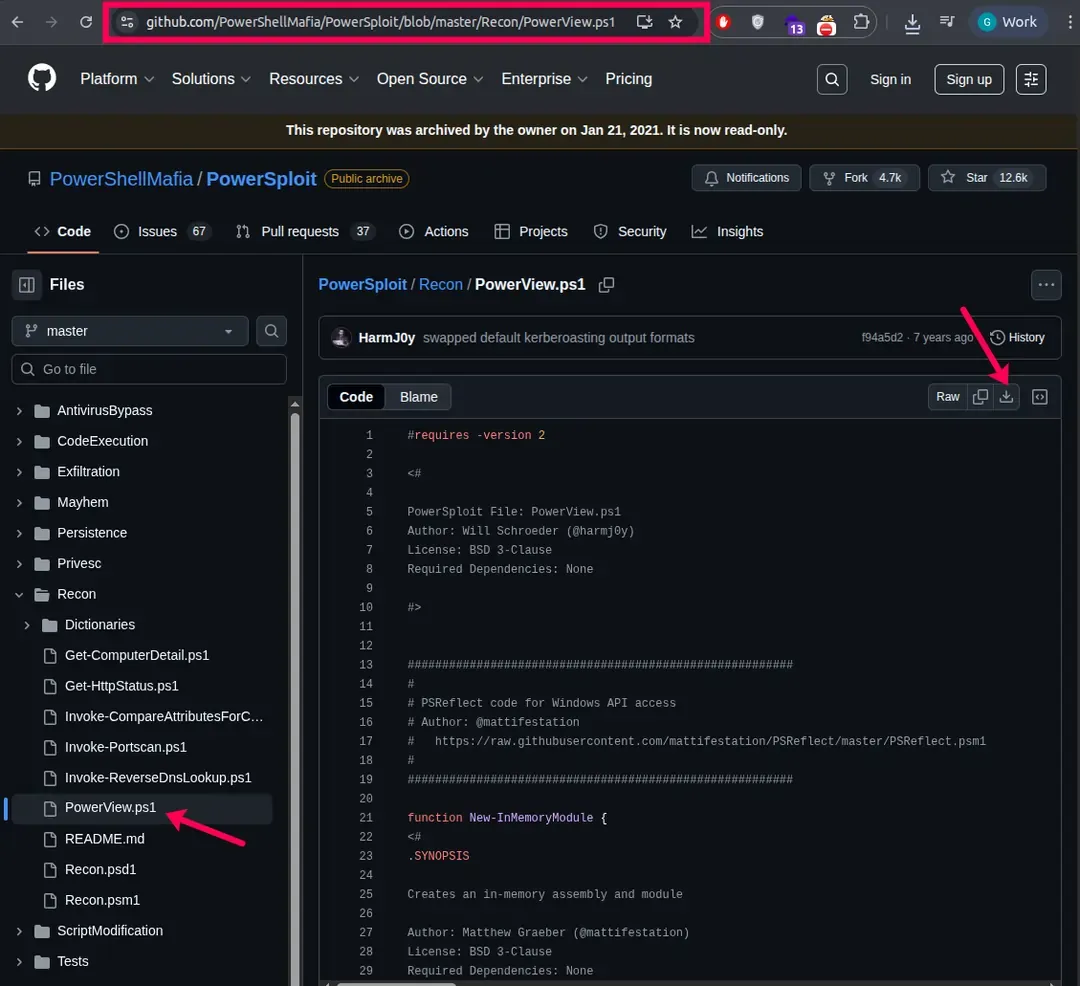
Step 1: Download PowerView
- Visit the official GitHub repository of PowerView
- Download the PowerView.ps1 file
- Save it in the Downloads folder on PC1
Output:
Step 2: Transfer File (Offline Environment)
If your lab machine does not have internet access:
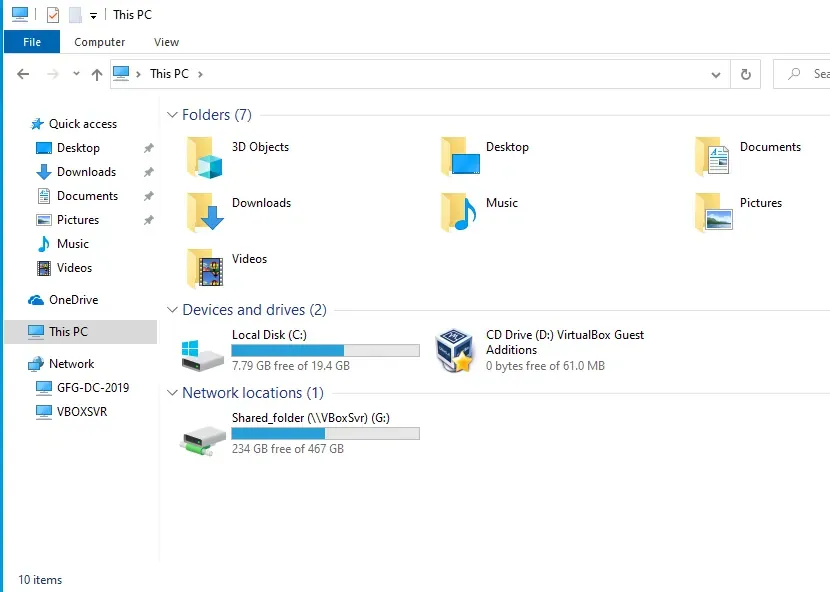
- Use a shared folder between your host and virtual machine
- Copy the PowerView.ps1 file into the VM
- Place it inside C:\Users\<Username>\Downloads
Output:
Step 3: Open PowerShell and Navigate
Open PowerShell and move to the file location:
Command:
cd C:\Users\<Username>\DownloadsStep 4: Bypass Execution Policy
I have copied powershell file to my downloads folder in the PC1. Now open the terminal and go to the file location where the PowerView File is saved.
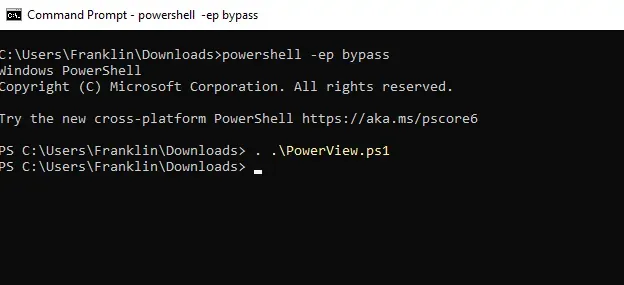
- Enter this command in the command prompt to bypass the execution policy.
- This will allow us to run scripts that are by default not allowed by the security policy. So here we are disabling this security policy.
Command:
powershell -ep bypassOutput:
Step 5: Import PowerView Script
Now load the script into memory. Once imported successfully, PowerView functions become available in the current session.
Command:
. .\PowerView.ps1Active Directory Enumeration with PowerView
After loading PowerView, we can begin Active Directory reconnaissance.
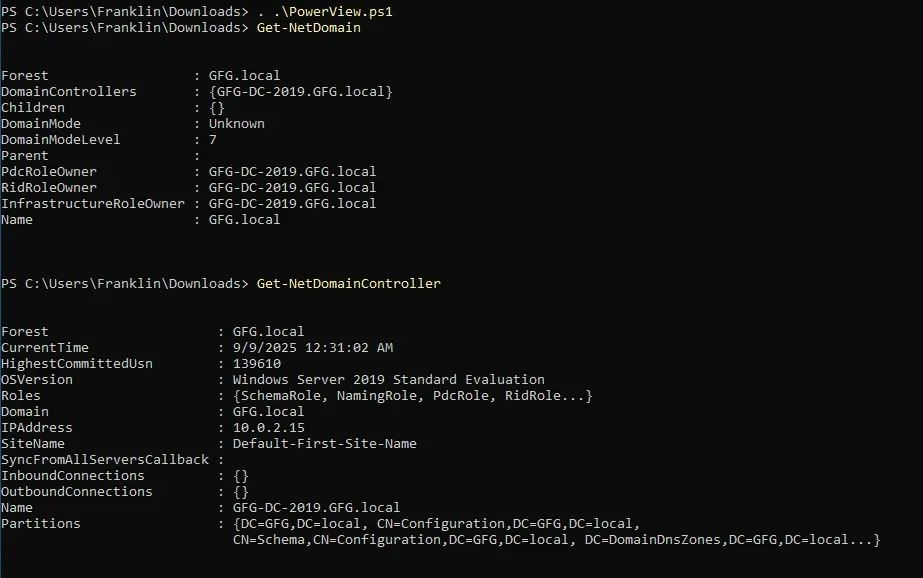
1. Enumerate Domain Information
These commands provide Domain name and structure, Domain controllers, Key configuration details
Command:
Get-NetDomain
Get-NetDomainController
Output:
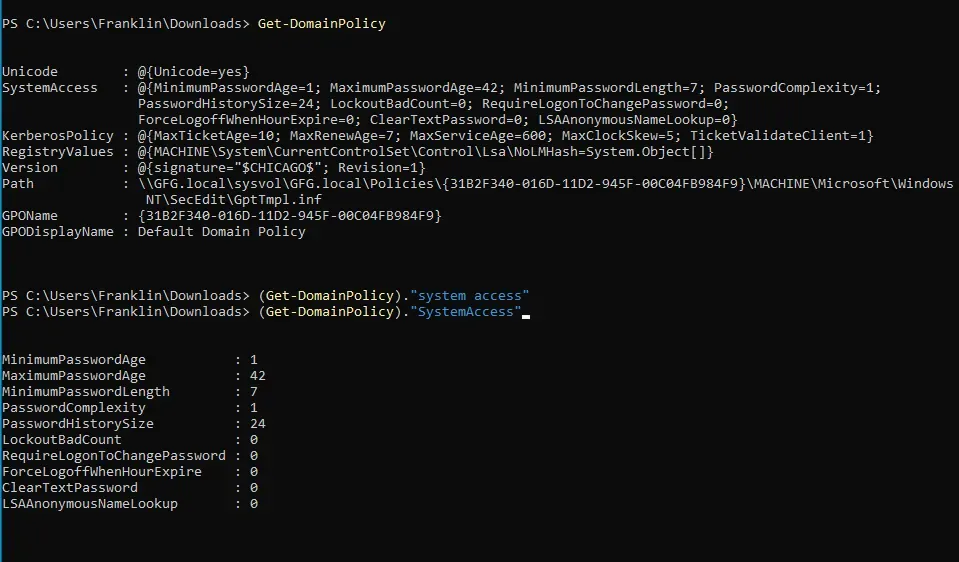
2. Extract Domain Policy
This reveals Password policies, Lockout thresholds, Security configurations
Command:
Get-DomainPolicy
(Get-DomainPolicy)."SystemAccess"
Output:
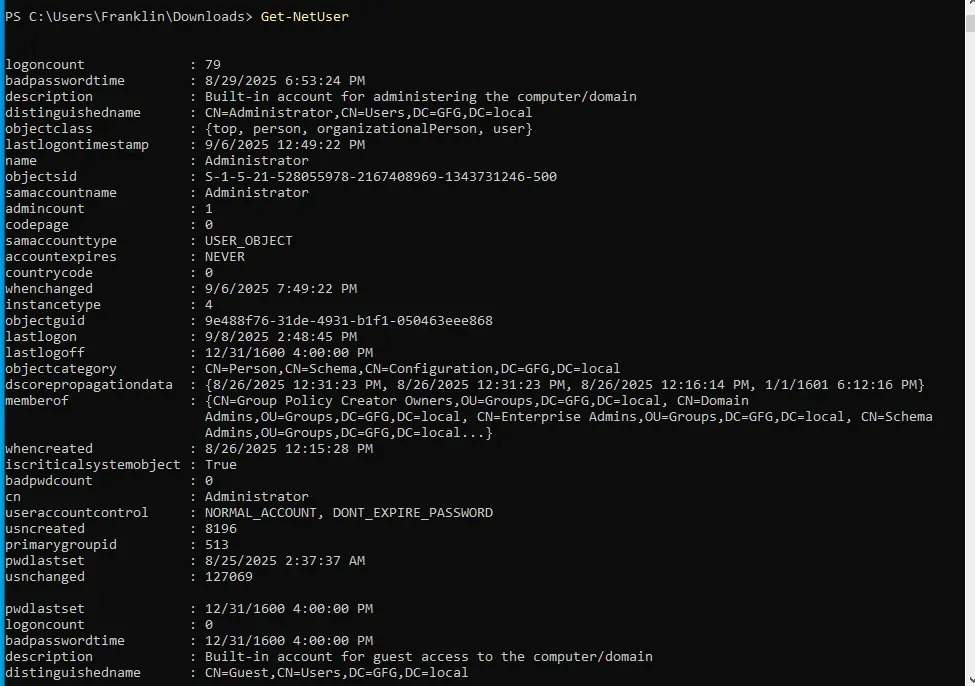
3. Enumerate Users
User accounts are one of the most important attack surfaces in Active Directory.
Command:
Get-NetUserFilter specific attributes:
Command:
Get-NetUser | select cn
Get-NetUser | select samaccountname
Get-NetUser | select description
Output:
4. Extract User Properties
Useful for identifying Inactive users, Brute-force attempts, Weak account hygiene.
Command:
Get-UserProperty
Get-UserProperty -Properties pwdlastset
Get-UserProperty -Properties logoncount
Get-UserProperty -Properties badpwdcount
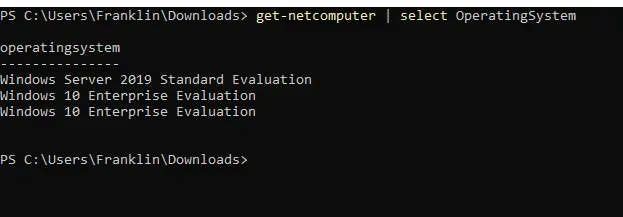
5. Enumerate Computers
This helps identify Machines in the domain, OS versions (useful for vulnerability mapping)
Command:
Get-NetComputer
Get-NetComputer | select OperatingSystem
Ouput:
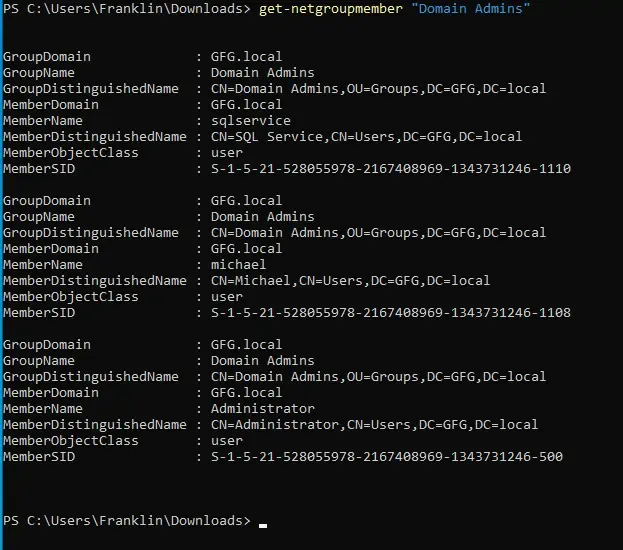
6. Enumerate Groups
This reveals Privileged groups, Administrative access paths.
Get-NetGroup
Get-NetGroup -GroupName "Admin"
Ouput:
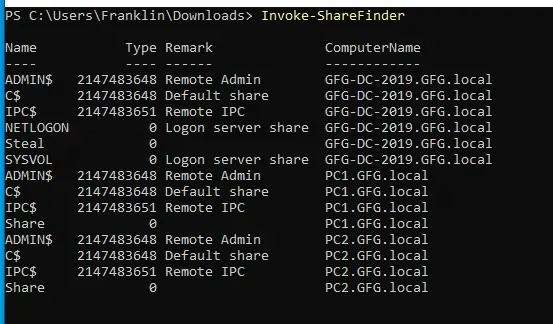
7. Find Network Shares
This command identifies Accessible SMB shares, Potential sensitive file exposure.
Command:
Invoke-ShareFinderOutput:
8. Analyze Group Policies (GPOs)
These commands help you Identify applied policies, Track administrative changes, Detect weak security settings.
Command:
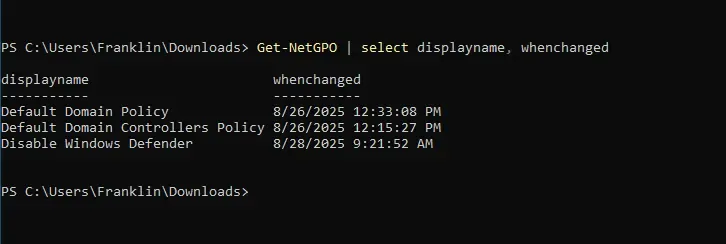
Get-NetGPO
Get-NetGPOGroup
Ouput: