
Spring Data JPA (Java Persistence API) uses ORM (Object Relational Mapping) to map Java objects directly to database tables. It supports both JPQL and native SQL queries, allowing flexible data access in Spring Boot applications.
- Native queries are database-specific SQL statements (e.g., MySQL) unlike JPQL.
- Use @Query(nativeQuery = true) to execute native SQL in Spring Data JPA.
- Helps when complex or database-specific operations cannot be handled by JPQL.
Below is an example of a native SQL query
SELECT * FROM Student ORDER BY age
It is similar to standard SQL, but in Spring Boot you use the @Query annotation with nativeQuery=true to execute it as a native query.
@Query(nativeQuery = true, value = "SELECT * FROM Student ORDER BY age")
Optional<Student> findSortedStudentByAge();
Steps to Implement Spring Boot JPA Native Query
Step 1: Create a New Spring Boot Project
1. Go to Spring Initializr
2. Configure:
- Project: Maven
- Language: Java
- Java Version: 17
3. Add Dependencies:
- Spring Web
- Spring Data JPA
- MySQL Driver
- Spring Boot DevTools
4. Click Generate and open the project in IntelliJ IDEA
5. Run the project once to verify setup
pom.xml
<?xml version="1.0" encoding="UTF-8"?>
<project xmlns="https://maven.apache.org/POM/4.0.0" xmlns:xsi="https://www.w3.org/2001/XMLSchema-instance"
    xsi:schemaLocation="https://maven.apache.org/POM/4.0.0 https://maven.apache.org/xsd/maven-4.0.0.xsd">
    <modelVersion>4.0.0</modelVersion>
    <parent>
        <groupId>org.springframework.boot</groupId>
        <artifactId>spring-boot-starter-parent</artifactId>
        <version>3.0.2</version>
        <relativePath/> <!-- lookup parent from repository -->
    </parent>
    <groupId>com.gfg.addressapp</groupId>
    <artifactId>address-service</artifactId>
    <version>0.0.1-SNAPSHOT</version>
    <name>address-service</name>
    <description>Address Service</description>
    <properties>
        <java.version>17</java.version>
    </properties>
    <dependencies>
        <dependency>
            <groupId>org.springframework.boot</groupId>
            <artifactId>spring-boot-starter-data-jpa</artifactId>
        </dependency>
        <dependency>
            <groupId>org.springframework.boot</groupId>
            <artifactId>spring-boot-starter-web</artifactId>
        </dependency>

        <dependency>
            <groupId>org.springframework.boot</groupId>
            <artifactId>spring-boot-devtools</artifactId>
            <scope>runtime</scope>
            <optional>true</optional>
        </dependency>
        <dependency>
            <groupId>com.mysql</groupId>
            <artifactId>mysql-connector-j</artifactId>
            <scope>runtime</scope>
        </dependency>
        <dependency>
            <groupId>org.springframework.boot</groupId>
            <artifactId>spring-boot-starter-test</artifactId>
            <scope>test</scope>
        </dependency>
        <dependency>
            <groupId>org.modelmapper</groupId>
            <artifactId>modelmapper</artifactId>
            <version>3.1.1</version>
        </dependency>
    </dependencies>

    <build>
        <plugins>
            <plugin>
                <groupId>org.springframework.boot</groupId>
                <artifactId>spring-boot-maven-plugin</artifactId>
            </plugin>
        </plugins>
    </build>

</project>
Step 2: Create Schema in MySQL Workbench
- Open MySQL Workbench
- Create Database:
CREATE DATABASE gfgmicroservicesdemo;
Create Employee Table:
CREATE TABLE employee (
id INT PRIMARY KEY AUTO_INCREMENT,
name VARCHAR(100),
email VARCHAR(100),
age INT
);

Create Address Table (with foreign key):
Note: In the Address table, employee_id is a foreign key so create it accordingly. We are going to perform a SQL join operation in our native SQL query. So create tables carefully.

Before moving to IntelliJ IDEA let's have a look at the complete project structure for our Microservices.

Step 3: Configure application.properties
Go to src/main/resources/application.properties:
spring.datasource.url=jdbc:mysql://localhost:3306/gfgmicroservicesdemo
spring.datasource.username=put your username here
spring.datasource.password=put your password here
server.port=8081

Step 4: Create Your Entity/Model Class
Go to the src > main > java > entity and create a class Address and put the below code. This is our model class.
package com.gfg.addressapp.entity;

import jakarta.persistence.*;

@Entity
@Table(name = "address")
public class Address {

    @Id
    @GeneratedValue(strategy = GenerationType.IDENTITY)
    @Column(name = "id")
    private int id;

    @Column(name = "city")
    private String city;

    @Column(name = "state")
    private String state;

    public int getId() {
        return id;
    }

    public void setId(int id) {
        this.id = id;
    }

    public String getCity() {
        return city;
    }

    public void setCity(String city) {
        this.city = city;
    }

    public String getState() {
        return state;
    }

    public void setState(String state) {
        this.state = state;
    }
}
Step 5: Create Your Repository Interface
Go to the src > main > java > repository and create an interface AddressRepo and put the below code. This is our repository where we write code for all the database-related stuff.
package com.gfg.addressapp.repository;

import com.gfg.addressapp.entity.Address;
import java.util.Optional;
import org.springframework.data.jpa.repository.JpaRepository;
import org.springframework.data.jpa.repository.Query;
import org.springframework.data.repository.query.Param;

public interface AddressRepo extends JpaRepository<Address, Integer> {

    @Query(
        nativeQuery = true,
        value
        = "SELECT ea.id, ea.city, ea.state FROM gfgmicroservicesdemo.address ea join gfgmicroservicesdemo.employee e on e.id = ea.employee_id where ea.employee_id=:employeeId")
       Optional<Address> findAddressByEmployeeId(@Param("employeeId") int employeeId);
}
Here you can see we have used the native SQL query in the same way as we have discussed. This is our native SQL query
SELECT ea.id, ea.city, ea.state FROM gfgmicroservicesdemo.address ea join gfgmicroservicesdemo.employee e on e.id = ea.employee_id where ea.employee_id=:employeeId
And this is how we have used it in Spring Boot
@Query(nativeQuery = true, value = "SELECT ea.id, ea.city, ea.state FROM gfgmicroservicesdemo.address ea join gfgmicroservicesdemo.employee e on e.id = ea.employee_id where ea.employee_id=:employeeId")
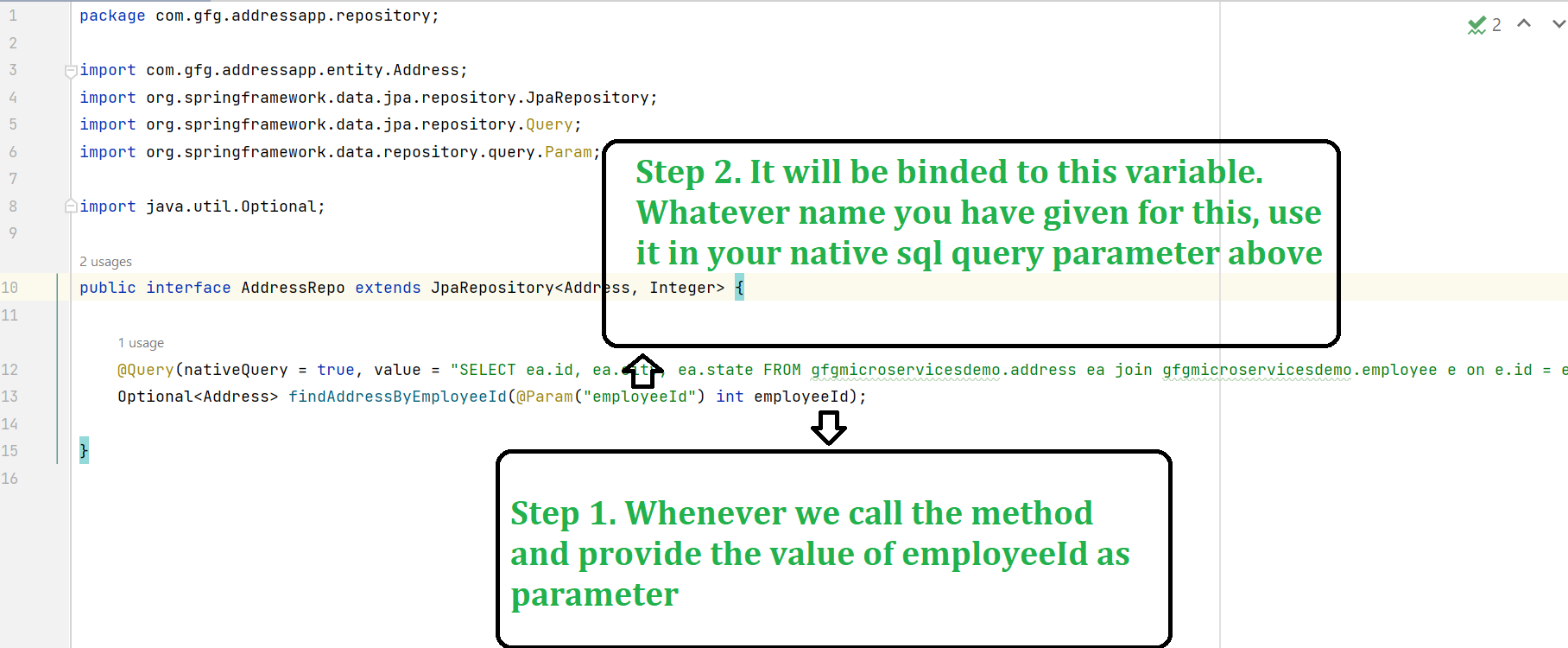
Similarly, you can put your native SQL query according to your requirements in your Spring Boot project.
Note: Please refer to this article to know more about JpaRepository.
Step 6: Create an AddressResponse Class
Go to the src > main > java > response and create a class AddressResponse and put the below code.
package com.gfg.addressapp.response;

public class AddressResponse {

    private int id;
    private String city;
    private String state;

    public int getId() {
        return id;
    }

    public void setId(int id) {
        this.id = id;
    }

    public String getCity() {
        return city;
    }

    public void setCity(String city) {
        this.city = city;
    }

    public String getState() {
        return state;
    }

    public void setState(String state) {
        this.state = state;
    }
}
Step 7: Create Your Service Class
Go to the src > main > java > service and create a class AddressService and put the below code. This is our service class where we write our business logic.
package com.gfg.addressapp.service;

import com.gfg.addressapp.entity.Address;
import com.gfg.addressapp.repository.AddressRepo;
import com.gfg.addressapp.response.AddressResponse;
import org.modelmapper.ModelMapper;
import org.springframework.beans.factory.annotation.Autowired;
import org.springframework.stereotype.Service;

import java.util.Optional;

@Service
public class AddressService {

    @Autowired
    private AddressRepo addressRepo;

    @Autowired
    private ModelMapper mapper;

    public AddressResponse findAddressByEmployeeId(int employeeId) {
        Optional<Address> addressByEmployeeId = addressRepo.findAddressByEmployeeId(employeeId);
        AddressResponse addressResponse = mapper.map(addressByEmployeeId, AddressResponse.class);
        return addressResponse;
    }

}
Step 8: Create an Address Controller
Go to src > main > java > controller, create AddressController, and define an endpoint /address/{employeeId} to fetch address using employee_id. A foreign key and SQL join are used in the native query to retrieve the required data.
package com.gfg.addressapp.controller;

import com.gfg.addressapp.response.AddressResponse;
import com.gfg.addressapp.service.AddressService;
import org.springframework.beans.factory.annotation.Autowired;
import org.springframework.http.HttpStatus;
import org.springframework.http.ResponseEntity;
import org.springframework.web.bind.annotation.GetMapping;
import org.springframework.web.bind.annotation.PathVariable;
import org.springframework.web.bind.annotation.RestController;

@RestController
public class AddressController {

    @Autowired
    private AddressService addressService;

    @GetMapping("/address/{employeeId}")
    public ResponseEntity<AddressResponse> getAddressByEmployeeId(@PathVariable("employeeId") int employeeId) {
        AddressResponse addressResponse = addressService.findAddressByEmployeeId(employeeId);
        return ResponseEntity.status(HttpStatus.OK).body(addressResponse);
    }

}
Step 9: Create a Configuration Class
Go to the src > main > java > configuration and create a class AddressConfig and put the below code.
package com.gfg.addressapp.configuration;

import com.gfg.addressapp.service.AddressService;
import org.modelmapper.ModelMapper;
import org.springframework.context.annotation.Bean;
import org.springframework.context.annotation.Configuration;

@Configuration
public class AddressConfig {

    @Bean
    public AddressService employeeBean() {
        return new AddressService();
    }

    @Bean
    public ModelMapper modelMapperBean() {
        return new ModelMapper();
    }

}
Note: You may refer to these two articles
Step 10: Run Your Address Microservice
To run your Address Microservice src > main > java > AddressServiceApplication and click on the Run button. If everything goes well then you may see the following screen in your console. Please refer to the below image.

Step 11: Test Your Endpoint in Postman
Now open Postman and hit the following URL
GET: http://localhost:8081/address/2
And you can see the following response
{
"id": 1,
"city": "BLS",
"state": "Odisha"
}

