
REST APIs are commonly used to retrieve data from external services and integrate it into web applications. Spring MVC provides a simple way to consume REST APIs, process JSON responses, and display the retrieved information on JSP pages.
- Spring MVC can invoke external REST APIs and retrieve data in JSON format.
- JSON responses can be parsed to extract specific information such as university names and website URLs.
- Retrieved data can be displayed dynamically on JSP pages using AJAX and the MVC architecture.
We will use the Hipolabs Universities REST API to fetch university or college details based on the country name and university name entered by the user.
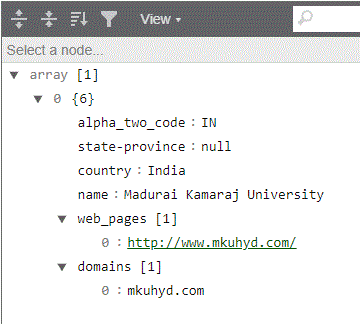
Example:
http://universities.hipolabs.com/search?country=india&name=kamaraj
Corresponding JSON Output:
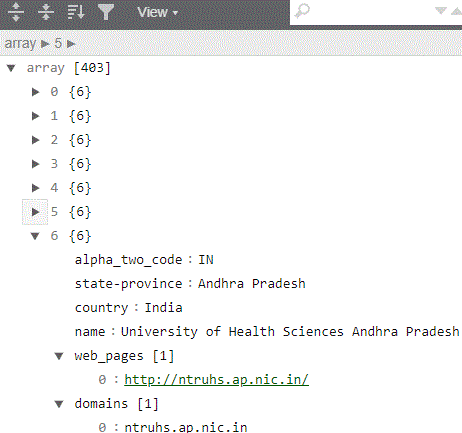
http://universities.hipolabs.com/search?country=india
We will get many values for this and let us see the sample
Steps to Implement Retrieving University/College Details Using REST API and Spring MVC
Follow these steps to fetch university details from an external REST API and display the data on a JSP page using Spring MVC.
Step 1: Create a Maven Project
- Open STS IDE.
- Click File - New - Maven Project.
- Select Create a simple project (Select archetype ) and click Next.

Then Enter the following details:
- Group Id: com.gfg
- Artifact Id: College_RestAPI
- Packaging: war
Click Finish.
Step 2: Add Required Dependencies
Add the following maven dependencies and plugin to your pom.xml file.
<project xmlns="https://maven.apache.org/POM/4.0.0"
    xmlns:xsi="https://www.w3.org/2001/XMLSchema-instance"
    xsi:schemaLocation="https://maven.apache.org/POM/4.0.0
                        https://maven.apache.org/xsd/maven-4.0.0.xsd">
    <modelVersion>4.0.0</modelVersion>
    <groupId>com.college.college_RestAPI</groupId>
    <artifactId>College_RestAPI</artifactId>
    <packaging>war</packaging>
    <version>0.0.1-SNAPSHOT</version>
    <name>collegeRestAPI</name>
    <url>http://maven.apache.org</url>
    <properties>
        <failOnMissingWebXml>false</failOnMissingWebXml>
        <spring-version>5.1.0.RELEASE</spring-version>
    </properties>
    <dependencies>
        <!-- https://mvnrepository.com/artifact/org.springframework/spring-webmvc -->
        <dependency>
            <groupId>org.springframework</groupId>
            <artifactId>spring-webmvc</artifactId>
            <version>${spring-version}</version>
        </dependency>
        <dependency>
            <groupId>org.springframework</groupId>
            <artifactId>spring-test</artifactId>
            <version>${spring-version}</version>
        </dependency>
        <!-- JSTL Dependency -->
        <dependency>
            <groupId>javax.servlet.jsp.jstl</groupId>
            <artifactId>javax.servlet.jsp.jstl-api</artifactId>
            <version>1.2.1</version>
        </dependency>
        <dependency>
            <groupId>taglibs</groupId>
            <artifactId>standard</artifactId>
            <version>1.1.2</version>
        </dependency>
        <!-- Servlet Dependency -->
        <dependency>
            <groupId>javax.servlet</groupId>
            <artifactId>javax.servlet-api</artifactId>
            <version>3.1.0</version>
            <scope>provided</scope>
        </dependency>
        <!-- JSP Dependency -->
        <dependency>
            <groupId>javax.servlet.jsp</groupId>
            <artifactId>javax.servlet.jsp-api</artifactId>
            <version>2.3.1</version>
            <scope>provided</scope>
        </dependency>
        <dependency>
            <groupId>com.google.code.gson</groupId>
            <artifactId>gson</artifactId>
            <version>2.8.6</version>
        </dependency>
        <dependency>
            <groupId>commons-io</groupId>
            <artifactId>commons-io</artifactId>
            <version>2.5</version>
        </dependency>
        <dependency>
            <groupId>junit</groupId>
            <artifactId>junit</artifactId>
            <version>4.12</version>
            <scope>test</scope>
        </dependency>
    </dependencies>
    <build>
        <finalName>ROOT</finalName>
        <sourceDirectory>src/main/java</sourceDirectory>
        <plugins>
            <plugin>
                <artifactId>maven-compiler-plugin</artifactId>
                <version>3.5.1</version>
                <configuration>
                    <source>1.8</source>
                    <target>1.8</target>
                </configuration>
            </plugin>
            <!-- This should be added to overcome Could not initialize
                 class org.apache.maven.plugin.war.util.WebappStructureSerializer -->
            <plugin>
            <groupId>org.apache.maven.plugins</groupId>
            <artifactId>maven-war-plugin</artifactId>
            <version>3.3.2</version>
        </plugin>
        </plugins>
    </build>
</project>
Step 3: Create JSP Page (index.jsp)
This page allows users to enter the university name and country name. An AJAX request is sent to the Spring MVC controller, and the returned data is displayed dynamically.
<!DOCTYPE html>
<html lang="en">
<head>
    <meta charset="utf-8">
    <meta http-equiv="X-UA-Compatible" content="IE=edge">
    <meta name="viewport" content="width=device-width, initial-scale=1">
    <title>Colleges</title>
    <link rel="stylesheet" href="https://maxcdn.bootstrapcdn.com/bootstrap/4.5.0/css/bootstrap.min.css">
    <script src="https://ajax.googleapis.com/ajax/libs/jquery/1.12.4/jquery.min.js"></script>
    <script src="https://maxcdn.bootstrapcdn.com/bootstrap/4.5.0/js/bootstrap.min.js"></script>
    <style type="text/css">
        .main-form, .profile-area {
            width: 340px;
        }
        .main-form {
            margin: 50px auto 0px;
        }
        .profile-area {
            margin: 10px auto;
        }
        .main-form section, .profile-area section {
            margin-bottom: 15px;
            background: #f7f7f7;
            box-shadow: 0px 2px 2px rgba(0, 0, 0, 0.3);
        }
        .main-form section {
            padding: 30px;
        }
        .profile-area section {
            padding: 30px 30px 30px;
        }
        .profile-area section > div {
            text-align: center;
        }
        .main-form h3 {
            margin: 0 0 15px;
        }
        .form-control, .btn {
            min-height: 38px;
            border-radius: 2px;
        }
        .btn {
            font-size: 15px;
            font-weight: bold;
        }
        .hideElement {
            display: none;
        }
    </style>
</head>
<body>
<div class="main-form" id="main-form">
    <section>
        <div class="form-group">
            <input id="searchString" type="text" class="form-control" placeholder="Enter college search name here..." required="required">
        </div>
         <div class="form-group">
            <input id="countryName" type="text" class="form-control" placeholder="Enter country name here..." required="required">
        </div>
        <div class="form-group">
            <button onclick="loadData()" class="btn btn-primary btn-block">Find College Details</button>
        </div>
    </section>
</div>
<div class="profile-area hideElement" id="profile-area">
    <section>
        <div id="loader" class="hideElement">
            <div class="spinner-border" role="status">
                <span class="sr-only">Loading...</span>
            </div>
        </div>
        <div id="profile" class="hideElement">
            <br><br>

<p><strong>Colleges : </strong><span id="associatedcolleges"></span></p>


<p><strong>Webpages : </strong><span id="associatedwebpages"></span></p>

        </div>
    </section>
</div>
</body>
<script>
    function loadData() {
        document.getElementById("profile-area").classList.remove("hideElement");
        document.getElementById("loader").classList.remove("hideElement");
        document.getElementById("profile").classList.add("hideElement");

        var searchString = document.getElementById("searchString").value;
        var countryName = document.getElementById("countryName").value;

        if(searchString != "" && searchString != null && countryName != "" && countryName != null) {
            var xhttp = new XMLHttpRequest();
            xhttp.onreadystatechange = function() {
                if (this.readyState == 4 && this.status == 200) {
                    var jsonResponse = JSON.parse(this.responseText);
                    document.getElementById("associatedcolleges").innerHTML = jsonResponse.associatedcolleges;
                    document.getElementById("associatedwebpages").innerHTML = jsonResponse.associatedwebpages;
                    document.getElementById("loader").classList.add("hideElement");
                    document.getElementById("profile").classList.remove("hideElement");
                }
            };
            xhttp.open("GET", "getCollegeDetailsBycountryNameAndSearchString?countryName="+ countryName + "&name=" + searchString, true);
            xhttp.send();
            console.log("done");
        } else {
            console.log("Enter country name and search string to check...")
        }
    }
</script>
</html>
Step 4: Configure Spring MVC
This configuration class enables Spring MVC and configures the JSP View Resolver.
import org.springframework.context.annotation.Bean;
import org.springframework.context.annotation.ComponentScan;
import org.springframework.context.annotation.Configuration;
import org.springframework.web.servlet.config.annotation.EnableWebMvc;
import org.springframework.web.servlet.view.InternalResourceViewResolver;
import org.springframework.web.servlet.view.JstlView;

@Configuration
@EnableWebMvc
@ComponentScan(basePackages = { "com.college.college_RestAPI" })
public class AppConfig {
    @Bean
    public InternalResourceViewResolver resolver() {
        InternalResourceViewResolver resolver = new InternalResourceViewResolver();
        resolver.setViewClass(JstlView.class);
        resolver.setPrefix("/");
        resolver.setSuffix(".jsp");
        return resolver;
    }
}
Step 5: Configure Dispatcher Servlet
This class initializes Spring MVC and routes all incoming requests through the DispatcherServlet.
import org.springframework.web.servlet.support.AbstractAnnotationConfigDispatcherServletInitializer;

public class SpringMvcDispatcherServletInitializer
          extends AbstractAnnotationConfigDispatcherServletInitializer {

    @Override
    protected Class<?>[] getRootConfigClasses() {
        return null;
    }

    @Override
    protected Class<?>[] getServletConfigClasses() {
        return new Class[] { AppConfig.class };
    }

    @Override
    protected String[] getServletMappings() {
        return new String[] { "/" };
    }

}
Step 6: Create Controller (CollegeController.java)
This controller receives the country name and university name from the JSP page, invokes the external REST API, parses the JSON response, and returns the required data back to the browser.
import java.io.BufferedReader;
import java.io.IOException;
import java.io.InputStreamReader;
import java.net.HttpURLConnection;
import java.net.URL;
import java.util.ArrayList;
import java.util.Iterator;
import org.springframework.stereotype.Controller;
import org.springframework.web.bind.annotation.RequestMapping;
import org.springframework.web.bind.annotation.ResponseBody;
import com.google.gson.Gson;
import com.google.gson.JsonArray;
import com.google.gson.JsonElement;
import com.google.gson.JsonObject;

@Controller
public class CollegeController {

    @RequestMapping("/getCollegeDetailsBycountryNameAndSearchString")
    public @ResponseBody
    JsonObject getLocalityDetailsByZipCode(String  countryName,String name) throws IOException {

        JsonArray jsonArray = new JsonArray();
        jsonArray = getCollegeDetailsByParams(countryName,name);
        JsonObject finalJsonObject = new JsonObject();
        // String country = jsonObject.get("country").toString();
        // country = country.replaceAll("^\"|\"$", "");
        ArrayList collegeList = new ArrayList();
        ArrayList stateList = new ArrayList();
        ArrayList webPageList = new ArrayList();
        // ArrayList longitudeList = new ArrayList();
        // jsonPlacesArray = jsonObject.get("places").getAsJsonArray();
        Iterator<JsonElement> objectIterator =  jsonArray.iterator();

        while(objectIterator.hasNext()) {
            JsonElement object = objectIterator.next();
            JsonObject jObj = object.getAsJsonObject();
            // System.out.println(jObj.get("place name").toString() + jObj.get("state").toString() );
            collegeList.add(jObj.get("name").toString().replaceAll("^\"|\"$", ""));
            stateList.add(jObj.get("state-province").toString().replaceAll("^\"|\"$", ""));
            webPageList.add(jObj.get("web_pages").toString().replaceAll("^\"|\"$", ""));
        }
        // finalJsonObject.addProperty("country", country);
        finalJsonObject.addProperty("associatedcolleges", collegeList.toString());
        finalJsonObject.addProperty("associatedcollegesize", collegeList.size());
        finalJsonObject.addProperty("state", stateList.toString());
        finalJsonObject.addProperty("statename", stateList.get(0).toString());
        finalJsonObject.addProperty("associatedwebpages", webPageList.toString());
        finalJsonObject.addProperty("associatedwebpagesize", webPageList.size());

        return finalJsonObject;
    }

    private JsonArray getCollegeDetailsByParams(String countryName,String name) throws IOException {

        StringBuilder responseData = new StringBuilder();
        JsonArray jsonArray = null;

        URL url = null;
        url = new URL("http://universities.hipolabs.com/search?name=" +  name + "&country=" + countryName);

        HttpURLConnection con = (HttpURLConnection) url.openConnection();
        con.setRequestMethod("GET");
        con.setRequestProperty("User-Agent", "Mozilla/5.0");
        int responseCode = con.getResponseCode();

        System.out.println("\nSending 'GET' request to URL : " + url);
        // System.out.println("Response Code : " + responseCode);

        try (BufferedReader in = new BufferedReader(
                new InputStreamReader(con.getInputStream()))) {

            String line;

            while ((line = in.readLine()) != null) {
                responseData.append(line);
            }

            jsonArray = new Gson().fromJson(responseData.toString(), JsonArray.class);

        }
        return jsonArray;
    }
}
Step 7: Run the Application
- Right Click Project.
- Select Run As - Run on Server.
- Choose Apache Tomcat Server.
- Click Finish.
Open the browser and access:
http://localhost:8080/ROOT/index.jsp
Output:
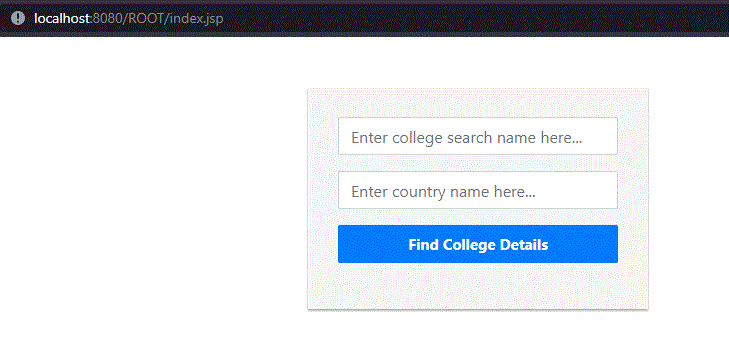
Enter a valid university name and country name, then click Find College Details. The application displays the matching university names and their website URLs.

Explanation:
- The user enters the university name and country name on the JSP page and submits the request.
- JavaScript sends a GET request to the Spring MVC controller, which invokes the Hipolabs Universities REST API.
- The REST API returns university details in JSON format, and Gson parses the required information such as university names and website URLs.
- Spring MVC returns the processed data as JSON, and JavaScript displays the university details dynamically on the JSP page.
