
Linux systems, including those running Red Hat Enterprise Linux (RHEL), often come with a firewall enabled by default. The firewall serves as a crucial line of defense, protecting the system from unauthorized access and various network threats. However, there might be scenarios where you need to disable the firewall, such as for troubleshooting, testing, or configuring specific services. This guide provides a step-by-step approach to disabling the firewall on a Red Hat Linux system.
Before proceeding, it's important to understand the risks involved in disabling the firewall. Doing so can expose your system and network to potential threats. Always ensure you have other security measures in place or re-enable the firewall as soon as your specific task is complete.
Understanding FirewallD and Iptables
Red Hat Linux, particularly versions 7 and above, primarily uses `firewalld` as the default firewall management tool. `firewalld` is a dynamic daemon to manage firewall with support for network zones. In contrast, older versions of Red Hat Linux might still use `iptables` as the default firewall management utility.
Here, methods to disable both `firewalld` and 'iptables' are provided.
Table of Content
Disabling Firewalld for Red Hat Linux
If your Red Hat Linux system uses 'firewalld', follow these steps to disable it:
Step 1. Check the Status of Firewalld
Before making any changes, it's wise to check whether firewalld is running. Open your terminal and execute the following command:
sudo systemctl status firewalld
Step 2. Stop Firewalld
If firewalld is active, you can stop it by running:
sudo systemctl stop firewalld
This command will stop the firewall, but it will not prevent firewalld from starting automatically at boot.
Step 3. Disable Firewalld on Boot
To prevent firewalld from starting automatically at boot, execute:
sudo systemctl disable firewalld
Step 4. Verify the Changes
To ensure that firewalld has been disabled, you can check its status again:
sudo systemctl status firewalld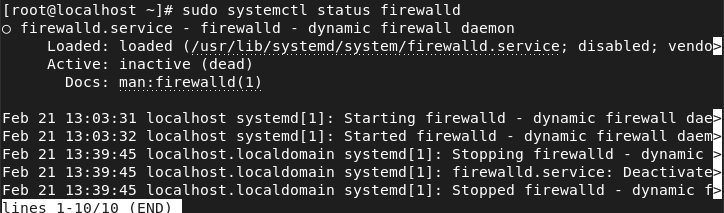
The output should indicate that firewalld is inactive and disabled.
Disabling Iptables for Red Hat Linux
If your system uses `iptables` instead of `firewalld`, or if you have custom iptables rules set up alongside `firewalld`, you may want to disable `iptables` as well.
Step 1. Stop and Disable Iptables
Red Hat Linux does not use `iptables` service by default in newer versions, as 'firewalld' is preferred. However, if you have iptables installed and wish to disable it, you might need to flush the rules and ensure it does not start on boot. Since 'iptables' is not a service but a tool that applies rules directly to the netfilter framework in the Linux kernel, "disabling" it means flushing or removing all rules:
sudo iptables -F
This command clears all iptables rules. If you have `ip6tables` for IPv6 rules, you should also run:
sudo ip6tables -F
Step 2. Save the Configuration (If Necessary)
If you're using a tool or service to manage `iptables` persistently across reboots, such as `iptables-persistent` or a similar mechanism, you would also need to save the empty rule set to ensure iptables does not revert to previous rules on reboot. The method to save or persist rules varies depending on the specific tool or script used to manage iptables
Important Considerations and Warnings
- Security Risks: Disabling the firewall can significantly increase the vulnerability of your system to network attacks. Ensure you understand the security implications.
- Temporary Changes: If you're disabling the firewall for testing purposes, remember to re-enable it as soon as you're done.
- Alternative Measures: Instead of disabling the firewall entirely, consider configuring the necessary rules to allow specific traffic. This approach maintains a level of security while accommodating your needs.
Re-enabling the Firewall for Red Hat Linux
To re-enable the firewall, simply reverse the process:
1. For firewalld:
sudo systemctl start firewalld
sudo systemctl enable firewalld
2. For Iptables:
Reapply the necessary rules or use a management tool to restore your previous configuration.
Conclusion
Disabling the firewall on a Red Hat Linux system can be necessary for various administrative tasks or troubleshooting. However, it's crucial to manage the risks associated with such actions carefully. Always aim to keep the period during which the firewall is disabled as short as possible and consider alternative methods to achieve your objectives while maintaining security.
