
Have you ever encountered frustrating issues with your terminal where it doesn't seem to work properly and shows bizarre error messages? If you're a regular user of the zsh shell, there's a good chance you've dealt with a corrupt history file at some point. This annoying problem can disrupt your workflow and waste a lot of your time trying to figure out what's going wrong. The good news is, there's a straightforward solution to get your Zsh terminal back in working order.
A corrupt history file doesn't have to ruin your day - we've got the simple fix you need to get rid off this annoying issue.
What is a Corrupt Zsh History File?
The zsh terminal keeps a file that stores all the commands you've typed before. This file is called the history file. Sometimes, this history file can become corrupt or damaged. When the history file is corrupt, it causes weird errors and makes your terminal act strangely or not work properly. A corrupt history file is like having a messy command notebook with scribbles and mistakes that confuse your terminal instead of helping it remember what you want it to do.
How to Fix a Corrupt zsh History File
1. Corrupt Zsh History File
Sometimes, you may see this message in your terminal :
Error :
zsh: corrupt history file /home/go/.zsh_historyThis means that the file that stores all the commands you've typed before (called the "history file") is damaged or corrupt. When this happens, you can't use the up/down arrows or CTRL+R to see and edit your previous commands.
2. How to Fix it
First, open your terminal. Type "cd" and press Enter. This takes you to your home directory.

Now, type the following command. This makes a copy of your corrupt history file with a different name (zsh_history_bad).
Command :
mv .zsh_history .zsh_history_badOutput :

Next, type the below command and press Enter. This creates a new, fixed history file from the old corrupt one.
Command :
strings .zsh_history_bad > .zsh_historyOutput :

Type below command and press Enter. This tells zsh to read the new, fixed history file.
Command :
fc -R .zsh_historyOutput :

Finally, type below command and press Enter. This removes the old, corrupt history file.
Command :
rm ~/.zsh_history_badOutput :

That's it! Your zsh history file is now fixed, and you can use the up/down arrows and CTRL+R again to see and edit your previous commands.
3. Making it a Script
If you want to make it even easier, you can create a little program (called a "script") that does all these steps for you. Follow the below steps to do that.
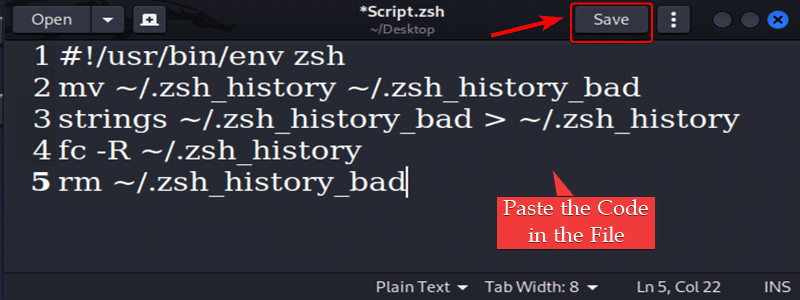
Open a text editor (like Notepad or TextEdit) and Create a File by the name like "Script.zsh" Copy and paste this below code :

Copy and paste this below code in the "Script.zsh" file.
Code :
#!/usr/bin/env zsh
mv ~/.zsh_history ~/.zsh_history_bad
strings ~/.zsh_history_bad > ~/.zsh_history
fc -R ~/.zsh_history
rm ~/.zsh_history_bad
4. Give the Executable Permissions to the file
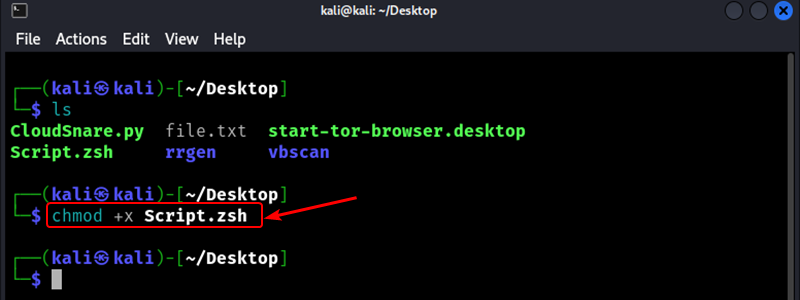
After saving the file with the .zsh extension, you can make it executable by running the following command in your terminal.
Command :
chmod +x Script.zshOutput :
5. Run the Script
Then, to run the script and fix your corrupt zsh history file, you would simply type the following command in your terminal.
Command :
./Script.zshOutput :

Conclusion
In the end, a corrupt zsh history file can be really annoying, but it's easy to fix! Just follow the few simple steps we went over, like making a backup of the bad file, creating a new good history file from it, and telling zsh to use the new file. Or, make it even easier by creating a little script program that does all those steps for you with one command. That way, you can get back to typing commands in your terminal without any more weird errors from that pesky corrupt file. Stay calm, follow the instructions, and your zsh terminal will be good as new in no time.
