
OpenCV is a powerful and versatile library widely used for real-time computer vision tasks. It's commonly used in applications like image and video processing, object detection, facial recognition, and more. Recent versions of Ubuntu come with pre-built OpenCV packages available through the apt package manager.
Table of Content
For some reason, if you prefer a different version than what's available in the repositories, or you're using an older version of Ubuntu that doesn't have OpenCV pre-built in it's repository, in this article we will discuss two methods for installing OpenCV in Ubuntu.
1. Install OpenCV in Ubuntu using APT package manager
Step 1 : Update Package List
To make sure we are getting the latest version of OpenCV, update the package list using apt update command.
sudo apt update -y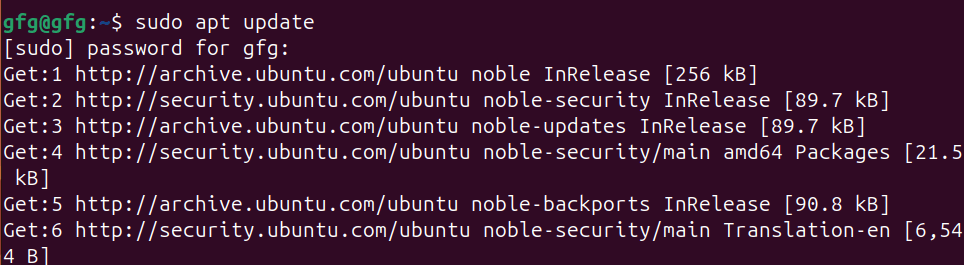
Step 2: Install OpenCV
Once repositories are up to date, we will install opencv using apt install command.
sudo apt install python3-opencv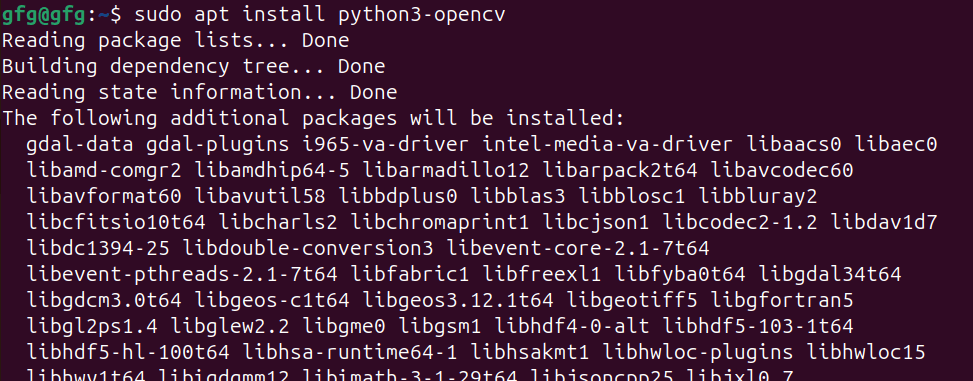
Step 3 : Verify installation
Once, installation is done, verify installation using print(cv2.__version__) command in python shell.
To open python shell, first type python3 in your terminal.
python3Once python3 shell is opened, print version number of opencv using following command.
import cv2
print(cv2.__version__)

2. Install OpenCV in Ubuntu by Compiling from sources
Step 1 : Installing dependencies
In order to install opencv from github source, we will need to download required dependencies using apt install command as follows
sudo apt install build-essential cmake wget unzip git -y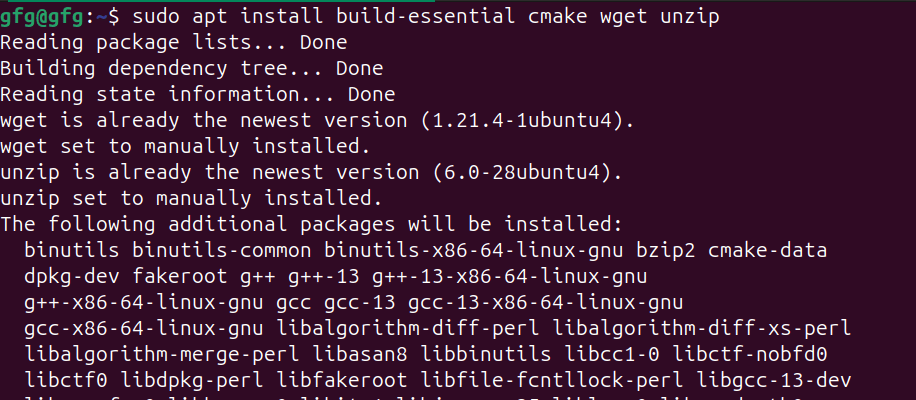
Step 2 : download opencv source
In this step, we will download official source code from opencv github page using git clone command.
git clone https://github.com/opencv/opencv
Step 3 : Navigate to opencv directory and making configuration
Once repo is cloned, navigate to cloned directory using cd command.
cd opencvNow create build directory for compiling sources using mkdir command and navigate to it using cd command.
mkdir build
cd build
Step 4: Compiling and building packages for installation
Once we are in build directory, use cmake command to start compiling build files for installation.
cmake ../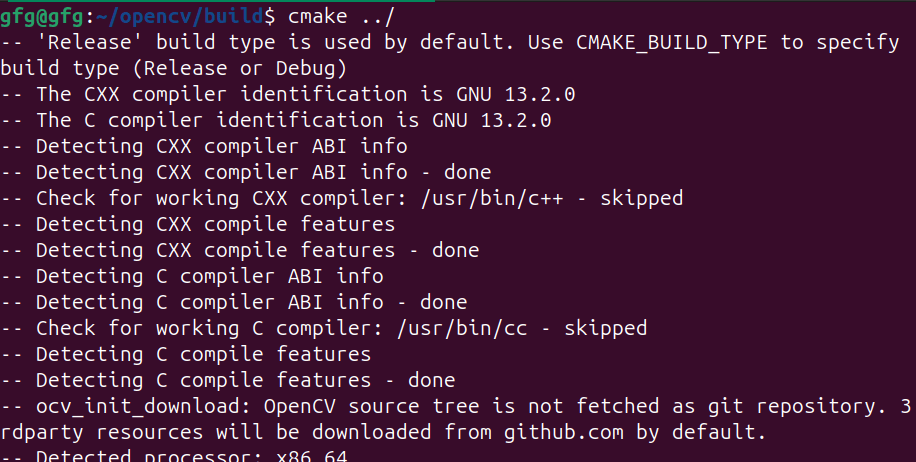
Once compilation is done, we will make build packages using make command.
make
Step 5: Installing openCV
After packages are built, install it using make install command.
sudo make install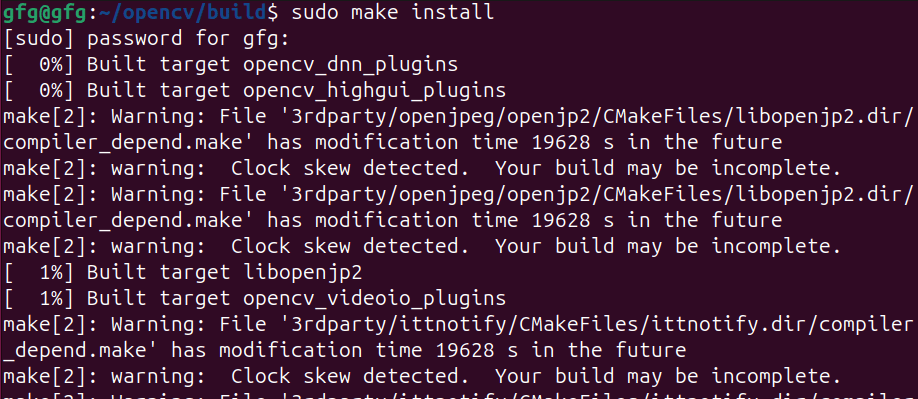
Step 6 : Verify installation
Once, installation is done, verify installation using print(cv2.__version__) command in python shell.
To open python shell, first type python3 in your terminal.
python3Once python3 shell is opened, print version number of opencv using following command.
import cv2
print(cv2.__version__)
Conclusion
In this article, we've discussed two methods for installing OpenCV on Ubuntu. For most users, the recommended approach is to use the Ubuntu repositories (using APT package manager) due to its ease of installation, compatibility with system, and access to regular security updates. However, if you require a specific version not available in the repositories, or need to install a latest development version, compiling OpenCV from source can be a suitable alternative.
