
Monitoring system usage and performance is an essential task for Linux administrators. It helps identify resource bottlenecks, detect failures, and resolve issues before they affect users. By using built-in Linux monitoring and logging tools, administrators can maintain system stability and reliability.
- Track CPU, memory, disk, and network usage
- Detect system outages and failures early
- Identify performance bottlenecks
- Analyze system logs for error diagnosis
- Improve server reliability and uptime
Monitoring Storage Space Utilization
Storage space monitoring helps administrators prevent disk overflow and system failures. Linux provides built-in commands to check disk usage and identify large files and directories. Proper storage monitoring ensures smooth system performance.
- Check available and used disk space
- Monitor filesystem usage
- Identify storage bottlenecks
- Locate large files and directories
- Prevent system crashes due to full disks
1. df Command (Disk Free)
The df command displays information about disk space usage for mounted filesystems. It shows total size, used space, available space, and mount points.
- Display filesystem usage
- Show available disk space
- Monitor inode usage
- Identify mounted partitions
Example: Display Filesystem Type and Inode Usage
To inspect filesystem type and inode consumption.
Command:
df -hTi- -h: Enables human-readable format
- -T: Shows filesystem type
- -i: Displays inode usage
Output:

2. du Command (Disk Usage)
The du command calculates and summarizes the disk space used by files and directories. It helps identify which directories or files are consuming the most storage. This makes it easier to monitor disk utilization, detect unusually large files, and optimize storage management.
- Summarize space used by files or directories
- Identify large directories
- Display human-readable sizes
- Calculate overall disk usage
Example: Total disk usage of a directory
Check total space consumed by all items in a directory.
Command:
du -sch /home/arpit/*- -s: Show total size of each argument
- -c: Display grand total
- -h: Human-readable sizes
Output:

Memory and CPU Utilization
Monitoring CPU and memory usage helps administrators understand system performance and detect resource overload. Linux provides several built-in tools to track running processes, memory usage, and system activity. These tools help in identifying performance bottlenecks.
- Monitor CPU usage
- Track memory consumption
- Analyze running processes
- Detect system overload
- Improve performance management
1. top Command (Process Monitoring)
The top command displays real-time information about running processes, CPU usage, memory consumption, swap usage, and system load. It provides a dynamic view of active processes, helping administrators identify processes consuming excessive resources and take corrective action.
- Display all running processes
- Monitor CPU, memory, and swap usage
- Track process IDs (PID) and associated users
- Identify resource-heavy applications
- Support real-time system performance monitoring
Command:
topOutput:

2. vmstat Command (Virtual Memory Statistics)
The vmstat command provides detailed information about virtual memory, system processes, paging, interrupts, disk I/O, and CPU scheduling. It helps monitor overall system health and detect performance issues, especially memory shortages and high swap activity. which is a built-in utility used for monitoring in Linux this command is used to get the information of following
- Display memory statistics (free, buffer, cache)
- Monitor system processes and queue lengths
- Track paging, disk I/O, and interrupts
- Evaluate CPU utilization and scheduling
- Sample system performance over time
Command:
vmstatOutput:

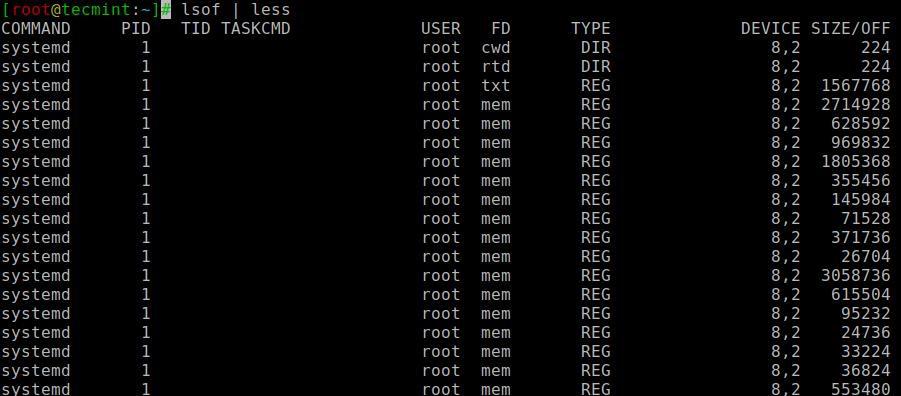
3. lsof Command (List Open Files)
The lsof command lists all open files and the processes associated with them. Open files include regular files, network sockets, pipes, and devices. This command is particularly useful when unmounting disks or diagnosing errors caused by files in use.
- List all open files and associated processes
- Monitor network sockets, pipes, and device files
- Identify processes preventing disk unmounting
- Detect files causing system errors
Command:
lsofOutput:
Network Monitoring
Monitoring network activity is essential for identifying connectivity issues, tracking data flow, and troubleshooting network-related problems. Linux provides commands to observe incoming and outgoing packets, open connections, and network interfaces in real time. These tools help administrators maintain network performance and quickly resolve connectivity issues.
1. tcpdump Command (Packet Analyzer)
The tcpdump command captures and analyzes network packets transmitted through network interfaces. It supports filtering traffic by protocol, IP address, or port, and can save captured packets to a file for further analysis.
- Capture TCP/IP packets in real time
- Filter traffic by protocol, IP, or port
- Save captured packets for later analysis
- Diagnose network connectivity issues
- Analyze network traffic patterns
Command:
tcpdumpOutput:

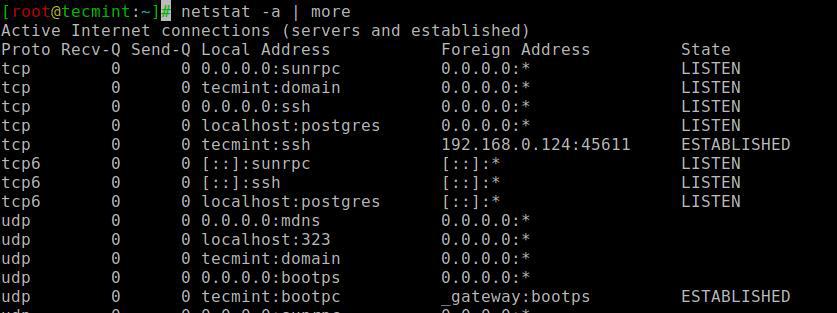
2. netstat Command (Network Statistics)
The netstat command displays information about active network connections, routing tables, and interface statistics. It helps monitor incoming and outgoing traffic, detect open ports, and troubleshoot network performance issues.
- Display active network connections (TCP/UDP)
- Monitor incoming and outgoing traffic
- Identify open ports and listening services
- Assist in network troubleshooting
Command:
netstatOutput:
System Logs and Troubleshooting
System logs provide detailed records of events, errors, and hardware or software activity. Examining logs helps identify unplanned failures, network issues, or hardware problems, enabling administrators to troubleshoot effectively. Linux stores logs primarily in the /var/log directory, including plain text and compressed files.
Inspecting Log Files
The /var/log directory contains logs for system events, services, and hardware activity. Common log files include syslog, dmesg, messages, and service-specific directories like cups for printers.
- Central location for system and service logs
- Contains both plain text and compressed files
- Helps identify failures or unusual events
- Useful for troubleshooting hardware and software issue
Command:
cd /var/log
ls
Output:

Examining Service Logs (Printer Example)
Printer connectivity issues can be diagnosed by inspecting CUPS logs. Viewing recent entries helps identify errors or failed print jobs.
Example: Display Last 10 Lines of Access Log
cd /var/log/cups
tail access_log
Output:

Examining the logs for hardware failures
Hardware related issues are often difficult to troubleshoot because they occur at a low system level. To diagnose such problems, Linux provides several log files that record kernel, system, and hardware events. Most of these logs are stored in the /var/log directory.
Step 1: Accessing the Log Directory
First, navigate to the system log directory and list its contents.
Command:
cd /var/log
ls
Output:

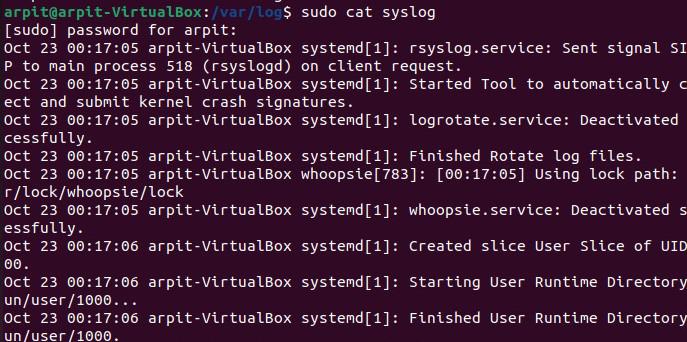
Step 2: Viewing System Logs (syslog)
The syslog file stores general system messages, including hardware events, service activity, and system errors. Since this file requires administrative privileges, we use the sudo command.
Command:
sudo cat syslogOutput:
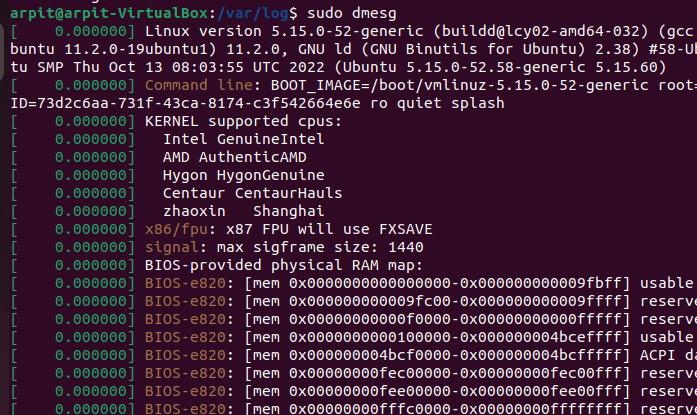
Step 3: Checking Kernel Messages Using dmesg
Kernel messages are especially useful for identifying hardware issues such as CPU, memory, disk, or driver problems. The dmesg command displays messages directly from the kernel ring buffer.
Command:
sudo dmesgOutput:
Step 4: Filtering Hardware Errors
To quickly identify critical hardware-related problems, kernel logs can be filtered to display only error messages.
Command:
sudo dmesg | grep "error"Output:

