
Networks allow computers to communicate by sending data packets between a source and a destination. Linux provides a set of commands to configure network interfaces, test connectivity and troubleshoot network issues. These commands help verify connections, analyze network behavior and manage interfaces efficiently, making network administration easier and more reliable.
- Verify network connectivity between systems.
- Manage and configure network interfaces.
- Analyze routing paths and identify network delays.
- Troubleshoot DNS or IP related issues.
- Monitor network traffic and interface statistics.
1. Using Ping (Packet Internet Groper) Command
The ping command is used to check whether a computer can communicate with a specified device over the network. It sends ICMP (Internet Control Message Protocol) Echo Request packets to the destination and waits for replies, measuring the round-trip time.
- Verify connectivity to another host or server.
- Measure the time taken for packets to travel to the destination and back.
- Identify packet loss in the network.
- Test network speed and reliability.
Example 1: Ping a domain
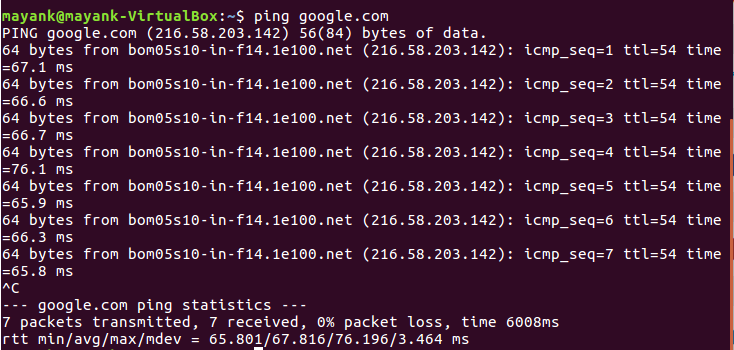
Verify network connectivity to Google's server. Sends continuous ICMP packets to the domain until interrupted with Ctrl+C.
Command:
ping google.comOutput:
- Shows packets transmitted, packets received, packet loss percentage and round-trip times.
Example 2: Ping an IP address
Test connectivity using a direct IP address, bypassing DNS.
Command:
ping 216.58.203.142Output:

2. Using nslookup Command
The nslookup command is used to query DNS (Domain Name System) records. It helps retrieve the IP address associated with a domain name or find the domain name associated with an IP address. This command is commonly used for DNS troubleshooting.
- Retrieve IP addresses for domain names.
- Find the domain name associated with an IP address.
- Diagnose DNS resolution issues.
- Verify DNS server responses.
Example: Query a domain
Retrieve the IP address of a domain for troubleshooting or verification. Sends a DNS query to the system’s configured DNS server and displays the response.
Command:
nslookup facebook.comOutput:
- Shows the DNS server used, the queried domain and its IP address.

3. Using traceroute Command
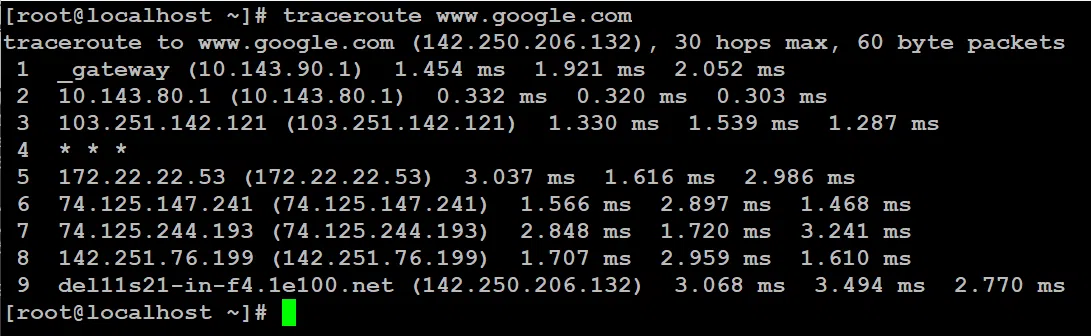
The traceroute command is used to determine the path packets take from the source computer to a destination host. It shows each intermediate router (hop) the packets pass through and the time taken for each hop.
- Identify the route taken by packets to reach a destination.
- Detect network delays or bottlenecks.
- Troubleshoot connectivity issues along the path.
- Verify network routing and hop counts.
Example: Trace route to a domain
Understand the path and delays between your system and Google’s server. Sends packets with incrementally increasing TTL (Time To Live) values to reveal each hop along the route.
Command:
traceroute www.google.comOutput:

4. Using host Command
The host command is used to perform DNS lookups. It can resolve a domain name to an IP address or find the domain name associated with an IP address. The returned IP address may be IPv4 or IPv6.
- Perform simple DNS lookups.
- Convert a domain name to an IP address.
- Convert an IP address to a domain name.
- Quickly troubleshoot DNS issues.
Example 1: Domain to IP lookup
Find the IP address associated with a domain. Queries the DNS system and returns the corresponding IP address.
Command:
host google.comOutput:
Example 2: IP to Domain lookup
Find the domain associated with a specific IP address.
Command:
host 31.13.78.35Output:

5. Using netstat Command
The netstat (Network Statistics) command displays information about network connections, routing tables, interface statistics and port status. It provides insights into the Linux networking subsystem, often using data from /proc/net.
- Monitor active network connections.
- View routing tables for packet paths.
- Check interface statistics like packets sent/received.
- Inspect port usage and listening services.
Example 1: Display all network connections
See active TCP/UDP connections and listening ports. Shows protocol, local and remote addresses, connection state and PID/Program name.
Command:
netstatOutput:

Example 2: Display routing table
Inspect how network packets are routed through the system.
Command:
netstat -r- -r: Displays the routing table, showing destination, gateway, netmask, flags and interface.
Output:

Note: netstat has been deprecated use ss instead
6. Using arp Command
The arp (Address Resolution Protocol) command is used to view and manage the ARP cache, which stores mappings of IP addresses to MAC addresses. The system uses ARP to identify the hardware address associated with an IP address on the local network.
- Display ARP cache entries.
- Troubleshoot IP-to-MAC address mapping issues.
- Add or remove static ARP entries if needed.
- Verify local network connectivity at the link layer.
Example 1: Display ARP cache
View current IP-to-MAC mappings on the system. Lists the IP addresses, their corresponding MAC addresses and the interface through which they were learned.
Command:
arpOutput:

Example 2: Extended view
Display the ARP cache with detailed formatting.
Command:
arp -e- -e: Presents entries in a readable table format.
Output:

Note: arp has been deprecated use ip neighbour instead
7. Using ifconfig Command
The ifconfig (Interface Configuration) command is used to display or configure network interfaces on Linux systems. It is commonly used to assign IP addresses, configure netmasks, enable or disable interfaces and view interface statistics such as MTU (Maximum Transmission Unit).
- Display details of all network interfaces.
- Assign or modify IP addresses and netmasks.
- Enable or disable network interfaces.
- Check interface-specific statistics like MTU, RX/TX packets.
- Initialize network interfaces during system boot (on some Unix-like systems).
Example: Display all network interfaces
View IP addresses, MAC addresses, interface status and packet statistics. Shows each interface’s configuration, including IP address, netmask, broadcast address and statistics like packets transmitted/received.
Command:
ifconfigOutput:

Note: ifconfig has been deprecated use ip address
8. Using dig Command
The dig (Domain Information Groper) command is used to query DNS servers for information about domain names. It can retrieve various DNS record types, such as A, MX, CNAME and more, making it a powerful tool for DNS troubleshooting.
- Query DNS servers for domain information.
- Retrieve different types of DNS records (A, MX, CNAME, etc.).
- Troubleshoot DNS resolution issues.
- Verify DNS server responses and propagation.
Example: Query A record of a domain
Find the IPv4 address associated with the domain.
Command:
dig A google.com- dig: Queries the configured DNS server and displays the response.
- A: Specifies the type of DNS record being requested.
Output:

9. Using route Command
The route command is used to display and manipulate the IP routing table in Linux. It determines how network packets are routed from the system to various destinations and allows adding or deleting routes.
- Display the current routing table.
- Control the path packets take through the network.
- Add or delete routes for specific networks.
- Troubleshoot network routing issues.
Example 1: Display routing table
View the system’s routing information, including destinations, gateways and interfaces. Shows destination networks, subnet masks, flags, gateways, metrics and interface used for each route.
Command:
routeOutput:

Example 2: Add a new network route
Direct packets for the 192.168.90.0/24 network through a specific gateway (10.0.0.1).
Command:
route add -net 192.168.90.0/24 gw 10.0.0.1- -net: Specifies the destination network and gw specifies the gateway.
Output:
- The route is added to the routing table and visible with route or netstat -r.
Note: route has been deprecated use ip route instead
10. Using ethtool Command
The ethtool command is used to view and modify settings of a network interface card (NIC). It allows administrators to check link speed, duplex mode, auto-negotiation and other interface parameters. It has replaced older tools like mii-tool.
- Display NIC settings such as speed, duplex mode and auto-negotiation.
- Troubleshoot interface connectivity issues.
- Optimize NIC performance.
- Verify hardware link status and capabilities.
Example: View NIC settings
Check the configuration and status of the enp0s3 network interface. Displays link speed, duplex mode, auto-negotiation status and supported features.
Command:
ethtool enp0s3Output:
- Table showing link detected, speed, duplex, auto-negotiation and other settings.

11. Using hostname Command
The hostname command is used to display or set the system’s hostname. The hostname is the unique identifier of a system on a network and is often used in networking and system administration tasks.
- Display the current system hostname.
- Change the hostname temporarily or permanently.
- Verify system identity on a network.
- Assist in network troubleshooting and configuration.
Example 1: Display current hostname
Check the system’s current hostname. Returns the hostname configured on the system.
Command:
hostnameOutput:

Example 2: Change hostname permanently
Set a new hostname (mypc) that persists across reboots. hostnamectl modifies system configuration files to change the hostname permanently.
Command:
hostnamectl set-hostname mypcOutput:
- The hostname is updated immediately and remains after reboot.
