
Shell built-in and scripting commands are mainly used inside the shell to control execution flow, manage variables, automate tasks, and write scripts. These commands are either built into the shell itself or commonly used alongside shell scripting for efficient command execution.
- Used for scripting, looping, and conditional execution
- Help automate repetitive administrative tasks
- Control program flow inside shell scripts
- Improve script readability and execution efficiency
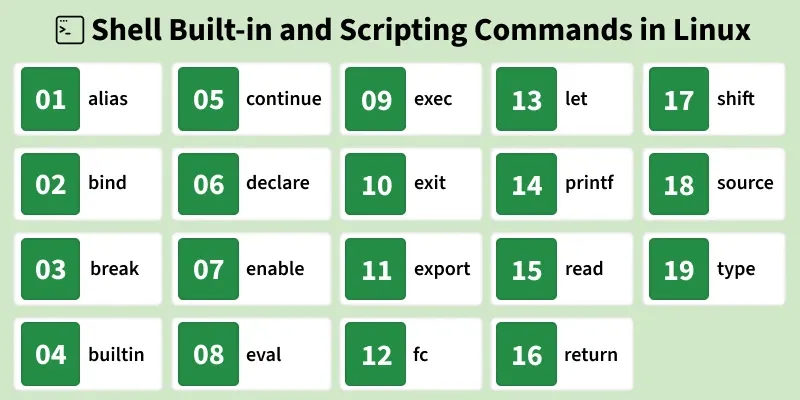
Below are some of commonly used Shell Built-in and Scripting Commands
1. alias
The alias command is used to create shortcut names for longer or frequently used commands. It helps reduce typing effort and makes command usage faster and more convenient, especially during daily terminal work or inside shell configuration files.
- Creates custom short names for long commands
- Improves efficiency and reduces typing errors
- Mostly used in interactive shells
- Commonly defined in shell startup files like .bashrc
Basic Usage of alias Command
Syntax:
alias name='command'- name : The shortcut name you want to create
- Command: The actual command that will run when the alias is used
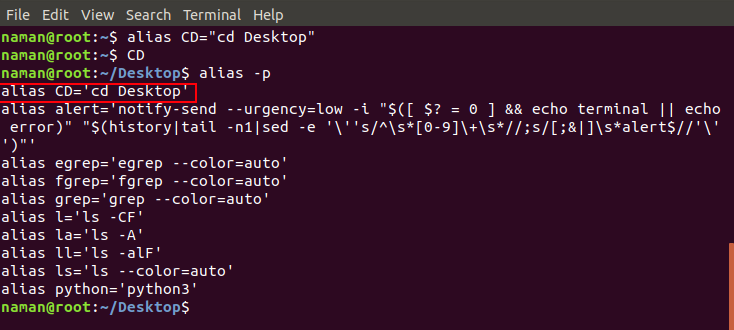
Example: Create a Simple Alias
Create a shortcut for a frequently used command to reduce typing and improve efficiency during interactive shell sessions or within scripts.
Command:
alias CD='cd Desktop'- CD becomes a shortcut for `cd Desktop`
- The alias works only in the current shell session unless saved
Output:
2. bind
The bind command is used to display or modify Readline key bindings. Readline is the library responsible for handling keyboard input in interactive shells like Bash. Using bind, you can customize how keys behave when typing commands in the terminal.
- Displays current keyboard shortcuts used by the shell
- Allows customization of key behavior
- Useful for improving command-line productivity
- Mainly used in interactive shell environments
Syntax:
bind [options]- [options] : Control what information is displayed or modified
Example: Display All Current Key Bindings
List all keyboard shortcuts currently active in the shell to understand assigned key combinations and customize key behavior for improved command-line productivity.
Command:
bind -p- -p prints all current key bindings
- Shows key sequences and the actions they trigger
- Useful when customizing or debugging shell input behavior
Output:

3. break
The break command is used to immediately terminate a loop (for, while, or until) before it finishes all iterations. It is mainly used in scripting when a specific condition is met and continuing the loop is no longer required.
- This command helps in:
- Controlling script flow
- Stopping loops early to save time or resources
- Making scripts more readable and efficient
Syntax:
break [n]- n (optional) specifies how many nested loops to exit
- If omitted, break exits only the current loop
Example: Exit a Loop When a Condition Is Met
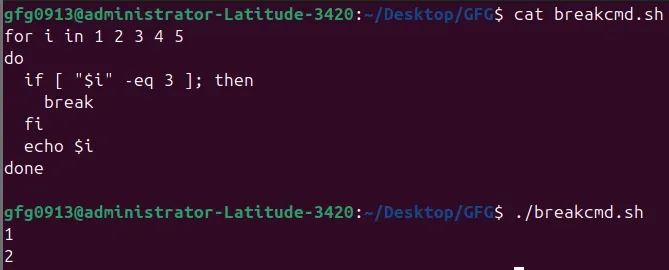
Stops the loop once the value reaches 3, printing only numbers before it, demonstrating early termination in a loop.
Script :
for i in 1 2 3 4 5
do
  if [ "$i" -eq 3 ]; then
    break
  fi
  echo $i
done
Output:
4. builtin
The builtin command is used to run another built-in command directly, even if a command with the same name exists as an external program, function, or alias. It ensures that the shell’s internal version of a command is executed.
- A built-in command name conflicts with an alias or function
- You want predictable shell behaviour in scripts
- Debugging shell environments
Syntax:
builtin command [arguments]- Command: is the name of a shell built-in
- arguments : are passed to that built-in command
Example: Run the Built-in echo Command
Uses builtin to execute the shell’s internal echo, printing a message even if an alias or external command with the same name exists.
Command:
builtin echo "Hello from builtin"Output:

5. continue
The continue command is used inside loops (for, while, until) to skip the rest of the current iteration and move directly to the next iteration. It is useful when you want to ignore certain conditions without exiting the loop entirely.
- Skipping invalid input or errors in a loop
- Ignoring certain items in a list while processing the rest
- Improving flow control in repetitive tasks
Syntax:
continue [n]- n (optional) : specifies how many levels of loops to skip ahead. Default is 1 (current loop).
Example: Skip Even Numbers in a Loop
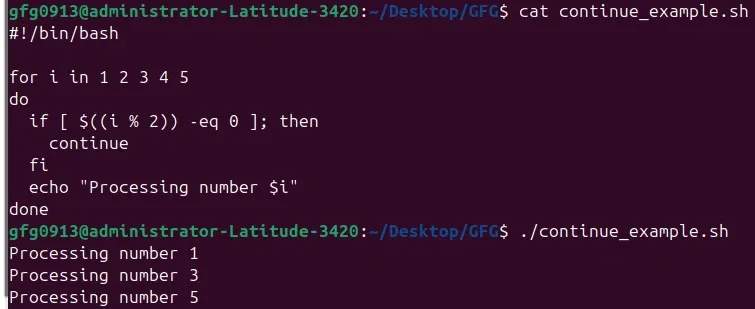
Skips printing even numbers while iterating from 1 to 5, demonstrating how continue moves to the next iteration without exiting the loop.
Command:
#!/bin/bash

for i in 1 2 3 4 5
do
  if [ $((i % 2)) -eq 0 ]; then
    continue
  fi
  echo "Processing number $i"
done
Output:
6. declare
The declare command is used to declare variables and assign attributes to them. It allows you to set data types, read-only status, arrays, and other properties for variables within shell scripts. This is particularly useful for writing robust scripts with predictable behavior.
- Marking variables as read-only to prevent accidental changes
- Defining arrays or indexed variables
- Restricting variable values to integers
Syntax:
declare [options] variable_name[=value]Common Options:
- -r : Make variable read-only
- -i : Treat variable as an integer
- -a : Declare an array
- -x : Export variable to child processes
Example: Declare a Read-Only Variable
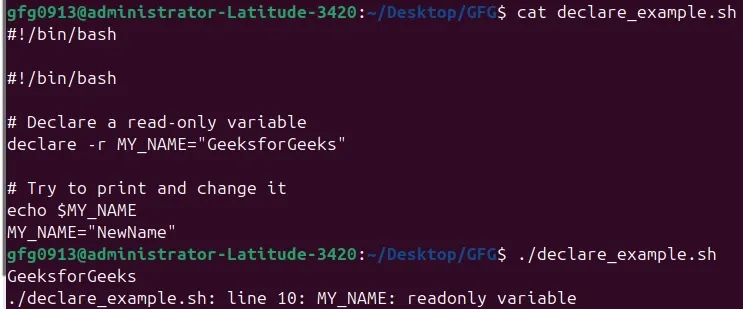
Creates a read-only variable MY_NAME, prints its value, and shows that attempting to change it fails, demonstrating protected variable behavior.
Command:
#!/bin/bash

# Declare a read-only variable
declare -r MY_NAME="GeeksforGeeks"

# Try to print and change it
echo $MY_NAME
MY_NAME="NewName"
Output:
7. enable
The enable command in Linux is used to enable or disable other shell built-in commands. This allows you to control which built-ins are available in the current shell session, which can be useful for testing, debugging, or restricting certain commands in scripts.
- Temporarily disabling a built-in to test external command alternatives
- Re-enabling a previously disabled built-in
- Checking which built-ins are currently enabled
Syntax:
enable [options] [name ...]Common Options:
- -n : Disable a built-in command
- -d : Display disabled built-ins
- -p : Display all built-ins and their status
Example: Disable and Re-enable a Built-in
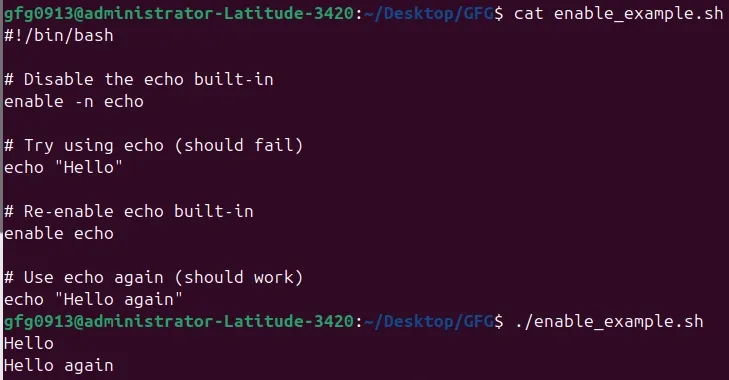
Temporarily disables the echo built-in, shows that it cannot run, then re-enables it to demonstrate controlling command availability in the shell.
Command:
#!/bin/bash

# Disable the echo built-in
enable -n echo

# Try using echo (should fail)
echo "Hello"

# Re-enable echo built-in
enable echo

# Use echo again (should work)
echo "Hello again"
Output:
8. eval
The eval command is used to evaluate arguments as a shell command and then execute them. It takes a string, processes it as if it were typed directly into the shell, and runs the resulting command. This is mainly useful in scripting when commands are stored in variables or built dynamically.
- Execute commands stored in variables
- Process dynamically constructed command strings
- Advanced scripting scenarios (use carefully)
Syntax:
eval [arguments]Example: Execute a Command Stored in a Variable
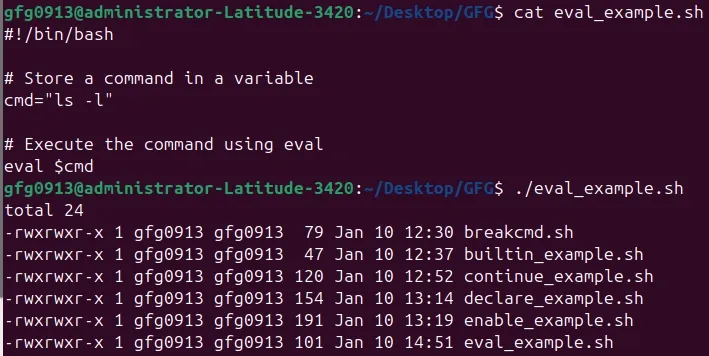
Stores a command in a variable and runs it with eval, running the command as if typed directly in the shell.
Command:
#!/bin/bash

# Store a command in a variable
cmd="ls -l"

# Execute the command using eval
eval $cmd
Output:
9. exec
The exec command is used to replace the current shell process with another command. Unlike normal command execution, exec does not create a new process. Instead, it runs the specified command in place of the current shell, meaning the shell does not return after execution.
- Replace the shell with another program
- Run a command as the final step in a script
- Optimise process usage by avoiding extra processes
Syntax:
exec command [arguments]Example: Replace the Shell with a Command
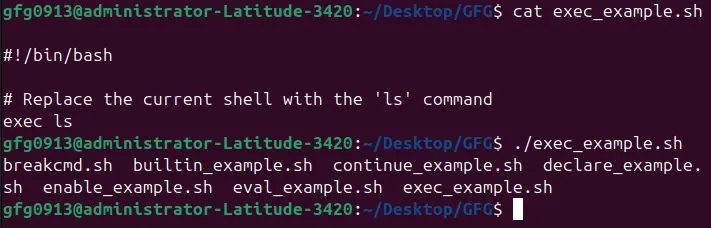
Replaces the current shell process with the ls command, immediately ending the shell session and running ls without returning to the original shell.
Command:
#!/bin/bash

# Replace the current shell with the 'ls' command
exec ls
Output:
10. exit
The exit command is used to terminate the current shell session or end the execution of a shell script. It can optionally return an exit status code, which is useful in scripting to indicate whether a command or script completed successfully or failed.
- Exit an interactive shell session
- Stop script execution at a specific point
- Return a status code to the calling process
Syntax:
exit [status]- status (optional): An integer value returned to the parent process (0 usually means success).
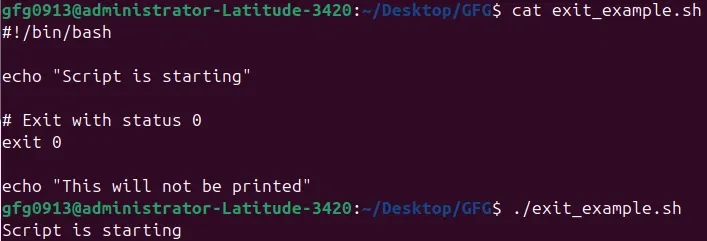
Example: Exit a Script with a Status Code
Stops the script execution at a specific point, returns a status code to the parent process, and prevents any commands after exit from running.
Command:
#!/bin/bash

echo "Script is starting"

# Exit with status 0
exit 0

echo "This will not be printed"
Output:
11. export
The export command is used to define environment variables and make them available to child processes. Variables created with export can be accessed by programs, scripts, and subshells launched from the current shell session.
- Share variables with shell scripts
- Configure application settings via environment variables
- Set paths and runtime options
Syntax:
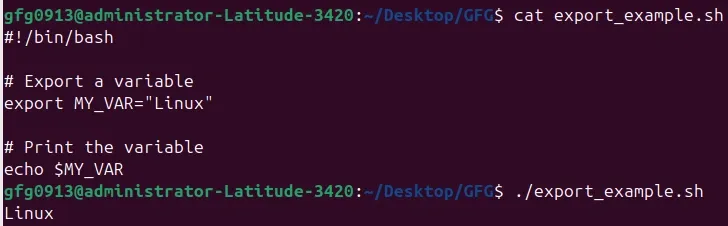
export VARIABLE=valueExample: Export an Environment Variable
Creates a variable and exports it, making the value available to child processes and other scripts run from the current shell session.
Command:
#!/bin/bash

# Export a variable
export MY_VAR="Linux"

# Print the variable
echo $MY_VAR
Output:
12. fc
The fc command in Linux is used to work with commands stored in the shell history. It allows you to list previously executed commands. This is especially useful when you want to correct a mistake in a long command or repeat a complex command without typing it again.
- The name fc stands for fix command
- Accesses and manages command history
- Can edit previous commands before executing them
- Helps avoid retyping long or complex commands
- Useful in interactive shell sessions
Syntax:
fc [options] [first] [last]- options : Control how history commands are listed or executed
- first and last : Specify the range of history commands
Example: Re-execute the Most Recent Command
Uses fc -s to rerun the last executed command from shell history, allowing quick repetition or correction of previously typed commands.
Command:
fc -sOutput:

13. let
The let command in Linux is used to perform arithmetic operations directly within the shell. It allows evaluation of expressions involving integers and supports assignment, increment, decrement, and basic mathematical operations.
Syntax:
let expression- expression : The arithmetic expression to evaluate. Can include variables and operators
- Multiple expressions can be evaluated at once, separated by spaces
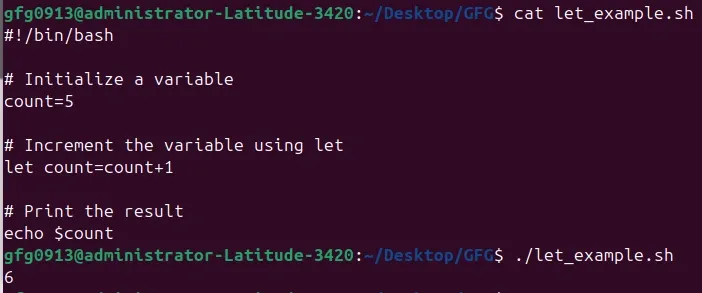
Example: Increment a Variable
Uses let to increase the value of a variable by 1, performing arithmetic directly within the shell without external tools or commands.
Command:
#!/bin/bash

# Initialize a variable
count=5

# Increment the variable using let
let count=count+1

# Print the result
echo $count
Output:
14. printf
The printf command in Linux is used to format and print text to the terminal or a file. Unlike echo, printf provides precise control over output formatting, including field width, alignment, padding, and numerical precision.
- Prints formatted text or numbers
- Supports format specifiers similar to C’s printf (e.g., %s, %d, %f)
- Avoids issues like unwanted newlines, spacing, or escape sequences that echo may introduce
- Can redirect output to files for reporting
Syntax:
printf FORMAT [ARGUMENT]...- FORMAT : A string with format specifiers defining how the arguments should be displayed
- ARGUMENT : Values to be printed according to the FORMAT
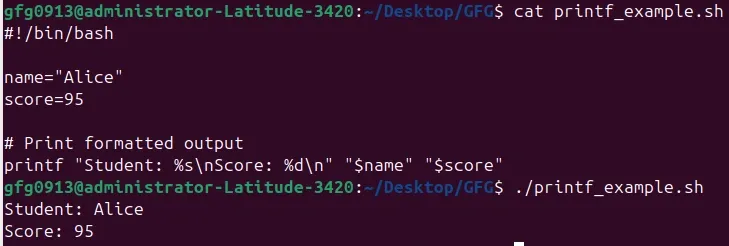
Example: Print Formatted Text
Prints a student’s name and score using printf, aligning text and numbers neatly for clearer, structured output in the terminal.
Command:
#!/bin/bash

name="Alice"
score=95

# Print formatted output
printf "Student: %s\nScore: %d\n" "$name" "$score"
Output:
15. read
The read command in Linux is a built-in shell command used to take input from the user or from a file/pipe. It is commonly used in shell scripts to pause execution and store user-provided values into variables for further processing.
- Reads a line of input and stores it in one or more variables
- Supports prompts with -p
- Can read silent input (e.g., passwords) with -s
- Useful in scripts to capture user responses or pipeline data
Syntax:
read [options] VARIABLE...- VARIABLE : Name(s) of the variable(s) where input will be stored
- Common options:
- -p "prompt" : Display a prompt before reading input
- -s : Silent mode (input not displayed on terminal)
- -t N : Timeout after N seconds
- -a ARRAY : Store input words into an array
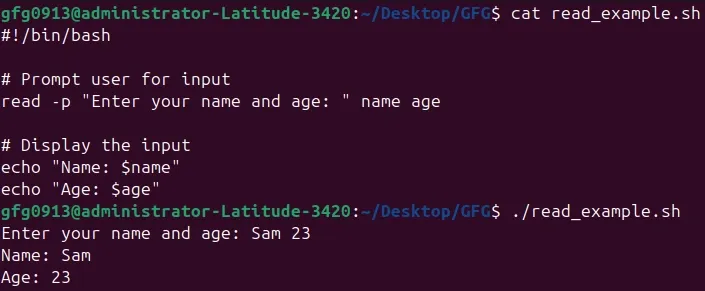
Example: Read Name and Age from User
Prompts the user to enter their name and age, stores the input values in separate variables, and then displays both values clearly in the terminal output.
Command:
#!/bin/bash

# Prompt user for input
read -p "Enter your name and age: " name age

# Display the input
echo "Name: $name"
echo "Age: $age"
Output:
16. return
The return command in Linux is used to exit a function and optionally provide an exit status. The return command only affects the function in which it is called. This makes it an essential tool for controlling function flow and signaling success or failure from a function back to the main script.
- Used inside shell functions only
- Can return a numeric exit status (0–255)
- Helps in conditional checks based on function results
- Default return value is 0 if none is specified
Syntax:
return [n]- n : Optional numeric status to return (0 for success, non-zero for failure)
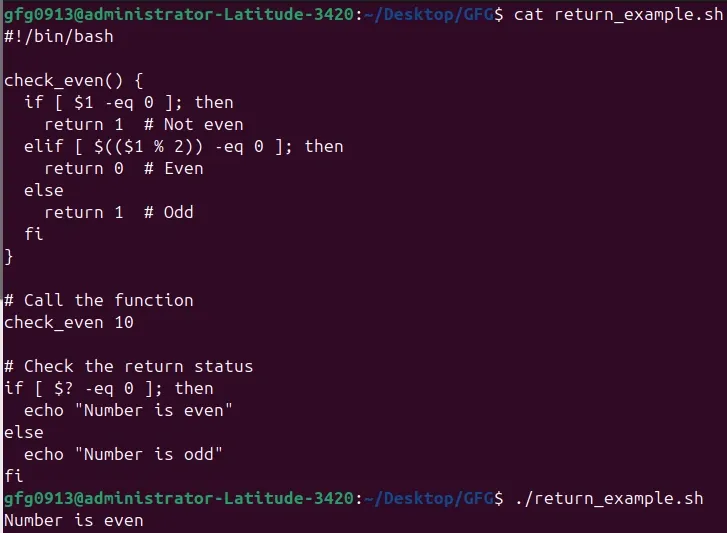
Example: Function Returning Status
Defines a function that checks if a number is even, returns a status code accordingly, and prints whether the number is even or odd after the function call.
Command:
#!/bin/bash

check_even() {
  if [ $1 -eq 0 ]; then
    return 1  # Not even
  elif [ $(($1 % 2)) -eq 0 ]; then
    return 0  # Even
  else
    return 1  # Odd
  fi
}

# Call the function
check_even 10

# Check the return status
if [ $? -eq 0 ]; then
  echo "Number is even"
else
  echo "Number is odd"
fi
Output:
17. shift
The shift command is used in scripting to manipulate positional parameters. It allows you to move the command-line arguments to the left, effectively discarding the first argument and shifting all remaining arguments one position down.
- Operates on positional parameters ($1, $2, $3, …)
- Shifts all arguments to the left
- $1 is discarded after the shift, $2 becomes $1, $3 becomes $2, and so on
- Can take an optional number to shift multiple positions at once
Syntax:
shift [n]- n : Optional. Number of positions to shift. Default is 1.
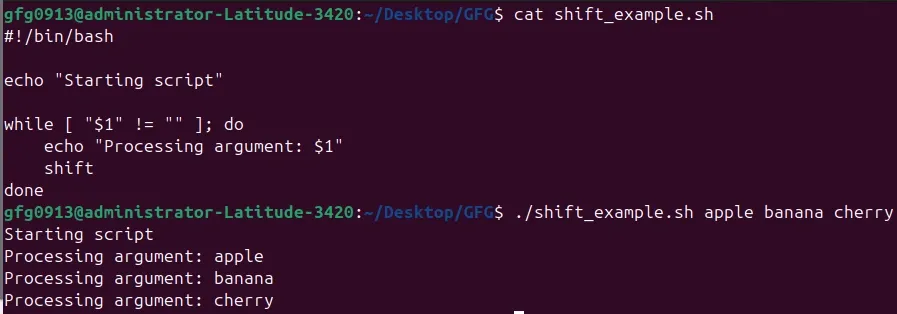
Example: Process Multiple Arguments
shift moves command-line arguments one position to the left, discarding the first argument each time, letting the script handle all arguments in order.
Script :
#!/bin/bash
echo "Starting script"
while [ "$1" != "" ]; do
    echo "Processing argument: $1"
    shift
done
Command:
bash shift_example.sh apple banana cherryOutput:
18. source
The source command is used to read and execute commands from a file in the current shell environment. The command source does not spawn a new shell; any variables, functions, or changes made in the sourced file persist in the current session.
- used to load environment variables, functions, or configuration scripts without starting a separate shell process.
Syntax:
source filename
# or using the shorthand
. filename
- filename : Path to the file containing shell commands
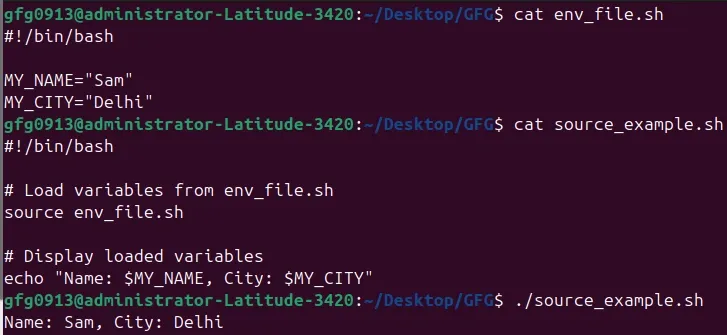
Example: Load Environment Variables from a File
Loads variables from another file into the current shell, then prints their values, making the data available immediately without starting a new shell.
File: env_file.sh
#!/bin/bash

MY_NAME="Sam"
MY_CITY="Delhi"
File: source_example.sh
#!/bin/bash

# Load variables from env_file.sh
source env_file.sh

# Display loaded variables
echo "Name: $MY_NAME, City: $MY_CITY"
Output:
19. type
The type command is used to identify how a command name is interpreted by the shell. It helps determine whether a command is a built-in, an alias, a function, or an external executable.
- Identifies whether a command is built-in, alias, function, or external
- Displays the actual path of external commands
- Helps avoid command name conflicts
- Useful for debugging shell scripts
Syntax:
type command_name- command_name : The command you want to examine
Example: Check Command Type
Checks a command and shows whether it is built-in, an alias, a function, or an external program, helping identify its source before execution.
Command:
type echo
type ls
Output:

