
Text processing and formatting commands in Linux are used to search, filter, format, compare, and manipulate text data efficiently. These commands are widely used while working with text files, logs, configuration files, and command output, making them essential for both users and system administrators.
- Search and filter text based on patterns
- Format and align text output
- Modify text content and structure
- Compare files and convert text formats
Below is a list of commonly used Text Processing and Formatting Commands in Linux
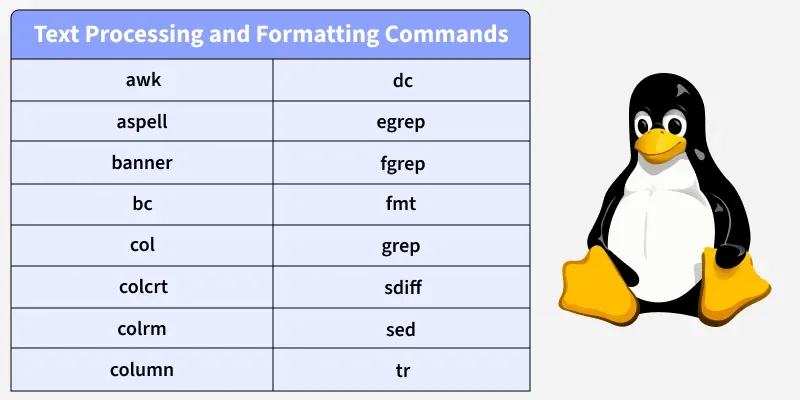
1. awk
The awk command is a powerful text-processing language used for pattern scanning and data extraction.
- Processes text line by line
- Extracts and formats columns
- Commonly used for reports
Syntax:
awk 'pattern {action}' file_nameExample:
awk '{print $1}' data.txt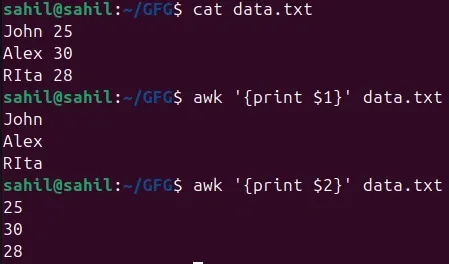
2. aspell
The aspell command is used as a spell checker in Linux.
- Checks spelling errors
- Supports multiple languages
- Useful for text documents
Syntax:
aspell check file_nameExample:
aspell -c sample.txt3. banner
The banner command prints text in large ASCII characters.
- Displays large formatted text
- Useful for terminal messages
Syntax:
banner TEXTExample:
banner GeeksforGeeks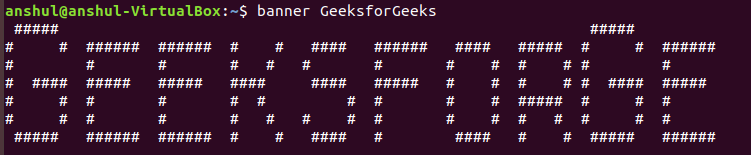
4. bc
The bc command is a command-line calculator.
- Performs arithmetic operations
- Supports floating-point math
Syntax:
bcExample:
bc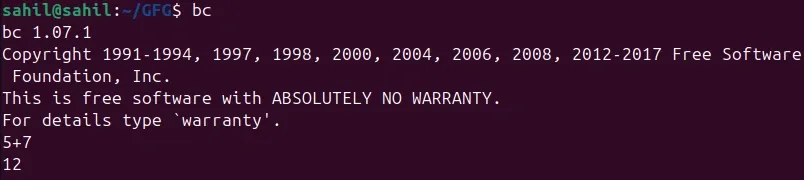
5. col
The col command filters reverse line feeds from text.
- Cleans formatted text output
- Improves readability
Syntax:
colExample:
col -b < sample.txt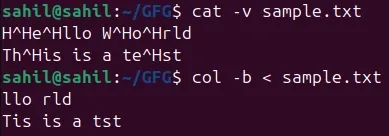
6. colcrt
The colcrt command formats text output for display.
- Removes backspaces
- Used with formatted text
Syntax:
colcrtExample:
man ls | colcrt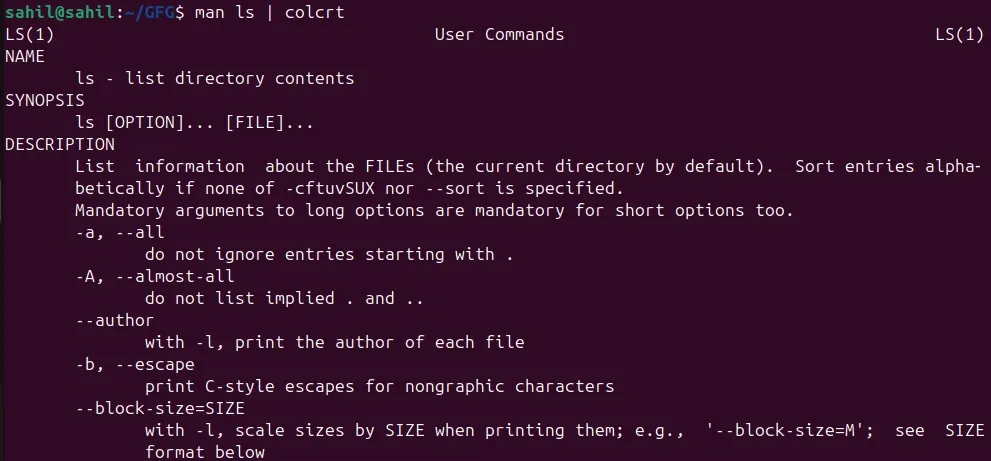
7. colrm
The colrm command removes selected columns from text.
- Deletes column ranges
- Useful for fixed-width files
Syntax:
colrm start end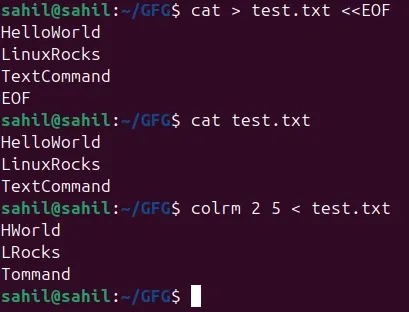
8. column
The column command formats output into aligned columns.
- Improves text alignment
- Used for tabular output
Syntax:
column file_nameExample:
column -t names.txt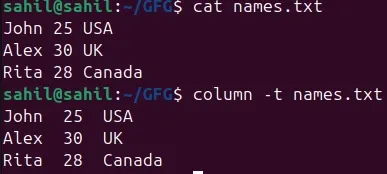
9. dc
The dc command is a reverse-polish notation calculator.
- Performs advanced calculations
- Used for scripting math operations
Syntax:
dcExample:
dc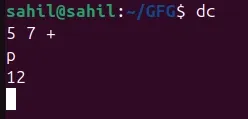
10. egrep
The egrep command searches text using extended regular expressions.
- Supports advanced patterns
- Faster pattern matching
Syntax:
egrep "pattern" file_nameExample:
egrep "R" names.txt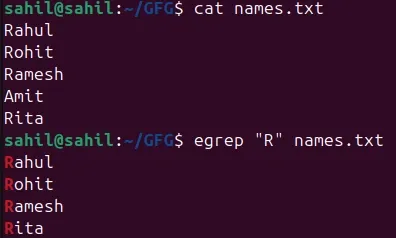
11. fgrep
The fgrep command searches fixed strings in files.
- Does not use regular expressions
- Faster for simple searches
Syntax:
fgrep "string" file_nameExample:
fgrep "Rohit" names.txt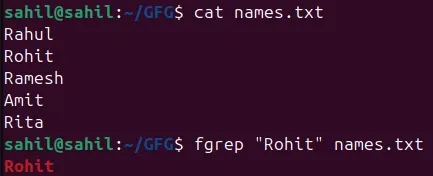
12. fmt
The fmt command formats and wraps text files.
- Adjusts line width
- Improves text readability
Syntax:
fmt file_nameExample:
fmt para.txt
13. grep
The grep command searches for patterns in text files.
- Finds matching lines
- Widely used for filtering output
Syntax:
grep "pattern" file_nameExample:
grep "Rohit" names.txt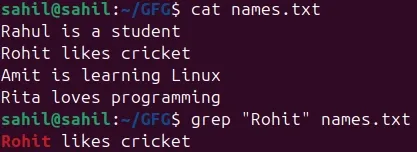
14. sdiff
The sdiff command compares two files side by side.
- Shows differences clearly
- Useful for file comparison
Syntax:
sdiff file1 file2Example:
sdiff file1.txt file2.txt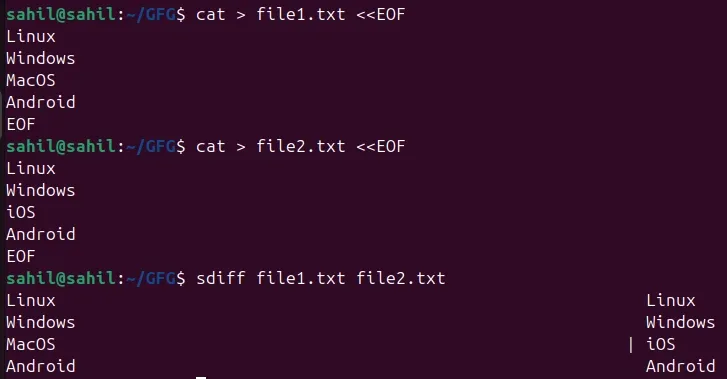
15. sed
The sed command is a stream editor for text manipulation.
- Performs search and replace
- Edits text without opening files
Syntax:
sed 'command' file_nameExample:
sed 's/Linux/Ubuntu/g' sedfile.txt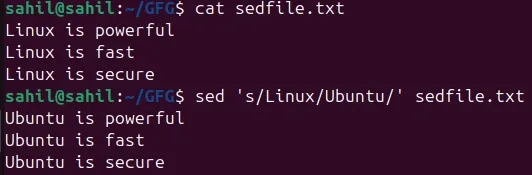
16. tr
The tr command translates or deletes characters.
- Converts character sets
- Useful for text transformation
Syntax:
tr set1 set2Example:
echo "linux command" | tr 'a-z' 'A-Z'
17. unix2dos
The unix2dos command converts Unix text files to DOS format.
- Changes line endings
- Improves cross-platform compatibility
Syntax:
unix2dos file_nameExample:
unix2dos sample.txt
