
The unzip command in Linux is used to extract files and directories from ZIP archive files. It allows users to view, test, and decompress ZIP files directly from the terminal.
- Used to extract the contents of .zip files.
- Supports listing and testing ZIP archives without extracting them.
- Provides options to control extraction location and overwrite behavior.
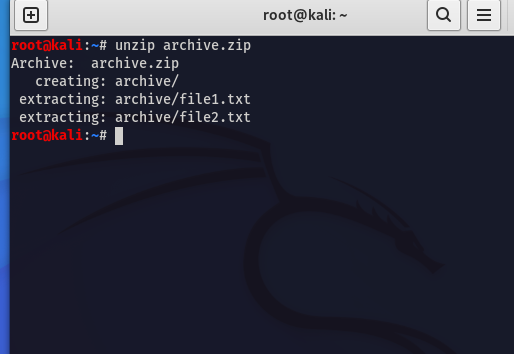
Suppose you have a file named 'archive.zip' that you want to extract which contains two files inside i as "file1.txt and file2.txt". We need to unzip it in the current directory.
Command:
unzip archive.zipOutput:
Syntax:
unzip [options] filename.zip- unzip: The command used to extract files from a ZIP archive.
- [options]: Optional flags to control behavior, such as -l to list contents or -d to specify the extraction directory.
- filename.zip: The ZIP file to be extracted, replaced with the actual archive name.
Options in the unzip Command in Linux
Provides a password for extracting encrypted ZIP files.
Options | Description |
|---|---|
-l | Lists the contents of a ZIP file without extracting them. |
-d dir | Specifies the destination directory for extracted files. |
-q | Runs the extraction in quiet mode without displaying output. |
-o | Overwrites existing files without asking for confirmation |
-p | |
-e | Extracts files while preserving the original directory structure. |
-t | Tests the ZIP archive for errors or corruption before extraction. |
-u | Updates existing files and adds new ones from the ZIP archive without duplication. |
Installation of Unzip Command
Step 1: Install Using Package Manager
- Firstly update the software and then install the unzip software with respective package manager of the system.
- The following are the command to install in the debian or ubuntu:
sudo apt update
sudo apt install unzip- The following are the commands to install in the centos/rhel OS:
sudo yum install unzip- The following are the command used to install in the pacman for arch Linux:
sudo dnf install unzipStep 2: Verify Installation
- Verify the installation of unzip software with the following command:
unzip -vStep 3: Usage
- The following command is used for unzipping the archived files. The command looks as follows:
unzip archive.zipExamples of Unzip Command
1. Extract to a Specific Directory
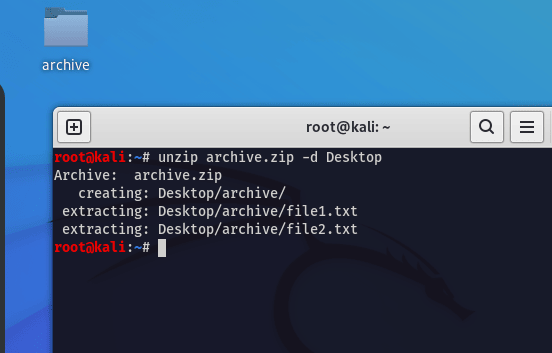
To extract files to a specific directory, utilize the '-d' option followed by the desired destination path:
Syntax:
unzip filename.zip -d /path/to/destinationExample:
Suppose you possess a file named 'archive.zip,' and you intend to extract its contents into the directory '/path/to/destination.'
2. List Contents
To view the contents of a ZIP file without extracting, apply the '-l' option:
Syntax:
unzip -l filename.zipExample:
Suppose Imagine you want to inspect the contents of 'archive.zip' without executing the extraction process.
unzip -l archive.zip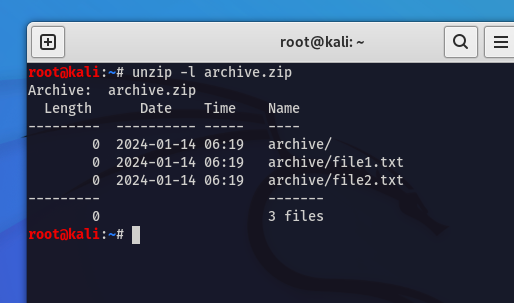
3. Quiet Mode
Execute file extraction quietly by using the '-q' option:
Syntax:
unzip -q filename.zipExample:
If you want to extract files from 'archive.zip' without displaying any messages.
unzip -q archive.zip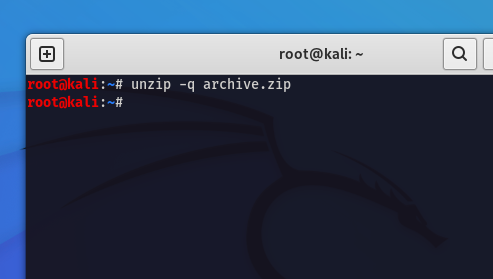
- Here, The zip file is in the home section, That's why it is also extracted in the home section.
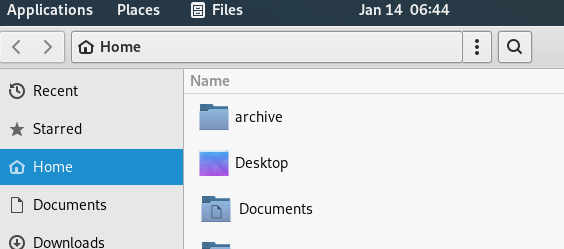
- Here, the zip file is located in the home section, and extraction occurs in the same location. The command ensures a quiet extraction process, suppressing informational messages.
4. Overwrite Files
Overwrite current files without the affirmation of the usage of the '-o' option:
Syntax:
unzip -o filename.zipExample:
Extract files from 'archive.zip' and overwrite existing files without prompting for confirmation.
unzip -o archive.zip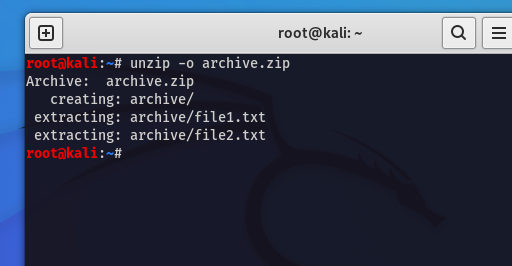
5. Password-Protected ZIP
If the ZIP file is password-protected, utilize the '-P' option to specify the password:
Syntax:
unzip -P password filename.zipExample:
Suppose 'archive.zip' is protected with the password 'secure123.'
unzip -P secure123 archive.zip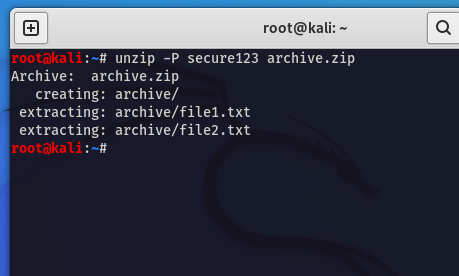
6. Encryption and Security
To extract encrypted files and maintain security, appoint the '-e' alternative:
Syntax:
unzip -e filename.zipExample
If 'archive.zip' incorporates encrypted files, use the '-e' alternative for stable extraction.
unzip -e archive.zip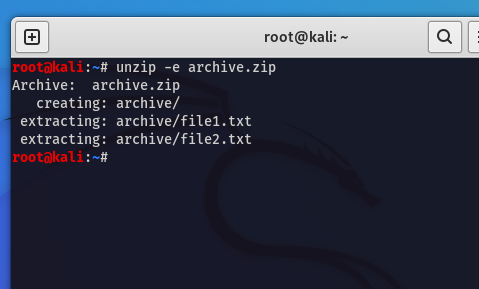
This ensures the secure extraction of encrypted files from 'archive.zip,' maintaining the confidentiality and safety of the contents.
7. Update Existing Files
Update existing files during extraction using the '-u' option,
Syntax
unzip -u filename.zipExample
If you want to update existing files from 'archive.zip' without overwriting newer variations, appoint the '-u' option.
unzip -u archive.zip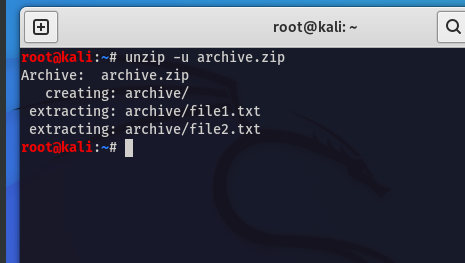
8. View Compression Information
Retrieve compression-associated details during extraction using the '-Z' option:
Syntax:
unzip -Z filename.zipExample:
If you wish to look/inspect compression-related information while extracting files from 'archive.zip.'
unzip -Z archive.zip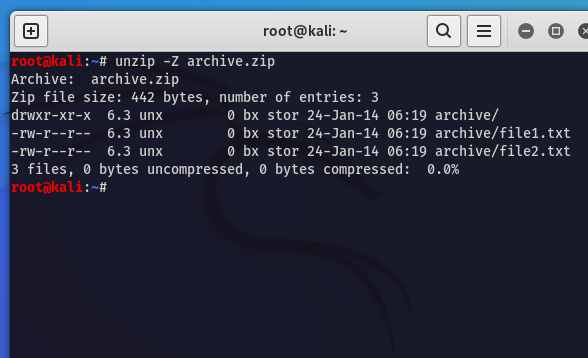
Features of Unzip Command
- Extracting Files: The
unzip command facilitates withallowing us to extract the files and directories from zip archives. It helps in preserving their original structure and permissions. - Support for Various Formats: It supports various zip formats, including ZIP, ZIP64, encrypted zip files (with password support), and archives spanning multiple disks.
- Listing Contents: You can list the contents of a zip file using
unzip -l, which provides detailed information about files within the archive. - Recursive Extraction: The
unzipcan recursively extract nested zip files within an archive, extracting all contained files and directories.
