
DNF (Dandified YUM) is the default package manager used in Fedora to install, update, remove and manage software packages. RPM installs local packages and does not resolve dependencies automatically and dependency handling is done by DNF.
- DNF provides a command-line interface to manage RPM packages efficiently in Fedora-based Linux distributions.
- It improves performance and dependency handling compared to older tools like YUM.
- DNF supports features such as package groups, repositories, and transaction history.
- It helps keep the system secure and up to date by managing software updates and patches.
Example: Searching for Packages
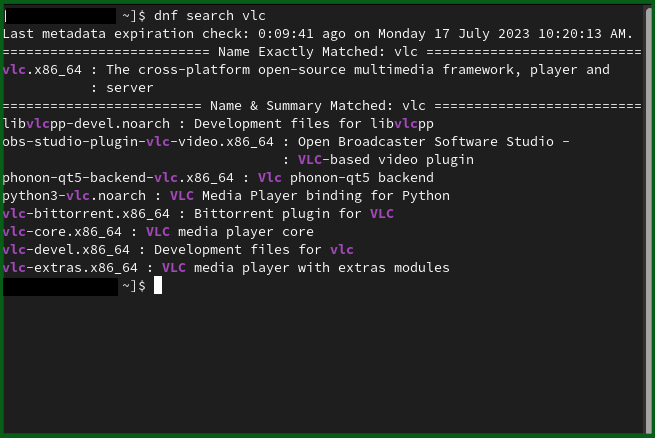
To search for a package, you need to Use the dnf search command with the package that you want and it will show you all available packages matching that query:
Command:
dnf search vlcOutput:
DNF vs RPM
RPM is the low-level package management system used in Fedora, while DNF works on top of RPM.
- RPM installs local packages but does not resolve dependencies automatically
- DNF automatically finds, installs, and manages dependencies
- Fedora documentation recommends DNF over direct RPM usage
- RPM acts as the backend engine, while DNF is the user-facing tool
Key Features
1. High-Level Package Management
- Installs, removes, updates, and reinstalls packages easily
- Handles dependency resolution automatically
2. Repository Management
- Uses online repositories to fetch packages
- Supports official and third-party repositories
3. Transaction History
- Maintains a history of package operations
- Allows tracking and rollback of changes
4. Security and Updates
- Applies security patches and system updates
- Keeps the system stable and up to date
Syntax
dnf [options] COMMAND- options: Modify the behavior of the command
- COMMAND: Specifies the action DNF should perform
Common DNF Commands
1. Installing Packages
To install software packages from repositories, the install command is used. This command requires sudo privileges.
sudo dnf install package_nameCommand:
sudo dnf install vlc.x86_64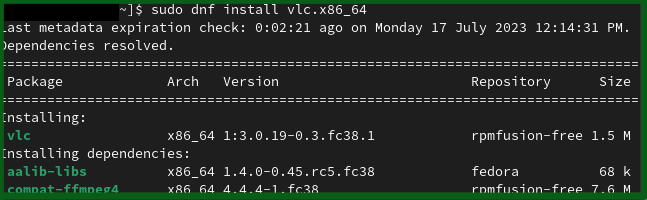
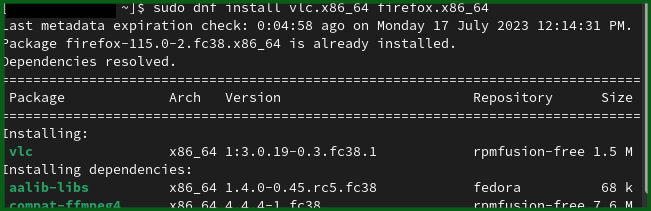
Command: To install multiple packages
sudo dnf install vlc.x86_64 firefox.x86_64Output:
2. Upgrading Packages and System
To update all installed packages along with the system, the upgrade command is used.
Command:
sudo dnf upgradeOutput:

3. Upgrading a Specific Package
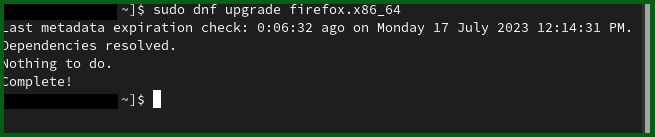
To update a single package:
Command:
sudo dnf upgrade firefox.x86_64Output:
4. Listing Available Updates
To check available updates without installing them:
Command:
dnf check-updateOutput:

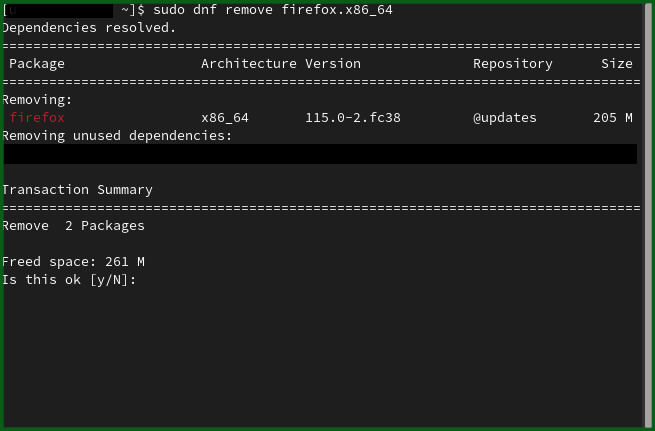
5. Removing a Package
To uninstall a package from the system, the remove command is used.
sudo dnf remove firefox.x86_64Output:
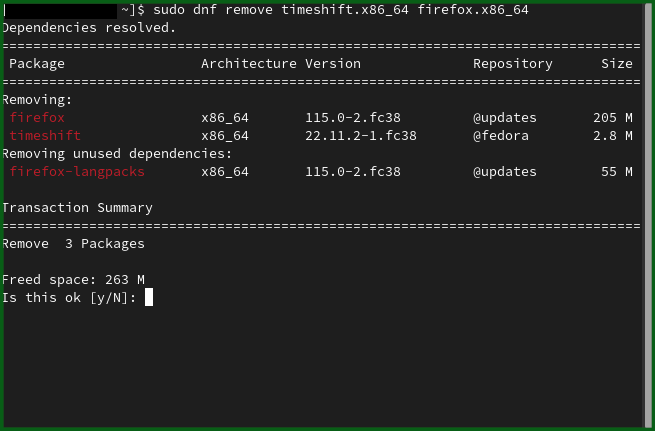
6. Removing Multiple Packages
To remove more than one package:
Syntax:
sudo dnf remove package1 package2 package3Output:
7. Removing Unused Dependencies
To clean up unused dependencies left after package removal:
Command:
sudo dnf autoremoveOutput:

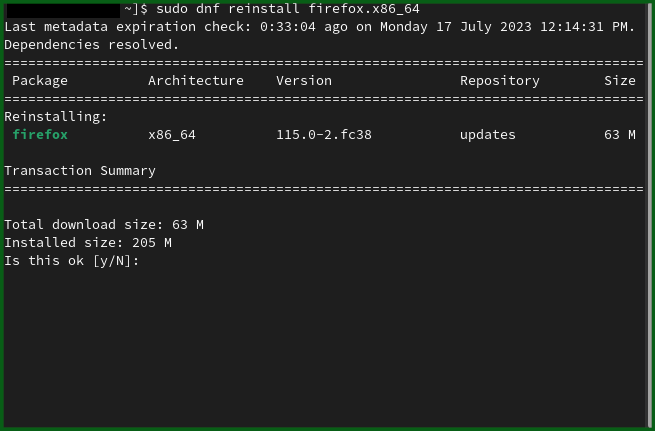
8. Reinstalling a Package
If a package is corrupted or not functioning properly, it can be reinstalled.
Command:
sudo dnf reinstall firefox.x86_64Output:
9. Listing All Available Packages
To list all packages available in enabled repositories:
Command:
dnf list10. Listing Installed Packages
To display only installed packages:
Command:
dnf list --installedOutput:
11. Searching Within Installed Packages
To find a specific installed package using grep:
Command:
dnf list --installed | grep firefoxOutput:

12. Getting Help with DNF
To display all basic commands and options
Command:
dnf --help13. Viewing the Manual Pages
For detailed documentation of DNF:
Command:
man dnf