
Losing your Chrome bookmarks can happen due to accidental deletion, profile corruption, or sync issues but Chrome offers multiple ways to recover them quickly. With built in backup files, sync tools, and new features like Bookmark Trash (2024+), restoring your saved pages is easier than ever. This guide covers the most reliable 2025 methods to get your bookmarks back.
Key points:
- Chrome automatically creates a local backup of bookmarks.
- Deleted bookmarks now go to Bookmark Trash for 30 days.
- Google Sync can restore bookmarks across devices.
- Manual import options let you recover bookmarks from HTML backup files.
How to Restore Bookmarks in Google Chrome
Use the following updated and reliable methods to recover deleted or missing Chrome bookmarks. Start with the simplest options before moving to advanced recovery.
Method 1: Use the Undo Option
If you accidentally deleted a bookmark, Chrome shows an Undo popup for a few seconds.
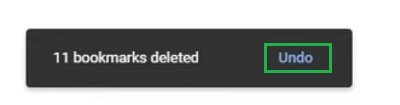
How to use:
- Click the Undo button in the deletion popup, OR
- Press Ctrl + Z immediately inside Bookmark Manager (Ctrl + Shift + O).
Best for: Accidental recent deletion.
Method 2: Restore from Chrome’s Local Backup File
Chrome automatically creates a backup file named Bookmarks.bak.
Step 1: Press Win + R, type %localappdata%, and hit Enter.
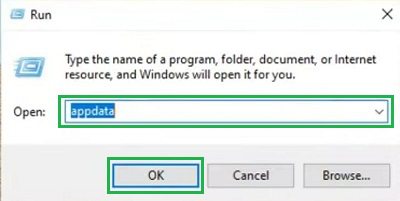
Step 2: Go to: Google → Chrome → User Data → Default
Step 3: Find both files:
- Bookmarks
- Bookmarks.bak
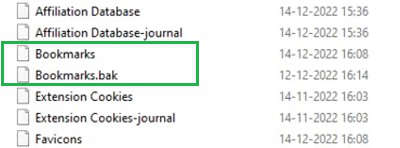
Step 4:
- First Delete the Only Bookmarks file. And then Rename the Bookmarks.bak as Bookmarks.
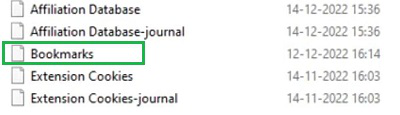
Hence, we have successfully restored the bookmarks in Chrome using Chrome Backup.
Best for: Restoring bookmarks after corruption or unexpected deletion.
Method 3: By Importing Bookmarks
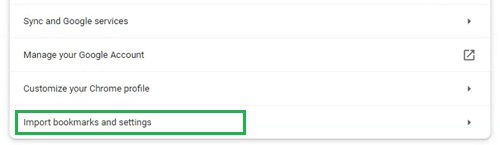
Step 1: Open the Google Chrome Settings & click on Import Bookmarks & Settings.
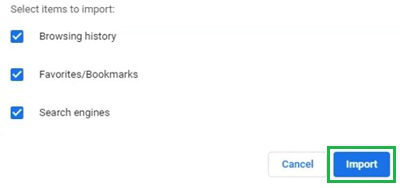
Step 2: Do not make any changes there & click the Restore button. It will restore the data to Chrome after restarting the device.
Method 4: Restore Using Chrome Sync
Step 1: Open Chrome Settings.
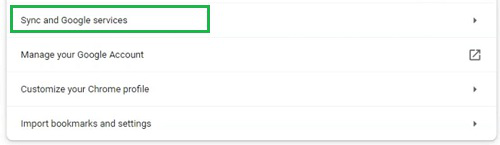
- Go to You and Google → Sync and Google services.
Step 2: Click Manage what you sync.
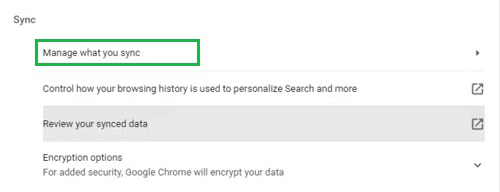
Step 3: Ensure Bookmarks is turned ON.
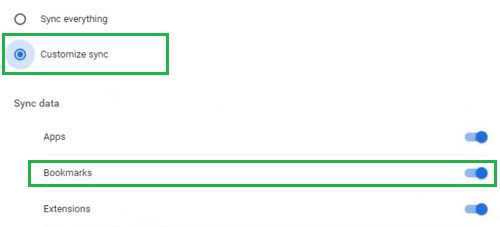
Hence, we have successfully restored the bookmarks in Chrome by Syncing Google Chrome.
Method 5: Recover Bookmarks from Chrome History
You cannot auto-restore bookmarks through History, but you can manually re-bookmark visited pages.
Steps:
- Press Ctrl + H to open Chrome History.
- Search for the missing webpage.
- Click the ★ (star icon) to bookmark it again.
Best for: When no backup exists but the site was previously visited.
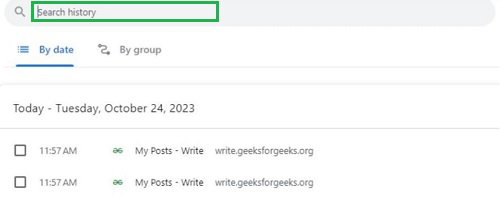
Hence, we have successfully restored the bookmarks in Chrome using Chrome History.
Also Read:
