
How to Delete a Table in Google Docs - Quick Steps
- Open Google Docs
- Select the Table > Perform Right-click
- Select Delete Table >> Table Deleted
Tables in Google Docs are incredibly useful for organizing data, creating structured layouts, and displaying information clearly. However, as your document evolves, you may need to delete no longer required tables or reformat your document to improve readability. Knowing how to delete a table in Google Docs is a fundamental skill that comes under Google Docs table formatting and helps maintain a clean and professional document.
In this article, we will walk you through how to delete tables in Google Docs across various devices, including PC, Mac, Android, and iPhone, to ensure you can keep your documents neat and organized.

Table of Content
- How to Delete a Table in Google Docs on PCs
- How to Delete Table in Google Docs using Format Menu
- How to Delete All Table Cells in Google Docs
- How to Delete a Table in Google Docs on an Android
- How to Delete a Table in Google Docs on iPhone
- How to Remove a Table and Keep Text in Google Docs
- How to Delete a Part of a Table in Google Docs
What is a Table in Google Docs
A table in Google Docs is a structured grid that consists of rows and columns, used to organize and display data in a clear and concise format. It allows users to arrange text, numbers, images, or any other content into a structured layout, making information easier to read and understand. Tables in Google Docs are commonly used for creating schedules, data comparisons, forms, and various types of reports.
Why Use a Table in Google Docs
Using a table in Google Docs is beneficial for organizing content in a visually appealing way. Tables make it easier to present complex data, compare information side by side, or structure content systematically for better readability. They are ideal for creating lists, project plans, and meeting agendas, and help improve the overall layout of documents. By incorporating a table, you can enhance the presentation and accessibility of your Google Docs content, making it more engaging for readers.
How to Delete a Table in Google Docs on dekstop
If you're working on a PC, deleting a table in Google Docs is simple:
Step 1: Open Google Document
Open the Google Document that contains a table within it.
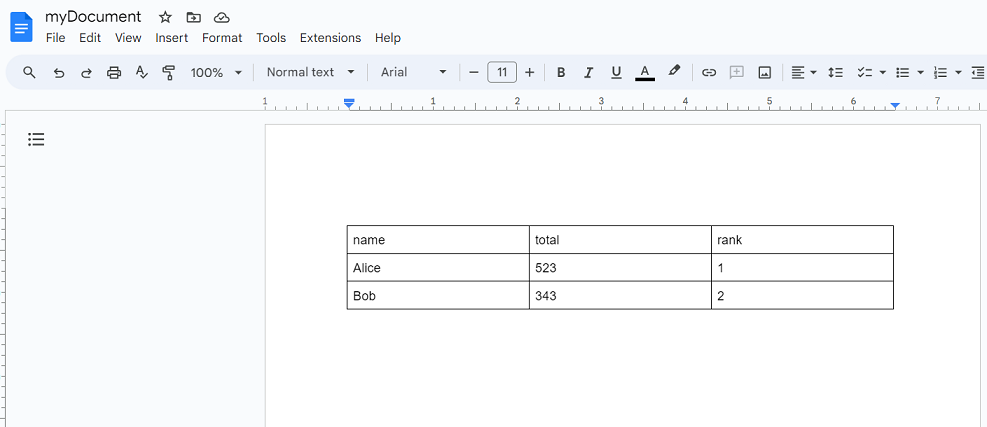
Step 2: Select a Cell and Right Click to Open Options
Position the cursor within any cell of the table, then right-click. This action will bring up a dropdown menu.
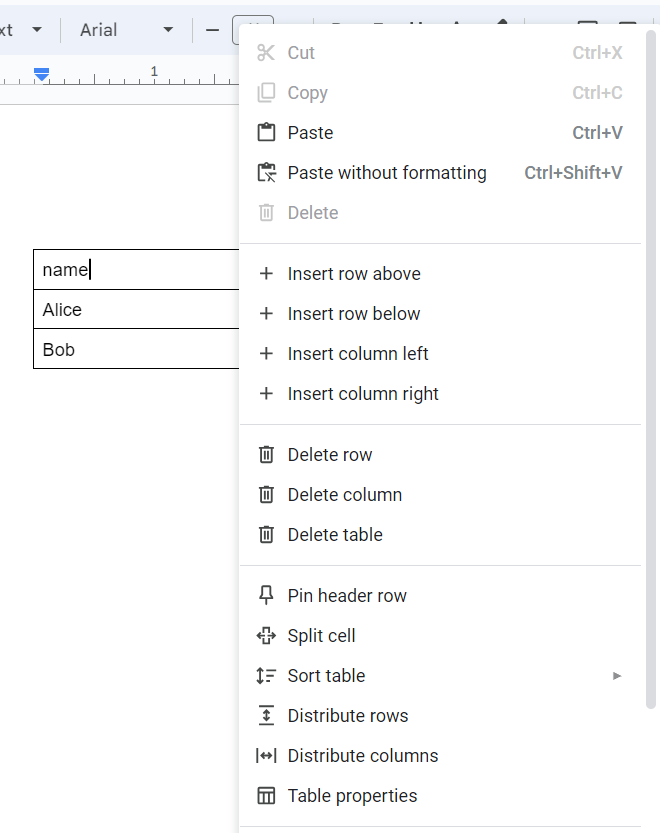
Step 3: Select Delete Table
From the dropdown menu, choose "Delete table." This selection will result in the removal of the table from the document.
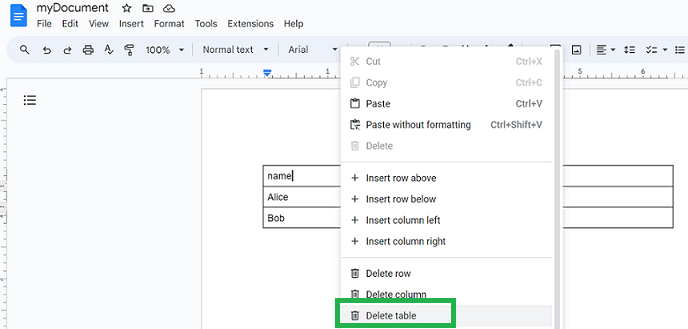
You have successfully Deleted a Table in Google Docs on PCs.
How to Delete Table in Google Docs using Format Menu
You can also delete tables using the Format function in Google Docs:
Step 1: Open the Document
Open the Google Document that contains a table within it.
Step 2: Select a Cell and Click Format
Place the cursor on any cell in the table. In the menu bar, select the Format tab.
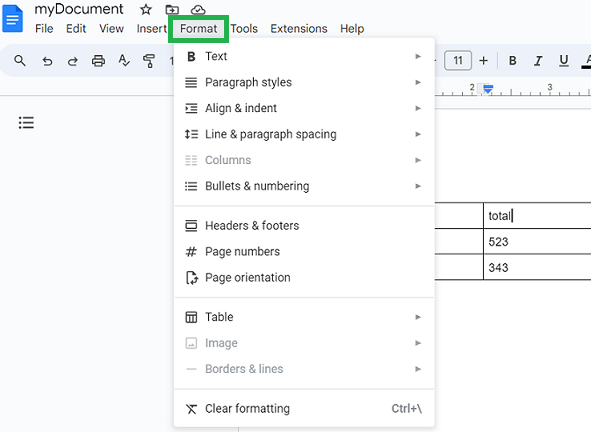
Step 3: Click on Table and Choose Delete Table
Go to "Table" and a sub dropdown appears. Select "Delete table" in it. Now the table gets deleted from the document.
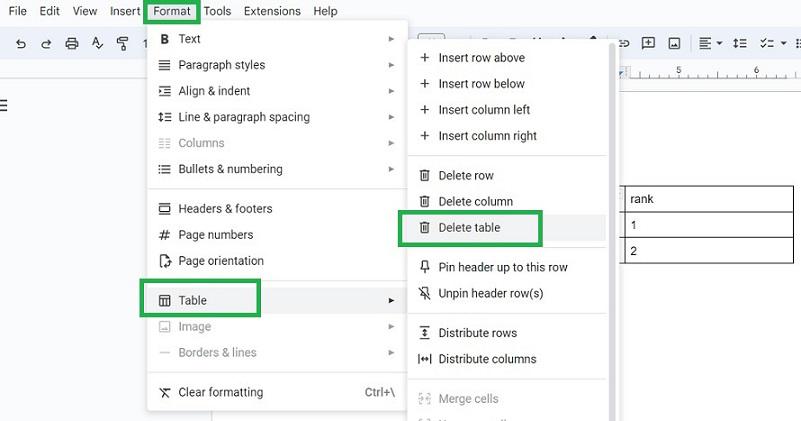
You have successfully Deleted Table in Google Docs using Format Function.
How to Delete All Table Cells in Google Docs
Follow the below steps to delete all table cells in Google Docs:
Step 1: Open the Document
Open the document from where the table is to be deleted in Google Docs.
Step 2: Select all Cells
Place the cursor on any of the corners of the table and drag and select all the cells in all rows of the table.
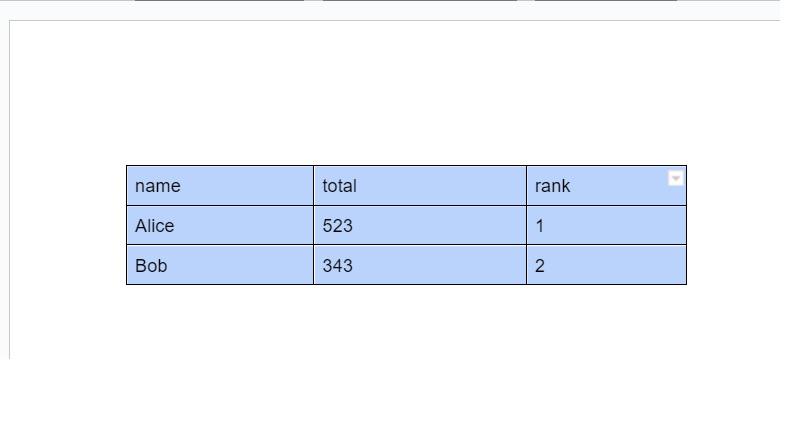
Step 3: Go to Edit and Select Delete
In the menu bar, select "Edit". A dropdown appears, click "Delete" from it. The table gets deleted from the document.
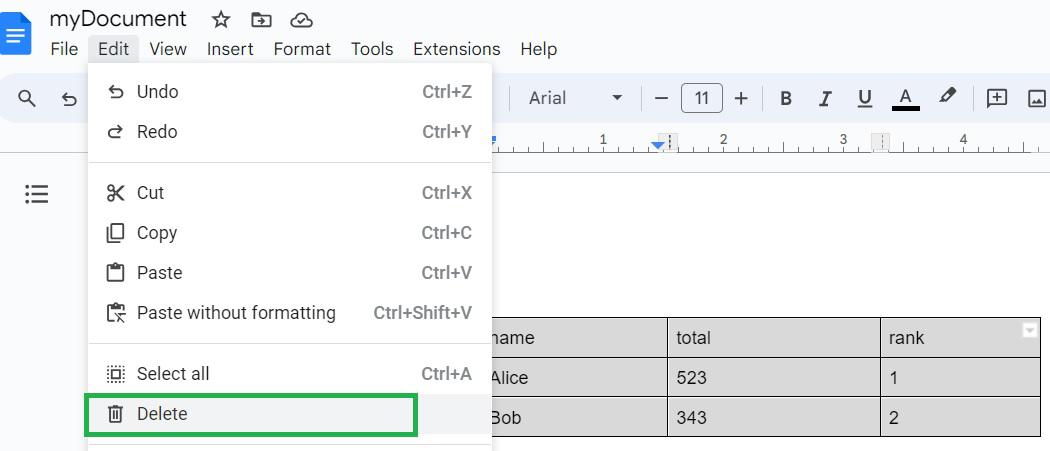
You have successfully Deleted All Table Cells in Google Docs.
How to Delete a Table in Google Docs on an Android
Here’s how you can delete a table from the Google Docs app on Android:
Step 1: Launch Google Doc App in Mobile
Google Docs app on an Android device.
Step 2: Open the Document
Open the document from which the table is to be deleted.
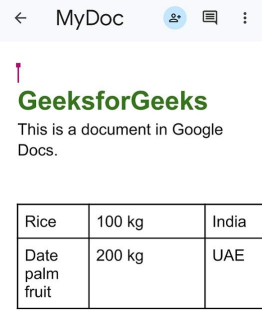
Step 3: Select a Cell
Upon selecting a cell within the table in the document, a list of options will become visible.
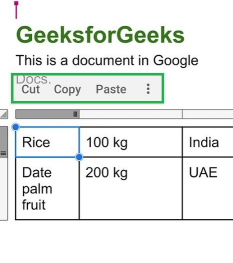
Step 4: Select the Three Dots
Select the three dots from the list of options.
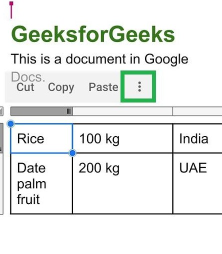
Step 5: Select "Delete Table"
A dropdown appears. Select "Delete table" from it.
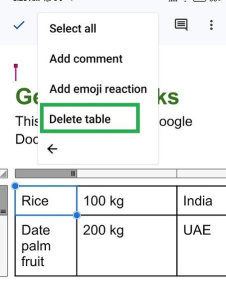
You have successfully deleted a table in Google Docs on your Android.
How to Delete a Table in Google Docs on iPhone
If you're using an iPhone or iPad, follow these steps to delete a table:
Step 1: Launch Google Docs App
Open the Google Docs app on an Apple device.
Step 2: Open the Document
Open the document from which the table is to be deleted.
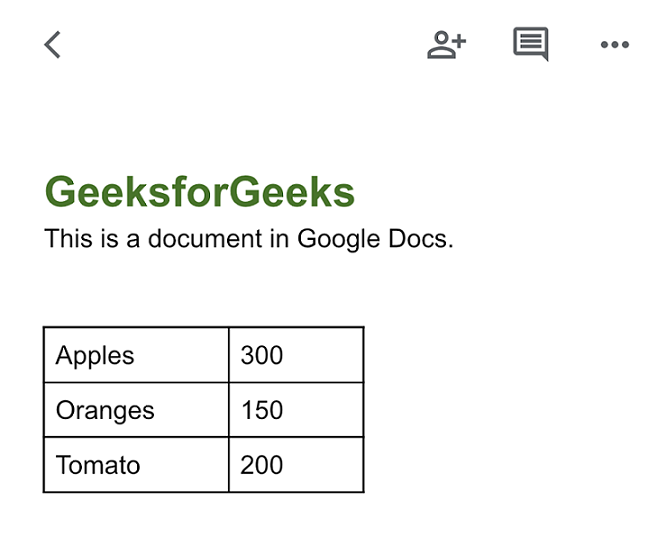
Step 3: Select a Cell
Once you've chosen a cell within the table in the document, a list of options will be displayed.
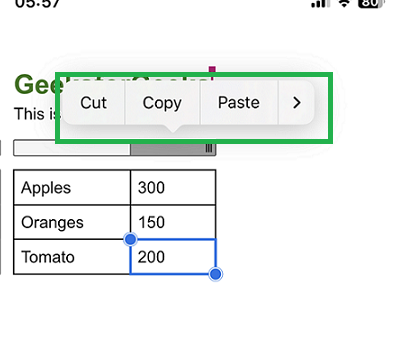
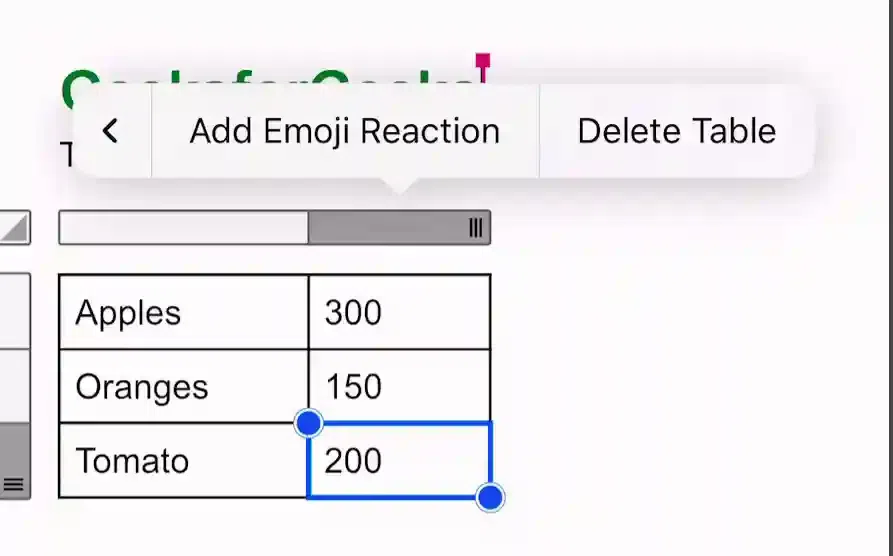
Step 4: Select Delete Table Option
Use the rightward pointing arrow within the options until you locate the "Delete table" option. Once found, select "Delete table" to remove the table from the document.
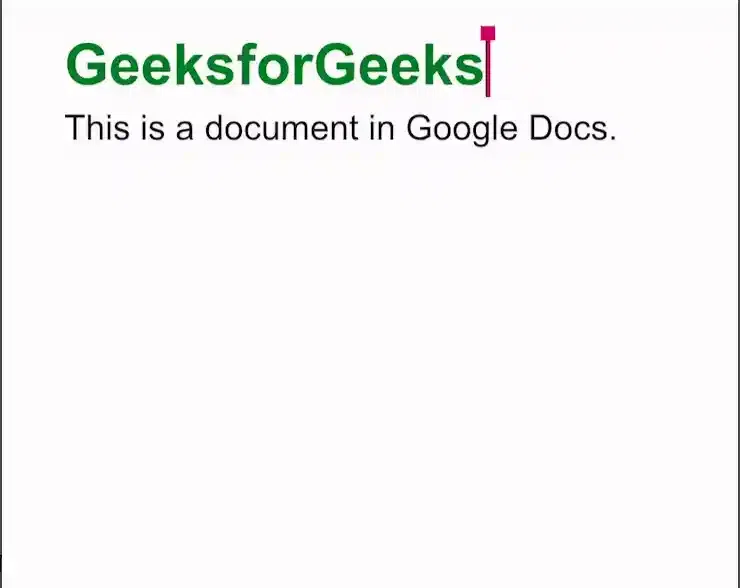
Step 6: Preview Google Document
Excellent! You have successfully deleted the table from Google Docs on your iOS device.
How to Delete a Table and Keep Text in Google Docs
If you want to know how to delete a table in Google Docs but keep the text, there's a trick you can use. Instead of completely removing the table, you can make it invisible by getting off its borders. Follow the below steps to do so:
Step 1: Select the cells
Select the cells in your table.
Step 2: Click on Format
Go to the "Format" menu at the top.
Step 3: Click on Format and Choose "Table Properties"
Go to the top menu, click on "Format," and then select "Table." From the dropdown menu, choose "Table Properties."
.png)
Step 4: Select "0 pt" from the List
Look for the "Table Border" option in the Color option and select "0 pt" from the list.
.png)
Step 5: Preview Final Result
Now you can see that your data will be there but its borders will be gone.
.png)
You have successfully Removed a Table and Keep Text in Google Docs.
How to Delete a Part of a Table in Google Docs
Follow the below steps to delete a part of a table in Google Docs:
Step 1: Select the Row or Column
First, select the row and column you want to delete.
Step 2: Go to Format and Select Table
To delete a column, choose "Delete Column", and to delete a row, select "Delete Row".
Note: Remember that you can only delete entire rows or columns at once. You can not delete individual cells, so you'll have to leave them empty or delete the entire row or column they belong to.
.png)
You have successfully Deleted a Part of a Table in Google Docs.
How to Delete a table row in Google Docs
If you need to delete a table row in Google Docs then you can follow the steps.
Step 1: Open Google Docs
Open the document that contains the table you want to edit.
Step 2: Select the Row
Click anywhere inside the row you wish to delete.

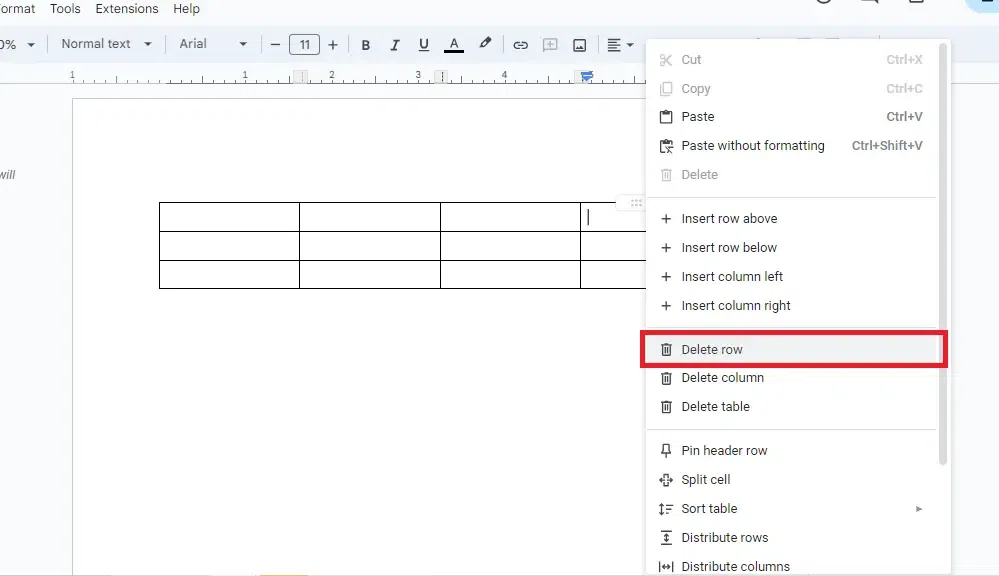
Step 3: Right-Click on the Row and Choose "Delete Row"
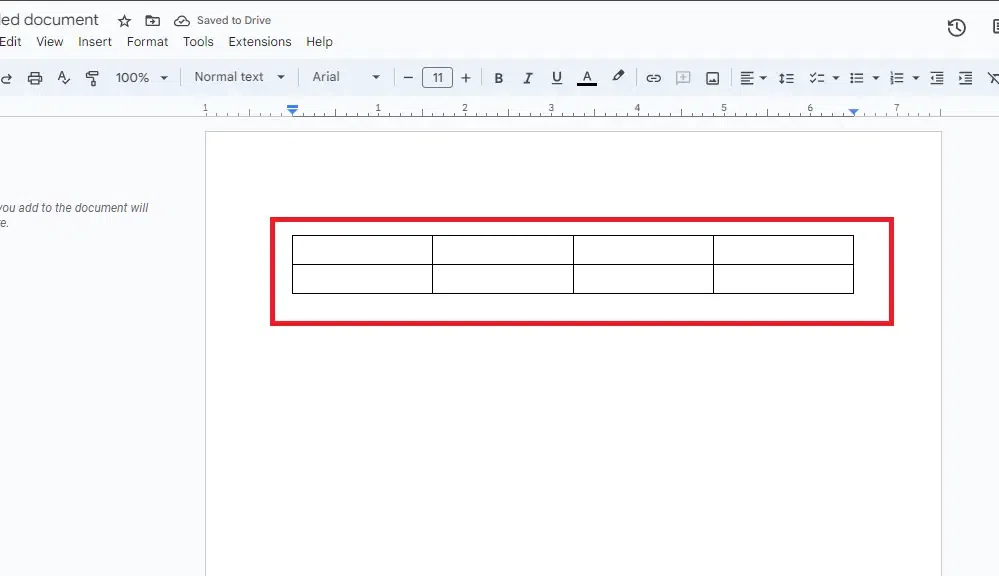
Right-click to bring up the context menu. Click "Delete row" from the menu to remove the selected row.
Step 5: Row Deleted
The table row is deleted.
How to Delete Table Column in Google Docs
Follow the steps to delete a column of a table in Google Docs.
Step 1: Open Google Doc and Select the Column
Open the document that contains the table you want to modify. Click anywhere inside the column you want to delete.
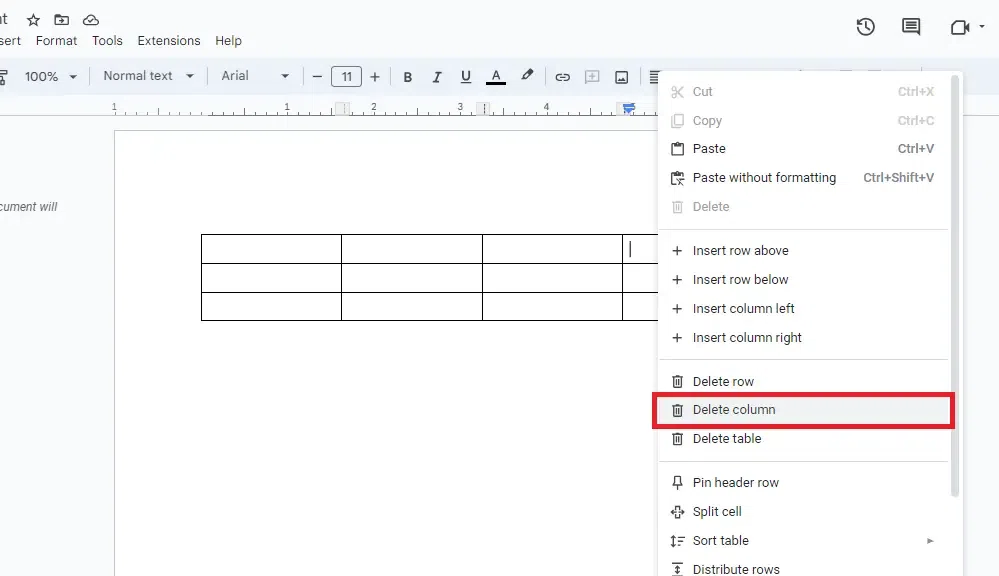
Step 3: Right-Click on the Column and Choose "Delete Column"
Right-click to open the context menu. Select "Delete column" from the menu to remove the selected column.
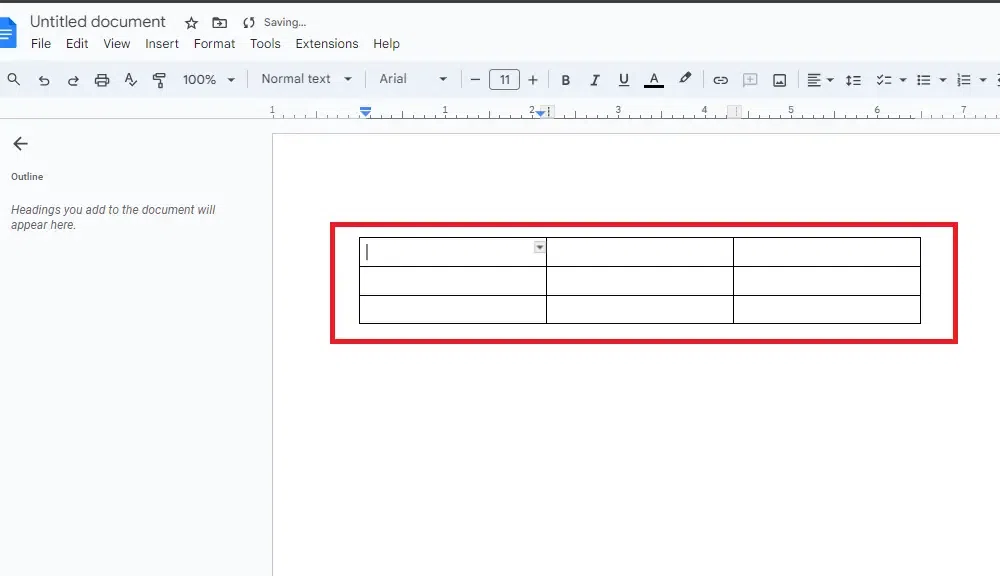
Step 5: Column Deleted
The table column is deleted.
Also Read:
Conclusion
Deleting a table in Google Docs is a simple yet essential skill that helps you maintain a well-organized and professional-looking document. Whether you're using PC, Mac, Android, or iPhone, the steps outlined above will help you efficiently manage and remove tables. Additionally, knowing how to delete specific rows or columns, or remove table borders while keeping the text and remove table lines in google docs gives you greater control over document formatting. Try these methods today to keep your documents clean and clutter-free.
