
Managing tables in Google Docs often involves organizing or cleaning up data, which can require deleting unnecessary rows. Whether you're updating a single row or need to remove multiple rows at once, Google Docs provides simple tools for efficient table editing. This guide will explain how to delete rows in Google Docs, including tips for handling multiple rows simultaneously to help you clean up Google Docs table data with ease.

How to Delete Rows in Google Docs(Easiest Way)
If you need to remove rows from a Google Docs table, here’s the simplest way to do it. Deleting rows is a quick way to clean up Google Docs table data and keep your document organized. Follow these steps to learn how to modify tables in Google Docs:
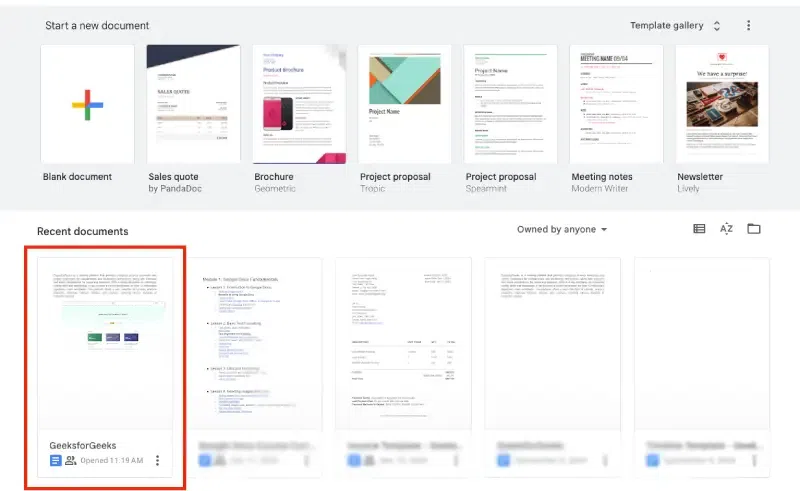
Step 1: Open Your Google Docs Document
Open the Google Docs document that contains the table with the row you wish to delete.
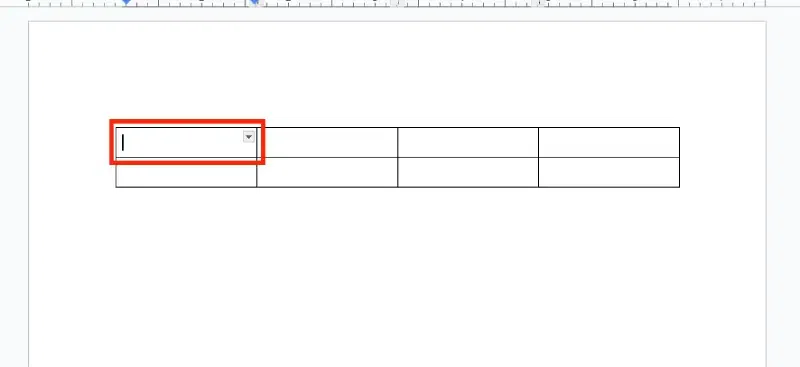
Step 2: Select the Row to Delete
Click inside any cell in the row you want to remove. This action will select the entire row.
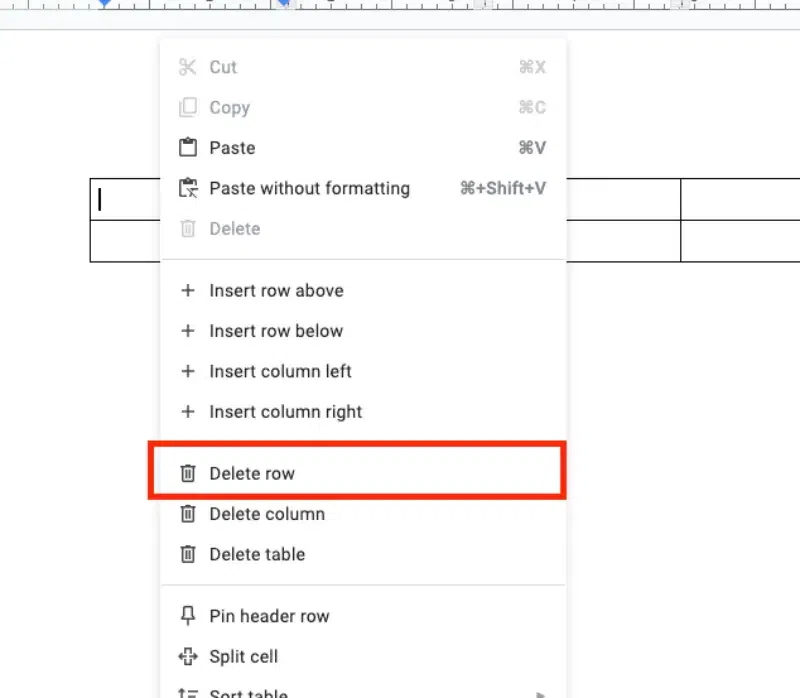
Step 3: Right-Click on the Row and Click “Delete Row”
Once the row is selected, right-click anywhere within the row. A context menu will appear with several options. From the context menu, click on Delete row. The row will be deleted instantly from the table.
Step 4: Verify the Update
After deleting the row, check your table to confirm that the row has been removed.

How to Delete Multiple Rows in Google Docs at Once
If you want to remove rows from a Google Docs table and clean up Google Docs table data, follow these steps to modify your table efficiently:
Step 1: Open Google Docs and Choose Your Document
Open your Google Docs document containing the table from which you want to delete multiple rows.
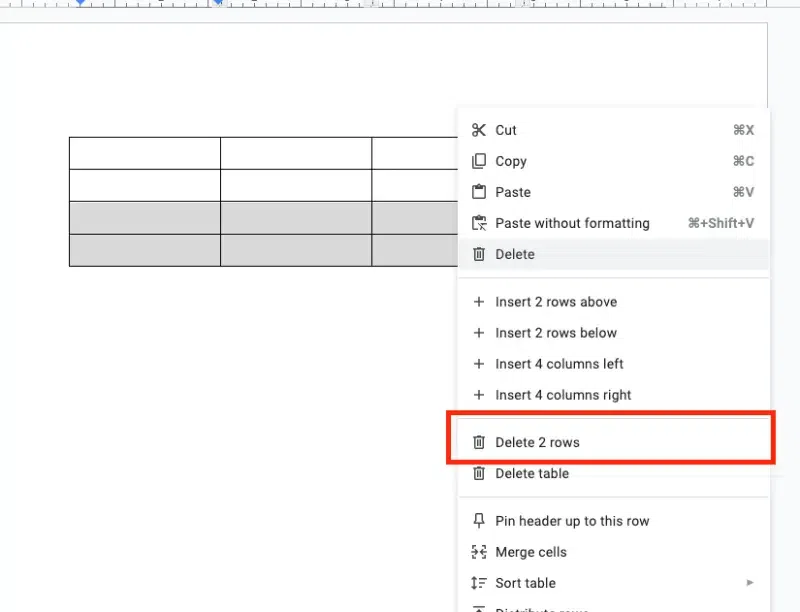
Step 2: Select Multiple Rows
Click and drag your mouse to select multiple rows, or hold down Ctrl (Windows) or Cmd (Mac) while clicking on the rows you want to select.

Step 3: Delete the Selected Rows
Once you have selected the rows, right-click and choose Delete rows from the context menu, or go to the Table menu and select Delete row.
Step 4: Verify the Deletion
After selecting the delete option, check your table to make sure that all the selected rows have been removed.
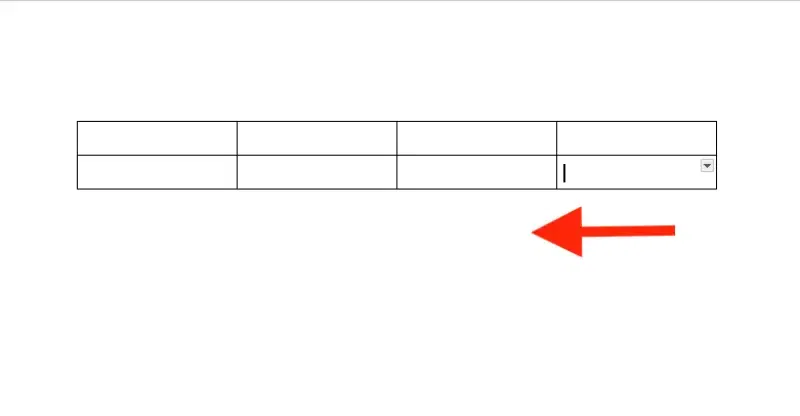
This method simplifies Google Docs table editing and is a quick way to learn how to modify tables in Google Docs.
Conclusion
Knowing how to remove rows from a Google Docs table is essential for keeping your documents tidy and organized. With the methods outlined, you can efficiently update your tables, whether it's a single row or multiple at once. By mastering these basic Google Docs table editing techniques, you'll save time and maintain better control over your document's structure.
Also Read:
