
Managing large datasets in Google Sheets can sometimes feel overwhelming, especially when you need to focus on specific sections of data. Grouping columns in Google Sheets is a simple yet effective solution to keep your spreadsheets organized and easier to navigate. Whether you're working on complex financial reports or collaborative projects.
1. Why to Group Columns in Google Sheets
Grouping columns helps you manage and organize large spreadsheets effectively.
- Hides irrelevant data to reduce clutter.
- Makes comparisons between specific columns easier.
- Improves spreadsheet readability and navigation.
- Saves time by allowing quick collapse and expansion of sections.
2. How to Group Columns in Google Sheets
To group columns in Google Sheets follow the steps given below:
Step 1: Select the Columns
- Highlight the columns you want to group by clicking and dragging over their column letters at the top.
- To group non-adjacent columns, hold Ctrl (Windows) or Cmd (Mac) and click the column letters individually.

Step 2: Open the Menu
- Right-click anywhere on the highlighted columns to open the context menu.
- Alternatively, go to the Data tab in the top menu and choose Group to access the grouping feature
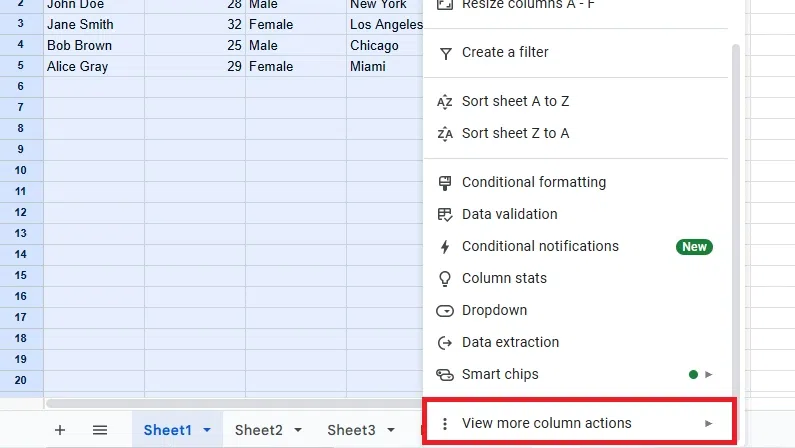
Step 3: Choose "Group Columns"
From the menu, select "Group columns." An outline bracket will appear above the selected columns.
Use the shortcut for faster grouping:
- Windows: Press Alt + Shift + →.
- Mac: Press Option + Shift + →.

Step 4: Collapse or Expand the Group
- Click the minus (-) sign above the group to collapse it, or the plus (+) sign to expand it as needed.
- When sharing the spreadsheet, collaborators can also collapse or expand the grouped columns.

These detailed steps ensure accurate grouping of columns while providing flexibility for collaboration and efficiency.
3. Advanced Tips and Use Cases
Here are some advanced ways to make the most of column grouping in Google Sheets:
1. Nested Grouping
What It Is: Create groups within groups to organize complex datasets.
How to Do It:
- First, group a set of adjacent columns or rows.
- Then, select a subset within the group and apply grouping again.
- Use nested grouping for hierarchical datasets like sales by region and sub-region.
2. Combining Grouping with Other Features
Filters:
- Apply filters to your dataset before grouping, allowing you to focus on relevant data within the groups.
- Example: Filter sales data by region, then group columns for different product categories.
Pivot Tables:
- Combine grouping with pivot tables to summarize grouped data dynamically.
- Example: Group months into quarters and analyze sales trends in a pivot table.
3. Dynamic Grouping for Real-Time Data Updates
What It Is: Automatically adjust groups as data changes.
How to Do It:
- Use formulas or tools like ARRAYFORMULA to manage dynamic ranges.
- Example: If new data is added to a column, update the range and group it seamlessly without manual intervention.
These advanced techniques make grouping in Google Sheets more versatile, enhancing data organization, analysis, and real-time usability.
4. Troubleshooting Common Issues
Here are common issues with grouping columns in Google Sheets and their solutions:
| Error/Issue | Cause | Solution |
|---|---|---|
| Unable to group columns | The selection includes blank cells or overlaps. | Ensure the selected range is continuous and non-overlapping. |
| Grouped columns not collapsing | Shared spreadsheet with restricted permissions. | Request edit permissions or contact the file owner for access. |
| Shortcut not working | Keyboard shortcut conflicts with system commands. | Use the context menu or modify the system settings for shortcuts. |
By addressing these issues, you can effectively troubleshoot and resolve problems with grouping columns in Google Sheets.
Also Read:
