
The COUNTIF function in Google Sheets counts the number of cells within a given range that meet a specific condition. It’s useful for conditional counting, such as determining how many times a particular value or criterion appears, like counting sales exceeding a certain number or how often a word appears in a list.
How It Works
- Range: Select the cells to check.
- Criterion: Define the condition (e.g., a number, text, or logical expression).
- Count Matching Cells: The function counts how many cells in the selected range meet the condition.
- Return the Result: The function returns the total number of matching cells.
Google Sheets COUNTIF Function Syntax:
Here is the syntax of COUNTIF in Google Sheets:
COUNTIF(range, criterion)- Range: The range of cells to evaluate.
- Criterion: The condition used to determine which cells to count (can be a number, text, or expression).
1. How to Use the COUNTIF Function in Google Sheets
The COUNTIF function in Google Sheets counts cells based on specific criteria, such as numbers, text, or dates. It’s perfect for quickly counting cells that meet certain conditions, like counting cells with values above a threshold or containing certain words. Learn how to use the COUNTIF function for efficient data analysis in Google Sheets.
Step 1: Select the Cell for the Result
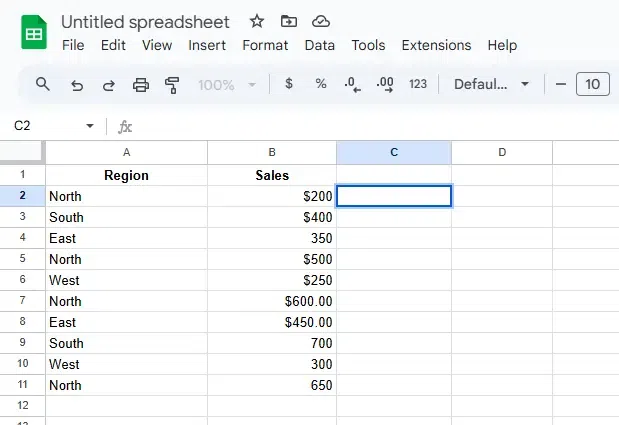
Choose the cell where you want the count result to appear, e.g., C2.
Step 2: Identify the Range
Determine the range of cells you want to evaluate (e.g., A2:A10 for regions).
Step 3: Define the Condition
Set the criteria for the cells to be counted, such as:
- A specific text value like "North".
- A numerical condition like ">300".
Step 4: Write the COUNTIF Formula
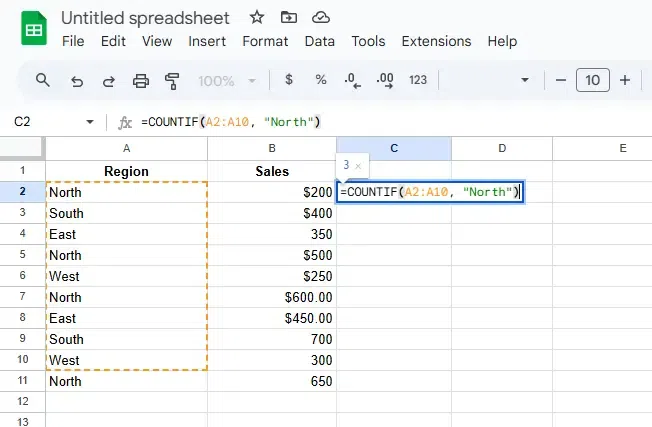
In the selected cell, type the formula:
=COUNTIF(A2:A10, "North")- A2:A10: The range to evaluate (e.g., Regions).
- "North": The condition to match.
Step 5: Press Enter
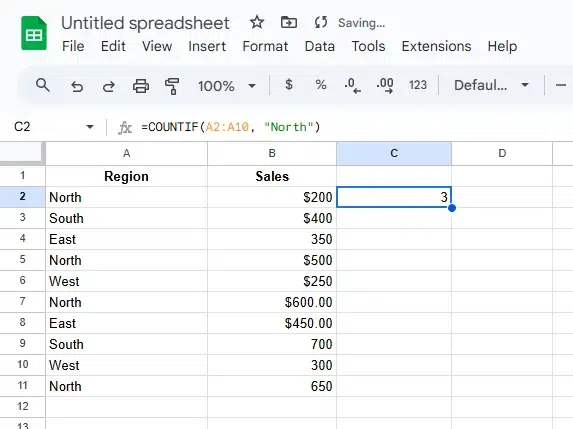
Press Enter to apply the formula. The cell will display the count of cells that match the specified condition.
Also Read:
