
There was a time when installing Linux meant spending hours configuring hardware, hunting for drivers, and learning terminal commands before you could get real work done.
Things have changed quite a bit.
Most modern Linux distributions now come with graphical installers, automatic hardware detection, software stores, and polished desktop environments that feel familiar to anyone coming from Windows or macOS.
Over the years, I’ve installed Linux on everything from old office desktops and home laptops to production servers and cloud instances. One thing I’ve noticed is that beginners rarely struggle with Linux itself, but the bigger challenge is deciding which distribution to install first.
Some distributions focus on simplicity, but others provide newer software, additional customization options, or support for older hardware, so choosing the right one can make your first Linux experience much smoother.
In this guide, we’ll look at the Linux distributions that I believe are the best choices for beginners in 2026.
How We Chose These Linux Distributions
Every distribution on this list meets a few important requirements:
- Easy installation process
- Beginner-friendly desktop environment
- Active development and updates
- Good hardware support
- Strong community support
- Suitable for daily desktop use
I also considered how easy it is to find help online. When you’re learning Linux, having access to tutorials, forums, and documentation can save a lot of time.
Quick Comparison of Linux Distros
Here’s a quick overview of the best Linux distributions for beginners, including their ideal use cases and default desktop environments.
| No. | Distribution | Best For | Desktop Environment |
|---|---|---|---|
| 1 | Linux Mint | Complete beginners | Cinnamon |
| 2 | Ubuntu | General desktop users | GNOME |
| 3 | Zorin OS | Windows users | GNOME |
| 4 | Fedora Workstation | New hardware | GNOME |
| 5 | Pop!_OS | Developers and laptop users | COSMIC |
| 6 | elementary OS | macOS users | Pantheon |
| 7 | MX Linux | Older computers | XFCE |
| 8 | Peppermint OS | Lightweight systems | XFCE |
| 9 | Manjaro | Arch Linux beginners | KDE, XFCE, GNOME |
| 10 | openSUSE Tumbleweed | Rolling-release enthusiasts | KDE Plasma, GNOME |
| 11 | Deepin Linux | Desktop design and appearance | Deepin Desktop Environment (DDE) |
1. Linux Mint (Best Overall for Beginners)
If someone asks me which Linux distribution they should install first, Linux Mint is usually my answer.
Linux Mint has spent years focusing on one goal: making Linux easy for everyday desktop users. The result is a distribution that feels familiar, stable, and easy to use right from the start.
Linux Mint 22.3, released in early 2026, continues the Mint 22 LTS series and remains one of the most polished desktop Linux distributions available today.
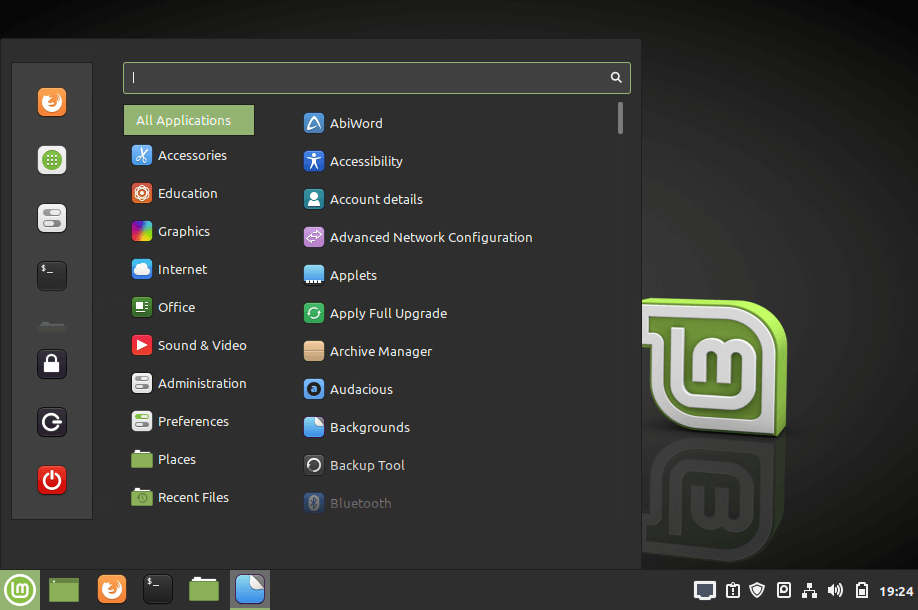
The Cinnamon desktop environment looks immediately familiar to anyone coming from Windows. You’ll find a traditional application menu, taskbar, system tray, and settings panel without having to learn an entirely new way of using your computer.
One thing I particularly like about Mint is that it stays out of your way. After installation, most users can connect to Wi-Fi, browse the web, watch videos, install applications, and start working without additional setup.
Because Linux Mint is based on Ubuntu LTS, it benefits from Ubuntu’s massive software repositories and long-term support while providing a desktop experience that many beginners find easier to understand.
The Update Manager is another feature worth mentioning, where system updates are presented clearly, and users can install them with a few clicks.
Linux Mint is also known for being reliable. Instead of introducing dramatic desktop changes every release, the developers focus on refinement and stability. That’s one reason why so many long-time Linux users continue recommending it to newcomers.
For users switching from Windows before its end of support, Linux Mint often feels like the most natural replacement.
Minimum Requirements:
- 2 GB RAM (4 GB recommended)
- 20 GB disk space
- 64-bit processor
- 1024×768 display
Tip: If you’re unsure which distribution to choose, start with Linux Mint. It’s one of the safest recommendations for first-time Linux users.
2. Ubuntu (Most Popular Linux Distribution)
Even after all these years, Ubuntu remains one of the most recognized names in the Linux world.
If you’ve searched for Linux tutorials, watched Linux videos on YouTube, or looked for Linux software online, chances are you’ve come across Ubuntu. Its popularity has helped build one of the largest Linux communities available today.
Ubuntu 26.04 LTS, released in April 2026, is the latest long-term support release and will receive updates for years, making it a solid choice for beginners who want stability without frequent upgrades.
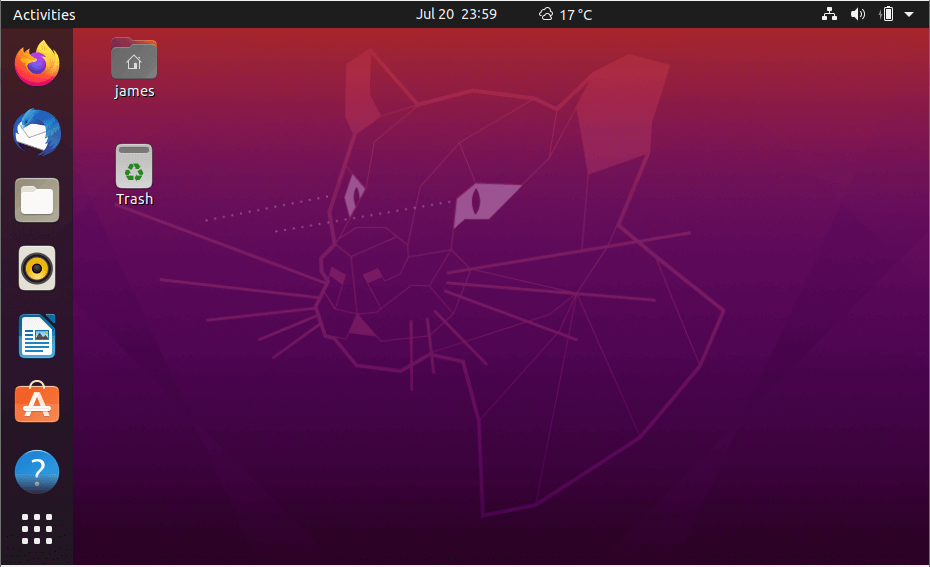
The distribution ships with the GNOME desktop environment, which offers a clean and modern interface. Users coming from Windows may need a few days to adjust to GNOME’s layout, but most find it intuitive once they become familiar with it.
One of Ubuntu’s biggest advantages is software availability.
Whether you’re looking for web browsers, office applications, development tools, multimedia software, or virtualization platforms, you’ll almost always find installation instructions written specifically for Ubuntu.
Over the years, I’ve noticed that Ubuntu tends to be the first distribution supported by hardware vendors, software developers, and cloud providers. That broad ecosystem makes life easier for new Linux users.
Ubuntu also performs well on modern laptops and desktops, with good support for AMD, Intel, and NVIDIA hardware.
If you want a Linux distribution with extensive documentation, a large user community, and long-term stability, Ubuntu remains an excellent starting point.
Minimum Requirements:
- Dual-core processor
- 4 GB RAM
- 25 GB storage
3. Zorin OS (Best for Windows Users)
For Windows users who want Linux to feel familiar from day one, Zorin OS is one of the easiest transitions available.
The latest release, Zorin OS 18, arrived in late 2025 and continues the project’s focus on helping users move away from Windows without feeling lost.
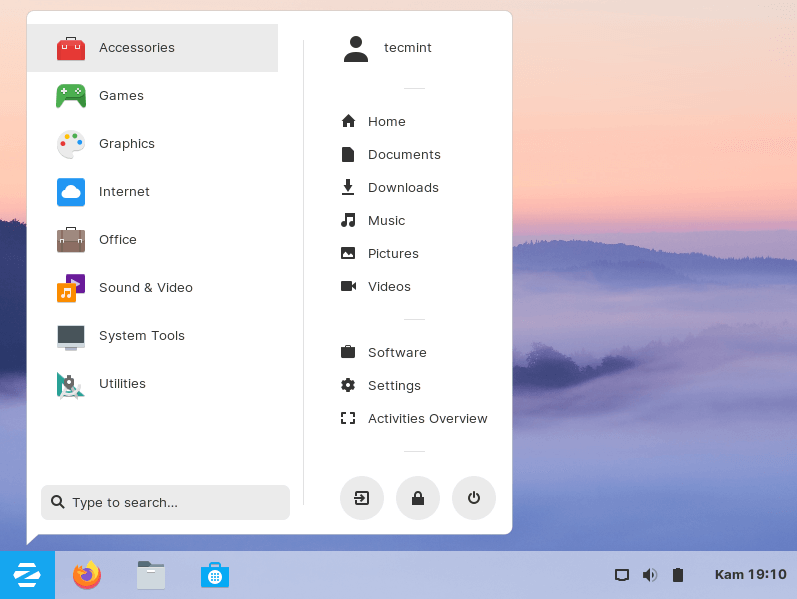
The first thing you’ll notice is the desktop layout. The application menu, taskbar, desktop icons, and overall appearance feel very similar to a traditional Windows desktop.
I’ve installed Zorin OS for friends and family members who had never used Linux before, and many of them were comfortable using it within a few hours.
Under the hood, Zorin OS is based on Ubuntu, which means you get access to Ubuntu’s software repositories and broad hardware compatibility.
The developers have also done an excellent job polishing the user experience. The desktop feels refined, responsive, and consistent throughout the system.
Another advantage is support for older hardware. Users with aging laptops often find that Zorin OS performs much better than newer versions of Windows.
For anyone moving away from Windows 10 or Windows 11 and looking for a familiar desktop environment, Zorin OS deserves serious consideration.
Minimum Requirements:
- 1 GHz dual-core processor
- 2 GB RAM
- 15 GB storage
Tip: If you’re helping a family member switch from Windows, Zorin OS is often easier for them to learn than Ubuntu.
4. Fedora Workstation (Best for Modern Hardware)
Fedora Workstation has become one of the strongest desktop Linux distributions available today.
A few years ago, Fedora was often viewed as a distribution primarily for developers and Linux enthusiasts. While it remains popular among technical users, it has also become very approachable for beginners.
Fedora Workstation 44 is the current stable release and includes newer kernels, drivers, and desktop software than many traditional long-term support distributions.
If you’ve recently purchased a laptop powered by AMD Ryzen AI, Intel Core Ultra, or newer NVIDIA graphics, Fedora often provides excellent support right out of the box.
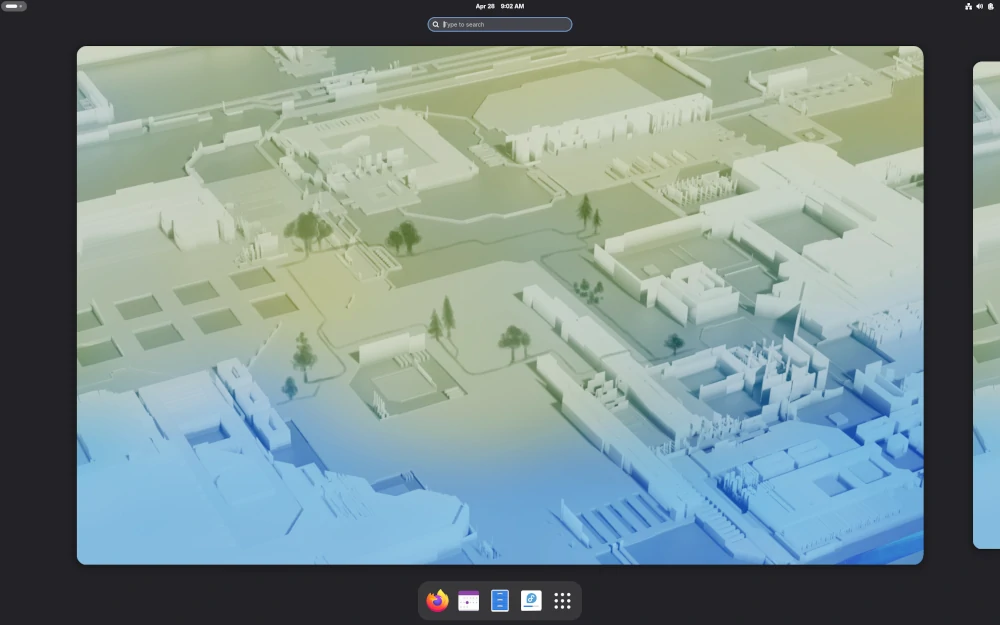
The GNOME desktop experience feels polished and responsive, with a strong focus on simplicity and usability.
Fedora is also backed by Red Hat, which contributes significantly to Linux development. Many technologies that eventually appear in enterprise Linux environments first gain traction in Fedora.
One reason some users choose Fedora over Ubuntu is access to newer software packages without waiting years for major upgrades.
At the same time, Fedora maintains a reputation for reliability and quality testing.
For users who want a modern Linux desktop with current software and excellent hardware support, Fedora Workstation is an outstanding option.
Minimum Requirements:
- Dual-core processor
- 4 GB RAM
- 20 GB storage
Warning: Fedora introduces new software versions more frequently than Linux Mint or Ubuntu LTS, so you’ll see changes sooner.
5. Pop!_OS (Best for Developers and Laptop Users)
Pop!_OS has built a loyal following among developers, students, engineers, and power users who want a desktop that helps them stay productive.
Developed by System76, Pop!_OS is based on Ubuntu but includes a number of improvements that make it feel like its own distribution rather than just another Ubuntu derivative.
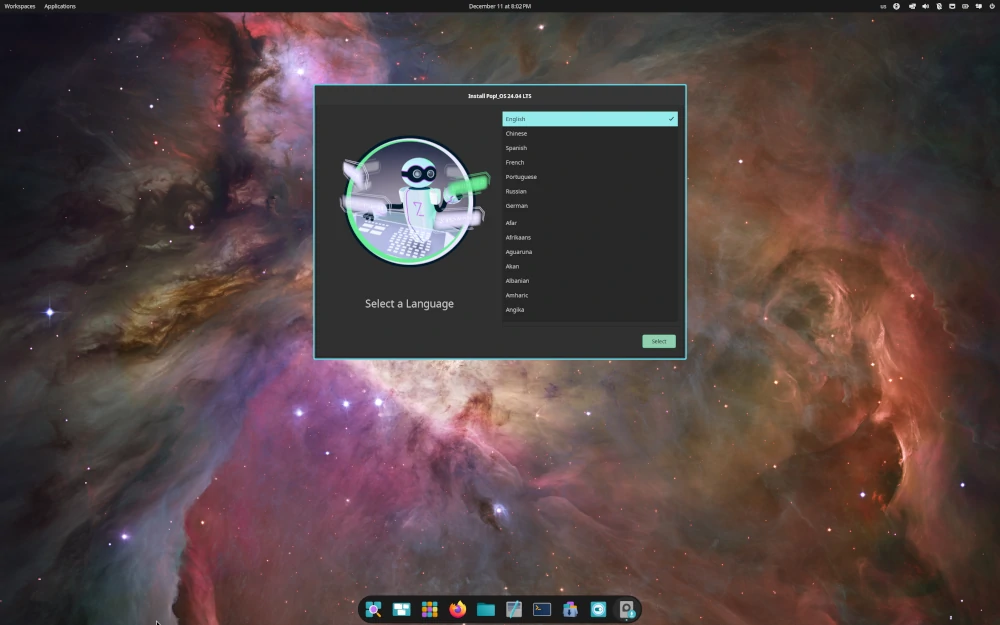
The latest stable release, Pop!_OS 24.04 LTS, continues the project’s focus on performance, usability, and hardware compatibility.
One thing I’ve always appreciated about Pop!_OS is how well it handles laptops. Battery life, touchpads, external monitors, and graphics switching generally work very well without requiring manual configuration.
Users with NVIDIA graphics cards will also appreciate that Pop!_OS provides separate installation images with NVIDIA drivers already included. This eliminates one of the most common headaches new Linux users encounter after installation.
The distribution also includes automatic window tiling, multiple workspaces, and keyboard shortcuts that can significantly improve productivity once you become familiar with them.
Despite offering these advanced features, Pop!_OS remains approachable for newcomers. You can use it like a traditional desktop while gradually learning more advanced capabilities over time.
If you spend your day writing code, working with multiple applications, or using Linux on a laptop, Pop!_OS is definitely worth trying.
Minimum Requirements:
- 4 GB RAM
- 20 GB storage
- 64-bit dual-core processor
6. elementary OS (Best for macOS Users)
If you’re moving from macOS to Linux, elementary OS is one of the most comfortable places to start.
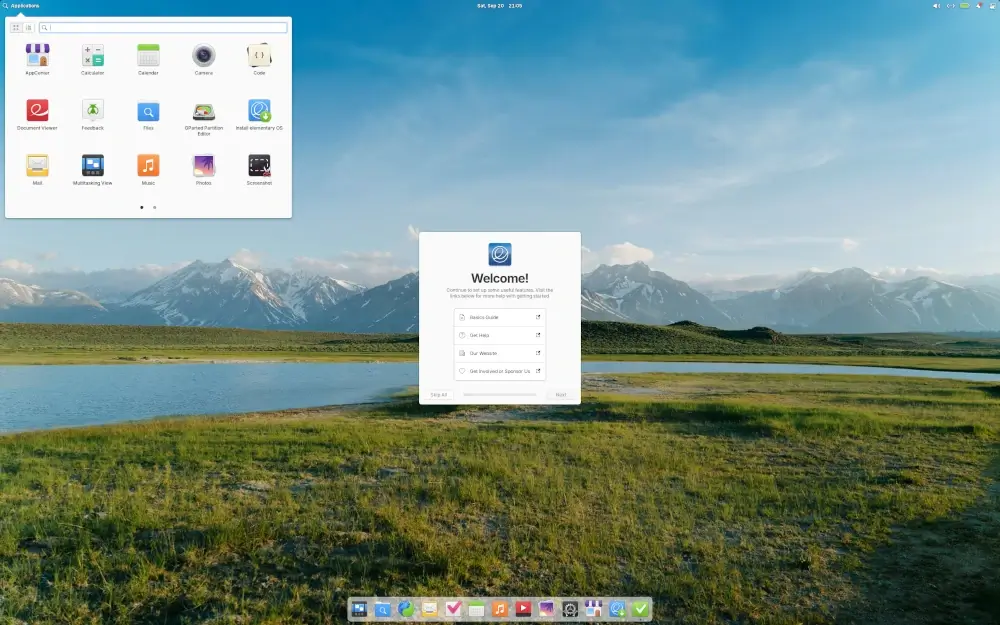
The project has always focused on simplicity, consistency, and visual design. The result is a desktop environment that feels polished and uncluttered.
elementary OS 8 continues that tradition with a refined desktop experience built around the Pantheon desktop environment.
At first glance, many users immediately notice similarities to macOS. The centered dock, clean interface, and carefully designed applications create a familiar experience without directly copying Apple’s design.
What makes elementary OS stand out is its attention to detail such as menus, settings panels, notifications, and bundled applications all follow a consistent design philosophy.
The distribution also avoids overwhelming users with excessive options. Instead of presenting dozens of settings and customization panels, elementary OS focuses on sensible defaults.
I’ve recommended elementary OS to users who primarily browse the web, manage documents, watch videos, and perform everyday computing tasks. For those workloads, it works exceptionally well.
Users who enjoy extensive customization may eventually prefer another distribution, but for simplicity and elegance, elementary OS remains a strong option.
Minimum Requirements:
- 4 GB RAM
- 32 GB storage
- Modern 64-bit processor
7. MX Linux (Best for Older Computers)</h2
Not everyone is installing Linux on a brand-new laptop.
Many people turn to Linux because they want to extend the life of an older computer that struggles to run modern versions of Windows.
That’s where MX Linux shines, which is based on Debian Stable and has consistently earned a reputation for reliability, efficiency, and ease of use.
The latest MX Linux releases continue to focus on delivering a fast desktop experience while keeping resource usage low.
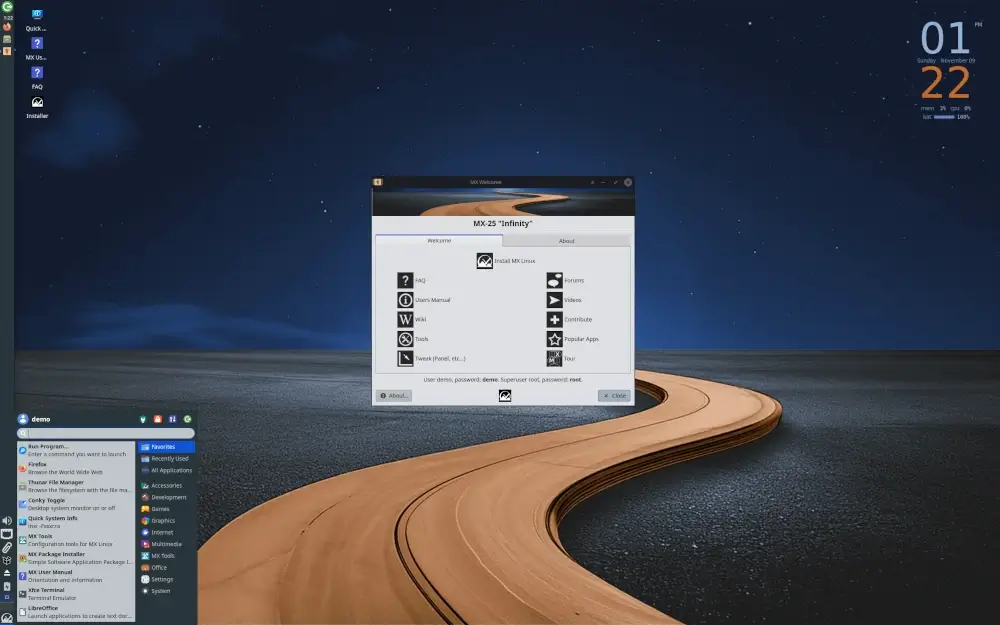
What makes MX Linux particularly appealing is its collection of built-in administration tools. These utilities simplify common tasks such as creating live USB drives, managing system settings, installing software, and performing maintenance.
For beginners, these graphical tools remove much of the complexity that often comes with learning Linux.
I’ve personally seen MX Linux breathe new life into laptops that were considered too slow for everyday use. Systems with limited memory and older processors often perform surprisingly well.
Because MX Linux is based on Debian Stable, users also benefit from one of the most reliable software foundations available in the Linux ecosystem.
If your computer is several years old and you want a Linux distribution that prioritizes speed and stability, MX Linux deserves a place on your shortlist.
Minimum Requirements:
- 2 GB RAM
- 20 GB storage
- 64-bit processor
Tip: Before replacing an older computer, try MX Linux. You might be surprised by how much performance you can regain.
8. Peppermint OS (Best Lightweight Linux Distribution)
Peppermint OS is a good choice for users who want a lightweight Linux desktop that remains fast and responsive on modest hardware.
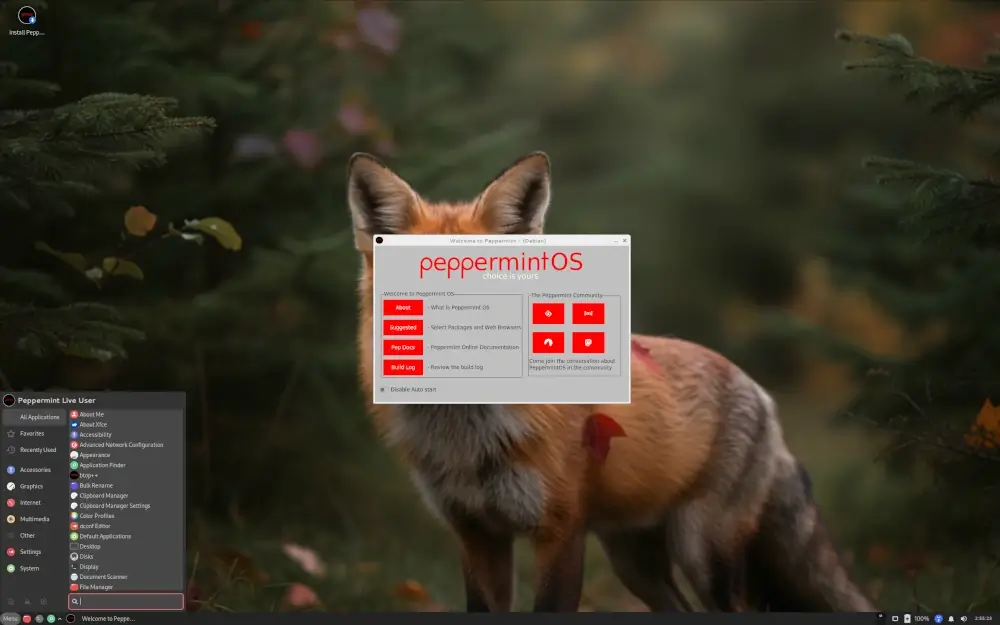
Unlike many distributions that install a large collection of software by default, Peppermint OS takes a more minimal approach. It provides the essentials and lets users install only the applications they actually need.
This keeps the system lean and helps it run smoothly on older laptops and desktops.
The latest Peppermint OS releases are based on Debian and continue to focus on simplicity, stability, and low resource usage.
One thing I like about Peppermint OS is that it doesn’t try to overwhelm new users with unnecessary features. The desktop layout is straightforward, applications are easy to find, and the system feels responsive even on hardware that is several years old.
For users who primarily browse the web, check email, watch videos, and work with documents, Peppermint OS provides everything needed for everyday computing.
It’s also a practical choice for secondary computers, school systems, and older family laptops that need a fresh start.
Minimum Requirements:
- 2 GB RAM
- 20 GB storage
- 64-bit processor
Tip: If your main goal is speed on older hardware, Peppermint OS is one of the lightest options on this list.
9. Manjaro (Best Introduction to Arch Linux)
Arch Linux is known for its flexibility, simplicity, and access to very recent software packages. It’s also known for having a learning curve that can be intimidating for beginners.
Manjaro makes the Arch experience far more approachable.
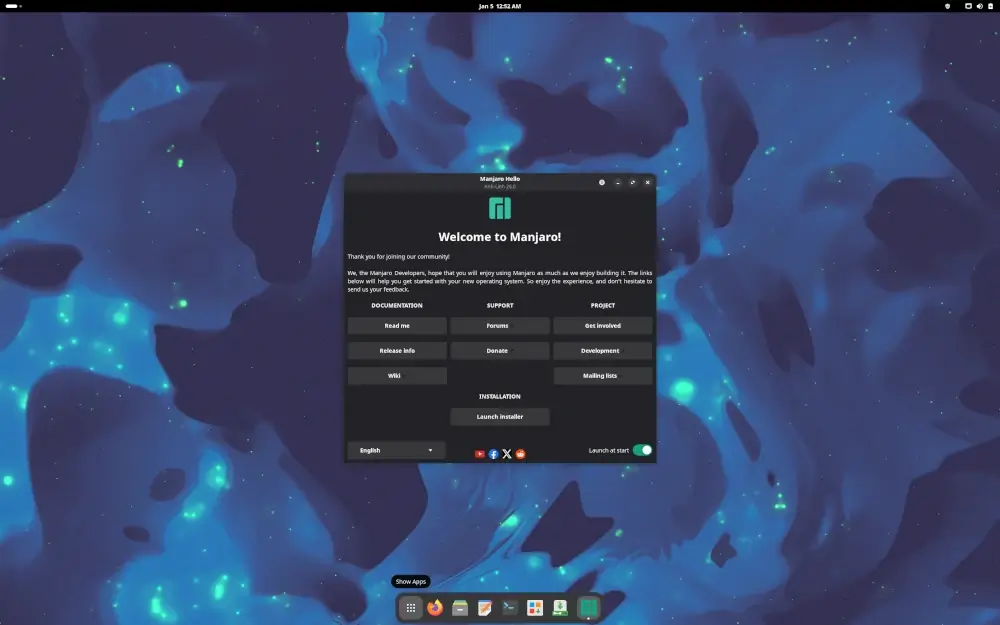
Built on top of Arch Linux, Manjaro provides a graphical installer, automated hardware detection, desktop-friendly defaults, and a much easier setup process.
The result is a distribution that gives users many of the advantages of Arch Linux without requiring extensive Linux experience.
One of Manjaro’s biggest strengths is software freshness. New kernels, drivers, desktop environments, and applications generally arrive sooner than they do on many traditional distributions.
This can be particularly beneficial for gamers, developers, and users running newer hardware.
Manjaro is available in multiple desktop editions, including KDE Plasma, GNOME, and XFCE, allowing users to choose the environment that best fits their preferences.
Although Manjaro is beginner-friendly, it follows a rolling-release model. Instead of upgrading between major versions, users receive continuous updates throughout the life of the system.
For newcomers who want newer software and are interested in learning more about the Arch ecosystem, Manjaro offers an excellent starting point.
Minimum Requirements:
- 4 GB RAM
- 30 GB storage
- 64-bit processor
Warning: Rolling-release distributions receive updates more frequently than Linux Mint or Ubuntu LTS, so occasional maintenance may be required.
10. openSUSE Tumbleweed (Best Rolling Release for Beginners)
openSUSE Tumbleweed is often overlooked when people discuss beginner-friendly Linux distributions, but it deserves far more attention than it receives.
Tumbleweed follows a rolling-release model, which means users continuously receive updated software instead of waiting for major operating system upgrades.
What makes Tumbleweed unique is its reputation for quality control.
Before updates reach users, they go through extensive automated testing to help ensure system stability, which gives users access to current software while maintaining a dependable desktop experience.
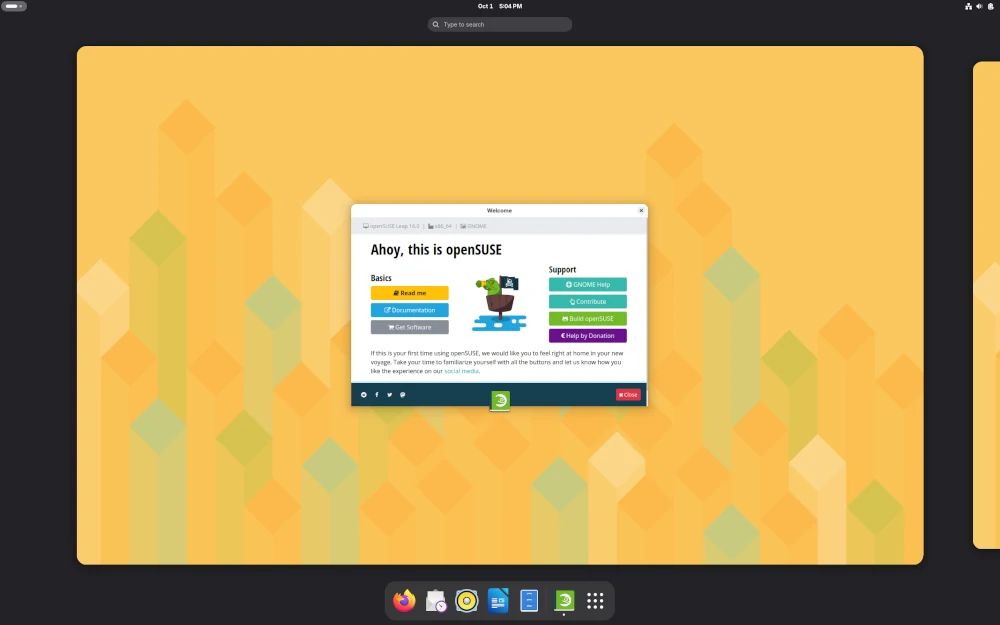
Another standout feature is YaST, which is one of the most powerful graphical administration tools available on Linux. It allows users to manage software, networking, storage, user accounts, system services, and many other settings from a single interface.
The distribution is available with both KDE Plasma and GNOME desktops, giving users flexibility in how they want their desktop environment to look and behave.
If you’re interested in learning Linux while still having access to current software packages, openSUSE Tumbleweed is a strong option.
Minimum Requirements:
- Dual-core processor
- v4 GB RAM
- 40 GB storage
11. Deepin Linux (Best Looking Linux Desktop)
If appearance matters as much as functionality, Deepin Linux is worth considering.
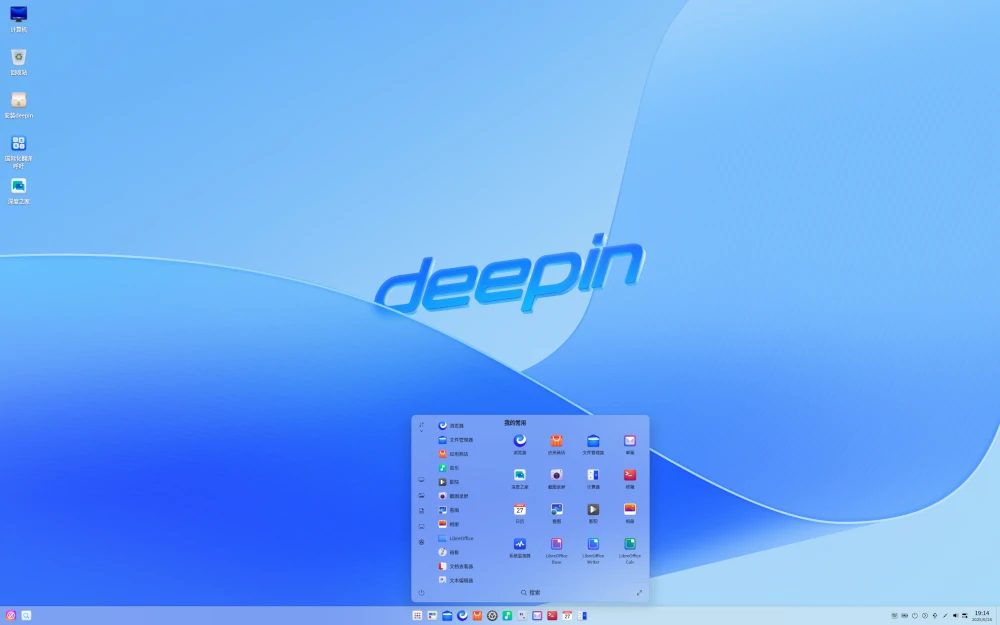
Deepin is a Debian-based Linux distribution that focuses heavily on desktop design and user experience. Its Deepin Desktop Environment (DDE) is widely regarded as one of the most polished and visually appealing desktop environments available on Linux.
The latest Deepin releases feature a modern interface with a customizable dock, refined animations, attractive system settings, and a collection of built-in applications designed to provide a consistent user experience.
What makes Deepin stand out is how approachable it feels to new users. The desktop layout is easy to understand, applications are well organized, and common tasks such as managing files, installing software, and adjusting system settings can be performed without touching the terminal.
I’ve found that users coming from Windows or macOS often adapt quickly because the interface feels familiar while still offering the flexibility of Linux.
That said, Deepin has a smaller community than distributions such as Linux Mint, Ubuntu, and Fedora. As a result, you may find fewer tutorials and troubleshooting resources online.
Still, if your priority is a beautiful desktop environment with a beginner-friendly design, Deepin Linux deserves a look.
Minimum Requirements:
- 4 GB RAM
- 64-bit processor
- 25 GB storage
Which Linux Distribution Should You Choose?
- If you’re completely new to Linux and simply want the easiest starting point, choose Linux Mint.
- If you want access to the largest Linux ecosystem, extensive documentation, and broad software support, Ubuntu remains an excellent choice.
- Users moving from Windows will likely feel most comfortable with Zorin OS thanks to its familiar desktop layout.
- Those using newer laptops and hardware should take a close look at Fedora Workstation.
- Developers, students, and laptop users may prefer Pop!_OS because of its productivity-focused features and excellent hardware support.
- If you’re coming from macOS, elementary OS offers one of the cleanest and most familiar desktop experiences available.
- For older computers, MX Linux and Peppermint OS can significantly improve performance while remaining easy to use.
- If desktop appearance is a top priority, Deepin Linux offers one of the most polished and visually appealing user experiences available on Linux.
- If you’re curious about rolling-release distributions, Manjaro and openSUSE Tumbleweed provide good introductions without overwhelming beginners.
The good news is that all of these distributions offer live installation media, allowing you to test them before committing to a full installation.
Conclusion
Choosing your first Linux distribution is much easier today than it was a decade ago.
Modern Linux distributions provide polished desktop environments, graphical software managers, automatic hardware detection, and large communities that are ready to help newcomers get started.
For most beginners, Linux Mint remains my top recommendation because of its stability, familiar desktop layout, and ease of use. It’s the distribution I frequently recommend to friends, family members, and first-time Linux users.
That said, there isn’t a single right answer.
Ubuntu offers unmatched community support, Zorin OS makes switching from Windows easier, Fedora delivers newer software, and Pop!_OS provides an excellent experience for developers and laptop users.
Whether you prefer the simplicity of Linux Mint, the familiarity of Zorin OS, the modern experience of Fedora, or the visual polish of Deepin Linux, there is a Linux distribution that fits your needs.
Once you find a distribution that fits your needs, you’ll discover that Linux is far more approachable than many people expect.


Emmabuntüs is a desktop Linux distribution with editions based on Debian’s Stable branch with the Xfce and LXQt desktop environments.
It strives to be beginner-friendly and reasonably light on resources so that it can be used on older computers. It also includes many modern features, such as large number of pre-configured programs for everyday use, dockbar for launching applications, easy installation of non-free software and media codecs, and quick setup through automated scripts.
The latest update to our distribution adds accessibility for visually impaired people:
https://emmabuntus.org/on-july-29th-2024-emmade5-accessible-to-the-visually-impaired/
Ubuntu Budgie is a great option for beginners, which has a Mac OS standard desktop and excellent Community Support.
In all the Tecmint “Best Linux distros” articles over the years, PCLinuxOS has NEVER been mentioned. It is as easy to use as any of the *buntus. It is much more configurable. Its default install is not a monoblock from which no package can be uninstalled.
The user community support is as good, if not better than the *buntus and it has its own monthly magazine. PCLOS does not have information-sharing agreements with any other large company (ex. Amazon).
And that’s just for starters!
@Dragon,
Thanks for your input, we will include the PCLinuxOS in the article…
@Dragonmouth,
We’ve mentioned PCLinuxOS in the list as per your suggestion…
Hint: OpenSUSE Tumbleweed is the next distro that is friendly to beginners.
What about PepperMint_OS? that looks like a Windows design but just close looks.
Try Ubuntu Cinnamont Remix
Why is Modicia OS not mentioned? it is an Italian-based version of Xubuntu-a fine distro which is largely ignored !!!
Why have you missed MXlinux? It’s performance equals or is better than any of those mentioned, and it is also no. 1 on the ‘distrowatch’ chart of popular OS’s. It is a doddle to install and has all the ‘apps’ you could possibly for an every day user.
All “BEST” lists are subject to the rater’s biases.
Perfect list, after trying so many distributions I perfectly agree with you.
Thanks, Charu for your feedback. I highly appreciate it.
Where is MXLinux, the top distro on Distrowatch?
How can you recommend Manjaro when it’s a real pain to get printers installed. Even Arch is easier. I keep trying Manjaro, but gave up. Mint and MXlinux install them in the installation process.
Any “Best” list is just a collection of the opinions of the author. Best is what works for you. Now I can agree with listing some distros that should NOT be used by newbies! I wouldn’t recommend Linux From Scratch or Slackware to a newbie.
CentOS is a *server* distro, for Christ’s sakes. It’s *not* a “beginner” Linux. No one would recommend Red Hat as a “beginner” distro, yet here we have Centos being recommended. Seriously?
And as usual, openSUSE doesn’t get a mention, given the Ubuntu fanbois, even though it’s probably one of the most straight-forward distros to run for beginners or advanced users and is one of the few which has serious support behind it.
First, we need a definition of what “beginner” is. Is it someone who never had contact with a computer? Is it someone who is switching from Windows to Linux? “Beginner” means different things to different people, depending what agenda they are pushing.
CentOS MAY be used as a server distro but it is also used quite successfully by many people as a desktop distro. Using Linux has become so easy that any distro, with few exceptions, can be used by “beginners” if all they do is surf the ‘Net, email and do some word processing. If, OTOH, the user spends most of his/her time using CLI, then the situation is completely reversed – no Linux distro is “beginner” friendly.
“openSUSE doesn’t get a mention, even though it’s probably one of the most straight-forward distros to run for beginners”
I agree. It is straight forward IF you have used it for a while. After one gets used to them, Slackware and/or Gentoo become “straight-forward”.
“dragonmouth” answered this very well. I had my Dad on CentOS 5, then 6, as his desktop OS, and he found it pretty straightforward to use. He was certainly what I would call a “beginner“. At the time, he was using Windows NT Workstation 4.0. I moved him first from Microsoft Office and MS Outlook Express over to OpenOffice.org and Mozilla Thunderbird. He loved them. Regarding Thunderbird, he told me, “I’ve been wanting a program that can do this for years!”, referring to how T-bird handled its address book even back then.
After he got used to the Free Software applications, I built him a newer, faster computer and installed CentOS on it. Since he was already used to the applications, the rest (the OS) was pretty easy. The one thing I had to figure out was an equivalent for Quicken. That equivalent was KMyMoney, which did a fine job. I exported his existing data and imported it to KMyMoney, and he was good to go.
So, yes, CentOS can be a fine desktop OS, even for beginners.
I tend to use the KDE version of Ubuntu for new GNU/Linux users. This is called Kubuntu and has been an official flavor of Ubuntu almost since the get-go. The reason I do this is because the KDE desktop looks more like Microsoft Windows. If it’s a macOS user, then I’ll use Ubuntu with its GNOME desktop. Depends on the audience.
Any way that we can get a user of a proprietary platform to a Free Software platform (e. g. GNU/Linux), that’s a good thing, no matter which distribution is used.
This sounds like a Zorin’s informational…
I used Zorin for years and then left it. It claims to be Windows-like and it became that, hidden and locked down, which is not what Linux should be to any user. I do use Ubuntu Mate, which gives you a traditional desktop, which people coming from Windows seem to want, not Gnome3 which is Win8 like and drives people away. I also dual boot Parrot OS, but would never recommend that for a new-commer.
No. It sounds like a Ubuntu infomercial. Four out of the five distros are Ubuntu-based.
And thus based on Debian. There’s a very good reason for that, and it’s that Ubuntu has always fundamentally been Debian optimized for the desktop, with all the goodness that this implies. Therefore, taking an already-good desktop distro and optimizing it for your own use case is easier, since most of the heavy lifting has already been done. It’s the same approach I probably would’ve taken.
How about a flavor that comes with a free VPN and Utorrent?
Utorrent you can install to any distro.
You can also add any VPN of your choice to any distro. However, a free VPN is not advisable because their providers keep logs, defeating the entire purpose of a VPN. Do an Internet search of “Free VPN” and check out the articles on why you should not use one.
Although Mint gains momentum, this seems to be a pretty “mixed” list, for example I doubt the 6th position of Debian on desktop, and vice versa in the use of servers.
My point is that distributions by definition come to cover different needs, and should be listed among other similar distributions
Linux Mint – “It gives you a feeling as you are using Microsoft Windows.”
Well, thanks for the warning..
That Debian Openbox setup looks sweet!! I Like the icons put into conky as well as the obmenu. How do you put icons in those two? G
Great list. It is pretty standard from distrowatch but great for newbies just getting there toes wet testing things out.
Which Version of openSUSE is with “GNOME 2.32, Xfce 4.8 and LXDE 0.5 along with latest KDE Plasma Desktop 4.6” 10.1? Certainly not 12.3!
Sorry for providing wrong info, now corrected. Please check and let me know if any.
looks good now.
“It has inbuilt firewall and virus protection”… excuse me… what virus protection are you talking about?!?
“you can share, edit files without any hazel”… that’s it, I’m out of here. Do you realize the entire article is riddled with simple spelling errors.
Where should I start?… The Open Suse section is full of VERY outdated version info… Debian Linux is not Unix based… And the latest Arch installer comes with the 3.8.4 kernel.
Where did you get your info, cashed Wikipedia pages?
“We have gathered and compiled the list based on online research.”
It would be neat to state what exact methodology you followed in this “online research.” Particularly since it appears that your “online research” consisted solely of looking at Distrowatch.com.
Cool list. Thanks.
Maybe you can try and get top 50 as well for Personal and Business class use including top 10-20 starter linux based apps for personal-enterprise based used.
Puppy linux ?
You must be joking!
No, not at all. We have gathered and compiled the list based on online research.
Where is redhat?
Care to link your online research resource?
http://w3techs.com/technologies/history_details/os-linux/all/y
I bet there are more linux servers than linux desktops.
Ranking should not have been done. Becoz it reduces the crediblity of your research. Feels like the ranking are based on Distrowatch.com page visits.
How on earth can you rank mageia/Linux mint before Debian or CentOS?
apalling research.
Puppy Linux is a stable for many people. It is one of the most user friendly distros to use for fixing someone’s windows computer. It is also very easy to dual boot (the whole os can fit in a small folder) I for one always keep a puppy around for fixing other people’s computers and JWM!!!
I use many distros, but Puppy lives on a lot of older hardware here as well as a lot of USB sticks, and I’m sure I’m not alone.
Keep in mind that Slacko is based on Slackware packages and many of the newer Puppies use .deb packages and have access to the entire .deb universe. Software is no longer an issue. :-)
The Debian-link is wrong.
Thanks for heads up!. Corrected now…
Mandrake was NOT the only Linux distribution during the 1990s: to say it was is very insulting to Slackware, Debian, Redhat and others which existed before Mandrake. It was arguably the most user friendly distribution of the time, but not the only distribution.
Mandrake started as Red Hat _ KDE because Red Hat wouldn’t include it. That’s why I switched to Mandrake … KDE 2.2 rocked compared to many of the other X11 desktops of the day.
Fedora is also a Red Hat spinoff.
And Red Hat is a spin off of slackware. in case nobody here knew that.
Open source..you gotta’ love it.
That is quite simply not true. I own a CD from the very first RedHat release (Halloween) aka RedHat 0.9, I also tried Slackware. RedHat already had its own packaging system RPP (RPM came later) while Slackware used tgzs. Sofware selection was different, installation system was different. Files were not at the same places. Kernel was different. I think but I cannot tell for sure RedHat aldready used the System V init system while Slackware still uses the BSD one. RedHat already had a for that time quite good X configurator while Slackware’s was a lot less sohisticated (read you had to read more about monitors than you wanted and to test differnet settings until one worked).
Basically the only thing they had in common was they used the linux kernel and even this was built differnetly so you can’t even say they “lifted” it from Slackware.
That is quire different from Mandrake who started as a RedHat + Kde sold by Gael Duval on CDs he himself burbned and later, after the Mandrake company was founded nad differences began to become more substantial still shared key components and used Redhat’s installer for at lest, two or three years.
Ah, yeah. Yggdrasil, SLS and TAMU were some of the very first Linux distributions… but RedHat, SuSe, Debian, Slackware all predate Mandrake which was just RedHat+KDE. You really need to correct that in the article.