


With Large-Language Models and AI-powered apps blowing up in popularity, pretty much every big-name tech company has started creating hardware capable of providing the best performance in AI workloads. Heck, even consumer laptops have started featuring an entirely new type of processing unit called NPU to provide superior performance on every AI-related task.
But what if you could run generative AI models locally on a tiny SBC? Turns out, you can configure Ollama’s API to run pretty much all popular LLMs, including Orca Mini, Llama 2, and Phi-2, straight from your Raspberry Pi board!
What you’ll need
A Raspberry Pi board will serve as the heart of this project. You’ll also need a microSD card to store the OS as well as the LLMs. Since these models can occupy large amounts of space, I suggest getting a microSD card with at least 32GB of space. You might want to consider grabbing an 8GB variant of the Raspberry Pi 4/5 because Ollama recommends a minimum of 8GB RAM if you want to run 7B LLMs without significant delays.
Finally, you’ll need an OS installed on the Raspberry Pi. Although you can technically run the LLMs on Raspberry Pi OS or Ubuntu, a clean installation of the Raspberry Pi OS Lite is the way to go. This is because generative AI models are very taxing on these SBCs and you're better off ditching the GUI in favor of a light CLI setup.
-
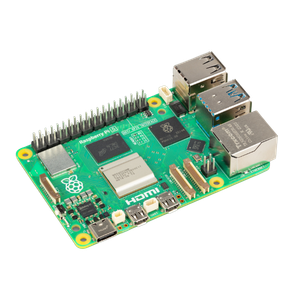
Raspberry Pi 5
- CPU
- Arm Cortex-A76 (quad-core, 2.4GHz)
- Memory
- Up to 8GB LPDDR4X SDRAM
- Operating System
- Raspberry Pi OS (official)
- Ports
- 2× USB 3.0, 2× USB 2.0, Ethernet, 2x micro HDMI, 2× 4-lane MIPI transceivers, PCIe Gen 2.0 interface, USB-C, 40-pin GPIO header
- GPU
- VideoCore VII
- Starting Price
- $60
-

Installing Raspberry Pi OS Lite
First, we’ll install the CLI-based Raspberry Pi OS using the Raspberry Pi Imager tool. While you can use other flashing tools like Balena Etcher or Rufus, you can utilize the OS customization settings of the official imager app to easily SSH into the Raspberry Pi from your PC.
- Download and install the Raspberry Pi Imager from the official link.
- Run the tool with admin privileges.
-
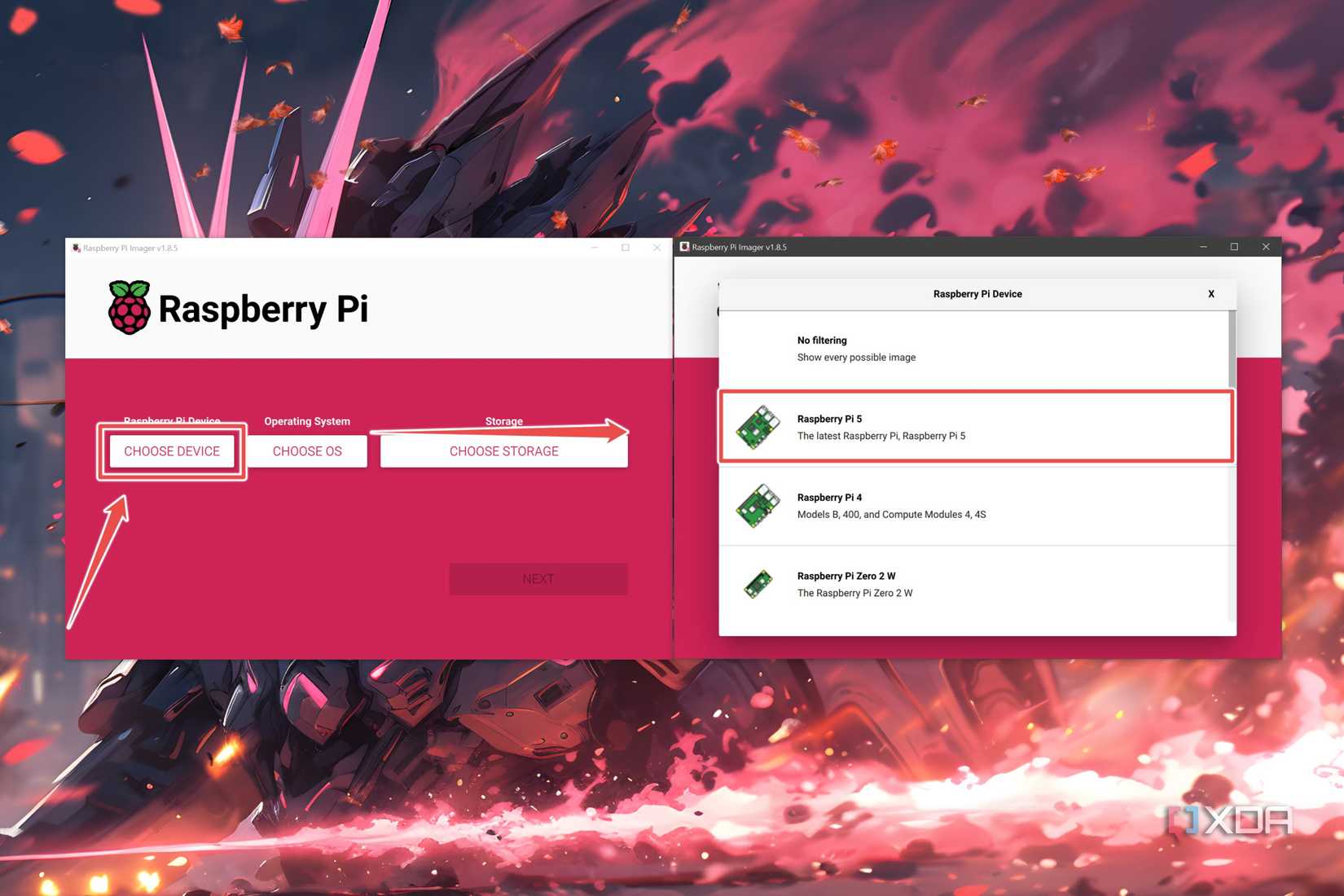
Click on Choose Device and select your Raspberry Pi model.
-
Select Choose OS and head to Raspberry Pi OS (Other).

-
Pick Raspberry Pi OS Lite (64-bit).

-
Click on Choose Storage, select the microSD card where you wish to flash the OS files, and hit Next.

-
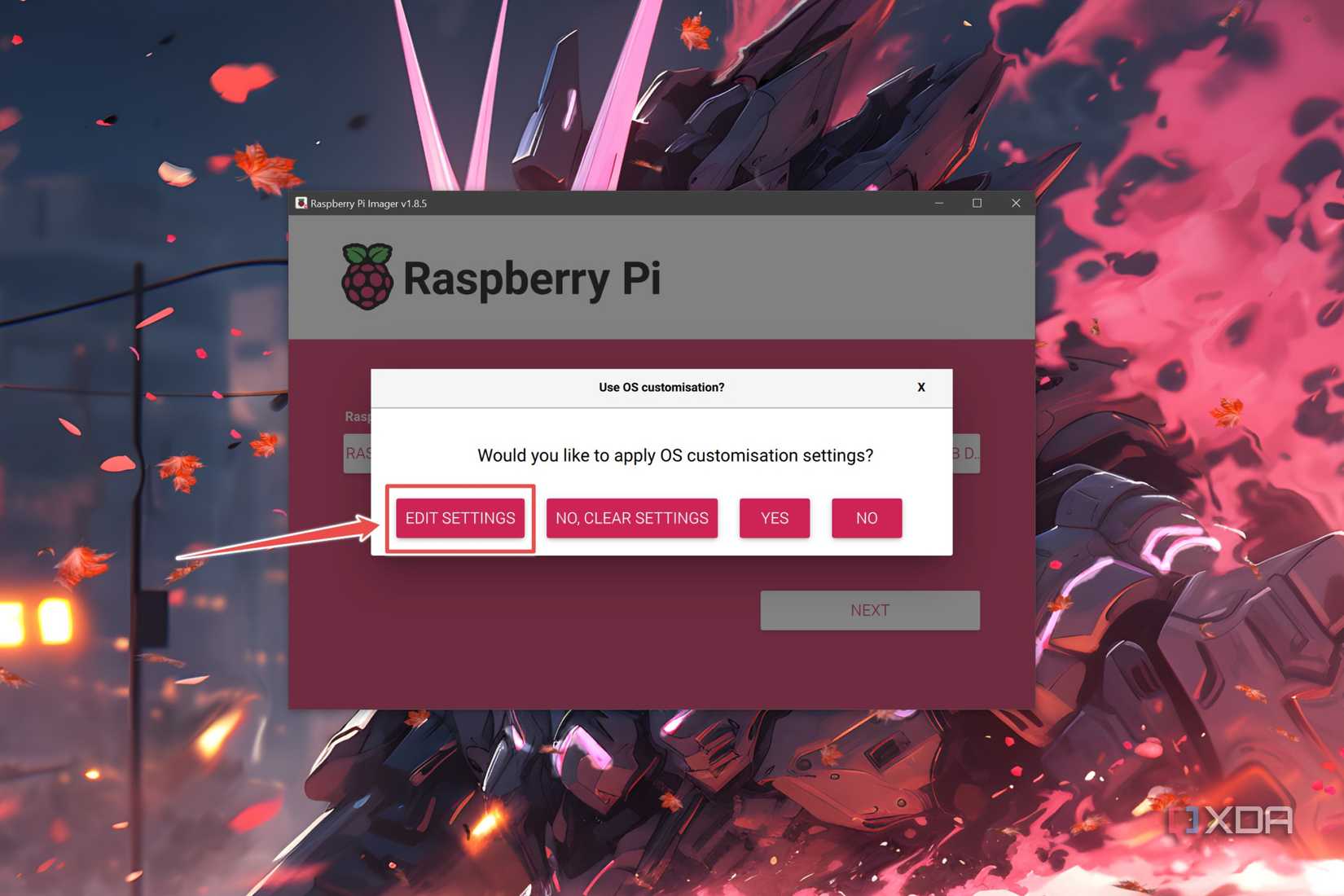
Press Edit Settings on the pop-up window.
-
Inside the General tab, enter the Username and Password.

-
Navigate to the Services tab and check the toggles next to the Enable SSH and Use password authentication options before clicking on Save.

-
Choose Yes when the Raspberry Pi Imager asks for confirmation.


Once you’ve installed Raspberry Pi OS Lite, you can either use it as is, or SSH into it by following this guide.
Setting up Ollama on your Raspberry Pi
Fortunately, installing Ollama is the easiest part of this article as all you have to do is type the following command and press Enter:
curl -fsSL https://ollama.com/install.sh | sh

Next, it’s time to set up the LLMs to run locally on your Raspberry Pi.
-
Initiate Ollama using this command:
sudo systemctl start ollama

-
Install the model of your choice using the pull command. We’ll be going with the 3B LLM Orca Mini in this guide.

ollama pull llm_name
Be sure to replace llm_name with the Ollama-compatible LLM you wish to download. -
Execute the following command to run the LLM you just downloaded.
ollama run llm_name

-
When you want to exit the LLM, run the following command:
/bye

-
(Optional) If you’re running out of space, you can use the rm command to delete a model.
ollama rm llm_name


Which LLMs work well on the Raspberry Pi?

While Ollama supports several models, you should stick to the simpler ones such as Gemma (2B), Dolphin Phi, Phi 2, and Orca Mini, as running LLMs can be quite draining on your Raspberry Pi. If you have a Pi board with 8 GB RAM, you can attempt to run the 7B LLMs, though the performance won't be very impressive.
I tried using Orca Mini and Phi 2 on my Raspberry Pi 5, and they worked fairly well. However, the limitations of the SBC became apparent the moment I ran 7B models like Mistral and Llama. Aside from a long delay after entering a prompt, the LLMs were rather slow at generating the text, with the average speed being 1–2 tokens per second.
Although turning your Raspberry Pi board into an AI text generator is a fun little project, the tiny device can barely pull its weight when running the more complex LLMs. As such, you should consider looking into powerful AI PCs if you want faster responses from your favorite LLMs.
