
The Java Persistence API (JPA) is a Java specification for accessing, persisting, and maintaining data between Java objects and a relational database. IntelliJ IDEA Ultimate provides robust support for the JPA frameworks making it the ideal environment for developing database-driven applications using Java.
Prerequisites:
- IntelliJ IDEA Ultimate should be installed in your local system.
- JDK should be installed in your local system.
- MySQL database for the relational database required for the application during the development.
- Maven for the building dependency management of the application.
Implementation of Creating JPA project using IntelliJ IDEA Ultimate
Below are the steps to create a JPA Project using IntelliJ IDEA Ultimate.
Step 1: Open the IntelliJ IDEA ultimate and create the new project of the JPA application.
- Select File > New Project > Jakarta EE > simple-jpa-application.
- Choose Maven for the left panel and ensure the java is selected then enter the Project SDK (JDK 11) .
- Click on Next, name of the project and choose the suitable location for it.
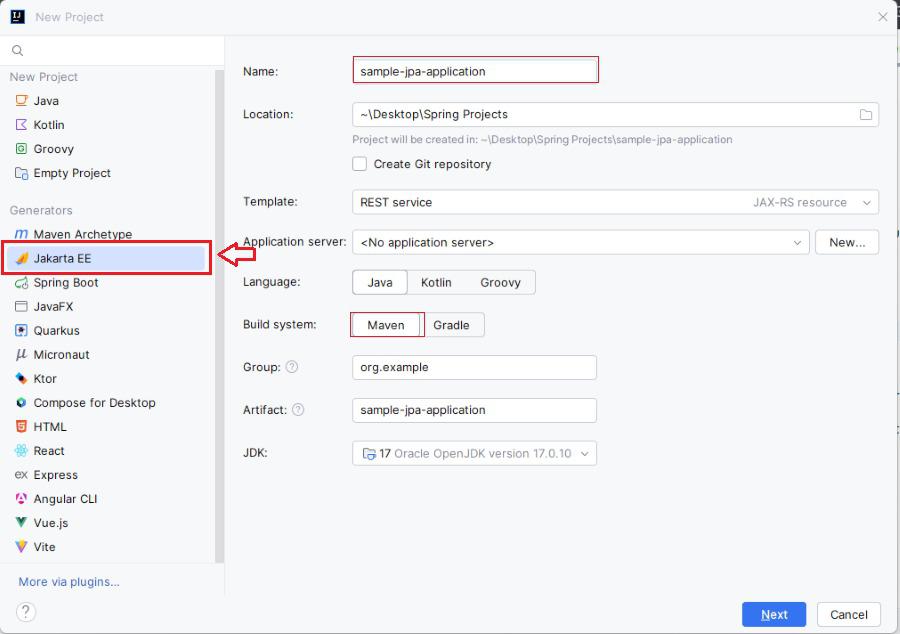
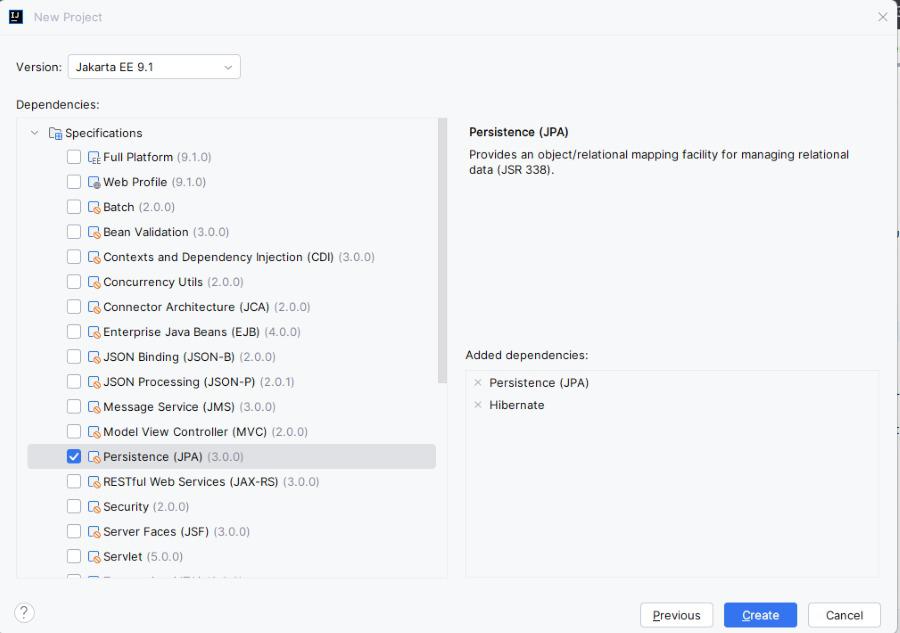
Step 2: Add the Dependencies
Now, we will add the Persistence (JPA) and Hibernate of the JPA application and click on the create button.
After the project creation done, then the folder structure will be like below.

Step 3: Configure the JPA
Open the persistence.xml file and write the below code then configure the mysql of the JPA application.
<?xml version="1.0" encoding="UTF-8" standalone="yes"?>
<persistence xmlns="https://jakarta.ee/xml/ns/persistence/"
             xmlns:xsi="https://www.w3.org/2001/XMLSchema-instance"
             xsi:schemaLocation="https://jakarta.ee/xml/ns/persistence/ https://jakarta.ee/xml/ns/persistence//persistence_3_0.xsd"
             version="3.0">
    <persistence-unit name="ExamplePU">

        <properties>
            <property name="javax.persistence.jdbc.url" value="jdbc:mysql://localhost:3306/example"/>
            <property name="javax.persistence.jdbc.user" value="root"/>
            <property name="javax.persistence.jdbc.password" value=""/>
            <property name="javax.persistence.jdbc.driver" value="com.mysql.jdbc.Driver"/>
            <property name="hibernate.dialect" value="org.hibernate.dialect.MySQL5Dialect"/>
            <property name="hibernate.hbm2ddl.auto" value="update"/>
        </properties>

    </persistence-unit>
</persistence>
Step 4: Create the Entity Classes
We will now create a new Java class inside src/main/java directory location of the application.
User.java:
import jakarta.persistence.Entity;
import jakarta.persistence.Id;

@Entity
public class User {
    @Id
    private Long id;
    private String name;

    public Long getId() {
        return id;
    }

    public void setId(Long id) {
        this.id = id;
    }

    public String getName() {
        return name;
    }

    public void setName(String name) {
        this.name = name;
    }
}
Step 5: Perform the Operations
Create the MainApplication class for perform operations in src/main/java/MainApplication directory location of the application.
import jakarta.persistence.EntityManager;
import jakarta.persistence.EntityManagerFactory;
import jakarta.persistence.Persistence;

public class MainApplication {
    public static void main(String[] args) {
        EntityManagerFactory emf = Persistence.createEntityManagerFactory("ExamplePU");
        EntityManager em = emf.createEntityManager();

        em.getTransaction().begin();
        User user = new User();
        user.setId(1L);
        user.setName("John Doe");
        em.persist(user);
        em.getTransaction().commit();

        em.close();
        emf.close();
    }
}
pom.xml:
<?xml version="1.0" encoding="UTF-8"?>
<project xmlns="https://maven.apache.org/POM/4.0.0"
         xmlns:xsi="https://www.w3.org/2001/XMLSchema-instance"
         xsi:schemaLocation="https://maven.apache.org/POM/4.0.0 https://maven.apache.org/xsd/maven-4.0.0.xsd">
    <modelVersion>4.0.0</modelVersion>

    <groupId>org.example</groupId>
    <artifactId>sample-jpa-application</artifactId>
    <version>1.0-SNAPSHOT</version>
    <name>sample-jpa-application</name>

    <properties>
        <project.build.sourceEncoding>UTF-8</project.build.sourceEncoding>
        <maven.compiler.target>11</maven.compiler.target>
        <maven.compiler.source>11</maven.compiler.source>
        <junit.version>5.9.2</junit.version>
    </properties>

    <dependencies>
        <dependency>
            <groupId>org.hibernate.orm</groupId>
            <artifactId>hibernate-core</artifactId>
            <version>6.0.2.Final</version>
        </dependency>
        <dependency>
            <groupId>org.glassfish.jaxb</groupId>
            <artifactId>jaxb-runtime</artifactId>
            <version>3.0.2</version>
        </dependency>
        <dependency>
            <groupId>org.junit.jupiter</groupId>
            <artifactId>junit-jupiter-api</artifactId>
            <version>${junit.version}</version>
            <scope>test</scope>
        </dependency>
        <dependency>
            <groupId>org.junit.jupiter</groupId>
            <artifactId>junit-jupiter-engine</artifactId>
            <version>${junit.version}</version>
            <scope>test</scope>
        </dependency>
    </dependencies>

    <build>
        <plugins>
        </plugins>
    </build>
</project>
Step 6. Running the Application
Once all the steps done, run the MainApplication class. If everything is configured correctly, then the application will start and connect to the database and persist an entity.
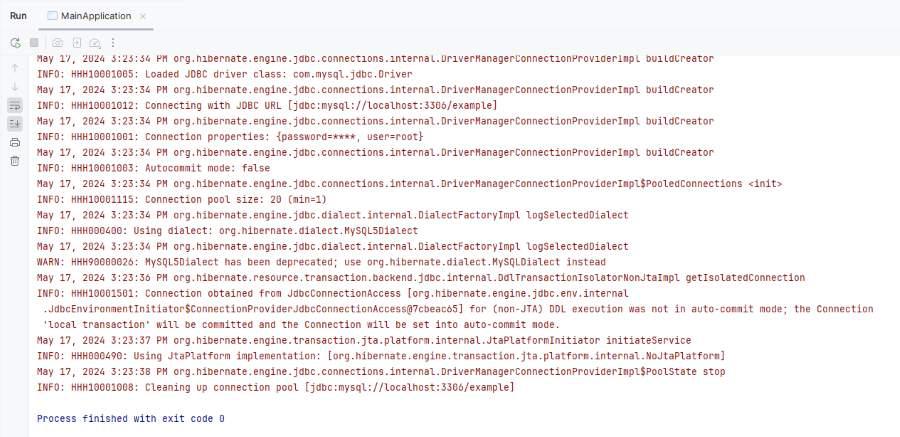
After running the application, the user data will be saved into the database.

This article provides the guide the fundamental setup for the JPA project in the IntelliJ IDEA Ultimate and it enables us to start building more complex Java database applications.
