File Operation Commands in Linux are used to manage files within the filesystem, including creating, viewing, copying, moving, and deleting files. These commands help users efficiently organize and control file data through the terminal.
- Used to create, view, copy, move, rename, and delete files.
- Helps manage file content, size, and structure.
- Supports file searching, comparison, and sorting operations.
- Essential for daily file management and system administration tasks.
List of File Operation Commands
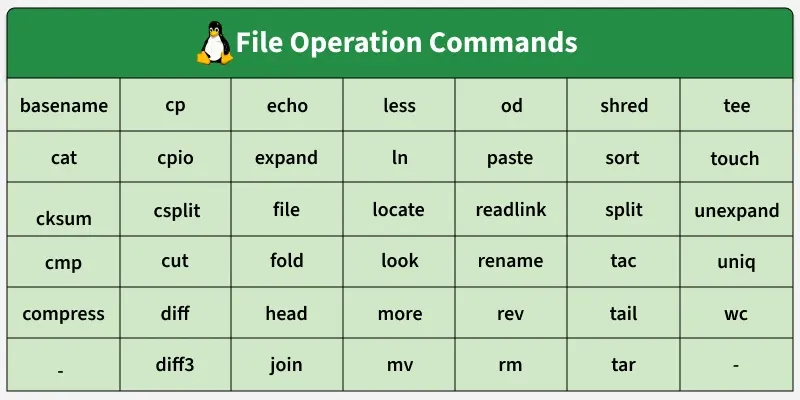
Below is a list of file operation commands that help in understanding how files are managed and manipulated in Linux.
1. basename
The basename command extracts the file name from a full file path. It removes directory information and displays only the file name.
- Removes directory path
- Useful in shell scripting
- Works with file paths
Example:
basename /home/user/file.txtOutput:

2. cat
The cat command displays the contents of a file on the terminal. It can also be used to concatenate multiple files.
- Displays file content
- Combines multiple files
- Creates files using redirection
Example:
cat file.txtOutput:

3. cksum
The cksum command generates a checksum and file size. It helps verify file integrity during transfers.
- Displays CRC checksum
- Shows file size
- Used for integrity checks
Example:
cksum file.txtOutput:

4. cmp
The cmp command compares two files byte by byte. It reports the first difference between files.
- Byte-level comparison
- Checks file equality
- Silent if files are same
Example:
cmp file1.txt file2.txt
5. compress
The compress command reduces file size using compression. It creates files with a .Z extension.
- Reduces storage space
- Creates .Z files
- Older compression method
Example:
compress example.txtOutput:

6. cp
The cp command copies files or directories from one location to another. It is commonly used for backups.
- Copies files
- Copies directories with -r
- Preserves permissions with options
Example:
cp file1.txt file2.txtOutput:

7. cpio
The cpio command creates and extracts archive files. It is often used with pipes for backups.
- Archive creation
- Backup utility
- Works with standard input
Example:
ls | cpio -o > backup.cpioOutput:

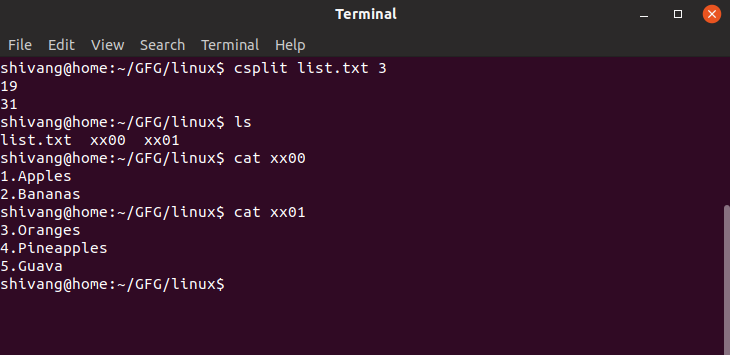
8. csplit
The csplit command splits a file into multiple smaller files. It works based on patterns or line numbers.
- Splits large files
- Pattern-based splitting
- Useful for logs
Example:
csplit file.txt /pattern/Output:
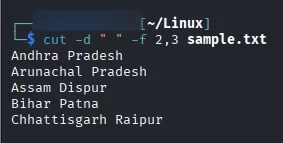
9. cut
The cut command extracts specific columns or fields from a file. It is mainly used with delimited text files.
- Extracts columns
- Works with delimiters
- Useful for CSV/text files
Example:
cut -d: " " -f 2,3 sample.txtOutput:
10. diff
The diff command compares files line by line. It shows the differences between two files.
- Line-by-line comparison
- Shows changes clearly
- Used in version control
Example:
diff a.txt b.txtOutput:

11. diff3
The diff3 command compares three files simultaneously. It is mainly used for resolving merge conflicts.
- Three-file comparison
- Merge conflict detection
- Developer-friendly
Example:
diff3 a.txt b.txt c.txtOutput:

12. echo
The echo command prints text or variables to the terminal. It is widely used in shell scripts.
- Displays text
- Prints variables
- Supports redirection
Example:
echo "Hello Linux"Output:

13. expand
The expand command converts tabs into spaces. It improves text formatting.
- Tab-to-space conversion
- Improves readability
- Text formatting tool
Example:
expand file.txtOutput:
14. file
The file command identifies the type of a file. It does not rely on file extensions.
- Detects file type
- Shows MIME type
- Useful for unknown files
Example:
file script.shOutput:
15. fold
The fold command wraps long lines to a specified width. It improves text display.
- Line wrapping
- Adjustable width
- Formatting tool
Example:
fold -w60 GFG.txtOutput:
![fold -w[n] GfG.txt](https://media.geeksforgeeks.org/wp-content/uploads/20230623124133/324.webp)
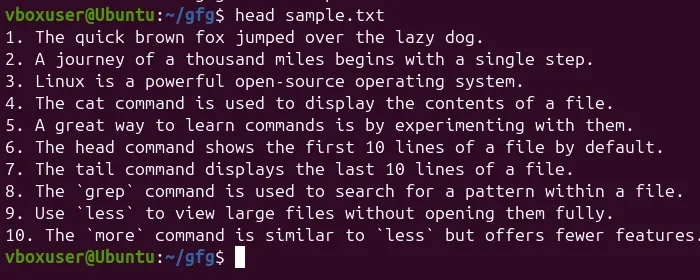
16. head
The head command displays the first lines of a file. By default, it shows the first 10 lines.
- Displays file start
- Custom line count
- Useful for logs
Example:
head sample.txtOutput:
17. less
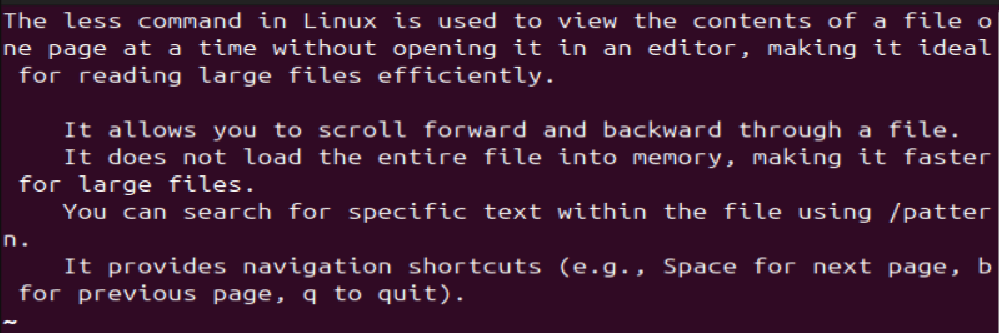
The less command displays file content page by page. It allows forward and backward navigation.
- Page-wise viewing
- Scroll support
- Faster than more
Example:
less file.txtOutput:

18. join
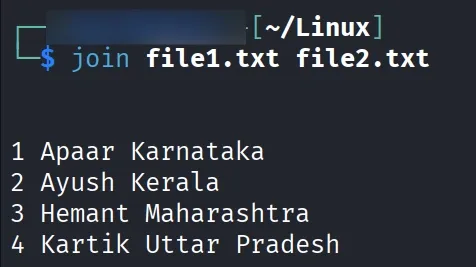
The join command merges two files using a common field. Files must be sorted before joining.
- File merging
- Common-field based
- Database-style join
Example:
join file1.txt file2.txtOutput:
19. ln
The ln command creates links between files. It supports both hard and symbolic links.
- Creates shortcuts
- Hard and soft links
- File linking
Example:
ln -s file.txt link.txtOutput:

20. locate
The locate command searches files using a database. It provides faster results than find.
- Fast searching
- Database-based
- Requires updated database
Example:
locate file.txtOutput:

21. look
The look command displays lines starting with a given string. It works on sorted files.
- Prefix search
- Dictionary lookup
- Case-sensitive
Example:
look "#include" Assignment.cOutput:

22. more
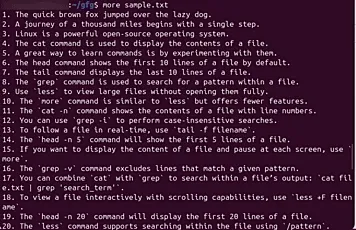
The more command displays text one screen at a time. It is a basic file viewer.
- Page-wise display
- Simple navigation
- Older than less
Example:
more sample.txtOutput:
23. mv
The mv command moves or renames files and directories. It performs both actions using the same command.
- Renames files
- Moves files
- Overwrites existing files
Example:
mv old.txt new.txtOutput:

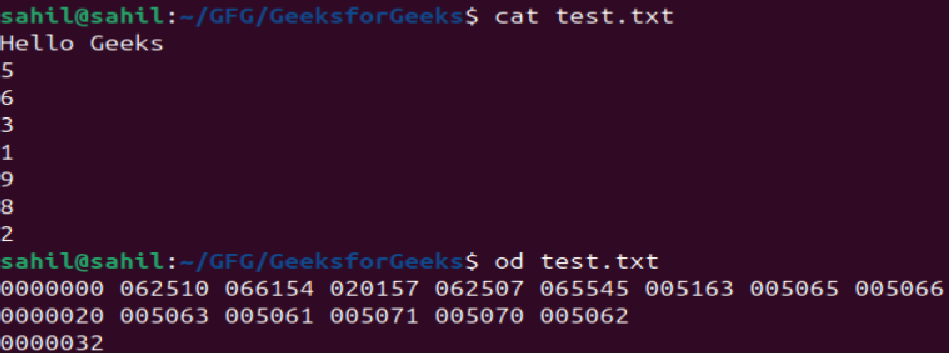
24. od
The od command displays file content in octal or other formats. It is useful for inspecting binary files.
- Binary display
- Debugging tool
- Multiple formats
Example:
od file.txtOutput:
25. paste
The paste command merges files line by line horizontally. It combines corresponding lines.
- Horizontal merge
- Line-by-line output
- Text processing tool
Example:
paste a.txt b.txtOutput:
26. readlink
The readlink command displays the target of a symbolic link. It resolves symlink paths.
- Resolves links
- Shows actual path
- Symlink utility
Example:
readlink link.txtOutput:

27. rename
The rename command renames files using patterns. It is useful for bulk renaming.
- Batch renaming
- Pattern-based
- Time-saving
Example:
rename 's//.log/' *.txtOutput:

28. rev
The rev command reverses characters in each line. It is a text manipulation utility.
- Line reversal
- Character-based
- Text processing
Example:
rev file.txtOutput:

29. rm
The rm command deletes files permanently. Deleted files cannot be recovered easily.
- Deletes files
- Recursive delete
- Dangerous command
Example:
rm file.txtOutput:

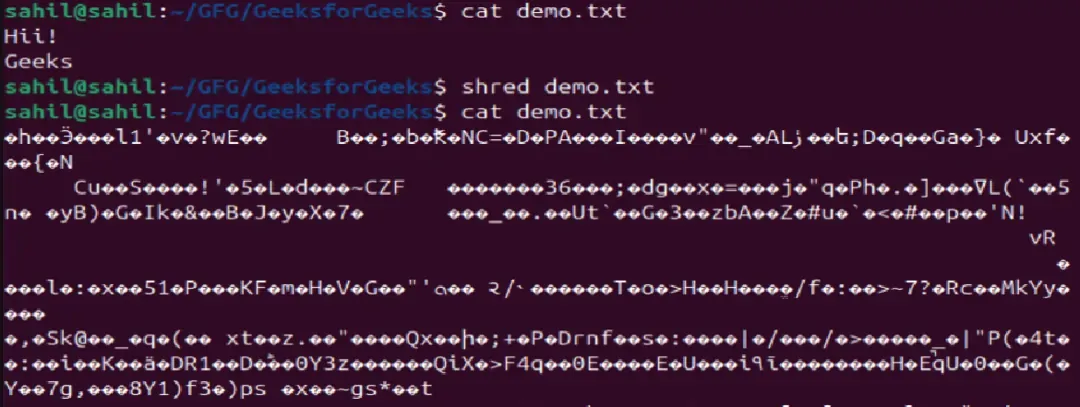
30. shred
The shred command overwrites files multiple times. It prevents data recovery.
- Secure deletion
- Overwrites data
- Security tool
Example:
shred demo.txtOutput:
31. sort
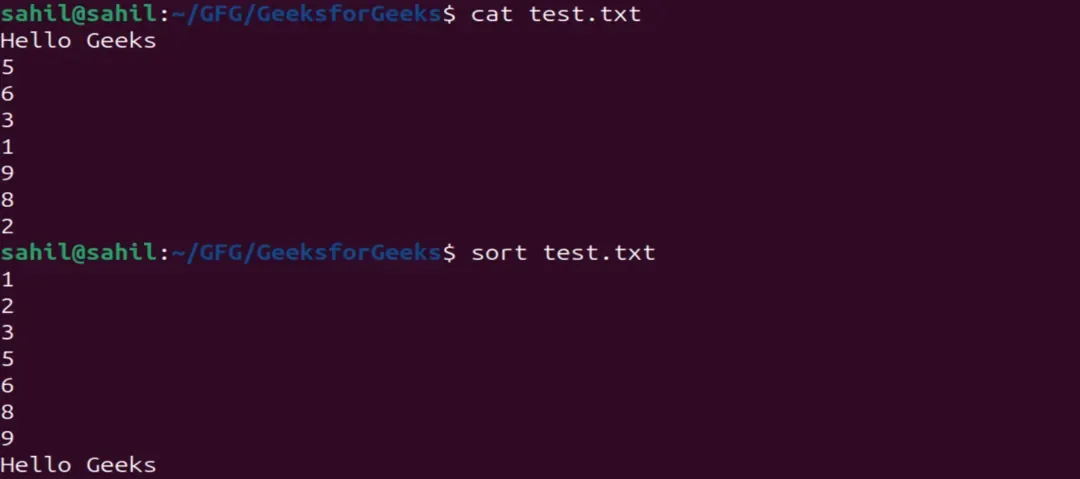
The sort command sorts lines in a file. It supports alphabetical and numeric sorting.
- Alphabetical sorting
- Numeric sorting
- Text organization
Example:
sort file.txtOutput:
32. split
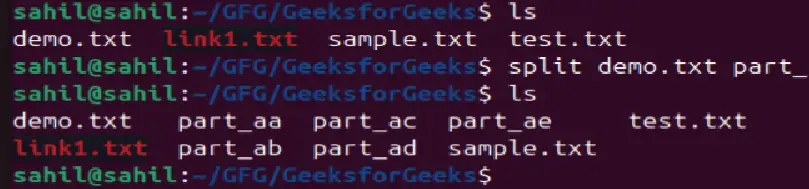
The split command divides large files into smaller ones. It is size or line based.
- File splitting
- Size-based control
- Useful for large files
Example:
split demo.txt part_Output:
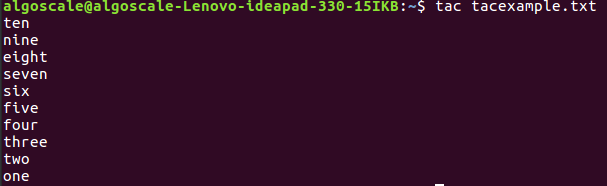
33. tac
The tac command displays file content in reverse order. It prints lines from bottom to top.
- Reverse display
- Opposite of cat
- Log analysis
Example:
tac tacxample.txtOutput:
34. tail
The tail command shows the last lines of a file. It is widely used for log monitoring.
- Displays file end
- Live monitoring
- Adjustable line count
Example:
tail file.txtOutput:

35. tar
The tar command creates and extracts archive files. It is commonly used for backups.
- Archive creation
- File extraction
- Backup utility
Example:
tar -cvf archivedemo.tar demo.txt folder1/Output:

36. tee
The tee command writes output to both file and terminal. It is commonly used with pipes.
- Dual output
- Logging support
- Pipe-friendly
Example:
echo "Hello World" | tee demo.txtOutput:

37. touch
The touch command creates empty files or updates timestamps. It is the fastest way to create a file.
- Empty file creation
- Timestamp update
- File management
Example:
touch test.txtOutput:

38. unexpand
The unexpand command converts spaces into tabs. It is the reverse of expand.
- Space-to-tab conversion
- Formatting utility
- Text cleanup
Example:
unexpand file.txtOutput:

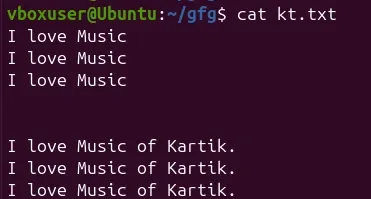
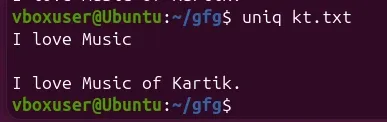
39. uniq
The uniq command removes duplicate lines from a file. It works best on sorted files.
- Removes duplicates
- Line comparison
- Text processing
Example:
uniq file.txtOutput:
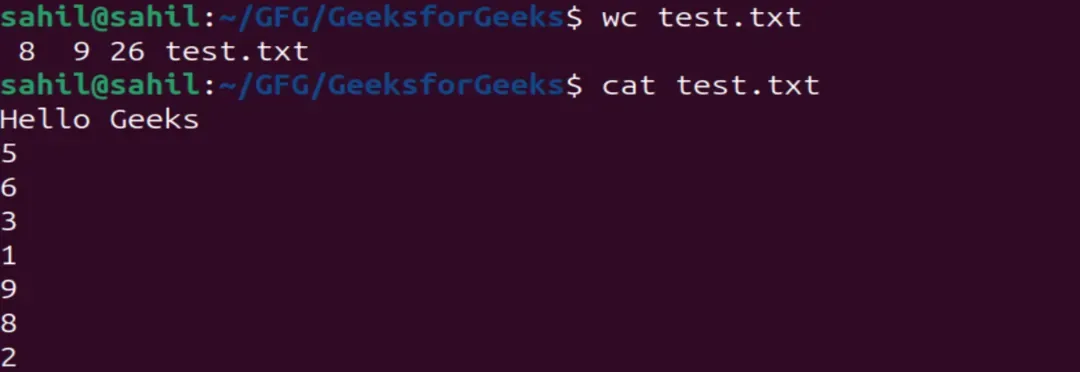
40. wc
The wc command counts lines, words, and characters. It is useful for text analysis.
- Line count
- Word count
- Character count
Example: wc file.txtOutput: