
Stylesheets in Next.js help design and organize the visual appearance of applications in an efficient and maintainable way.
- CSS files can be imported using ES6 syntax in components or pages.
- Next.js optimizes styles during the build process.
- Enables consistent design across multiple pages.
- Keeps styling modular and easy to manage.
Creating Next.js application
Step 1: To create a new Next.js App run the below command in your terminal
npx create-next-app my-next-appStep 2: After creating your project folder (i.e. my-next-app ), move to it by using the following command
cd my-next-appProject Structure
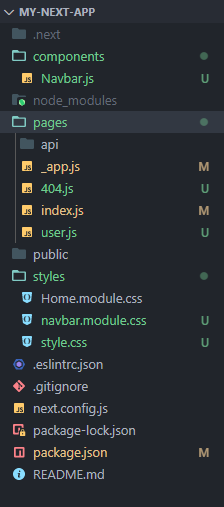
we have used all the CSS files present in styles folder, components/Navbar.js, pages/_app.js and pages/index.js.
Syntax
To import a global CSS file the following syntax is used
import "filepath";To import a CSS module, the following syntax is used
import custom_var_name from "filepath";And now to use styles applied in the filepath in the CSS module you can refer to that by
custom_var_name.className The initial look of our app is given below:

Adding global stylesheets
To apply styles across the entire Next.js application, import the global CSS file inside the pages/_app.js file. This ensures the defined styles affect all pages and components consistently.
Example: We have a CSS file named "style.css" in our "styles" folder. The CSS file looks like this:
/* Inside "styles/style.css" */

body {
    background-color: rgb(26, 25, 25);
    color: rgb(223, 213, 213);
    font-family: sans-serif;
}
Import it in "pages/_app.js" file by the following command
import '../styles/style.css' "pages/_app.js" looks as shown below:
// Filename - _app.js

import '../styles/style.css'

function MyApp({ Component, pageProps }) {
     return <Component {...pageProps} />
}

export default MyApp
And by adding the stylesheet, our app applies the css rules and looks as shown below:

Note: If you don't already have a "pages/_app.js" file then create one and add the following code to it
.// Filename - _app.js

// import '../styles/style.css'
// your other stylesheets as per your wish

function MyApp({ Component, pageProps }) {
  return <Component {...pageProps} />
}

export default MyApp
Adding component-level CSS
Next.js supports component-level styling using CSS Modules to keep styles scoped and organized.
- CSS Modules use the [file].module.css naming convention.
- Styles are scoped locally by generating unique class names.
- Prevents class name conflicts across components.
- CSS Modules can be imported anywhere in the application.
Example: "navbar.module.css" in our "styles" folder.
/* Inside "styles/navbar.module.css" */

.current {
    color: indianred;
    text-decoration: none;
}
And "current" class to our "components/Navbar.js" file by importing and then adding the class.
// Inside "components/Navbar.js"
// Importing the css file

import styles from "../styles/navbar.module.css";
import Link from "next/link";

export default function Navbar({ current }) {
    return (
        <ul>
            <li>
                <Link href="/">Home page</Link>{" "}
                {current === "home" ? (
                    <span className={styles.current}>current page</span>
                ) : (
                    ""
                )}
            </li>
            <li>
                <Link href="/user">Products page</Link>{" "}
                {current === "user" ? (
                    <span className={styles.current}>current page</span>
                ) : (
                    ""
                )}
            </li>
        </ul>
    );
}
Output:

Importing styles from node_modules
Global and third-party styles in Next.js can be added using standard CSS imports in the appropriate files.
- Import global styles (such as Bootstrap) inside pages/_app.js.
- Third-party component CSS can be imported directly within the required component.
// Inside components/YourComponent.js
import '@reach/dialog/styles.css';
