
Web controls are interactive elements on a webpage that allow users to input data, select options, or perform actions. These controls are essential for interaction, and automating their behavior ensures that the web application behaves as expected.
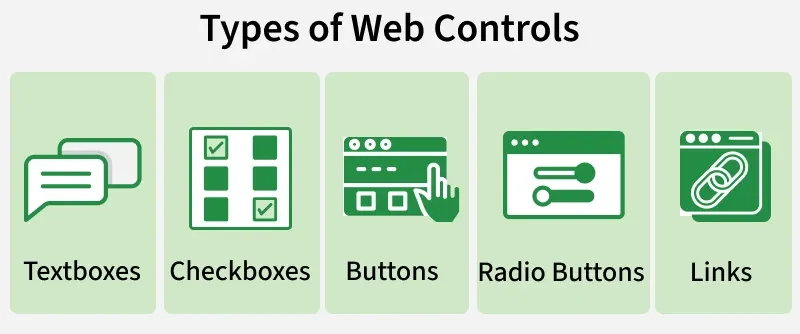
Types of Web Controls:
- Textboxes: Where users can input data (e.g., username and password fields).
- Buttons: Trigger actions such as submitting forms.
- Checkboxes and Radio Buttons: Used to select options.
- Dropdowns: Let users select a value from a list.
- Links: Used for navigating between pages.
Selenium WebDriver and Web Controls
In Selenium, the WebElement interface is used to interact with web controls. This interface provides various methods to perform actions like clicking, sending keys, clearing text, and verifying the state of elements. Let’s explore these key methods:
Key Methods in WebElement
| Method | Functionality |
|---|---|
click() | Simulates a left mouse click on a button or link. |
sendKeys(String) | Types text into a text field. |
clear() | Clears the content of an input field. |
getText() | Retrieves the visible text of an element. |
isDisplayed() | Checks if an element is visible on the page. |
isEnabled() | Verifies if an element can be interacted with. |
isSelected() | Determines if a checkbox or radio button is selected. |
getTagName() | Returns the tag name of the element (e.g., input, button). |
getCssValue(String) | Retrieves the value of a CSS property. |
getSize() | Returns the width and height of the element. |
getLocation() | Provides the X and Y coordinates of the element. |
Common Web Controls and Their Interactions
1. Textboxes
Textboxes allow users to input data, such as a username or password. Selenium provides methods to simulate typing and clearing text.
Methods:
- sendKeys(String): Types text into a textbox.
- clear(): Clears the text in a textbox.
Example:
BaseTest.java
package actions;

import org.testng.annotations.AfterClass;
import org.testng.annotations.AfterMethod;
import org.testng.annotations.BeforeMethod;

import java.util.concurrent.TimeUnit;

import org.openqa.selenium.WebDriver;
import org.openqa.selenium.chrome.ChromeDriver;

import io.github.bonigarcia.wdm.WebDriverManager;

public class BaseTest {
    protected WebDriver driver;

    @BeforeMethod
    public void setUp() {
        // Set up ChromeDriver using WebDriverManager
        WebDriverManager.chromedriver().setup();

        // Create a new instance of ChromeDriver
        driver = new ChromeDriver();

        // Set implicit wait to handle elements loading time
        driver.manage().timeouts().implicitlyWait(10, TimeUnit.SECONDS);

        // Maximize browser window
        driver.manage().window().maximize();
    }

    @AfterMethod
    public void tearDown() {
        if (driver != null) {
            driver.quit(); // Close the browser after each test
        }
    }

    @AfterClass
    public void afterClassCleanUp() {
        // Perform any additional cleanup, if needed
        System.out.println("After class clean-up executed.");
    }
}
Example:
package interactions;

import org.openqa.selenium.By;
import org.openqa.selenium.WebElement;
import org.testng.Assert;
import org.testng.annotations.Test;

import actions.BaseTest;

public class InteractionsTest extends BaseTest{
	public static final String URL = "https://bonigarcia.dev/selenium-webdriver-java/web-form.html";
@Test
    public void testSendKeys() {
        driver.get(URL);

        WebElement inputText = driver.findElement(By.name("my-text"));
        String textValue = "Hello World!";
        inputText.sendKeys(textValue);
        Assert.assertEquals(textValue, inputText.getDomProperty("value"));

        inputText.clear();
        Assert.assertTrue(inputText.getDomProperty("value").isEmpty());
    }
}
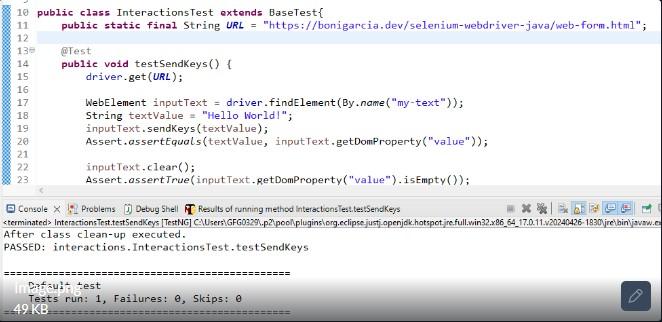
Output:
2. Buttons
Buttons trigger actions such as submitting a form or executing a command. The primary method to interact with buttons is click().
Example:
package interactions;

import org.openqa.selenium.By;
import org.openqa.selenium.WebElement;
import org.testng.Assert;
import org.testng.annotations.Test;

import actions.BaseTest;

public class InteractionsTest extends BaseTest{
	public static final String URL = "https://www.google.com";

	@Test
    public void testClickButton() {
        driver.get(URL);
        WebElement searchBox = driver.findElement(By.name("q"));
        searchBox.sendKeys("Selenium WebDriver");
        WebElement searchButton = driver.findElement(By.name("btnK"));
	}
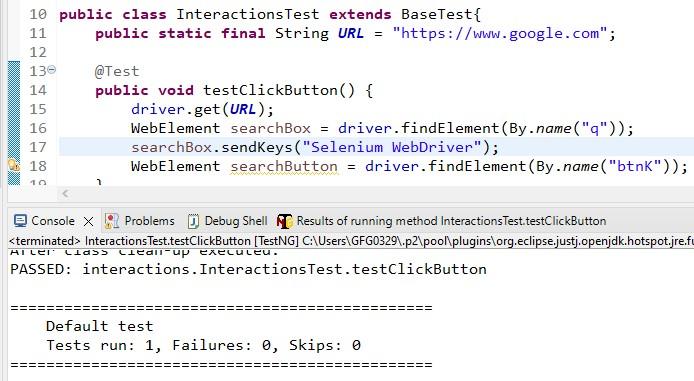
Output:
3. Checkboxes and Radio Buttons
Checkboxes and radio buttons are used for making selections. To interact with them, we use click() to select or deselect them, and isSelected() to verify their state.
4. Dropdowns
Dropdowns allow users to select from a list of options. Selenium provides the Select class to interact with dropdowns, using methods like selectByVisibleText(), selectByValue(), or selectByIndex().
Example :
import org.openqa.selenium.By;
import org.openqa.selenium.WebElement;
import org.testng.Assert;
import org.testng.annotations.Test;

import actions.BaseTest;

public class InteractionsTest extends BaseTest{
	public static final String URL = "https://bonigarcia.dev/selenium-webdriver-java/web-form.html";

	@Test
    public void testClickCheckBoxes() {
        driver.get(URL);

        WebElement checkbox1 = driver.findElement(By.cssSelector("[type=checkbox]:checked"));
        Assert.assertEquals("my-check-1", checkbox1.getDomAttribute("id"));
        Assert.assertTrue(checkbox1.isSelected());

        WebElement checkbox2 = driver.findElement(By.cssSelector("[type=checkbox]:not(:checked)"));
        Assert.assertEquals("my-check-2", checkbox2.getDomAttribute("id"));
        Assert.assertFalse(checkbox2.isSelected());

        checkbox1.click();
        Assert.assertFalse(checkbox1.isSelected());

        checkbox2.click();
        Assert.assertTrue(checkbox2.isSelected());
    }

    @Test
    public void testClickRadioButtons() {
        driver.get(URL);

        WebElement radio1 = driver.findElement(By.xpath("//input[@type='radio' and @checked]"));
        Assert.assertEquals("my-radio-1", radio1.getDomAttribute("id"));
        Assert.assertTrue(radio1.isSelected());

        WebElement radio2 = driver.findElement(By.xpath("//input[@type='radio' and not(@checked)]"));
        Assert.assertEquals("my-radio-2", radio2.getDomAttribute("id"));
        Assert.assertFalse(radio2.isSelected());

        radio2.click();
        Assert.assertFalse(radio1.isSelected());
        Assert.assertTrue(radio2.isSelected());
    }}
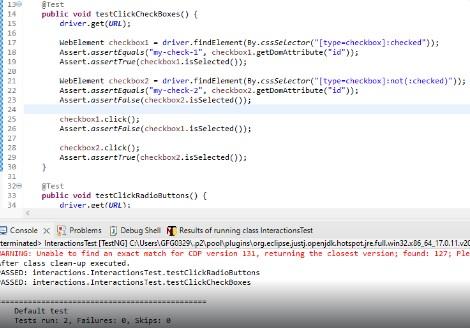
Output:
5. Links
Links are used to navigate between pages or sections. To interact with a link, we can use the click() method.
Example:
package interactions;

import org.openqa.selenium.By;
import org.openqa.selenium.WebElement;
import org.testng.Assert;
import org.testng.annotations.Test;

import actions.BaseTest;

public class InteractionsTest extends BaseTest{
	public static final String URL = "https://www.google.com";
	@Test
    public void testClickLink() {
        driver.get(URL);
        WebElement gmailLink = driver.findElement(By.linkText("Gmail"));
        gmailLink.click();
        String currentUrl = driver.getCurrentUrl();
        Assert.assertTrue(currentUrl.contains("mail"),
                          "URL does not contain 'mail'. Actual URL: " + currentUrl);
    }
}
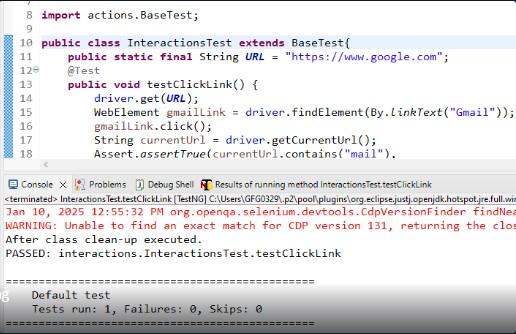
Output:
Advanced Interactions
Dropdowns with Select Class
The Select class in Selenium helps manage dropdowns. It provides several useful methods for interacting with dropdowns:
| Method | Description |
|---|---|
getOptions() | Retrieves all the options in the dropdown. |
getFirstSelectedOption() | Returns the first selected option in a multi-select dropdown. |
selectByValue(String) | Selects an option based on its value attribute. |
selectByIndex(int) | Selects an option based on its index. |
selectByVisibleText(String) | Selects an option based on its visible text. |
Handling Dynamic Web Controls
Many modern web pages use dynamic controls, where elements might change based on user interactions or other events. Selenium provides strategies to handle such elements efficiently:
- Explicit Waits: Wait for elements to be present or visible before interacting.
- Implicit Waits: Set a global wait time for elements to load.
- WebDriverWait: Wait for a specific condition, such as an element to be clickable.
