
JUnit 5 is a widely used testing framework in the Java ecosystem, designed to address the limitations of its predecessor, JUnit 4. The JUnit framework allows developers to write and run effective tests for their Java applications, ensuring that the code functions correctly and continues to work as expected when changes are made. In this article, we will explore the essential features of JUnit 5, focusing on the @BeforeEach annotation, which is vital for setting up test fixtures and improving test maintainability.
JUnit 5 provides a variety of annotations and one such annotation is @BeforeEach. In this article, let us understand about @BeforeEach annotation in JUnit 5.
Understanding @BeforeEach in JUnit 5
The @BeforeEach annotation in JUnit 5 is used to mark a method that should execute before each test method in a JUnit test case. It helps in providing initialization or setting up common test fixtures required by the test methods.
Key Points:
@BeforeEachmethods run before every test method in the class.- They are used for setting up test environments or initializing test data.
- Multiple
@BeforeEachmethods can be defined in a single test class.
@BeforeEach in JUnit 5
The @BeforeEach annotation in JUnit 5 marks a method that should execute before each test method in the JUnit test case, enabling initialization for setup tasks.
Example Implementation of @BeforeEach
Let's walk through an example to demonstrate the usage of @BeforeEach in JUnit 5.
Prerequisites:
- Java 8 or higher
- Maven or Gradle
- Java IDE (e.g., Eclipse, IntelliJ IDEA, or Visual Studio Code)
Project Setup
- Create a new Maven project in your IDE.
- Add the following dependency to your pom.xml file.
<dependency>
    <groupId>org.junit.jupiter</groupId>
    <artifactId>junit-jupiter-api</artifactId>
    <version>5.8.2</version>
    <scope>test</scope>
</dependency>
Implementation of @BeforeEach
Below is an implementation example of the @BeforeEach annotation in JUnit 5:
// Java program to explain BeforeEach

import org.junit.jupiter.api.BeforeEach;

// Testing class
public class Testcase1 {

    @BeforeEach void test()
    {
        // code that executes before each test method
    }

    // test methods
    @Test public void testMethod2()
    {
        // testing logic
    }
}
IDE Setup
Here, we are using Eclipse IDE for Java and Web Developers 2023-06. You may also use other platforms like IntelliJ, Spring suite tool, Spring Initializer, etc.
Step By Step Implementation
Step 1: Creation of Project
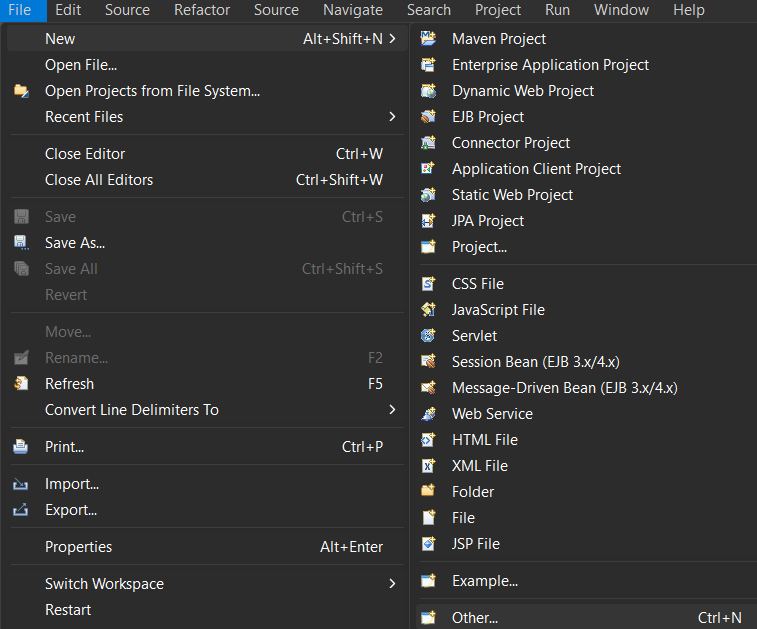
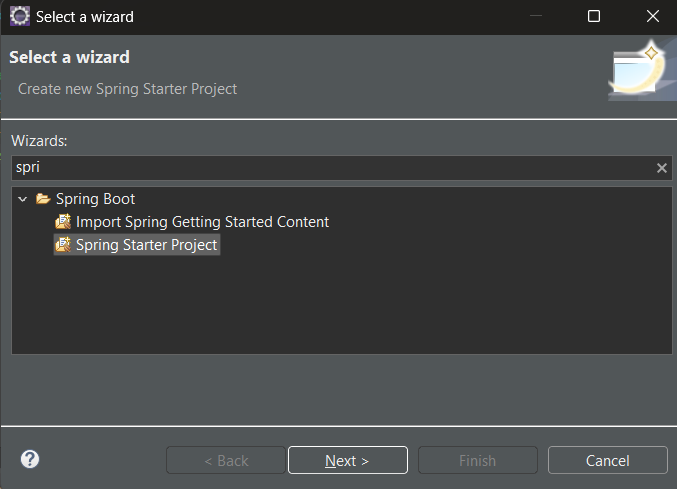
- Go to the file menu click new and navigate to Spring Starters project. If you don't find the Spring Starters project immediately after the new one, then click other and find the Spring Starters project.
- File > new > Spring Starters project.
- Configuration for the new Spring Starter Project is below
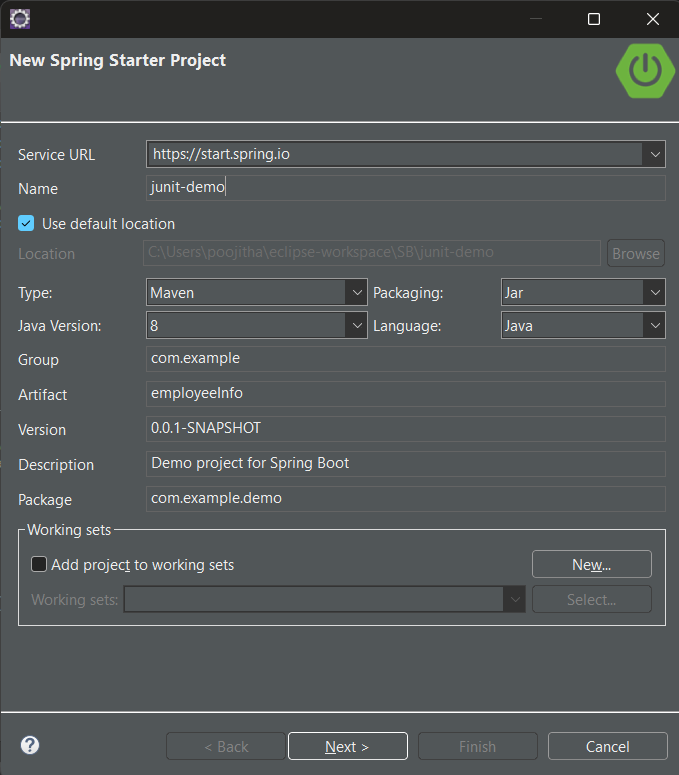
- Name your project and configure the default options given if necessary.
Recommended Configurations:
For testing for JUnit testing are as follows:
- Type: Maven
- Packaging: Jar
- Java Version: 8
- Language: Java
- Make sure that, you have chosen the type as Maven and the version of Java should be at least 8.
- Add dependencies If you need any, otherwise, click finish.
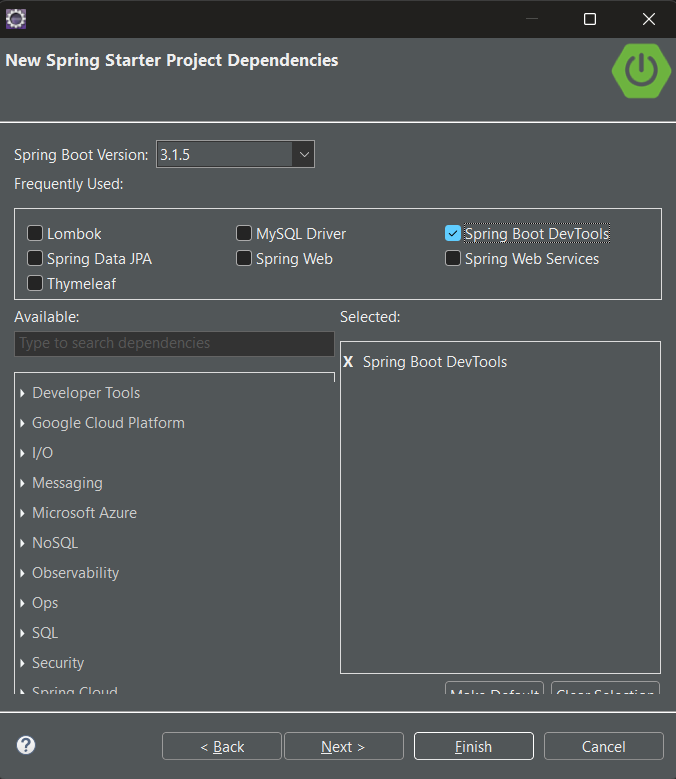
Step 2: Adding dependencies
Let us configure our pom.xml file with the following dependencies:
JUnit Jupiter API:
The JUnit Jupiter API is the part of JUnit 5 framework which provides annotations, assertions, and other features for defining and running test cases and serves as a programming model for writing tests in Java. To add the JUnit Jupiter API in the pom.xml file, copy and paste the following code.
<dependency>
     <groupId>org.junit.jupiter</groupId>
     <artifactId>junit-jupiter-api</artifactId>
     <version>5.8.2</version>
     <scope>test</scope>
</dependency>
Project Setup
Now, that the project setup is ready, let us look into an example to understand how to write and run test cases of JUnit using the Maven tool.
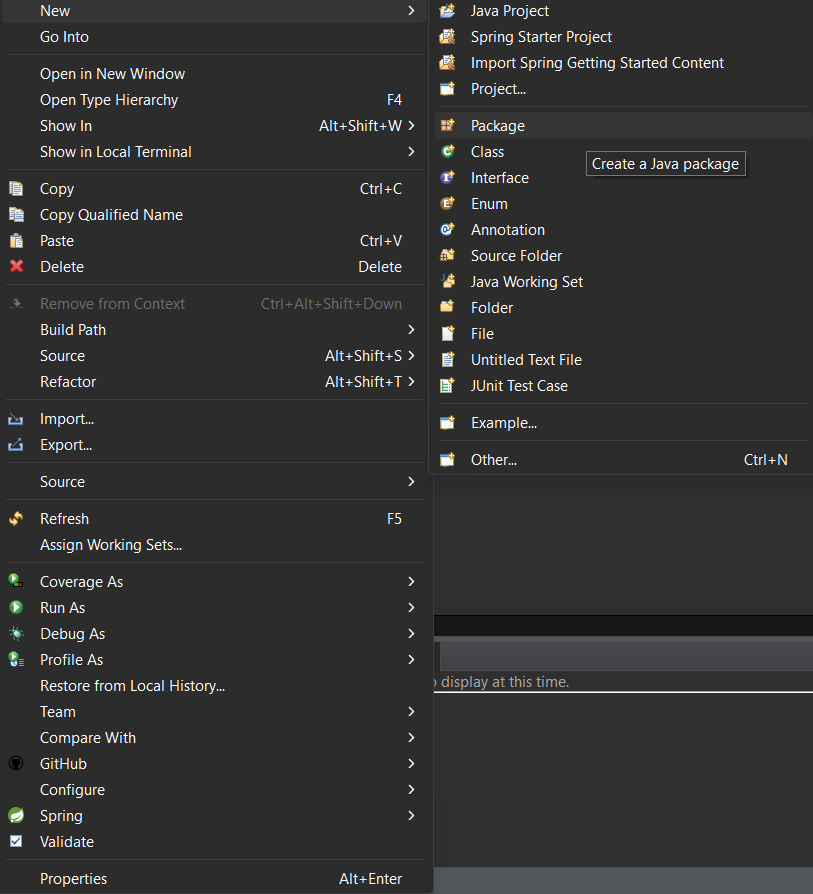
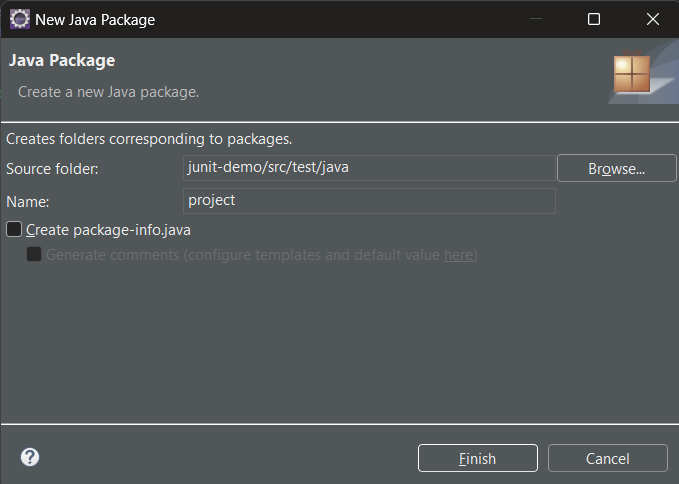
- Step 1: Create a new package in the src/test/java, right-click on src/test/java > new > package.
- Configuration for the New Java Package is below.
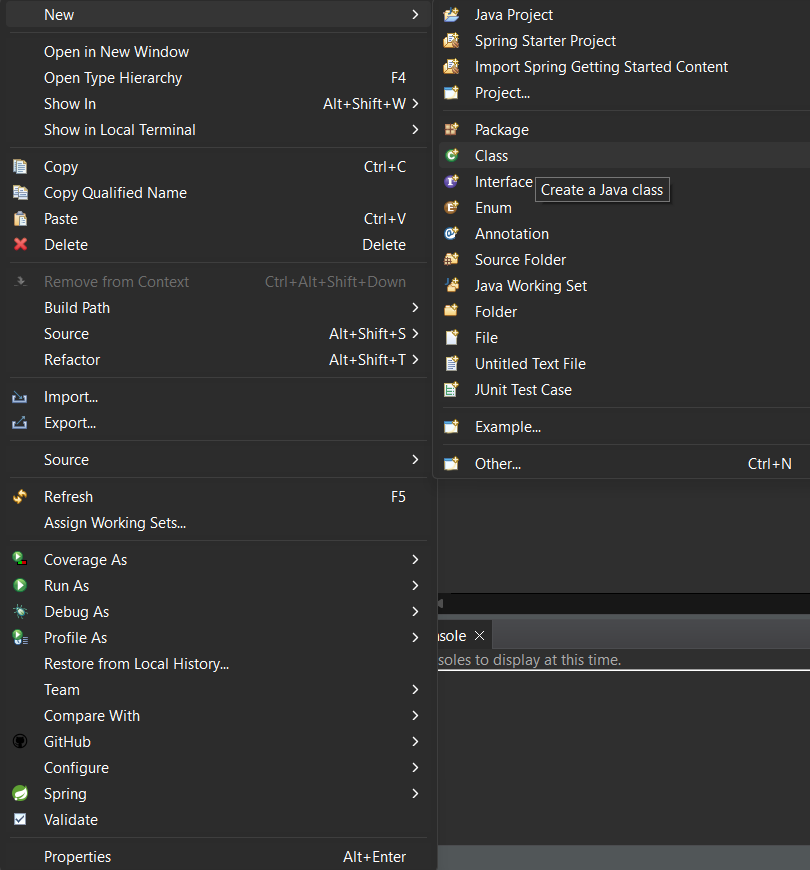
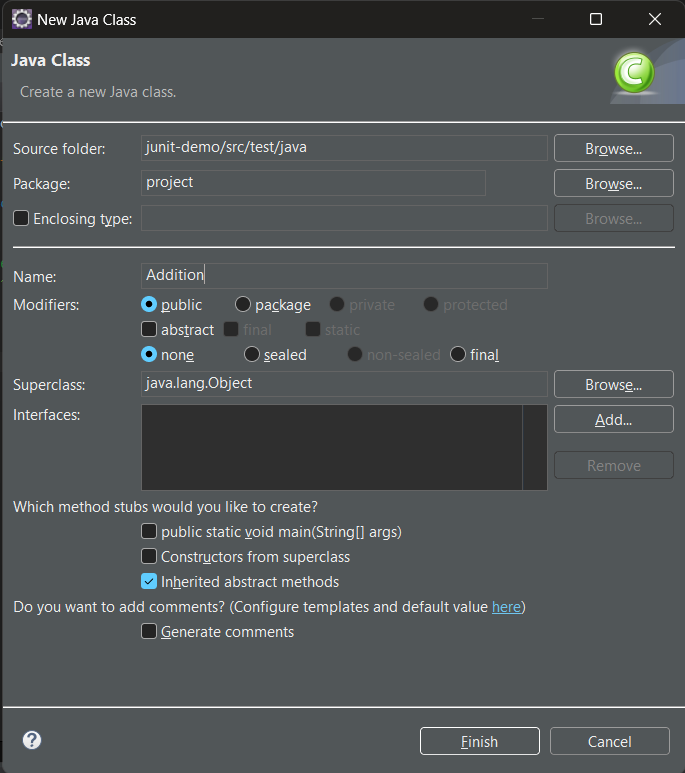
- Step 2: Create a class in the package and name it, for this illustration we will name it Addition.java to create a class, right-click on package > new > class.
- Configuration for the New Java Class is below.
- Step 3: write the logic which you want to test in Addition.java
// Java Program for addition
package project;

// Driver Class
public class Addition {

    // Method to output sum of two numbers
    public int sum(int a, int b) {
      return a + b;
    }
}
- Step 4: Now, create a test case inside the package by right-clicking on the package > new > others > java > JUnit > JUnit test case.
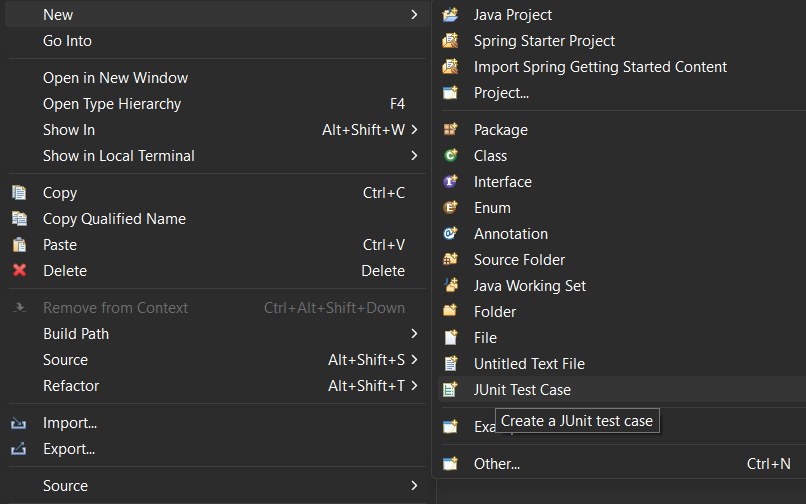
- Configuration for the New JUnit test Class is below.
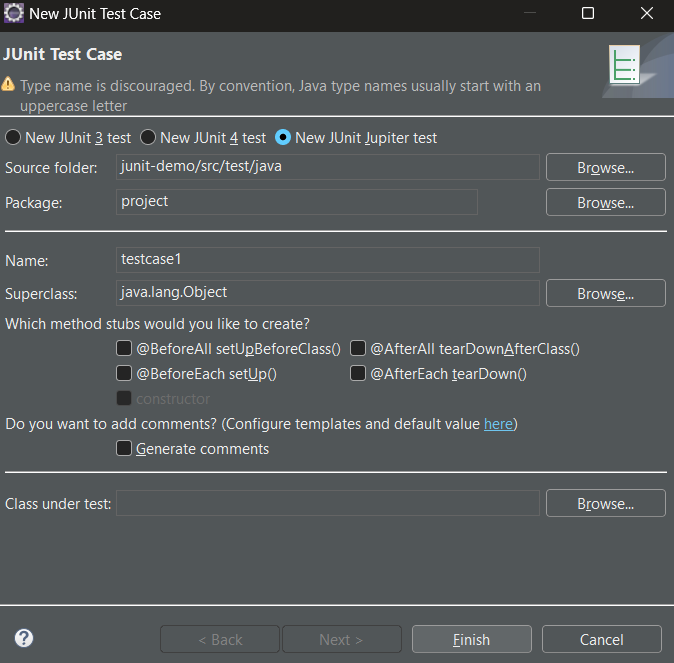
Example:
Test Script: Let us write the first test case i.e. Testcase1, to test our Addition class using JUnit features.
// Java Program for testing

package project;

import static org.junit.jupiter.api.Assertions.*;

import org.junit.jupiter.api.BeforeEach;
import org.junit.jupiter.api.Test;

// Testing class
class Testcase1 {

    public Addition addition;

    @BeforeEach void setUp()
    {
        // Instance of Addition class
        addition = new Addition();
    }

    @Test void test1()
    {
        int actual = addition.sum(2, 3);
        int expected = 5;

        // Check if the output is correct
        assertEquals(actual, expected);

        // print the completion of tescase
        System.out.print("Test is executed");
    }

    @Test void test2()
    {
        int actual = addition.sum(2, 3);
        int expected = 6;

        // Check if the output is correct
        assertEquals(actual, expected);

        // print the completion of tescase
        System.out.print("Test is executed");
    }
}
Explanation:
- In the above code snippet Testcase1 class, we have defined a method setUp that is annotated with @BeforeEach
- The method annotated with @BeforeEach is marked to be executed before each test method.
- We have defined two test methods which are annotated with @Test i.e. test1, and test2.
- In the setUp method, the logic to initialize the addition object for the Addition.java class.
- In test1 and test2, we are not initializing the object for the Addition class again because that task is handled by the setUp method.
- In the test methods, we are using the assertEquals method to verify whether the calculated sum and expected sum are equal or not.
Project Structure (Recommended)
Ensure that you have followed this project structure to reduce the inconsistencies: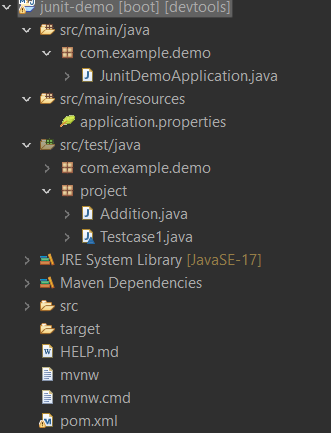
Steps to Run the Application:
To run the Spring Boot application, navigate to your project explorer, right-click on your test class (Testcase1.java) and choose Run As > JUnit Test.

Output:
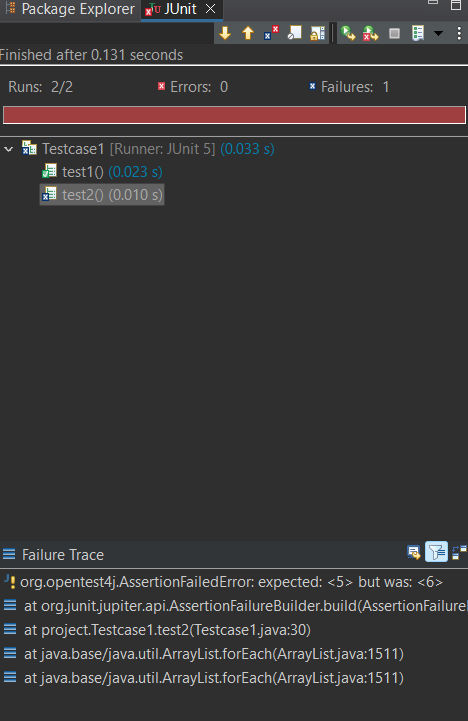
- JUnit view: test1 - successful execution because 2+3(actual) == 5(expected)
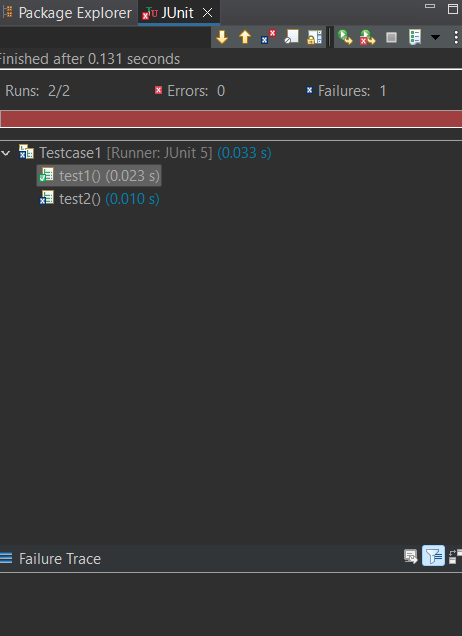
- test2 - it fails because 2+3(actual) != 6(expected)
- Console view: test1 - Successful execution message displayed
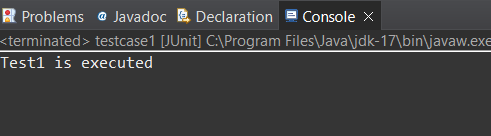
- test2: No console log is displayed, because the test2 fails
Best Practices for Writing Unit Tests
- Keep tests independent: Each test should be able to run independently of others.
- Use descriptive test names: Names should clearly indicate what is being tested.
- Test one thing per test method: Focus on testing a single behavior in each test.
- Use assertions effectively: Choose the most appropriate assertion method for each test case.
- Keep tests fast: Avoid time-consuming operations in unit tests.
Conclusion
The @BeforeEach annotation in JUnit 5 is a powerful tool for setting up test environments. By using it effectively, you can write cleaner, more maintainable test code. Remember to follow best practices when writing your tests to ensure they remain valuable as your codebase evolves.
For more information on JUnit 5 and its features, refer to the official JUnit 5 documentation.
