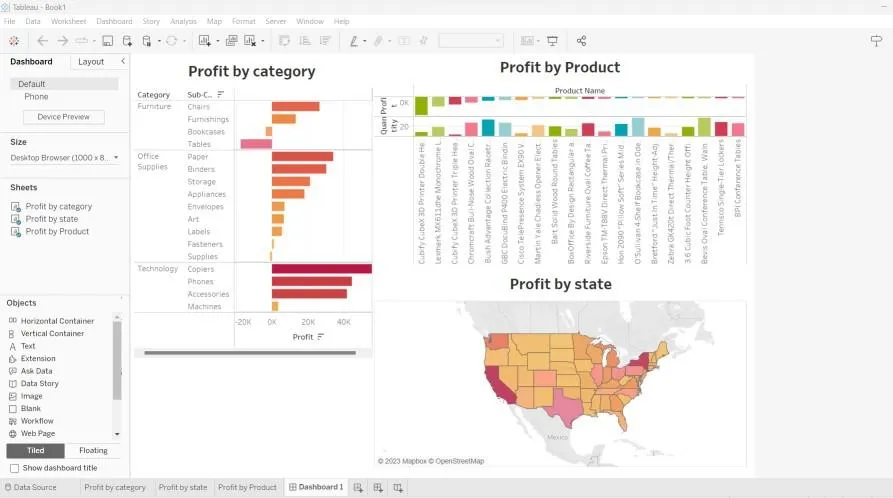
A dashboard in Tableau is a collection of multiple visualizations in a single view. It allows users to compare and analyze different aspects of data without switching between worksheets. To understand its use more clearly:
- Multiple Visuals : Combines different charts in one place
- Interactive : Filters and parameters update all visuals together
- Better Analysis : Helps compare data easily
- Business Use : Used to track KPIs, performance and trends
Steps to Create a Dashboard
Let's see the steps to create a dashboard:
Step 1: Open Tableau Desktop / Public
Launch Tableau and we will land on the Start Page.
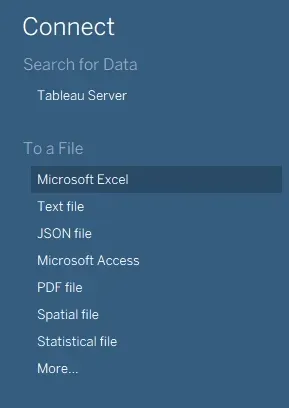
Step 2: Locate the Connect Menu
- On the left-hand panel, we can see various data sources to connect.
- We can see options and Sample Workbooks too which can be used to access the inbuilt data sources.
- Tableau comes with preloaded datasets that can be directly used.
Step 3: Choose Database
Here we will be using inbuilt data source for illustration,
- Select a dataset like Sample: Superstore, World Indicators or others (depending on our Tableau version).
- Click to open → Tableau will automatically load the data into the workbook.
Step 4: Open a Worksheet
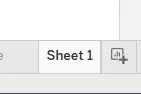
- Click Sheet 1 to start building a visualization.
- On the left side, we’ll see dataset attributes (dimensions & measures) that we can use to create views.
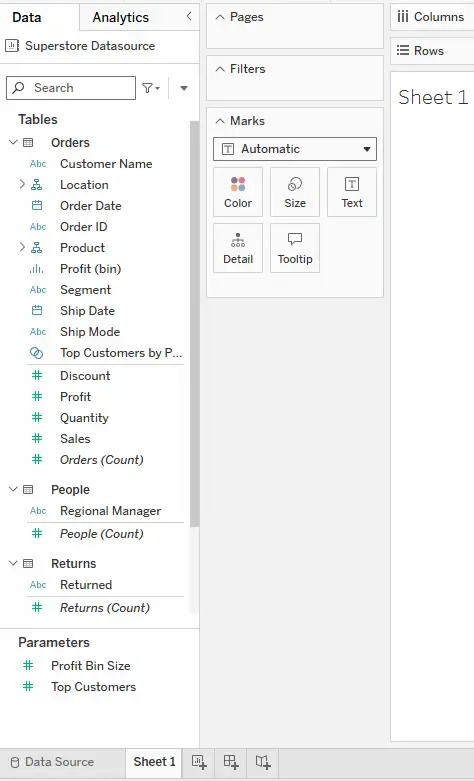
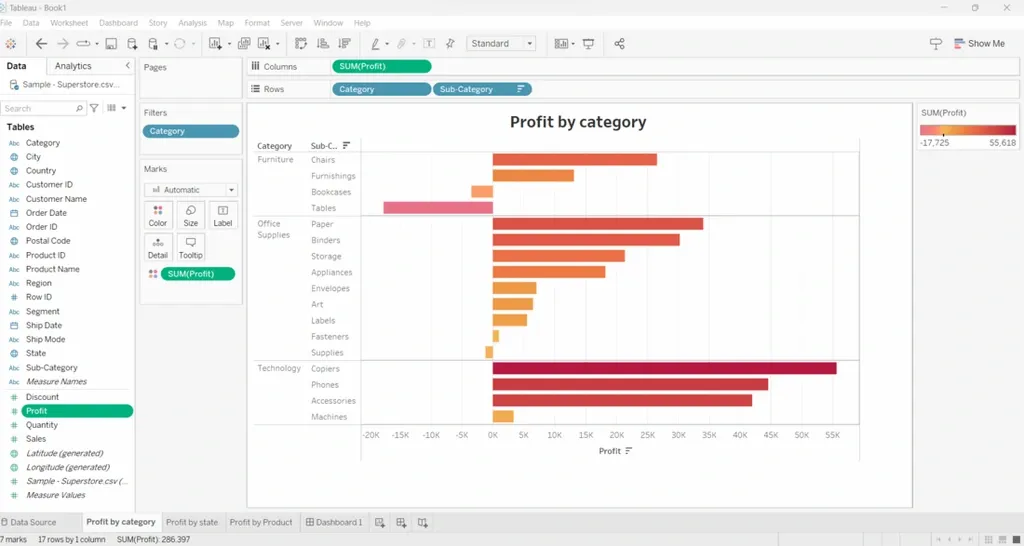
Step 5: Create Sheet 1 of Profit by Category
- Drag Category and Sub-Category to Rows and Profit to Columns.
- From the Show Me panel, choose a suitable visualization (e.g., bar chart).
- Drag Profit to Color for better representation.
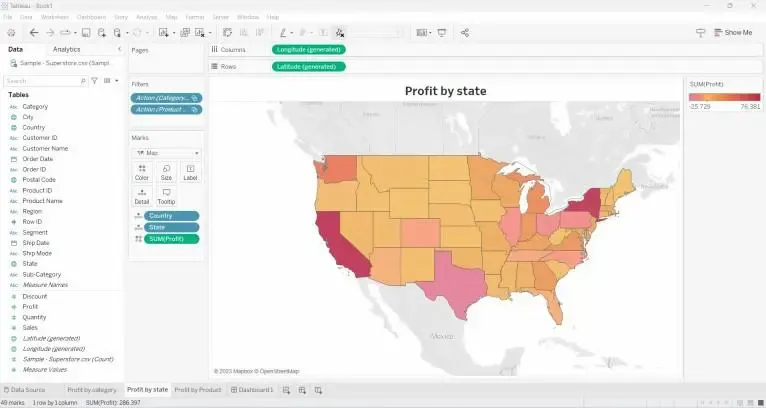
Step 6: Create Sheet 2 of Profit by State
- Drag State and Country to the view.
- Place Longitude on Columns and Latitude on Rows to create a map.
- Add Profit to Color.
- Tableau will generate a map visualization.
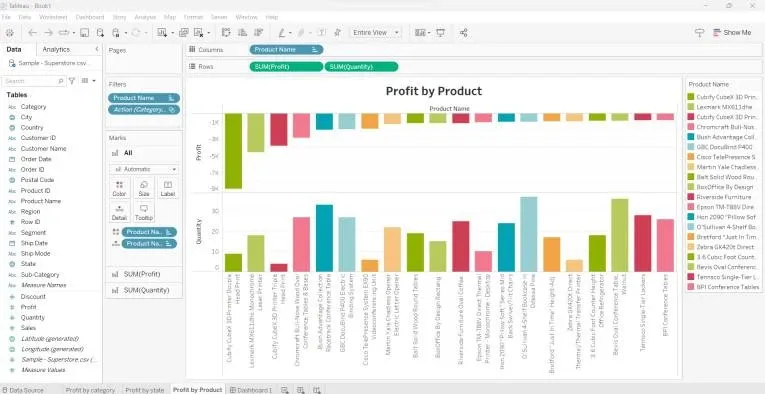
Step 7: Create Sheet 3 of Profit by Product Name
- Drag Product Name to Rows and Profit & Quantity to Columns.
- From Show Me, pick a visualization (e.g., bar chart or tree map).
- Use Color for additional insights.
Step 8: Build the Dashboard
Click the Dashboard tab at the bottom or "New Dashboard" from the dashboard menu.
- Drag and drop all three sheets into the dashboard area.
- Adjust the layout according to our needs.
- Add filters to make the dashboard interactive (e.g., filter by category or region).
- We can also add text objects, images and highlight actions to make it more user-friendly.