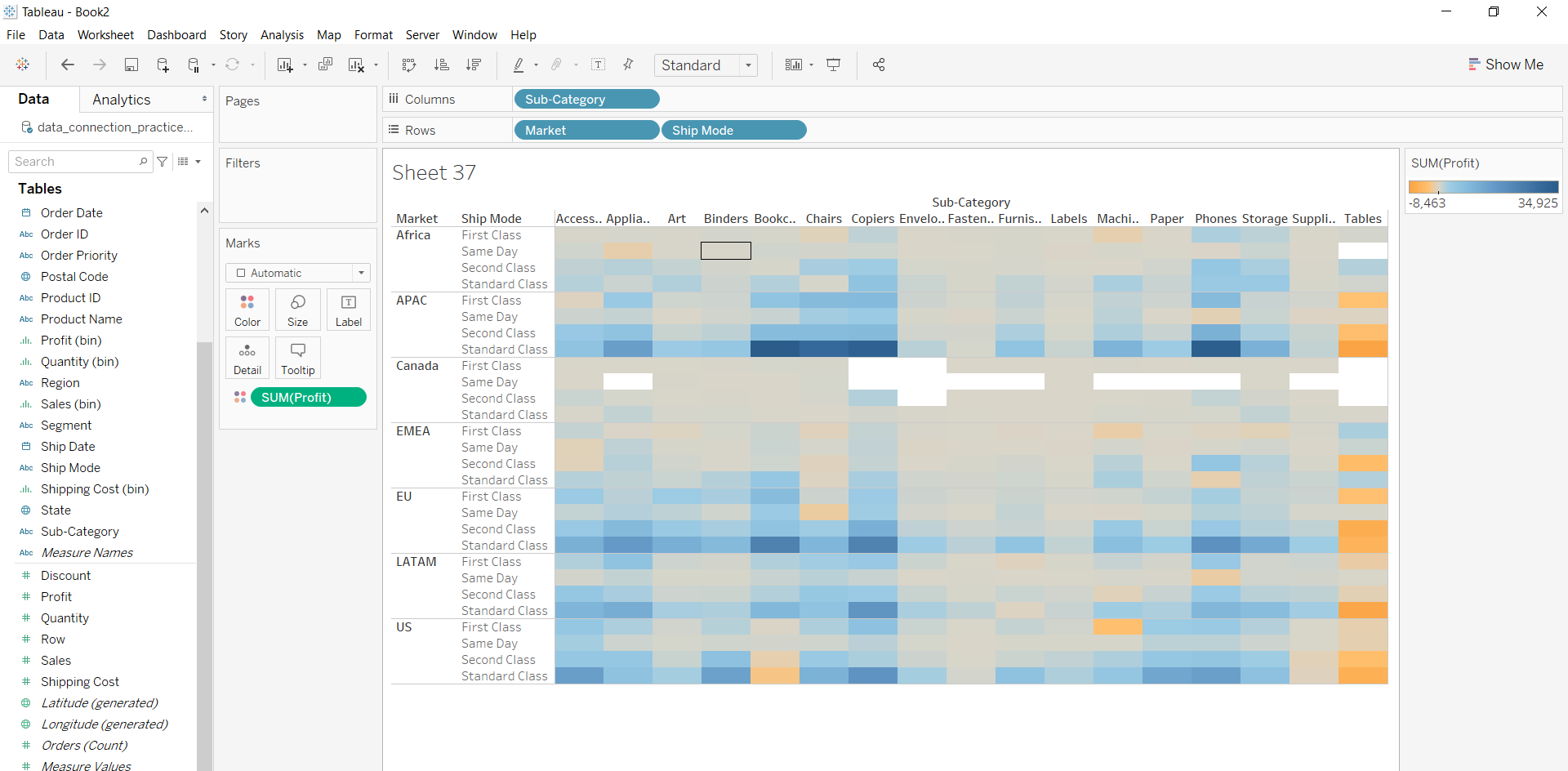
A heat map in Tableau is a visualisation that uses colour intensity to represent the magnitude of data values across two dimensions, allowing users to quickly identify patterns, variations and relationships within a dataset. By mapping meacolourures to colour, heat maps make it easy to spot high and low values, trends and anomalies in a visually intuitive way.
- Uses colour to show data density or value strength
- Helps compare values across categories
- Quickly highlights patterns and outliers
- Works well with large datasets
- Makes complex data easier to interpret
Implementation
For this we have to follow some steps :
Dataset used can be downloaded from here.
- Open the Tableau tool and connect a dataset to it.
- Drag and drop the one sheet of the connected dataset.
- Click on sheet1 to open the Tableau worksheet.
- On clicking Sheet1, you will get the whole dataset attributes on the left side and a worksheet for work.
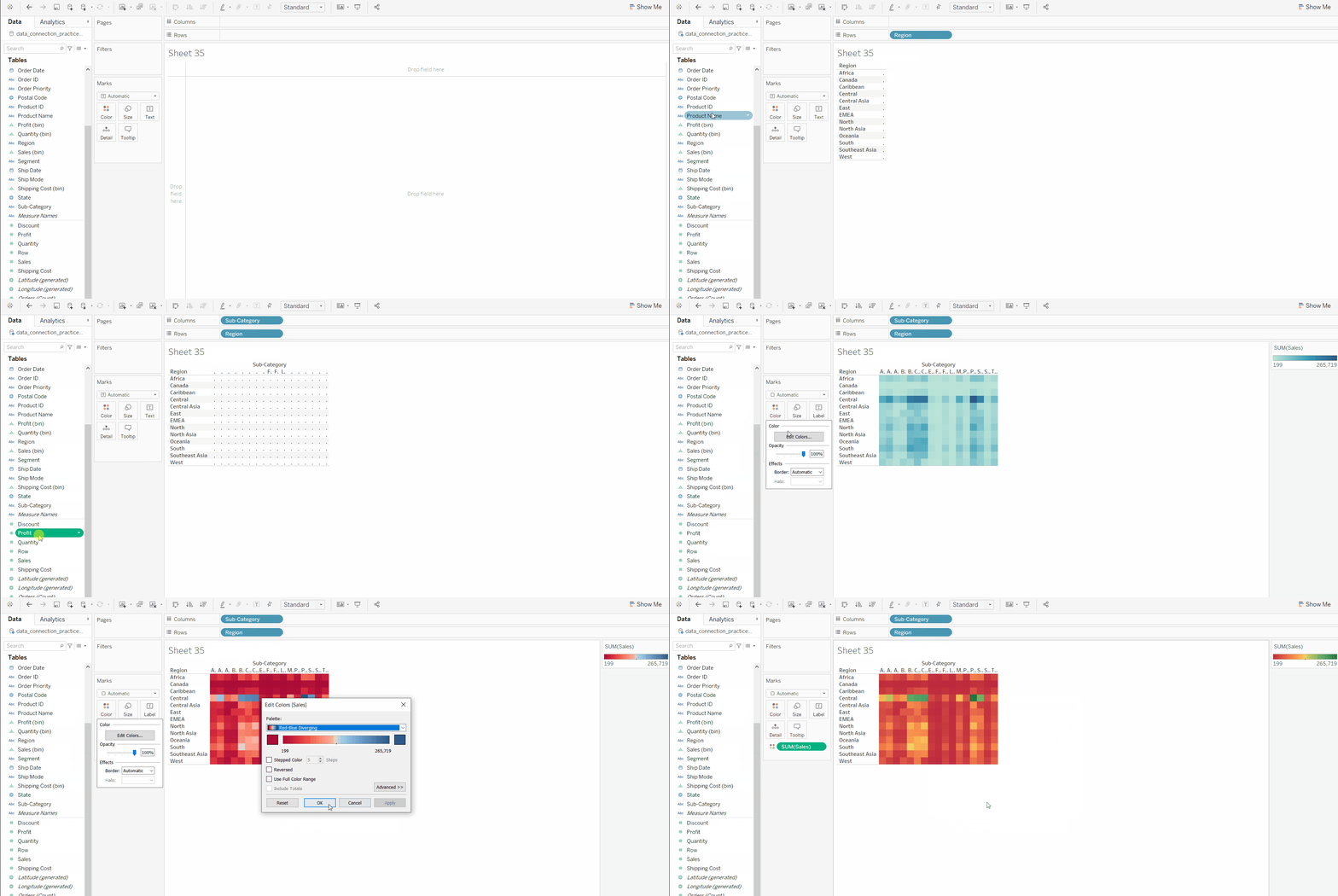
Example 1: To draw a heat map you have to select a minimum of two attributes (one in the row and one in the column) by drag and drop then select the chart option as a heat map.
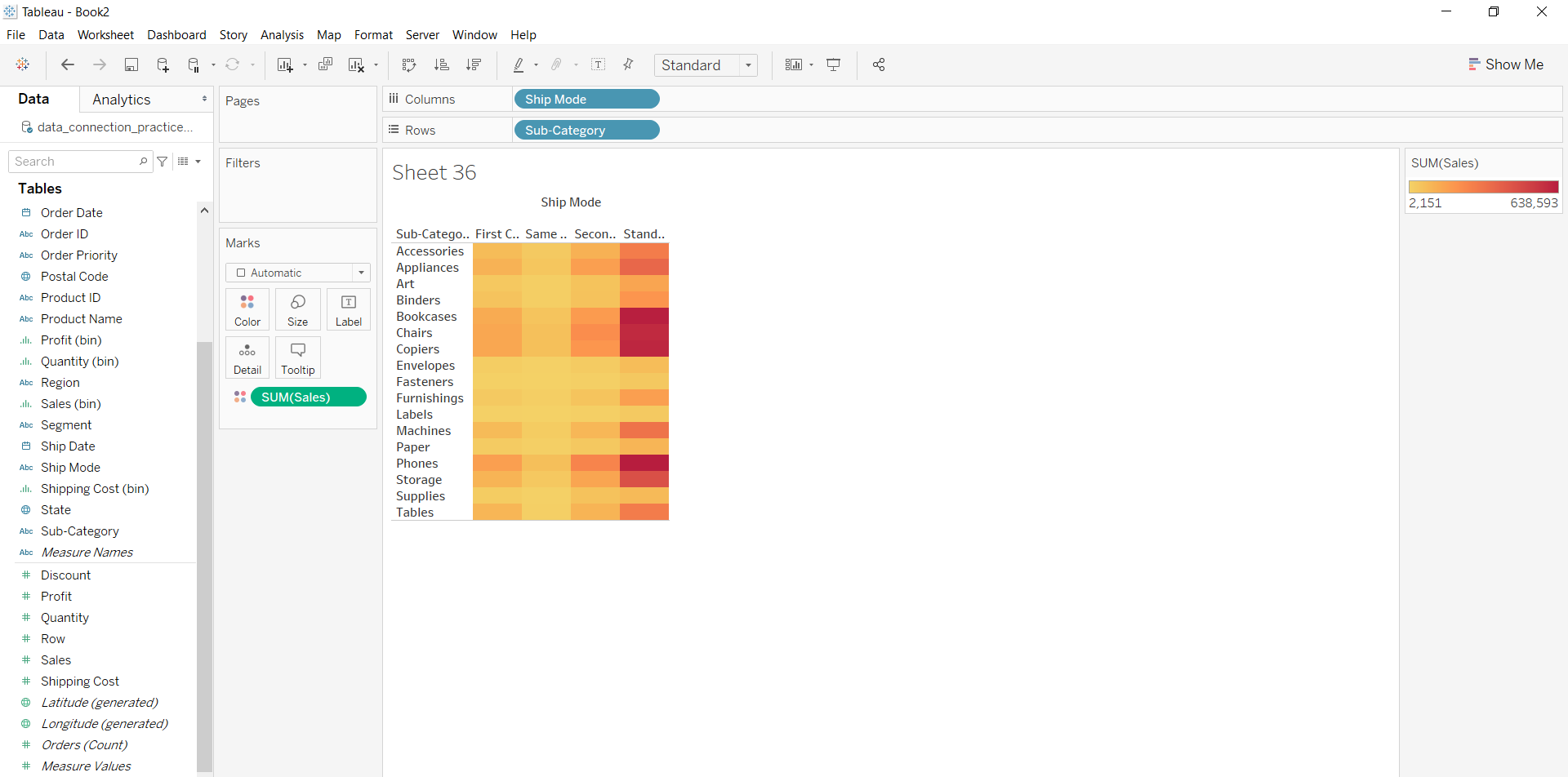
Example 2: This example is also drawn similar to above example 1 with some extra marks and which is explained in steps given below:
- Select the Ship mode and Subcategory as column and row respectively.
- Select the chart type heat map.
- Apply color marks based on Sales
Example 3: This example is also drawn similar to above example 1 with some extra marks and which is explained in steps given below:
- Select the Subcategory and Market with Ship mode as column and row respectively.
- Select the chart type heat map.
- Apply marks by color of profit.