
Tableau is highly versatile and can connect to a variety of data sources including flat files like Excel and CSV, databases such as SQL Server, Oracle and MySQL and cloud platforms like Google BigQuery, Snowflake and AWS. To understand its flexibility:
- Multiple Sources: Supports files, databases and cloud platforms
- Local and Cloud Access: Works with data stored on computers, servers or cloud systems
- Easy Integration Allows users to bring data from different environments seamlessly
Steps to Connect a Data Source
Let's see the steps that need to be followed to connect a data source.
Step 1: Open Tableau
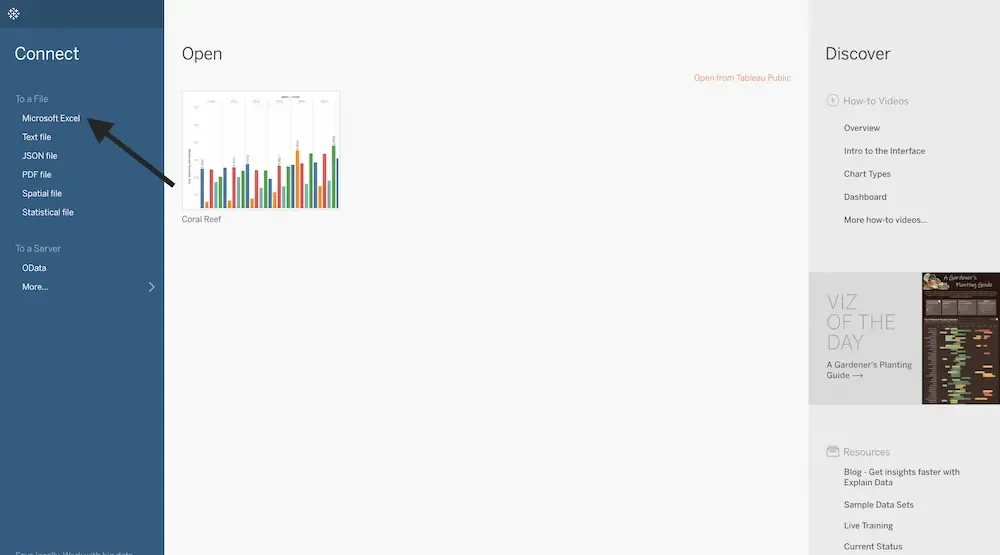
Launch Tableau Desktop. On the left hand side of the start screen, we will see the Connect Panel.
Step 2: Select a Data Source
Under the File section in the Connect Panel, choose the type of data file we want to connect with. For example, to connect to an Excel file, click on Microsoft Excel.
Step 3: Browse and Load the File
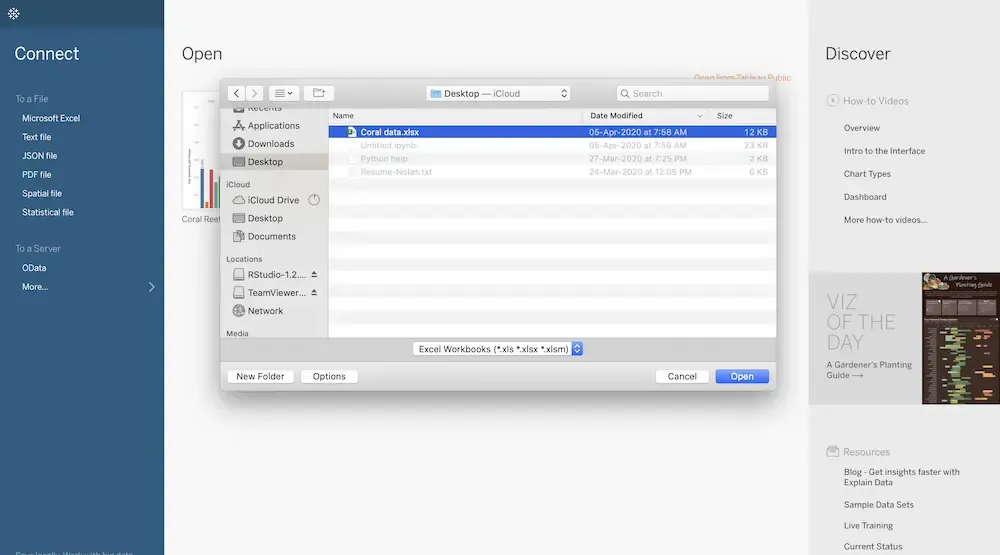
Once selecting MS Excel, a file dialog box will appear and we can select the desired data file. For example here we selected Coral data.xlsx
Step 4: View the Data in Tableau
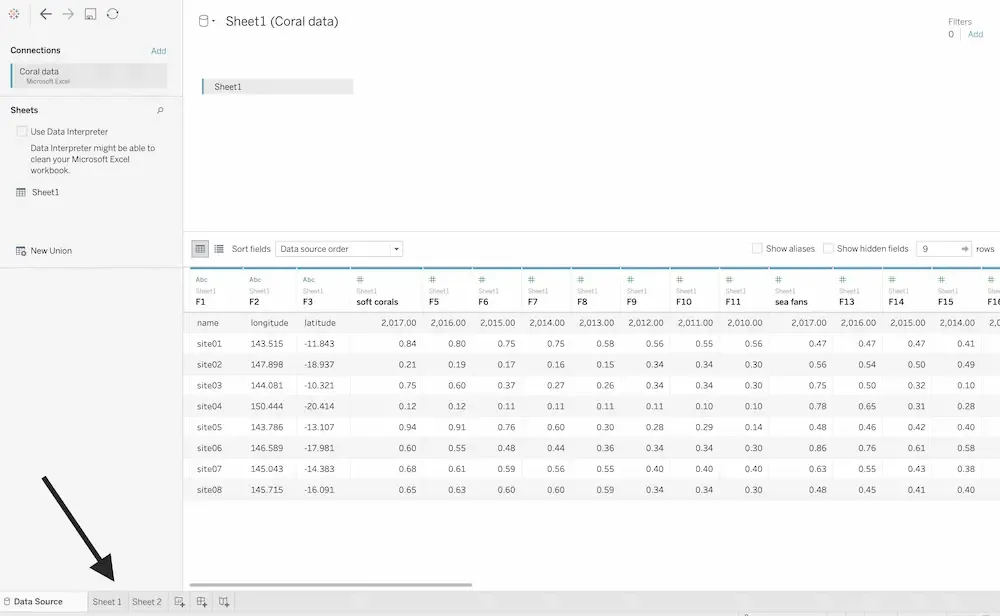
After selecting, Tableau creates a connection with the file and displays our dataset at the bottom of the screen. We can preview the tables, fields and structure of our data.
Step 5: Proceed to the Worksheet
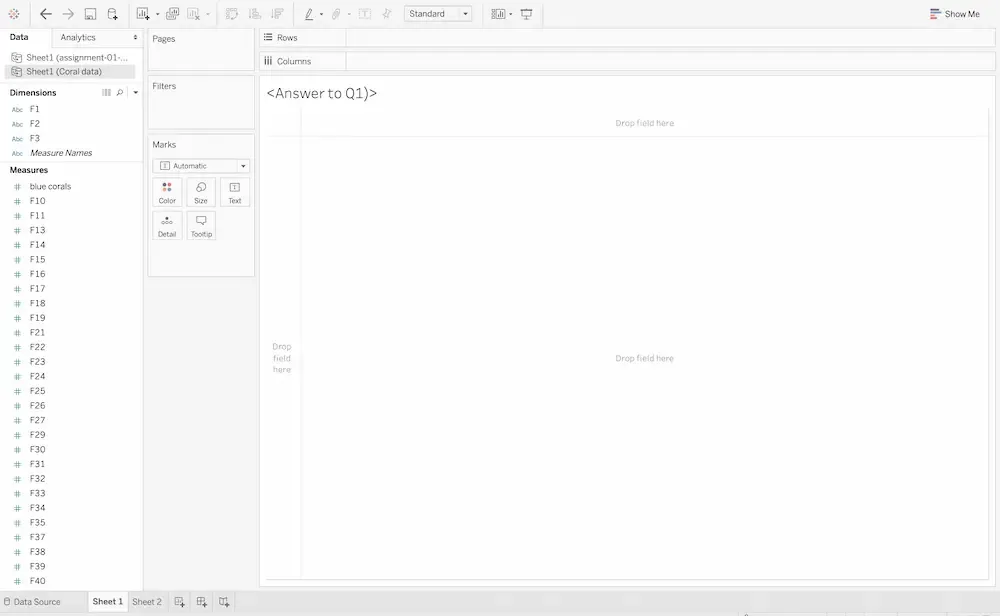
Once the data connection is set up, click on Worksheet to begin analysis. This is where we can start preparing, cleaning (wrangling) and exploring our data.
Step 6: Begin Visualization
Drag and drop fields onto our Tableau canvas to create charts, graphs and interactive dashboards.
Inbuilt Database
Steps to use inbuilt databases in Tableau,
Step 1: Open Tableau Desktop / Public
- Launch Tableau and we will land on the Start Page.
Step 2: Locate the “Sample Workbooks” section
- On the left-hand panel, we’ll see options under Connect and Sample Workbooks.
- Tableau comes with preloaded datasets that can be directly used.
Step 3: Choose a Sample Database
- Select a dataset like Sample: Superstore, World Indicators or others (depending on our Tableau version).
- Click to open → Tableau will automatically load the data into the workbook.
Step 4: Explore the Data Source
- Navigate to the Data Source tab to preview the tables, fields and data types.
- We can rename fields, create calculated fields or join additional data sources if needed.
Step 5: Start Building Visualizations
- Go to a new Worksheet.
- Drag-and-drop fields (Dimensions and Measures) onto Rows, Columns, Filters and Marks.
- Build charts like bar charts, maps, line graphs, etc.
Available Inbuilt Databases
Let's see the various types of databases available,
1. Superstore
It is available in all versions: Tableau Desktop, Tableau Public, Tableau Prep.
- This is the most widely used Tableau sample dataset.
- Contains: Orders, Returns, People tables, Sales, Discounts, Profits, Shipping details.
- Use Case: Analyzing retail business performance, customer segmentation and shipping efficiency.
- Commonly used for sales dashboards, KPIs, forecasting and profit analysis.
2. World Indicators
It is available in Tableau Desktop, Not always in Tableau Public by default.
- Dataset containing global development statistics.
- Includes: Country-level data like population, CO2 emissions, energy use, literacy rate, life expectancy, etc.
- Use Case: Comparative analysis across countries, trend visualization, mapping world statistics.
3. Coffee Chain Sales
It is available in older versions of Tableau Desktop, Not present in newer versions or Tableau Public.
- Focused on a coffee retail business.
- Contains: Sales revenue, profit, product category and store data.
- Use Case: Analyzing product performance, regional profitability and customer demand.
4. Stocks
It is sometimes included in Tableau Desktop older versions, Not available in most current installs.
- Historical stock price data.
- Includes: Dates, opening price, closing price, high/low values, volume traded.
- Use Case: Financial time series visualization, trend and volatility analysis.
5. Other Demo Sets
- Airline data: flight delays, airport codes, schedules. It is included in some Tableau training packs or sample workbooks.
- COVID data (Tableau Public samples): Case trends, vaccination reports. Available in Tableau Public samples during 2020-21
- HR data: employee records for attrition analysis.
