



📌 学习目标
- 掌握用boxZoomEnd回调选择要素的实现方法
- 理解相关API的使用
- 能够独立完成类似功能开发
🎯 核心概念
使用boxZoomEnd回调通过Shift-拖动选择要素。
💻 完 整 代 码
<!DOCTYPE html>
<html lang="en">
<head>
    <title>Select features with a boxZoomEnd callback</title>
    <meta property="og:description" content="使用 boxZoomEnd 回调通过 Shift 拖动选择要素,而不是将地图适配到拖动的框。" />
    <meta property="og:created" content="2026-02-25" />
    <meta charset='utf-8'>
    <meta name="viewport" content="width=device-width, initial-scale=1">
    <link rel='stylesheet' href='https://unpkg.com/maplibre-gl@5.24.0/dist/maplibre-gl.css' />
    <script src='https://unpkg.com/maplibre-gl@5.24.0/dist/maplibre-gl.js'></script>
    <style>
        body { margin: 0; padding: 0; }
        html, body, #map { height: 100%; }
        #ui {
            position: absolute;
            top: 10px;
            left: 10px;
            z-index: 1;
            max-width: 360px;
            padding: 8px;
            border-radius: 4px;
            background: rgba(255, 255, 255, 0.9);
            font: 13px/1.4 sans-serif;
        }
    </style>
</head>
<body>
<div id="map"></div>
<div id="ui">
    Shift + drag with <code>boxZoomEnd</code> (no default zoom). Selected: <span id="selected-count">0</span>
    <button id="clear-selection" type="button">Clear</button>
</div>
<script>
    const BASE_LAYER_ID = 'earthquakes-base';
    const SELECTED_LAYER_ID = 'earthquakes-selected';
    const selectedCountElement = document.getElementById('selected-count');

    const map = new maplibregl.Map({
        container: 'map',
        style: 'https://demotiles.maplibre.org/style.json',
        center: [-100, 40],
        zoom: 2.8,
        boxZoom: {
            boxZoomEnd: (mapInstance, p0, p1) => {
                const features = mapInstance.queryRenderedFeatures([
                    [Math.min(p0.x, p1.x), Math.min(p0.y, p1.y)],
                    [Math.max(p0.x, p1.x), Math.max(p0.y, p1.y)]
                ], {layers: [BASE_LAYER_ID]});
                const ids = [...new Set(features.map((feature) => feature.id).filter((id) => id != null))];
                setSelectedIds(ids);
            }
        }
    });

    function setSelectedIds(ids) {
        selectedCountElement.textContent = String(ids.length);
        if (map.getLayer(SELECTED_LAYER_ID)) {
            map.setFilter(SELECTED_LAYER_ID, ['in', ['id'], ['literal', ids]]);
        }
    }

    document.getElementById('clear-selection').addEventListener('click', () => setSelectedIds([]));

    map.on('load', () => {
        map.addSource('earthquakes', {
            type: 'geojson',
            data: 'https://maplibre.org/maplibre-gl-js/docs/assets/earthquakes.geojson',
            promoteId: 'id'
        });

        map.addLayer({
            id: BASE_LAYER_ID,
            type: 'circle',
            source: 'earthquakes',
            paint: {'circle-radius': 4, 'circle-color': '#1f78b4', 'circle-opacity': 0.65}
        });
        map.addLayer({
            id: SELECTED_LAYER_ID,
            type: 'circle',
            source: 'earthquakes',
            paint: {'circle-radius': 6, 'circle-color': '#ff6b00', 'circle-opacity': 0.95},
            filter: ['in', ['id'], ['literal', []]]
        });
        setSelectedIds([]);
    });
</script>
</body>
</html>
🔍 代码解析
1. 初始化地图
使用 new maplibregl.Map() 创建地图实例,配置美国区域作为初始视图。
2. 关键配置项
- boxZoom配置: 自定义boxZoom行为,使用boxZoomEnd回调
- queryRenderedFeatures(): 查询框选范围内的要素
- setFilter(): 使用过滤器高亮选中要素
- Set去重: 使用Set数据结构去除重复ID
3. 核心逻辑
- Shift+拖动触发框选模式
- boxZoomEnd回调中计算框选矩形范围
- queryRenderedFeatures查询框内所有要素
- 使用filter表达式高亮显示选中要素
⚙️ 参数说明
| 参数 | 类型 | 必填 | 说明 |
|---|---|---|---|
| p0, p1 | Point | 是 | 框选矩形对角坐标 |
| layers | string[] | 否 | 只查询指定图层 |
| filter | expression | - | 设置图层过滤器 |
🎨 效果说明
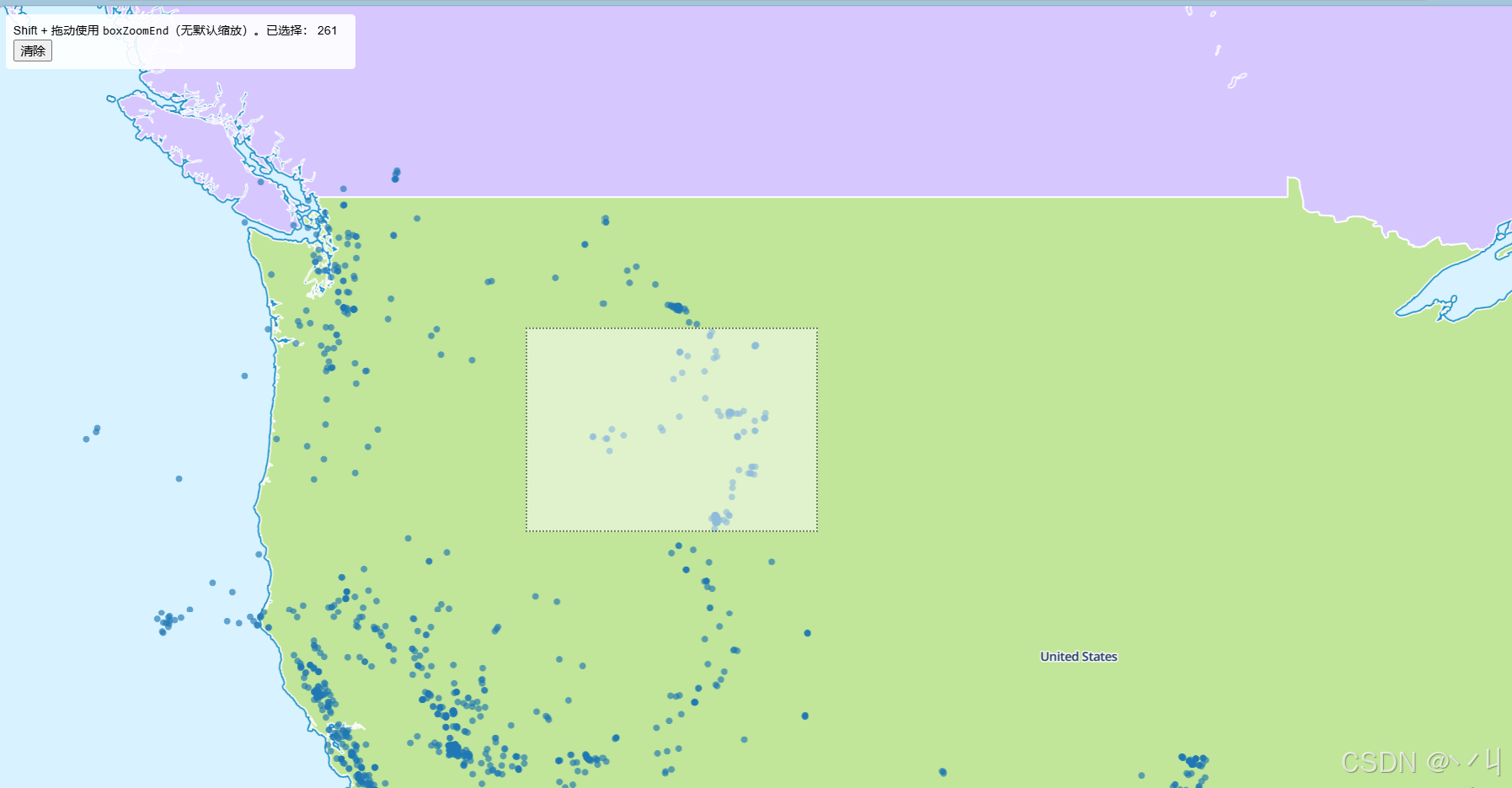
运行代码后,地图显示美国区域,包含地震数据点。Shift+拖动可以在地图上画出一个选择框,框内的地震点会被高亮显示,选中数量会在界面顶部显示。点击Clear按钮可清除选择。
💡 常 见 问 题
Q1: 框选没有反应?
A: 检查以下几点:
- 确认按住了Shift键再拖动
- 检查boxZoom配置是否正确
- 确认数据源包含id字段
Q2: 为什么需要Set去重?
A: 同一个要素可能被多个图层引用,使用Set去重得到唯一的要素ID列表。
Q3: 如何同时选择多个图层?
A: 修改queryRenderedFeatures的layers参数:
queryRenderedFeatures(bounds, {layers: ['layer1', 'layer2']})
📝 练习任务
- 基础练习:修改选中点的样式(颜色、大小)
- 进阶挑战:添加双击清除选择功能
- 拓展思考:如何实现多选(累加选择)?
- 综合实践:创建一个框选数据导出功能
🌟 最佳实践
- 用户体验: 提供清晰的选择反馈(高亮+数量统计)
- 状态管理: 及时更新选中状态和UI显示
- 性能优化: 使用Set去重避免重复处理
- 交互设计: 提供清除选择的便捷方式
- 数据导出: 支持将选中数据导出为JSON或CSV
🔗 延伸阅读
-
[下一课预告]:将继续学习地图图层的基础知识
本文是MapLibre GL JS实践课程系列的一部分,欢迎关注收藏





 扫一扫
扫一扫


 951
951

 被折叠的 条评论
为什么被折叠?
被折叠的 条评论
为什么被折叠?
 到【灌水乐园】发言





